How do I excuse a check-in?
Last updated: October 30, 2025
Excuse Check-In
Excuse A Single Check-In
The manager associated with the check-in, any co-coaches assigned to the check-in, and users with "Coaching: All Access" permission will be able to excuse a check-in.
1. Access the check-in that needs to be excused.
Check-ins can be accessed through:
the left navigation > Coaching > Check-Ins
the left navigation > Coaching > Manage > Check-Ins
an employee or managerial dashboard > Coaching tab
2. Click on the ellipses icon and Mark As Excused.
A check-in can be excused as long as its status is not completed or excused.
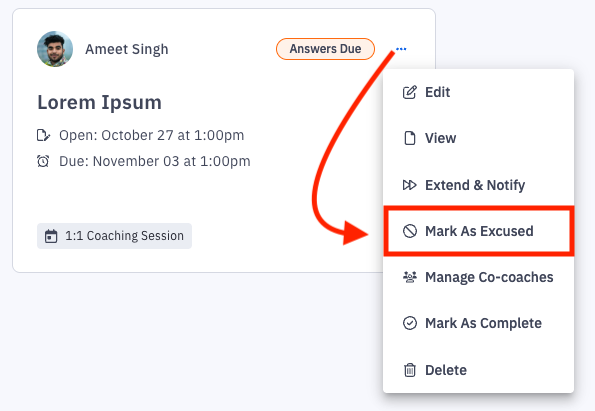 Excuse from Check-In tab | 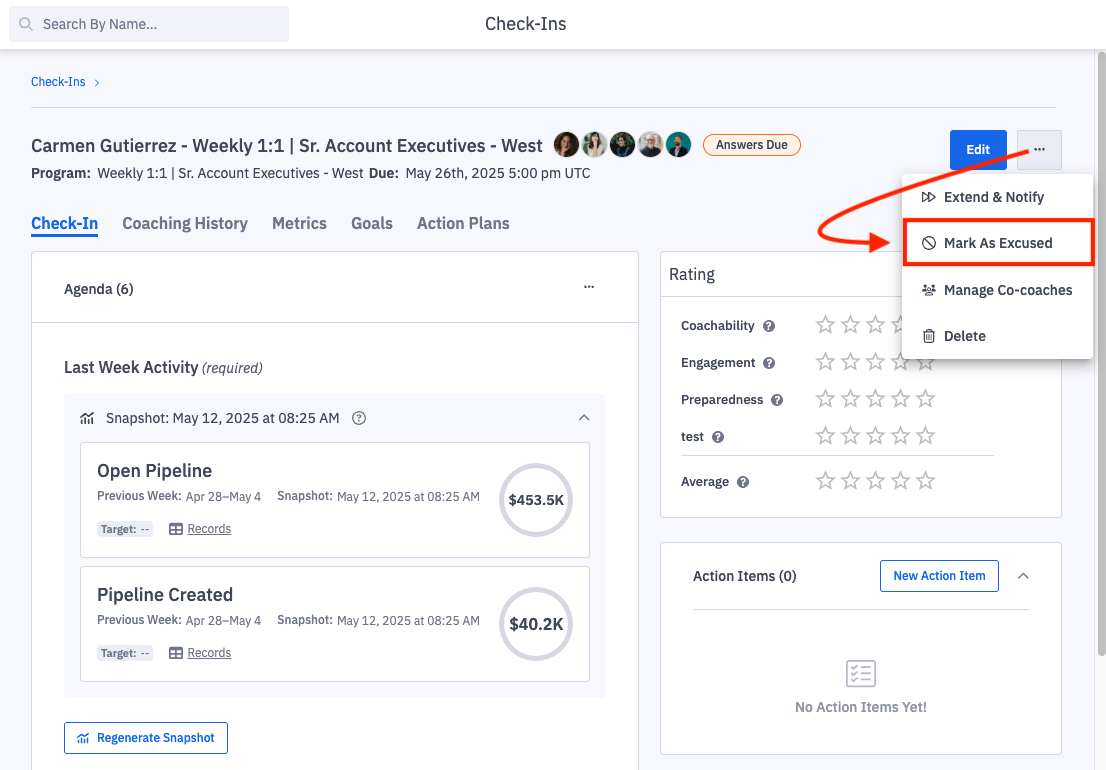 Excuse Within a Check-In |
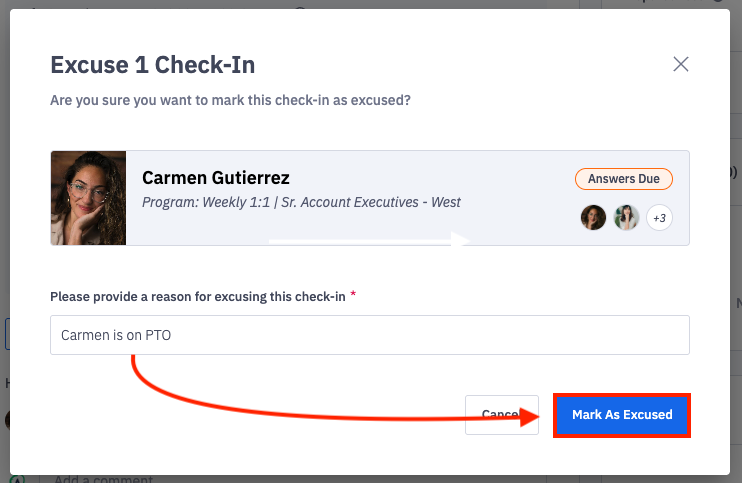
3. Provide the reason for excusing the check-in and click Mark As Excused.
4. The check-in will update to "excused" status.
If for any reason the check-in should not be excused, it can be reopened at any time. Learn more here.
Excuse Multiple Check-Ins
The manager associated with the check-in, any co-coaches assigned to the check-in, and users with "Coaching: All Access" permission will be able to excuse a check-in.
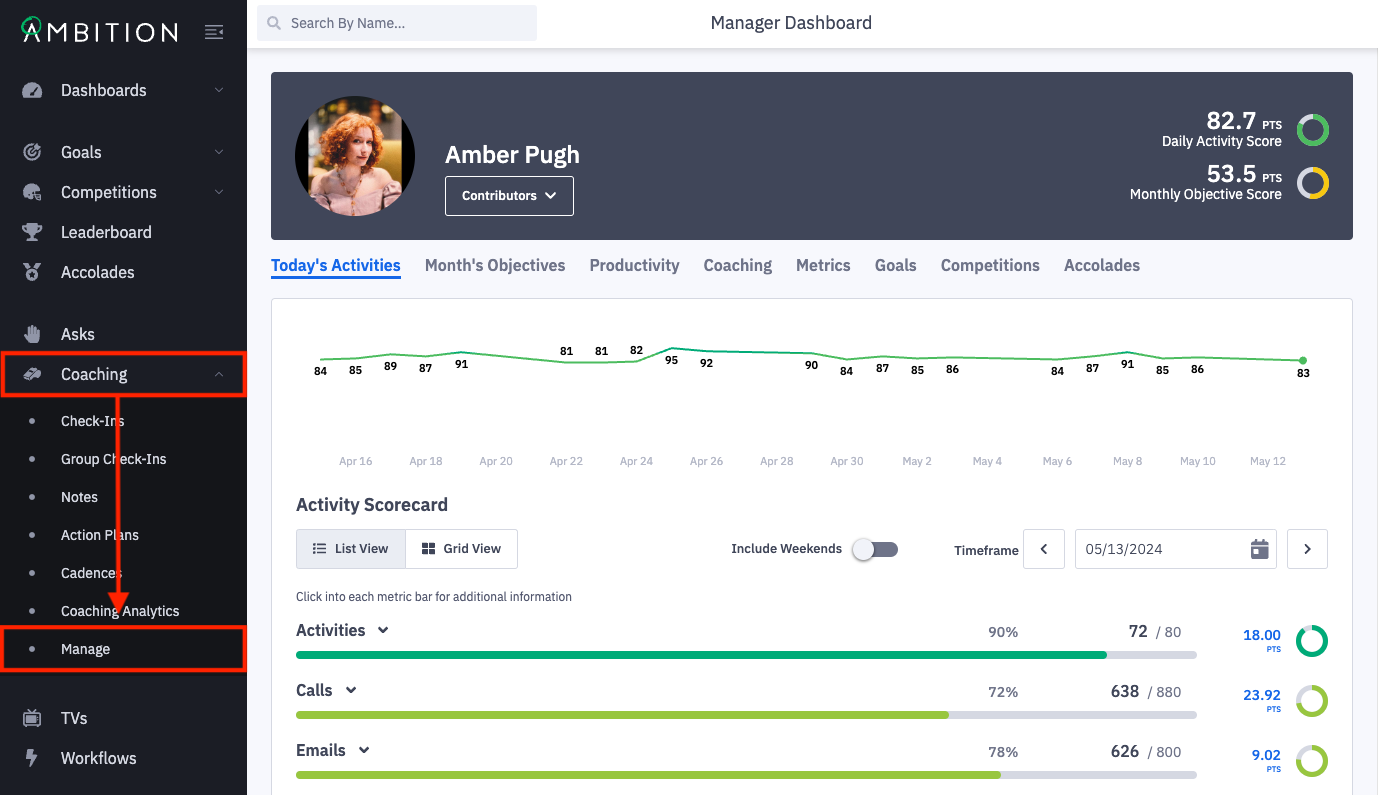
1. Open the left navigation and click Coaching > Manage.
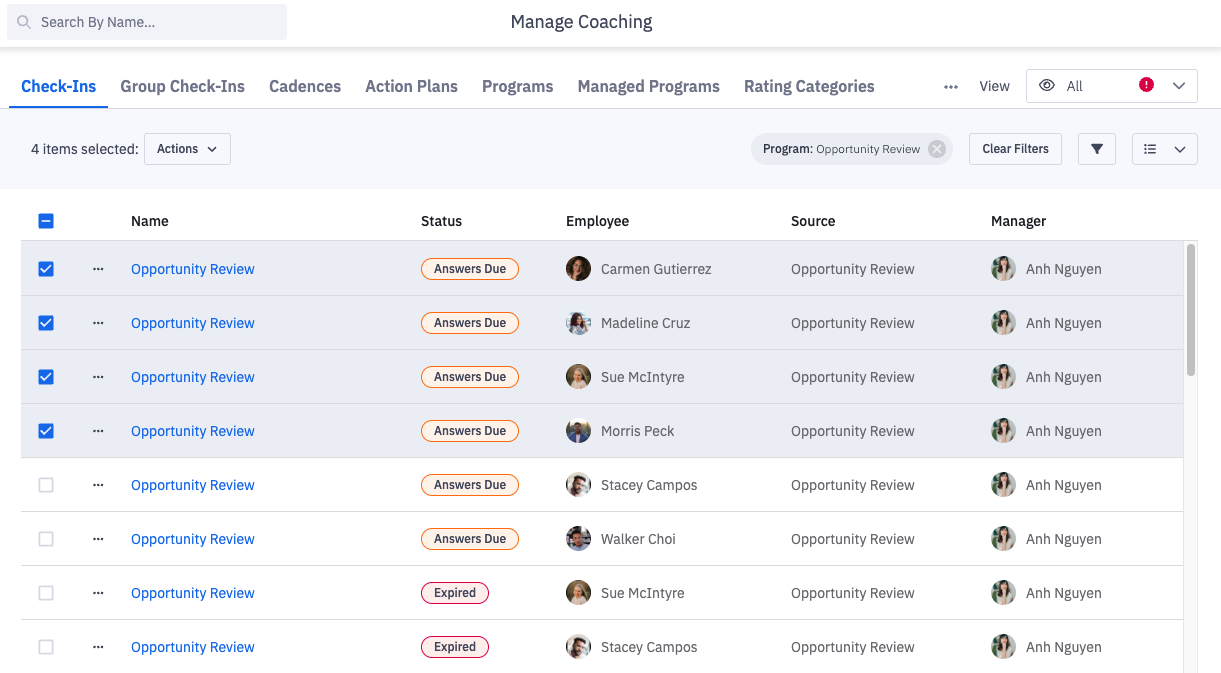
2. On the check-ins tab, search for and select the check-ins you need to excuse.
A check-in can be excused as long as its status is not completed or excused.
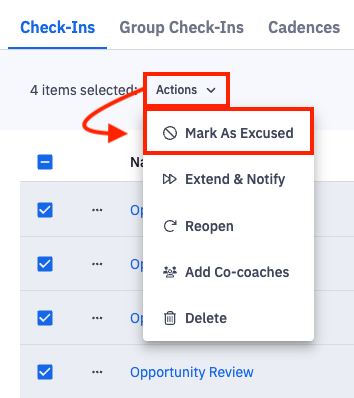
3. Click Actions and then Mark As Excused.
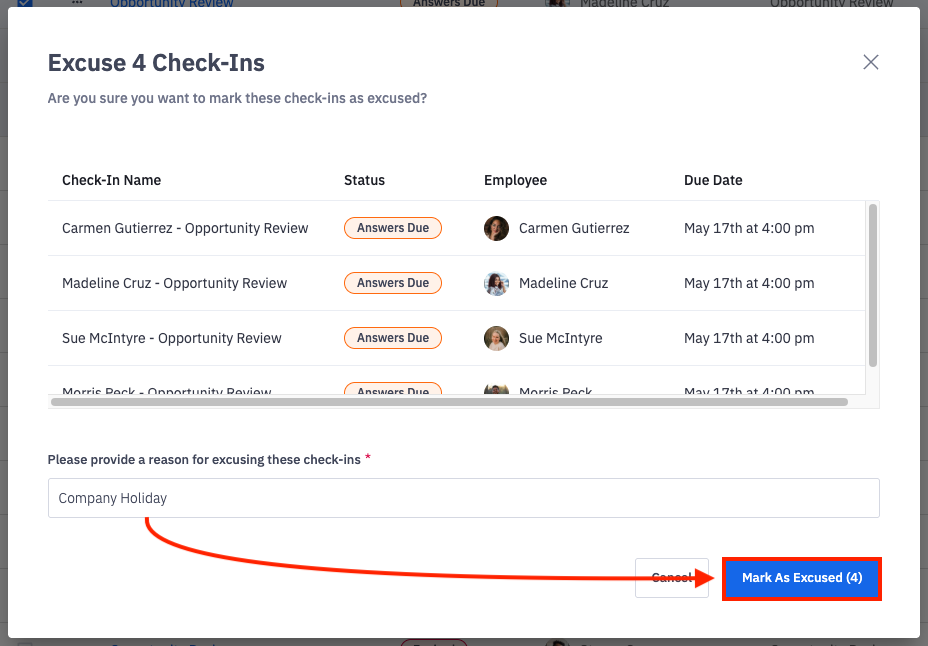
4. Provide the reason for excusing the check-ins and click Mark As Excused (number of check-ins).