How do I mark an employee out of office?
Last updated: July 29, 2025
Out of Office
Out of Office Overview
"Out of Office" allows for group-based competitions and if prorating is also enabled, scorecard targets, to take into account when an employee is not contributing activity due to being out of office so that group scores are not negatively impacted by a missing member.
Currently out of office only impacts competitions and scorecard targets. Areas like leaderboards and analytics will still feature and display employees who contribute data while they are marked out of office.
There is not a way to programmatically mark employees out of office at this time.
Out of Office's Impact on Competitions
When creating a competition, an option of "Out of Office Competitors Do Not Earn Points" is displayed. A competition must have "Out of Office Competitors Do Not Earn Points" selected in order for employees marked out of office to be excluded from the respective competition's scoring.
Group-Based Competitions
You are able to mark employees out of office during both challenges and fantasy competitions to prevent employees who aren't contributing activity from negatively impacting group-based competitions score on daily, average metrics.
Marking an employee out of office will prevent their activity, if any, from counting toward the group's score. If an employee is marked out of office, just like any game or sport, you can't score points if you aren't present playing in the game. Marking someone out of office for reasons other than a true absence will invariably undermine integrity of not only a competition.
Employee vs Employee Competitions
Marking an employee out of office while they are participating in an "employee vs employee" competition will prevent them from scoring any points, but it will not remove them as a competitor. If the employee is truly out of office, they would still have a score of 0 if no score contributions are made.
Marking an employee out of office is advised for employee vs employee competitions to help organizations put those on PTO, need a sick day, etc at ease that working on an off day is not required or expected.
ex. Joe and Sally are schedule to compete in a "Call Challenge" on Monday.
Sally is out on Monday for PTO.
Regardless of whether Sally is marked out of office on Monday, if Sally makes 0 calls on Monday, Sally's score in the call challenge will be a 0. Competition scores are not prorated on an individual level to accommodate an employee being marked out of office.
In the case of an "employee vs employee" competition, being out of office is similar to forfeiting the competition. No Ambition Phantom will be used in the place of employees who are out of office.
Out of Office's Impact on Scorecard Targets
Scorecard targets will take the time an employee is marked out of office into account only if the prorating feature is also enabled.
If prorating is enabled and an employee is marked out of office, metrics that make up daily Activity Scores will automatically have their targets set to 0, and the employee who is marked out of office will not negatively impact any group roll up scores. In the case of daily Activity Scores with proration enabled, scorecard targets for Saturday and Sunday will automatically be prorated (daily targets for Saturday and Sunday will be set to 0 and any metric contribution towards those daily Activity Scores is ignored) even if an employee is not marked out of office.
For weekly, monthly, and quarterly score time frames, prorating can be enabled per metric as appropriate.
Ex. If an employee is marked out of office 5 days during the month, their Monthly Objective Score "Revenue" target may need to stay the same while it's appropriate for their "Meetings Set" goal to be prorated based on the amount of working days they were out of office.
Learn more about prorating scorecard targets here.
Mark Employees Out of Office
Users with the "Users: Manage Out of Office - Can Manage Out of Office for All Users" permission are able to mark/unmark all employees as being out of office. Default system manager permissions allow for managing out of office for subordinate users (users that appear on the "Contributors" tab of their managerial dashboard).
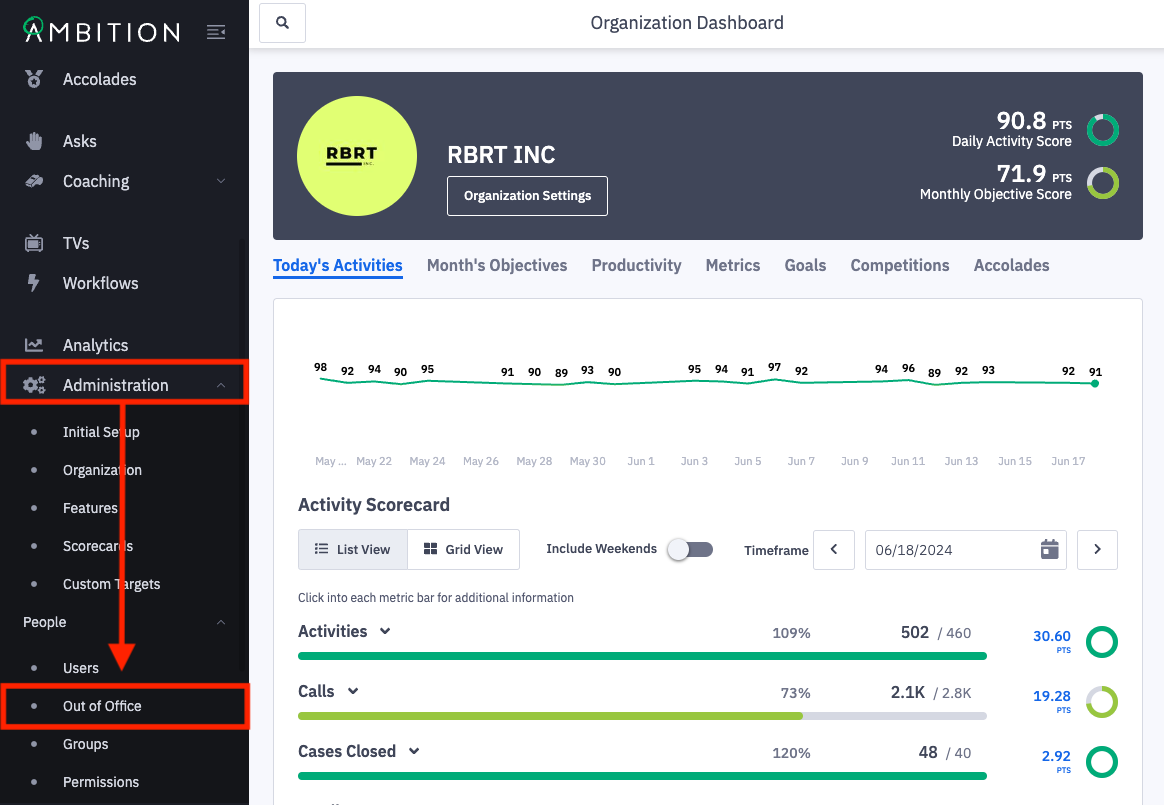
1. Open the left navigation and click Administration > People > Out of Office.
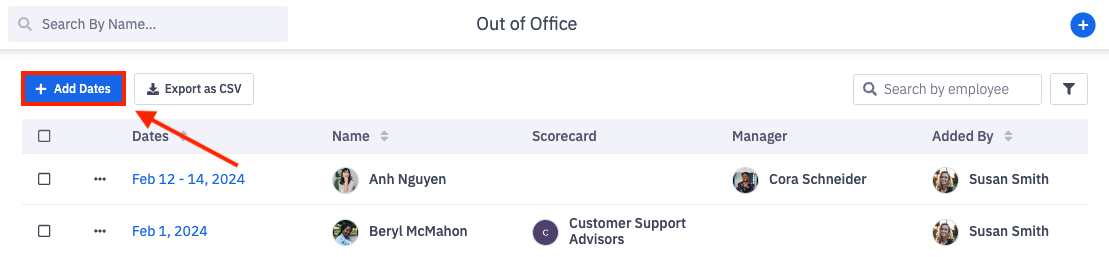
2. Click + Add Dates.
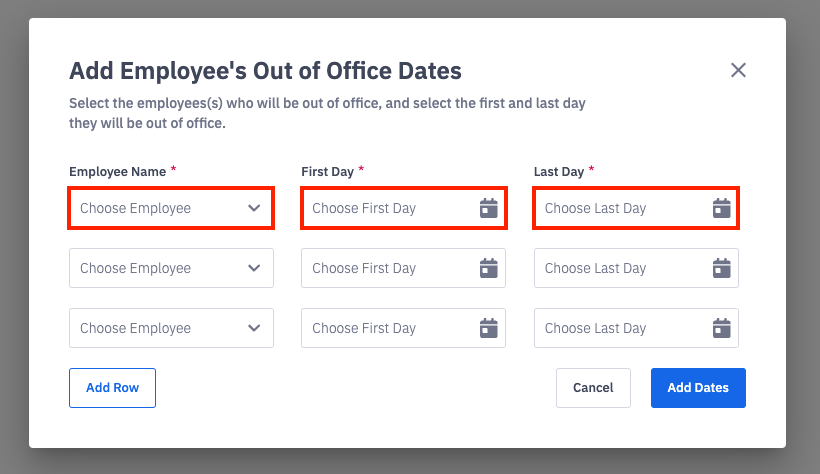
3. Search for and select the employee(s) that need to be marked out of office.
Set the First Day and Last Day the employee will be out of office.
If an employee is only out of office one day, the first and last day will be the same date.
An employee cannot be marked out of office for half a day.
Out of office records can be added for future dates and well as historical dates.
Note: If any competitions the employee's team is competing in have ended before the employee's out of office record is added, the competition scoring will be locked. Marking the employee out of office will have no longer impact competition scoring.
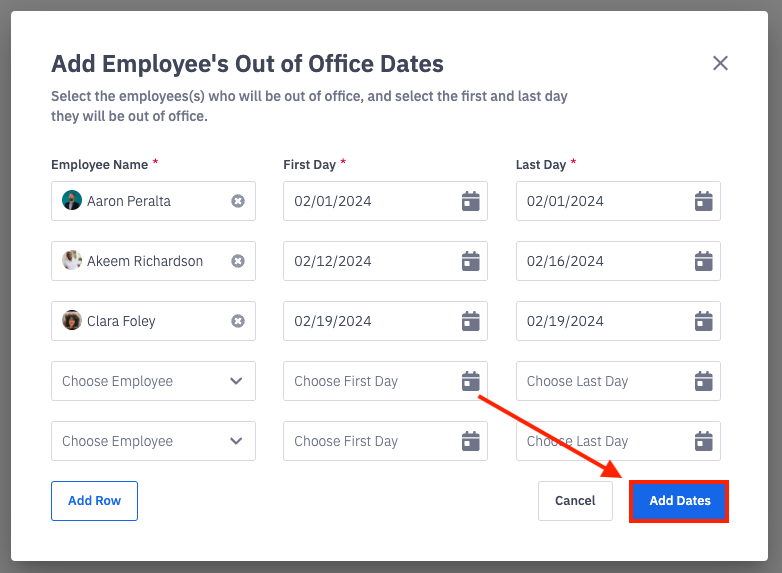
4. Click Add Dates to set the respective employee's time out of office.
You can mark up to 10 employees out of office at a time.
Edit or Delete Out of Office Dates
If a user was marked out of office in error or the reason they were out of office is no longer applicable (vacation cancelled, etc), the respective out of office dates can be edited/deleted.
Note: If any competitions the employee's team is competing in have ended before the employee's out of office record is edited/deleted, the competition scoring will be locked. Updating the employee's out of office dates will have no longer impact competition scoring.
1. Open the left navigation and click Administration > People > Out of Office.
2. Locate the out of office dates that needs to be edited or deleted through scrolling or filtering.
Click the filters icon to filter by employee, manager, added by, scorecard, and/or time frame.
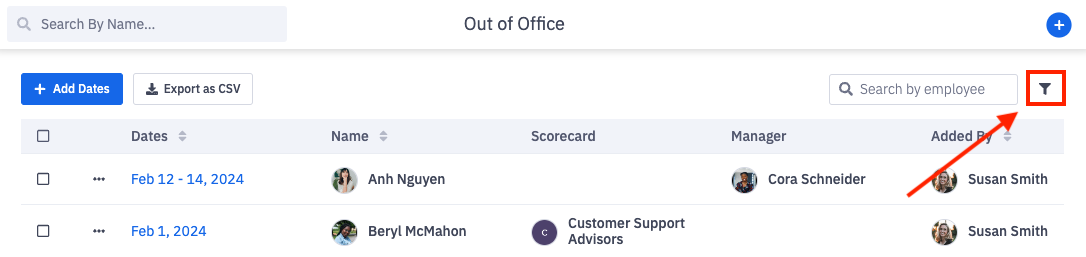
3. Click on the dates (in blue) that needs to be edited or deleted.
Alternatively, click the ellipses icon in line with the row and Edit.
4. Make the respective updates or deletion.
Edit Out of Office Dates
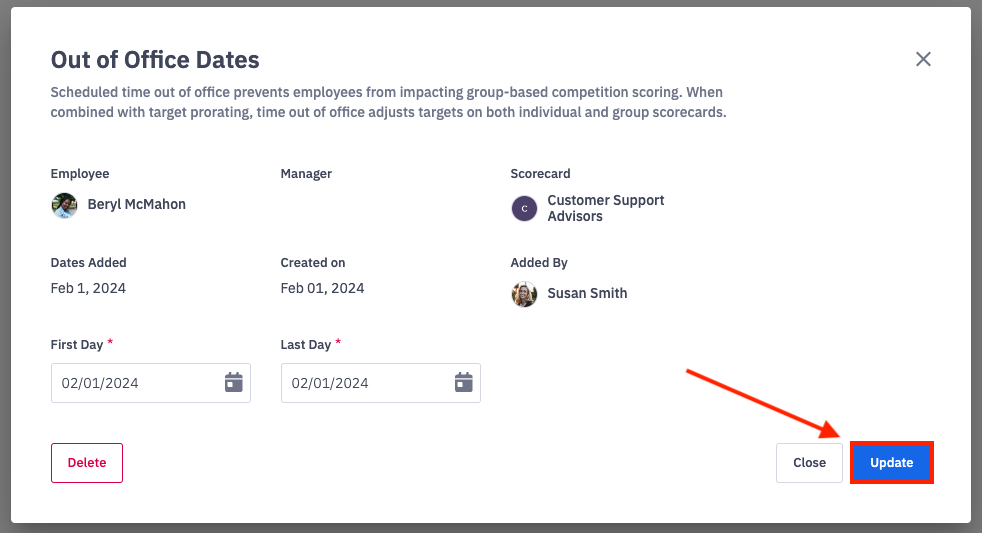
5. Update the First Day, Last Day, or both.
6. Click Update.
Delete Out of Office Dates
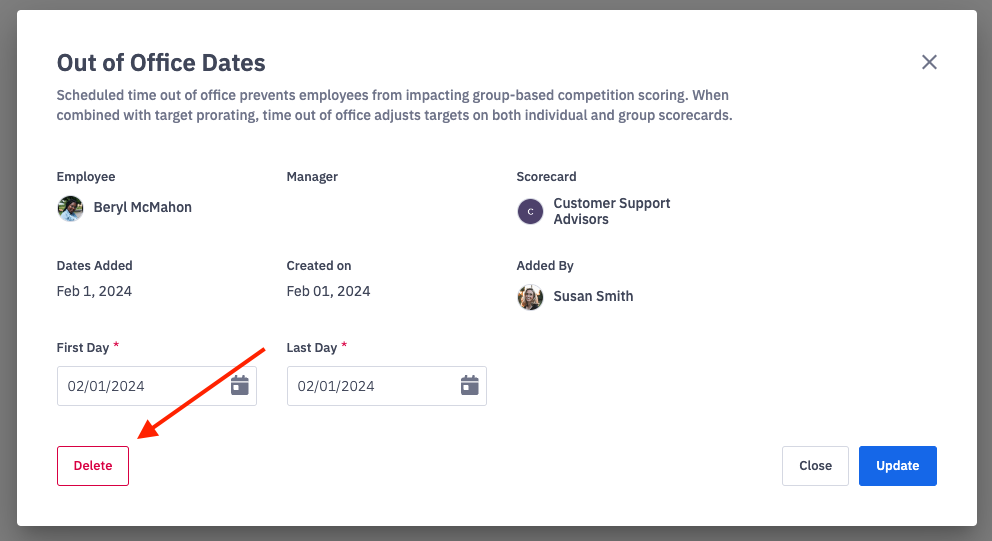
Deleted out of office dates will no longer be accessible within Ambition and are not included on the out of office CSV download.
5. Click Delete.
Dates can be deleted from the grid one at a time or in bulk.
Export Out of Office Records
1. Open the left navigation and click Administration > People > Out of Office.
2. Employees who have been marked out of office can be viewed and filtered for in the out of office records view.
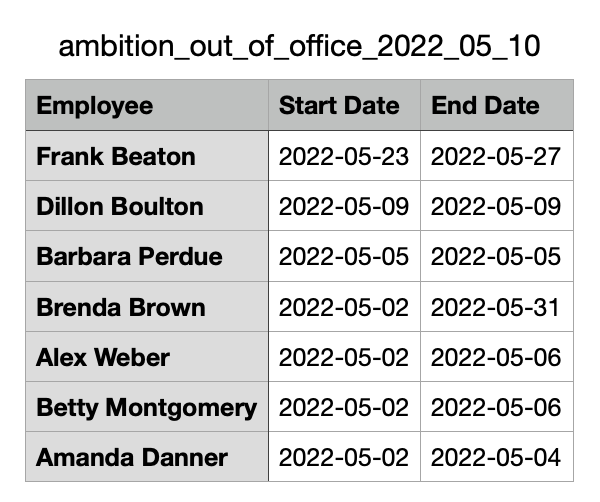
3. Click Export as CSV.
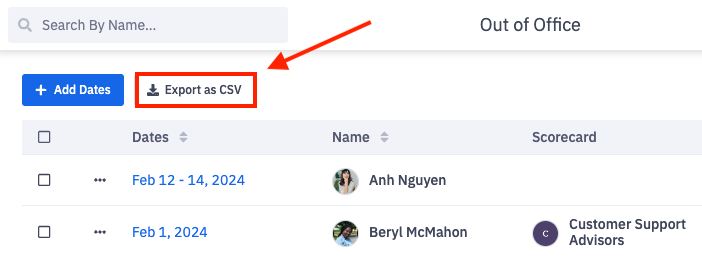
4. Columns on the out of office CSV include: Employee Name, Start Date, and End Date.
Start Date and End Date will be based on the First and Last Day selected when marking the employee out of office.
Out of Office FAQ
Who can mark an employee out of office?
System admin are able to manage out of office for all employees. Default manager permissions allow for managing out of office for subordinate users (users they manage). Any user can be given the "Users: Manage Out of Office - Can Manage Out of Office for All Users" individual permissions or out of office permissions can be added to a custom permission set.
Does marking an employee out of office automatically excuse their coaching check-ins or stop workflows for them?
No, currently marking an employee out of office only has the ability to impact competitions and scorecards.
An employee's score won't be factored into competitions if "Allow Out of Office" was selected upon competition creation.
If prorating is also enabled, scorecard targets can be prorated to account for days out of office.
Learn more about prorating here.
Can I programmatically mark employees as out of office?
Not at this time. Employees have to be manually marked out of office within Ambition.