How do I add users from Salesforce?
Last updated: August 27, 2025
Sync Users from Salesforce
Users with the "Users: Create" permission will be able to sync users from Salesforce.
User Information
When using our Salesforce user sync, Ambition will automatically and continuously map and mirror the following user information from the Salesforce User Object:
First Name
Last Name
Email
Salesforce Username
Time Zone
Salesforce ID
Because of the continuous mapping and mirroring of Salesforce user information into Ambition, any changes that need to be made to the user information above, ex. user's email needs to be updated in Ambition, will need to first be made in Salesforce, then the changes will be reflected in Ambition.
Ambition will attempt a one-time sync of a user's profile picture when the user is first added to Ambition.
Sync Salesforce Users
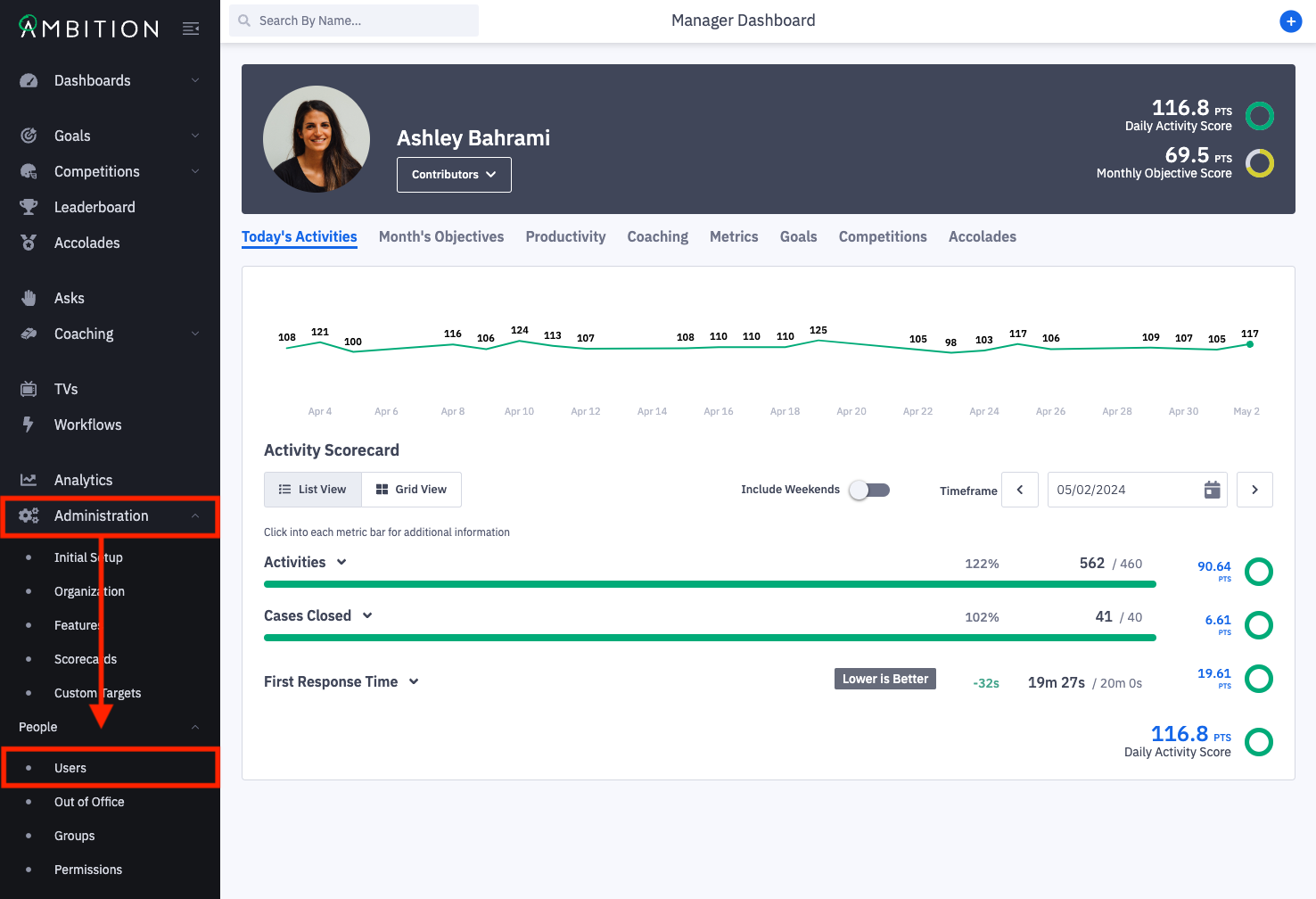
1. Open the left navigation and click Administration > People > Users.
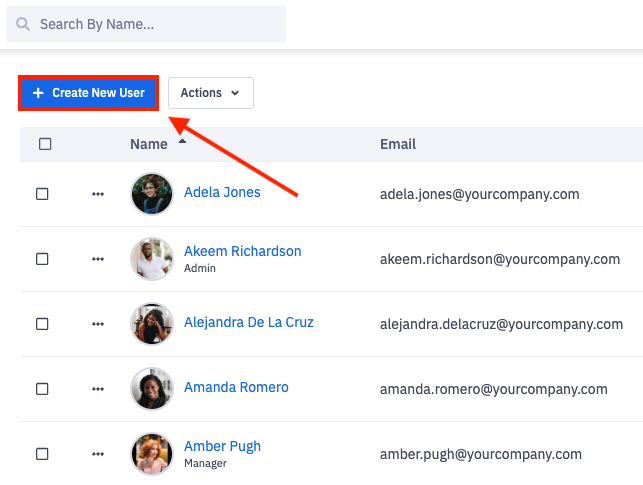
2. Click the + Create New User button.
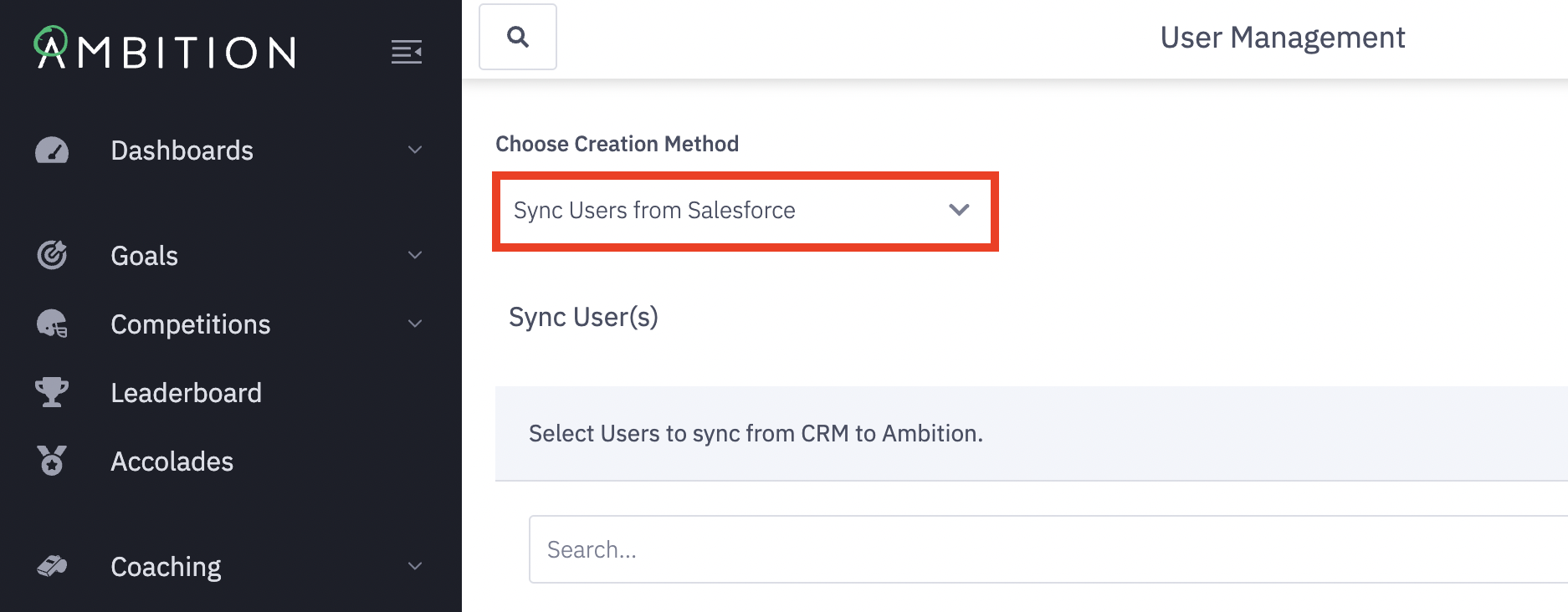
3. Ensure Sync Users from Salesforce is selected in the Choose Creation Method dropdown. If your organization uses our Salesforce integration, "Sync Users from Salesforce" will be the default option.
Using Salesforce User Auto-Activation will remove the "sync users from Salesforce" option. Only users that fit the defined criteria will be synced from Salesforce.
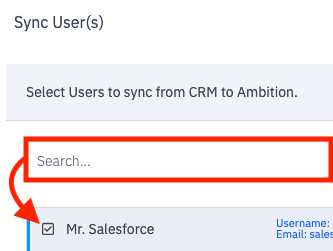
4. Search for and select the Salesforce user(s) that you wish to sync by checking the box next to their name.
A checkmark will fill the box to signify selection.
You can search for and select multiple users at a time. Your selections will be preserved as you continue to search and select.
5. Click the Sync (#) Users button.
If you do not wish to immediately invite selected users, uncheck Send Invite Email(s).
Selecting Send Invite Emails will send an invite email to the new user(s) asking them to set a password and login. Ambition recommends unchecking these boxes during onboarding.
If your organization is using single sign-on, sending an invite email will redirect the user to sign in with company-managed credentials rather than setting an Ambition password.

Need to assign manager or admin permissions?
Click Admin > People > Users, find relevant user and click on their name (in blue). Set the manager and/or admin permission and then click Save Changes.