How do I apply custom branding to TVs?
Last updated: June 27, 2025
TV Custom Branding
Ambition offers the ability to create and centrally manage multiple TV brands. If your company has multiple brands, locations, or business units with different brand guidelines, you can replicate them in Ambition!
Create TV Branding
Users with "TVs: Create" permission will be able to create, edit, and delete all TV branding.
Users with "TVs: Edit" permission will be able to edit and delete all existing TV branding.
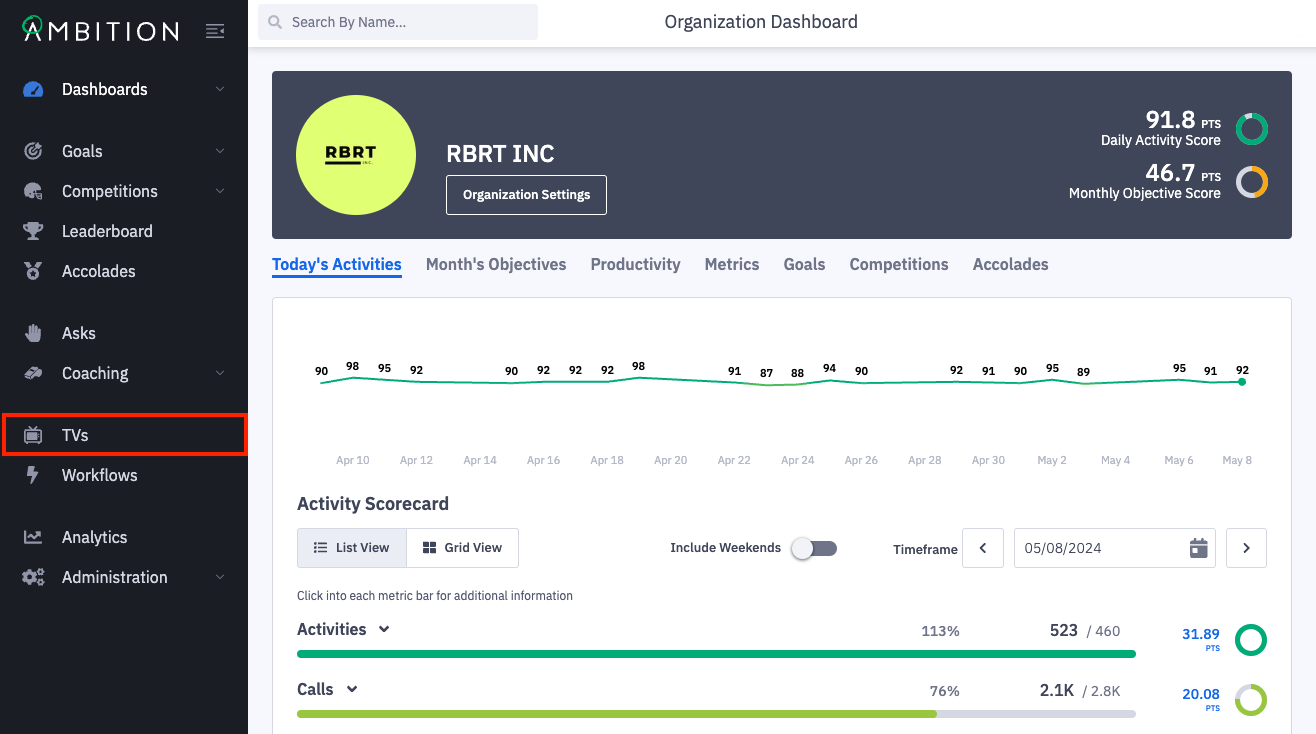
1. Open the left navigation and click TVs.
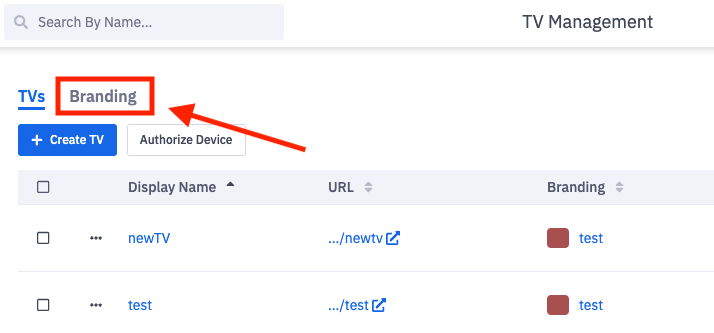
2. Click the Branding tab.
3. Click the + Create Branding button.

On the branding management tab you can edit and delete existing brands or create new brands.
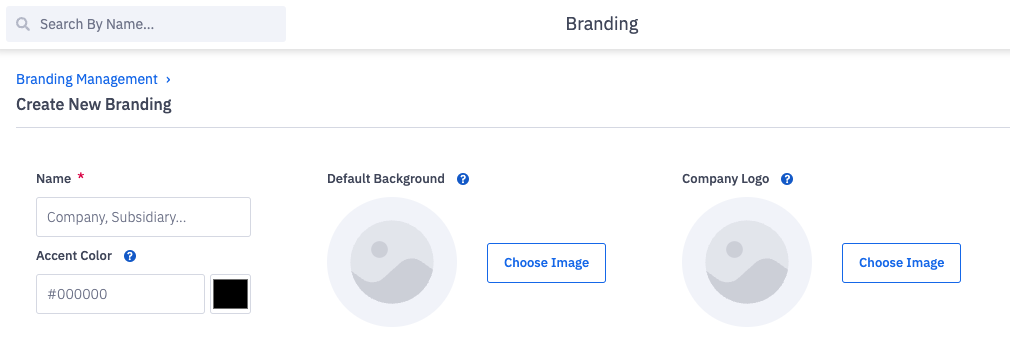
4. Complete the "TV Branding" form.
Field | Field Description |
Name | Required. Use a concise and clear naming methodology. Each brand must have a unique name. The name entered here will be seen in the "Branding" drop down menu when a TV is created or edited. |
Accent Color | A color picker is available in Chrome, Safari, & Edge browsers. You can use the color picker to select the appropriate accent color, or you can input a HEX Color Code value. The accent color text entry field only accepts HEX Color Codes. After selecting a color on the picker or inputting the Hex Value, a representation of the color code will appear as seen below. 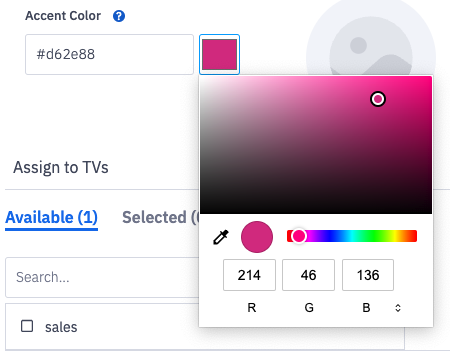 |
Default Background | The background image will replace the default slide background that features a mountain scene. The background image will stretch to fill the TV. We recommend using a high resolution image, but do enforce a 2MB file size. Support PNG, GIF, JPG, and JPEG formats. |
Company Logo | The logo will appear on every slide in the top left corner of the TV. 1MB file size. Support PNG, GIF, JPG, and JPEG formats. |
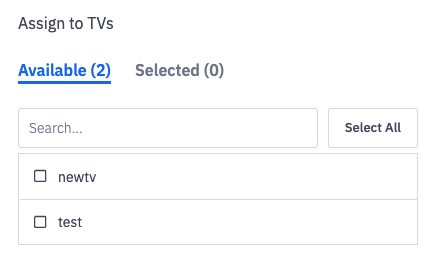
5. Optionally add the brand to any TVs that have already been created in Ambition.
Click Select All to update the branding on all TVs.
6. Click the Save button.

Add the Brand to a Single TV
Users with "TVs: Create" permission will be able to apply brands to TVs they've created. Users with "TVs: Edit" permission will be able to apply brands to any TV.
After you've built your first brand, it's time to apply it to an existing TV.
When creating a new TV, steps 2 & 3 below are the same.
1. Open the left navigation and click TVs.
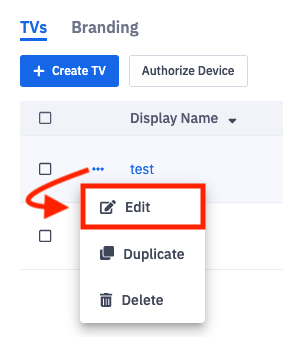
2. Click the ellipses icon and Edit on the respective TV that you'd like to apply a brand.
3. Select the desired Brand from the "Branding" dropdown.
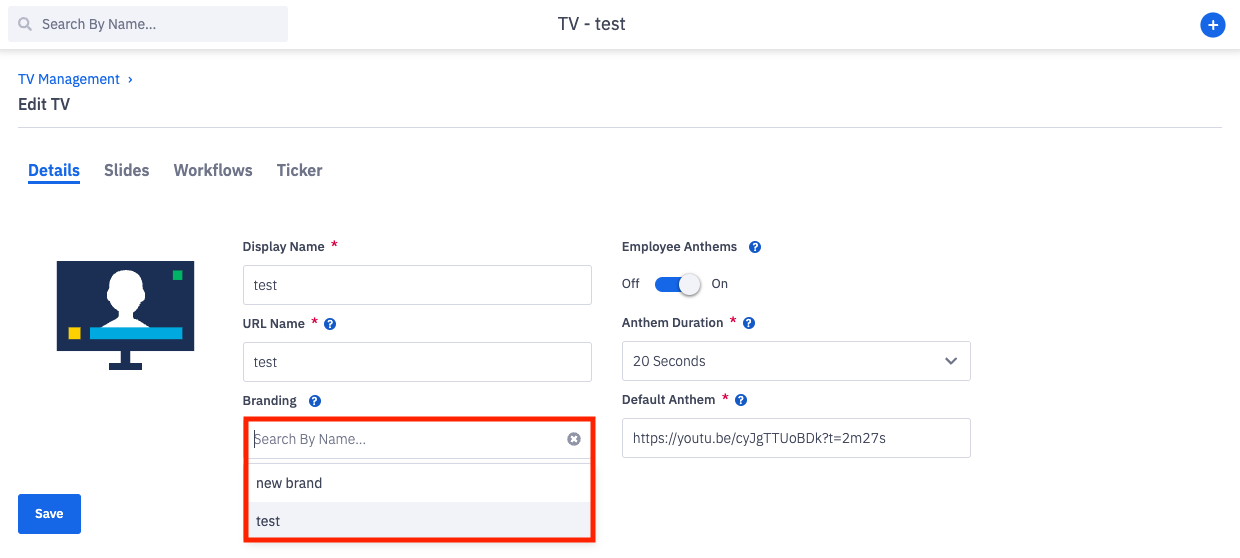
4. Click the Save Button.
5. Refresh the TV to see the new branding!
Add a Single Brand to Multiple TVs
Users with "TVs: Create" permission will be able to apply brands to TVs they've created.
Users with "TVs: Edit" permission will be able to apply brands to any TV.
1. Open the left navigation and click TVs.
2. Click the Branding tab.
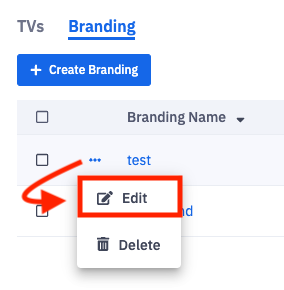
3. Locate the brand you wish to edit and click the ellipses icon and Edit.
4. Select the TVs that should display the branding.
Click Select All to update the branding on all TVs.
5. Click the Save button.
6. Refresh the selected TVs to see the new branding!