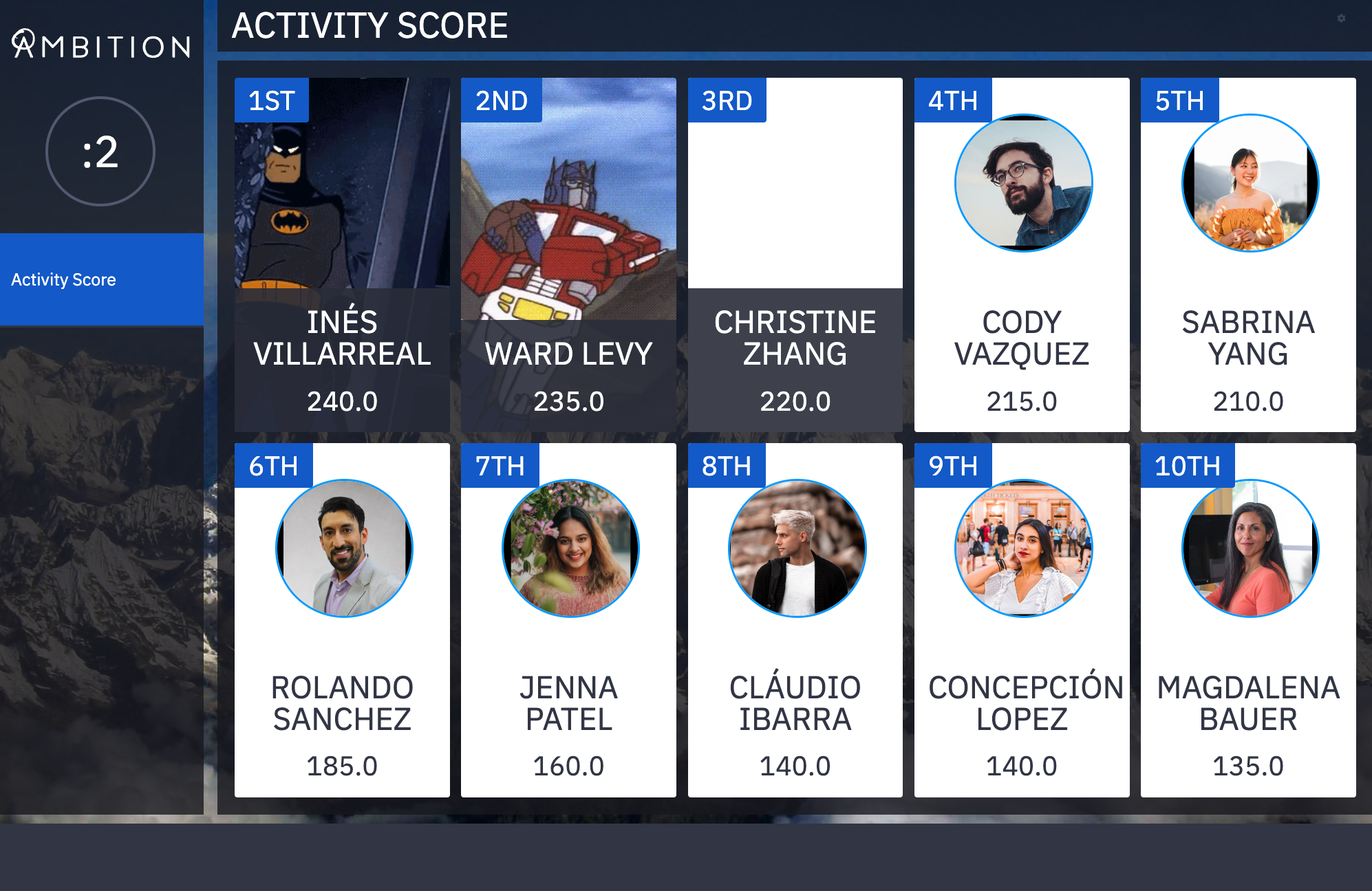
How do I customize the quotes at the bottom of a TV?
Last updated: June 27, 2025
TV Ticker Quotes
Each TV features a "ticker" across the bottom of the screen where you can include motivating quotes, inside jokes, and everything in between.
Ticker quotes can be set per-TV, and each new TV comes with three default quotes that can be customized or removed.
Add TV Ticker Quotes
User with the "TVs: Edit" permission will be able to add TV ticker quotes.
If a user only has the "TVs: Create" permission, they will be able to add ticker quotes to TVs they created as well.
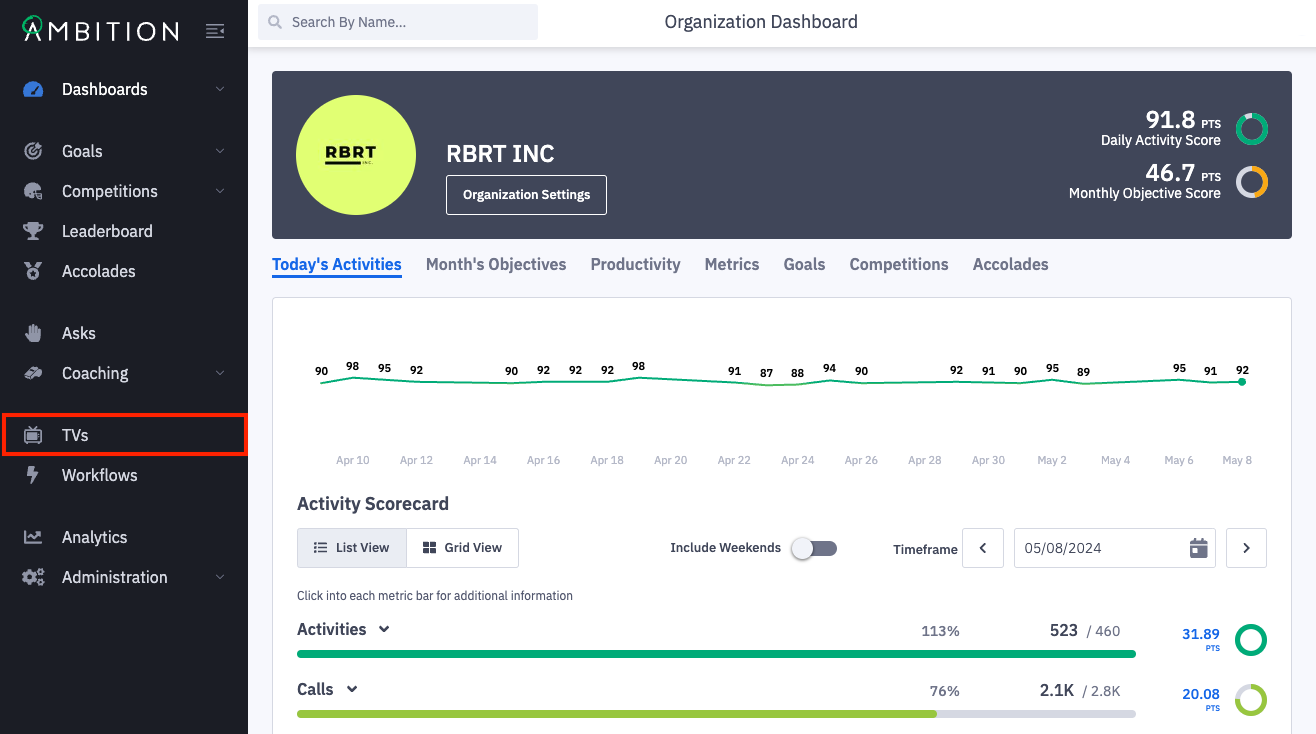
1. Open the left navigation and click TVs.
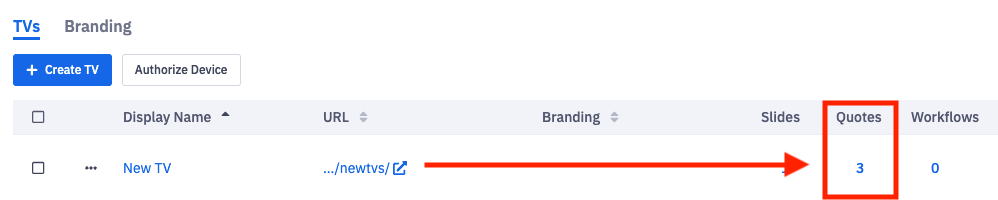
2. Click the number in the quotes column on the TV you wish to edit. You can also click the ellipses icon, Edit, and Ticker.
3. Fill in the Author and Text fields, and click the + icon button.

4. Click the Save button.

Remove TV Ticker Quotes
User with the "TVs: Edit" permission will be able to remove TV ticker quotes.
If a user only has the "TVs: Create" permission, they will be able to remove ticker quotes from TVs they created as well.
1. Open the left navigation and click TVs.
2. Click the number in the quotes column on the TV you wish to edit. You can also click the ellipses icon, Edit, and Ticker.
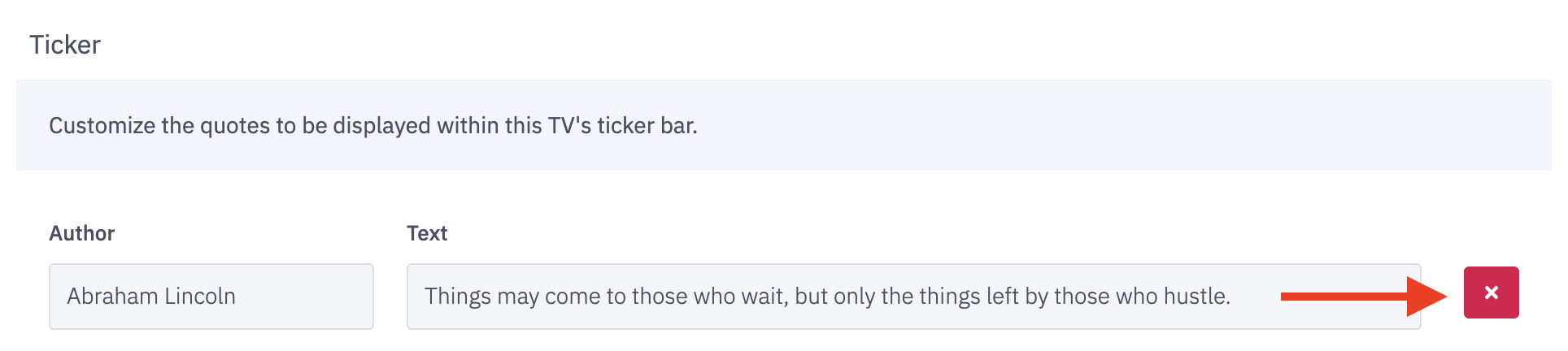
3. Click the x next to the quote you wish to remove.
4. Click the Save button.
Ambition allows for all quotes to be removed. In the case where all quotes have been removed, any workflows that are associated with the TV will appear in the ticker.
If there are no quotes or workflows associated with the TV, the ticker bar will persist, but contain no information.