How do I edit a TV?
Last updated: June 27, 2025
Edit TVs
What can I edit?
The following can be edited on TVs:
The display name
The TV URL
The content that displays on each respective slide type
Workflows that appear on the TV - metric based alerts or records based alerts
TV branding - logo in the upper left, color scheme, default slide background
The anthem duration, default anthem, and opting into playing user and group selected anthems
Edit a TV within Ambition
Users with the "TVs: Edit" permission will be able to create, edit, delete: slides, ticker quotes, and TV branding.
If a user only has the "TVs: Create" permission, they will only be able to edit TVs they created.
The "Workflows: Edit" or "Workflows: All Access" permission will be needed to edit workflows on TVs.
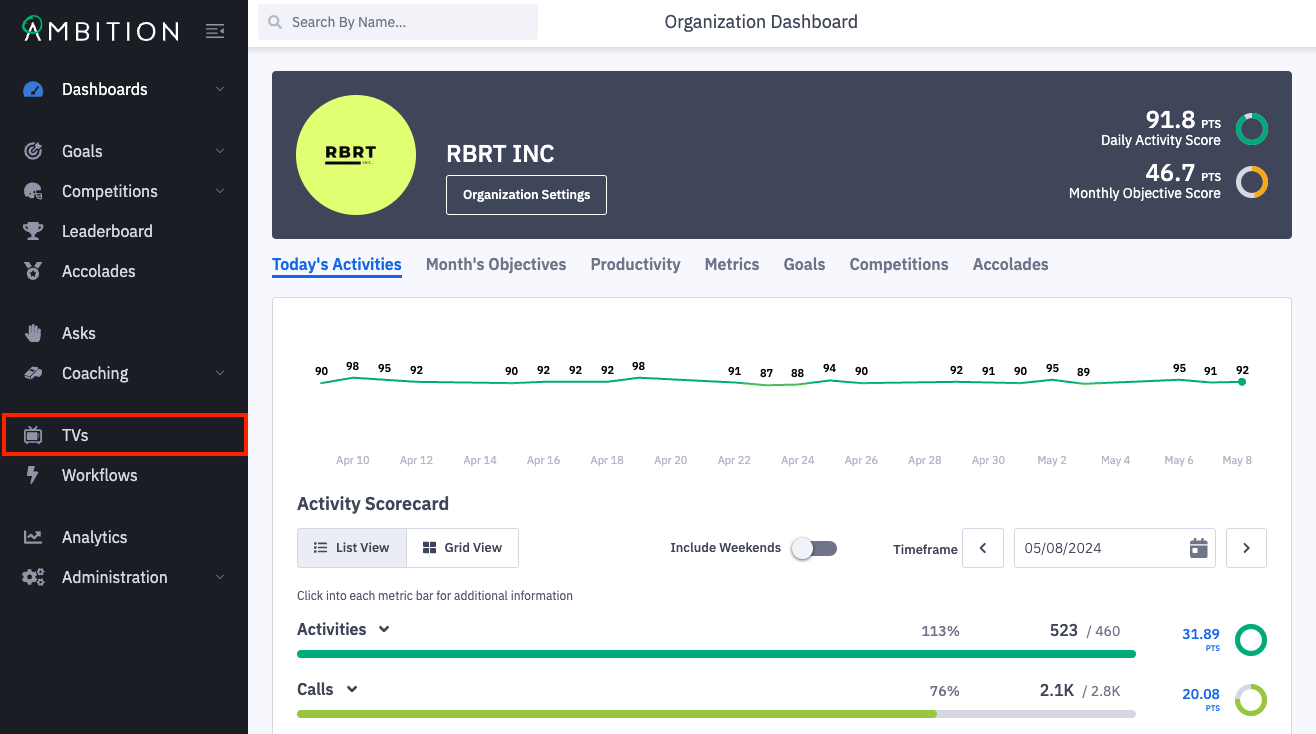
1. Open the left navigation and click TVs.
2. Locate the URL that you wish to edit by scrolling or searching in the upper right corner.
3. To edit an existing slide or create a new slide, click the number in the slides column on the TV you wish to edit.
You can also click the ellipses icon, Edit, and Slides.

To edit an existing ticker quote or create a new ticker quote, click the number in the quotes column on the TV you wish to edit. You can also click the ellipses icon, Edit, and Ticker.
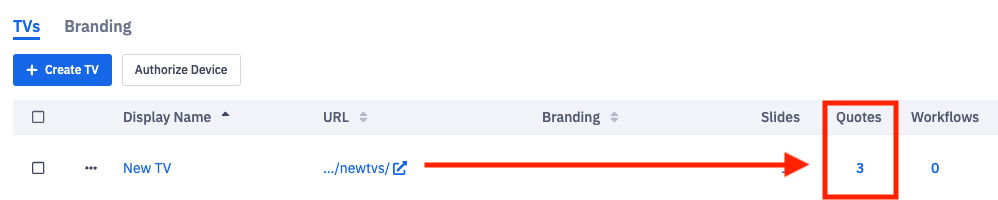
To edit an existing workflow that's associated with the TV or create a new workflow, click the number in the workflows column on the TV you wish to edit. You can also click the ellipses icon, Edit, and Workflows.

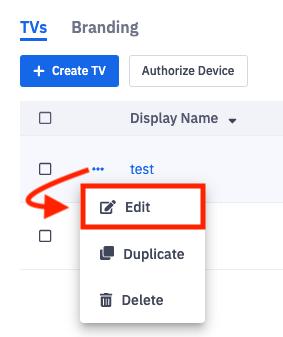
To select a different custom TV brand, change the TV display name or URL, or edit any of the TV specific anthem settings, click the ellipses icon and Edit in line with the TV you want to update.
Field Name | Editing Option |
Display Name | Edit the display name of the TV. |
URL | If the URL is changed, refresh the page before attempting to view the TV URL. Any TVs that were displaying the URL will need to be refreshed. |
Branding | Update the TVs branding by selecting an existing brand. Learn more about creating new TV branding here. |
Employee Anthem | Select On or Off. If set to "Off", user or group selected anthems will not play, and the default anthem will play for all workflows associated with the TV. |
Anthem Duration | Select the appropriate length of time an anthem should play. |
Default Anthem | Update the default anthem URL. The default anthem is the video that will play if a user or group does not have an anthem selected or if the "Employee Anthems" toggle above is toggled "Off". |
Edit while Viewing the TV
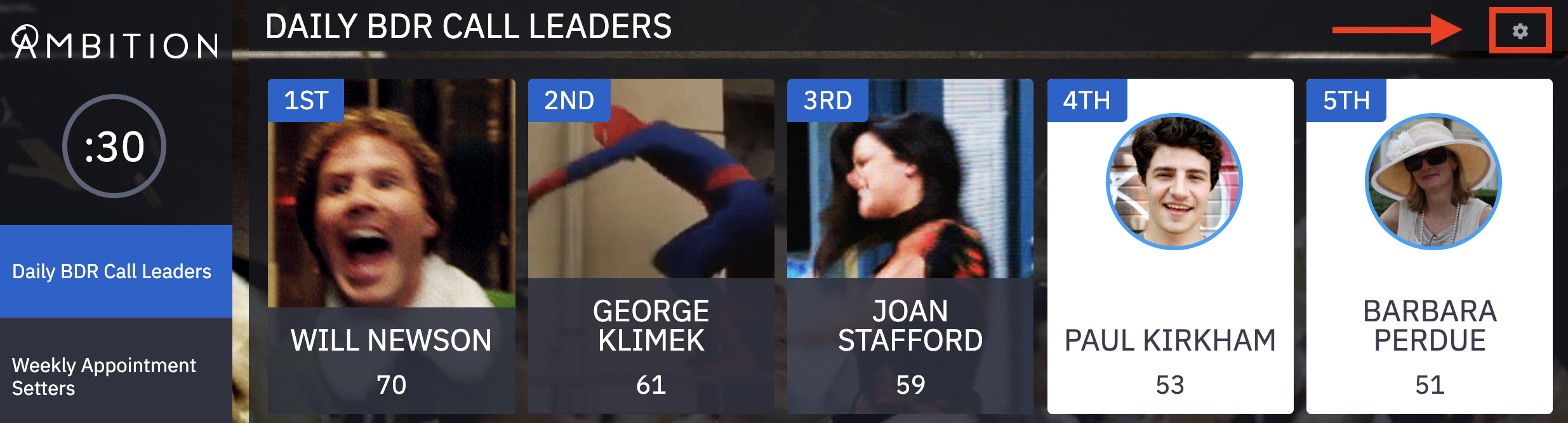
1. While viewing the TV, click the gear icon in the upper right corner of the current slide.
2. Click the Edit TV Slides button.
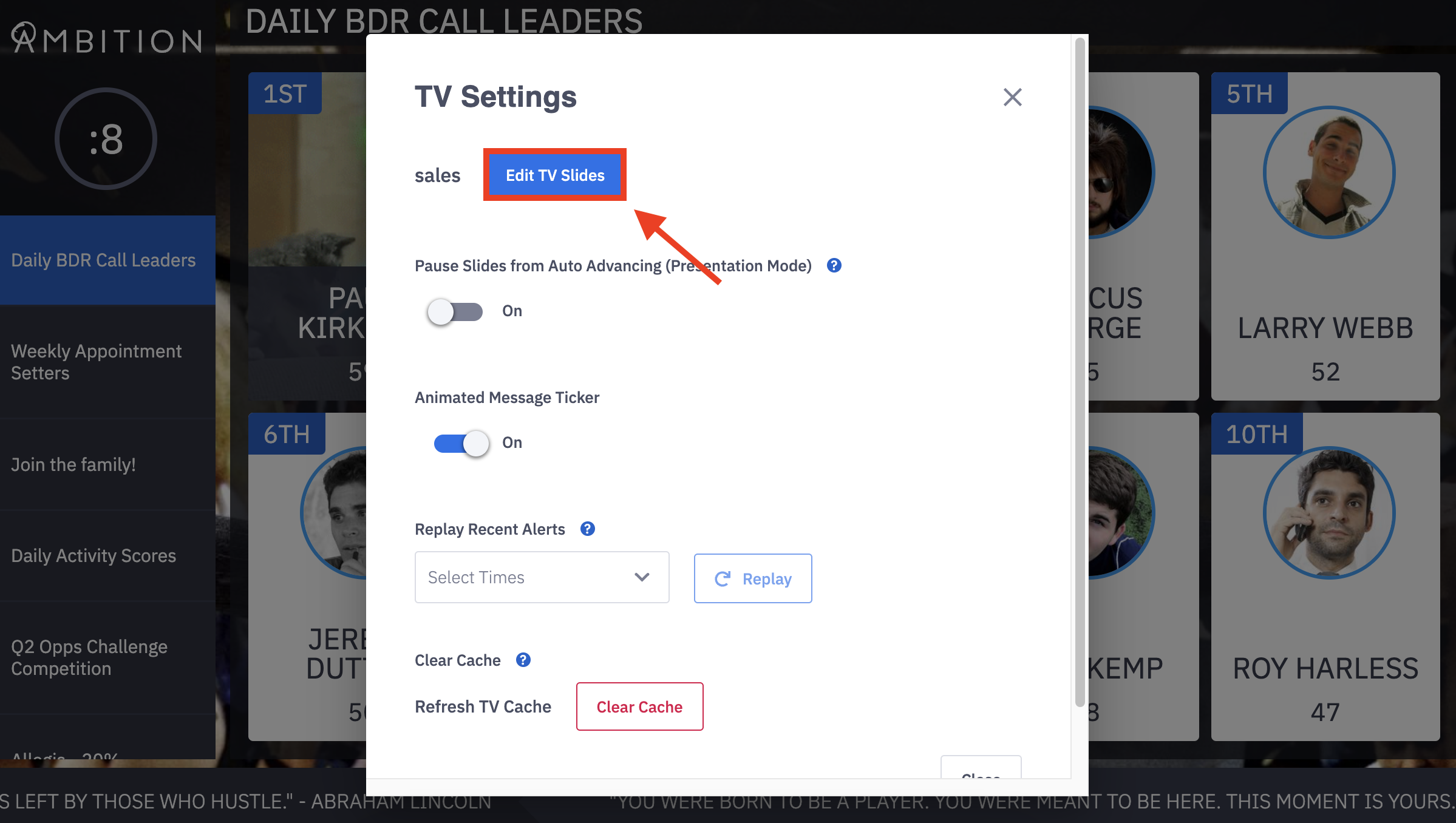
3. To edit an existing slide, scroll to find the respective slide on the left hand side. To create a new slide, begin completing the "New Slide" form. Learn more about each available slide type here.
To edit an existing workflow that's associated with the TV or create a new workflow, click the Workflows tab.
To edit an existing ticker quote or create a new ticker quote, click the Ticker tab.
To select a different custom TV brand, change the TV display name or URL, or edit any of the TV specific anthem settings, click the Details tab.
Field Name | Editing Option |
Display Name | Edit the display name of the TV. |
URL | If the URL is changed, refresh the page before attempting to view the TV URL. Any TVs that were displaying the URL will need to be refreshed. |
Branding | Update the TVs branding by selecting an existing brand. Learn more about creating new TV branding here. |
Employee Anthem | Select On or Off. If set to "Off", user or group selected anthems will not play, and the default anthem will play for all workflows associated with the TV. |
Anthem Duration | Select the appropriate length of time an anthem should play. |
Default Anthem | Update the default anthem URL. The default anthem is the video that will play if a user or group does not have an anthem selected or if the "Employee Anthems" toggle above is toggled "Off". |