How do I create a metric based alert workflow?
Last updated: April 20, 2026
Metric Based Alert Workflow
What is a metric based alert?
A metric based workflow provides automated alerts of key metric milestones or attainment of custom metric targets in real time.
Examples:
Send an alert to Slack/ Microsoft Teams/Webex/Zoom and the email of the SDR manager whenever an SDR books their 4th meeting of the week.
Send an alert to an Ambition TV whenever someone exceeds 120% of their daily outbound call target.
Create a Metric Based Alert Workflow
Users with "Workflows: All Access" or "Workflows: Create" permission will be able to create workflows.
Creators will be able to edit and delete workflows they create.
Users with "Workflows: All Access" permission will be able to edit and delete all workflows. Users with "Workflows: Edit" permission will be able to edit all workflows or edit workflows that users they manage created depending on the level of access.
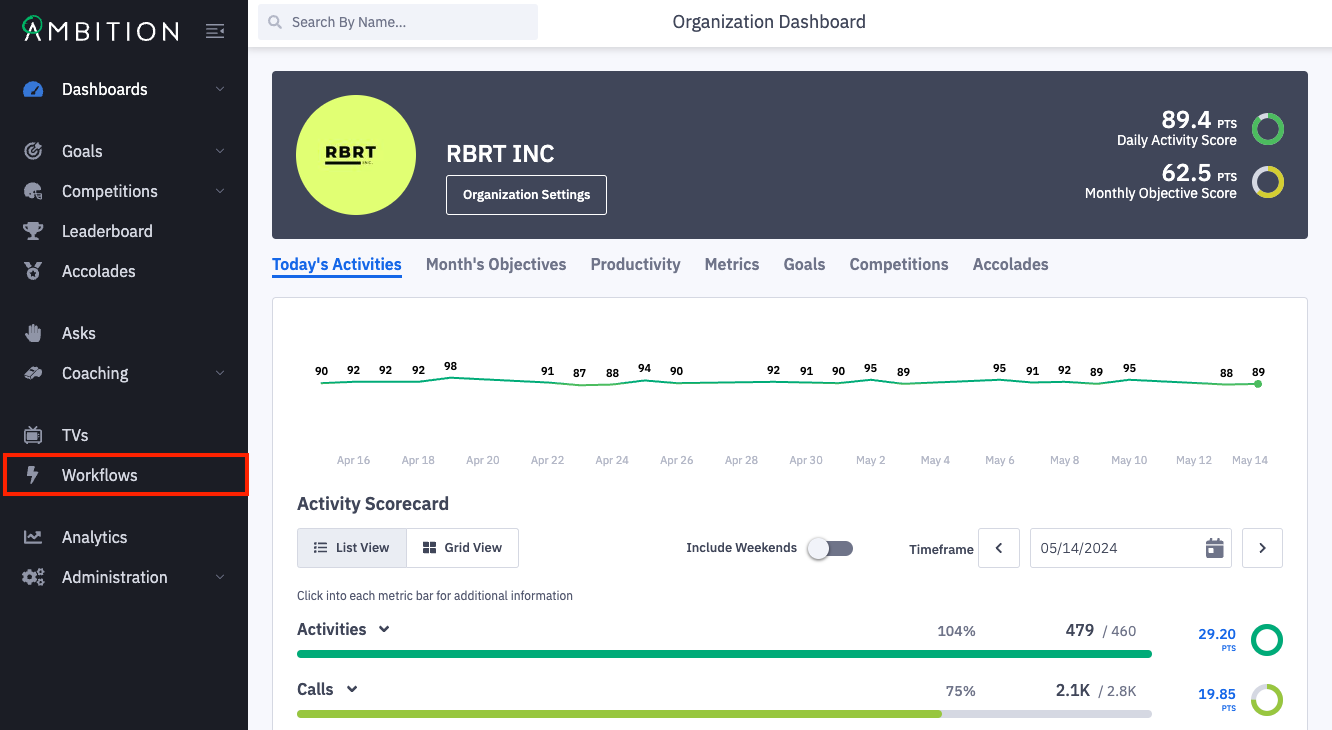
1. Open the left navigation and click Workflows.
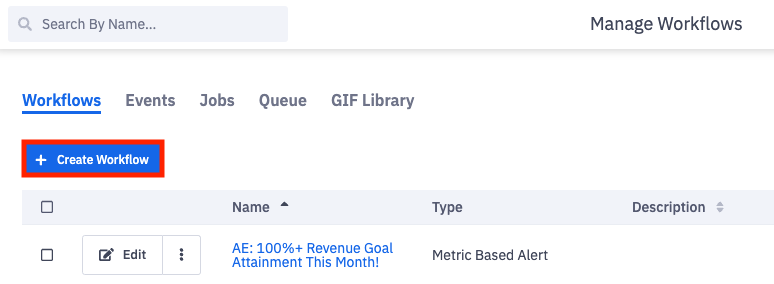
2. Click the + Create Workflow button.
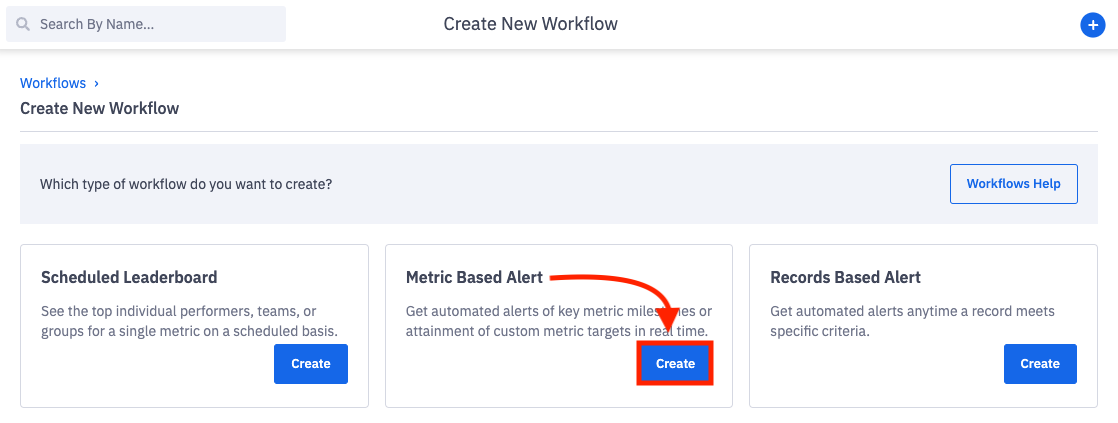
3. Click Create on the Metric Based Alert tile.
4. Complete the Create Workflow Form:
Details
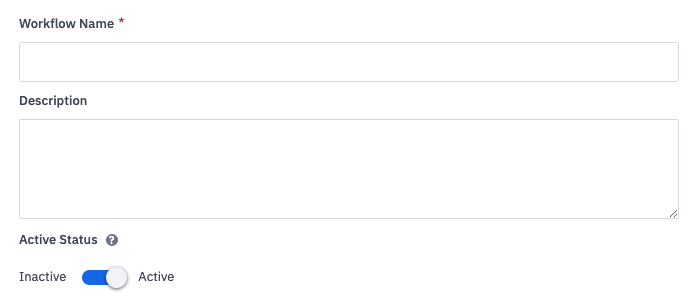
Workflow Name
The name will be displayed within Ambition and on metric based alert notifications.
Description
Optional. Description is visible on the manage workflows page and can be helpful to provide context on the behavior the workflow is recognizing.
Active Status
Active = the metric based alert workflow will run on the set recurrence scheduled.
Inactive = the metric based alert workflow will be disabled and no alerts will be provided. Inactive workflows are not deleted and can be set back to active at the appropriate time.
Metric Settings
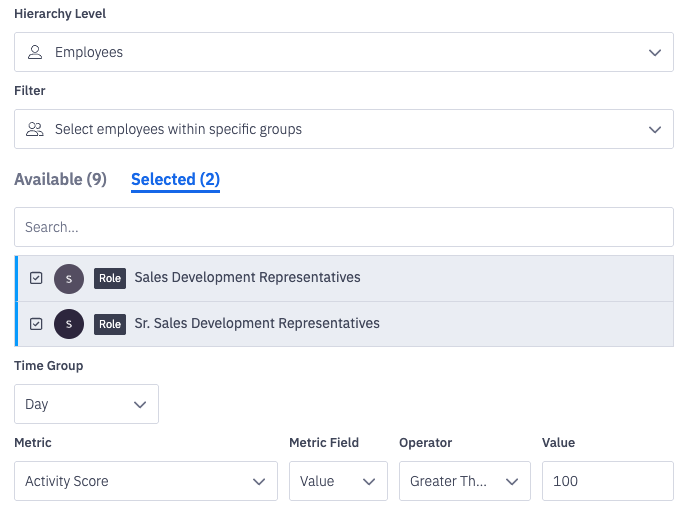
Hierarchy Level
Who should the workflow should fire for? Employee will refer to an individual.
Learn more about hierarchy options here.
Time Group
Timeframe will provide the context for the threshold and milestone.
Ex. Do you wish to recognize a user when they have reached 100 calls in a day or 100 calls in a week?
Time group options:
Daily
Weekly (Monday - Sunday)
Monthly (Calendar Month)
Quarterly (Calendar Quarter)
Annual (Calendar Year)
Metric
Select the metric you wish the workflow to monitor.
Metric Field
Value - Workflow will be based on an absolute number.
Percent-to-Target - Option for employee level workflows only. If your organization utilizes activity scores, you can create percent-to-target workflows for metrics that are part of individual employee's scorecards based on the activity score's timeframe.
Ensure the metric selected is actively a part of the Activity Score for the employees selected.
Operator and Value
Define the metric thresholds you want the workflow to analyze and fire upon being reached.
Operator options:
Equals
Not Equal To
Greater Than
Greater Than or Equal To
Less Than
Less Then or Equal To
Select your operator carefully to match the exact thresholds you want to analyze.
Ex. The workflow below would not fire when revenue had reached $100,000, but only when revenue reached $100,001+ for the month.

Message (optional)
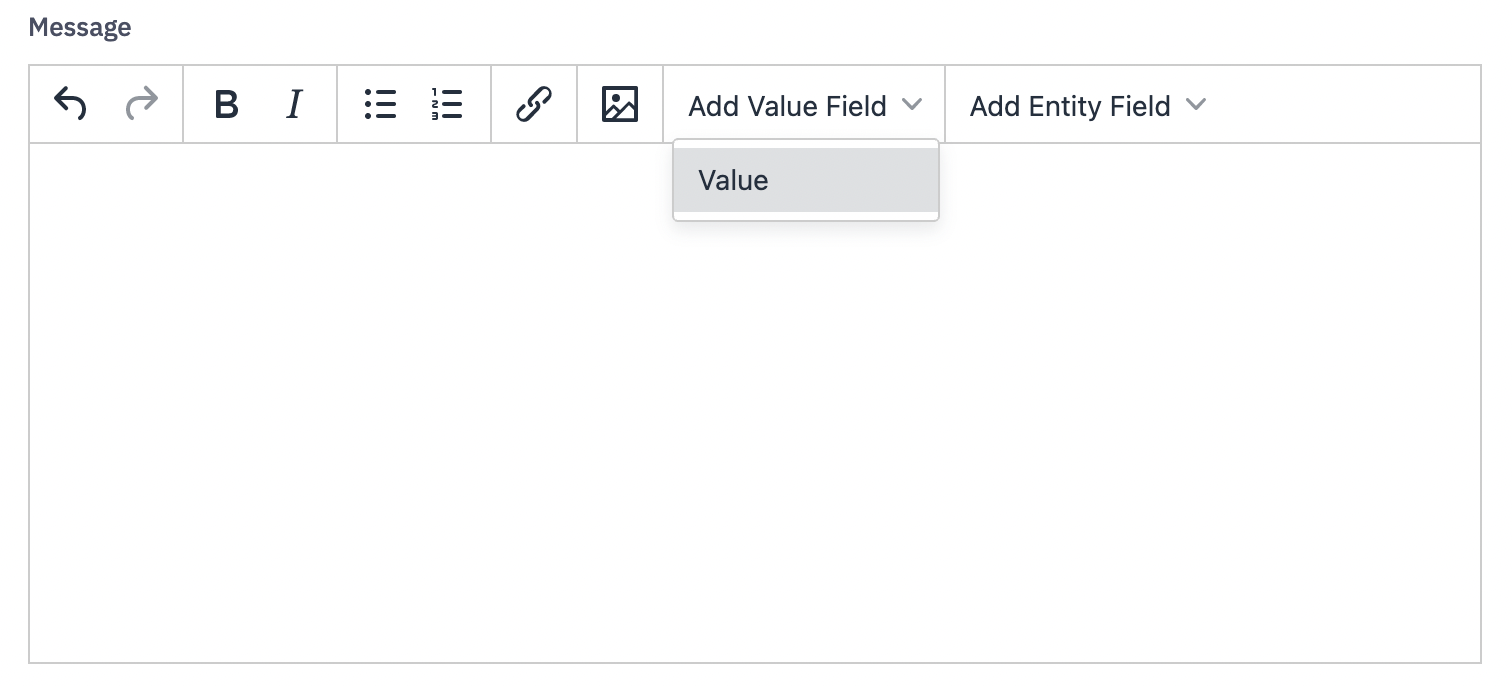
Optionally include a message to provide more context about the workflow, include encouragement and images, or dynamically incorporate metric level details.
Add Field Value
Based on the earlier metric and time frame selection, the workflow can populate the actual metric value/percent-to-target into the message.
Add Entity Value
The workflow message can dynamically be populated with the user or group's name based on hierarchy level selected above.

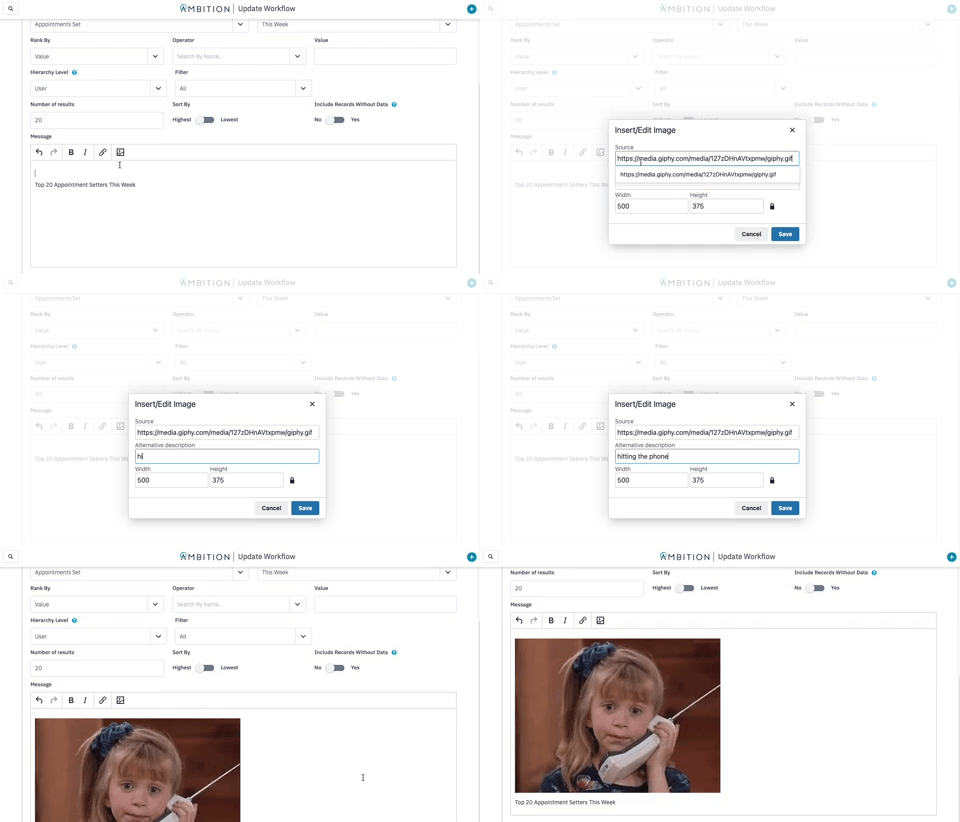
Insert Image
Images or GIFs will appear in workflows delivered to emails.
Insert an image or GIF by pasting the source link. The alternative description will appear if the image/GIF cannot load or if the user incorporates a screen reader.
Actions
A single workflow can support multiple actions.
Ex. A workflow can be sent to both an email address and a Slack channel.
View an example of a metric based alert email here.
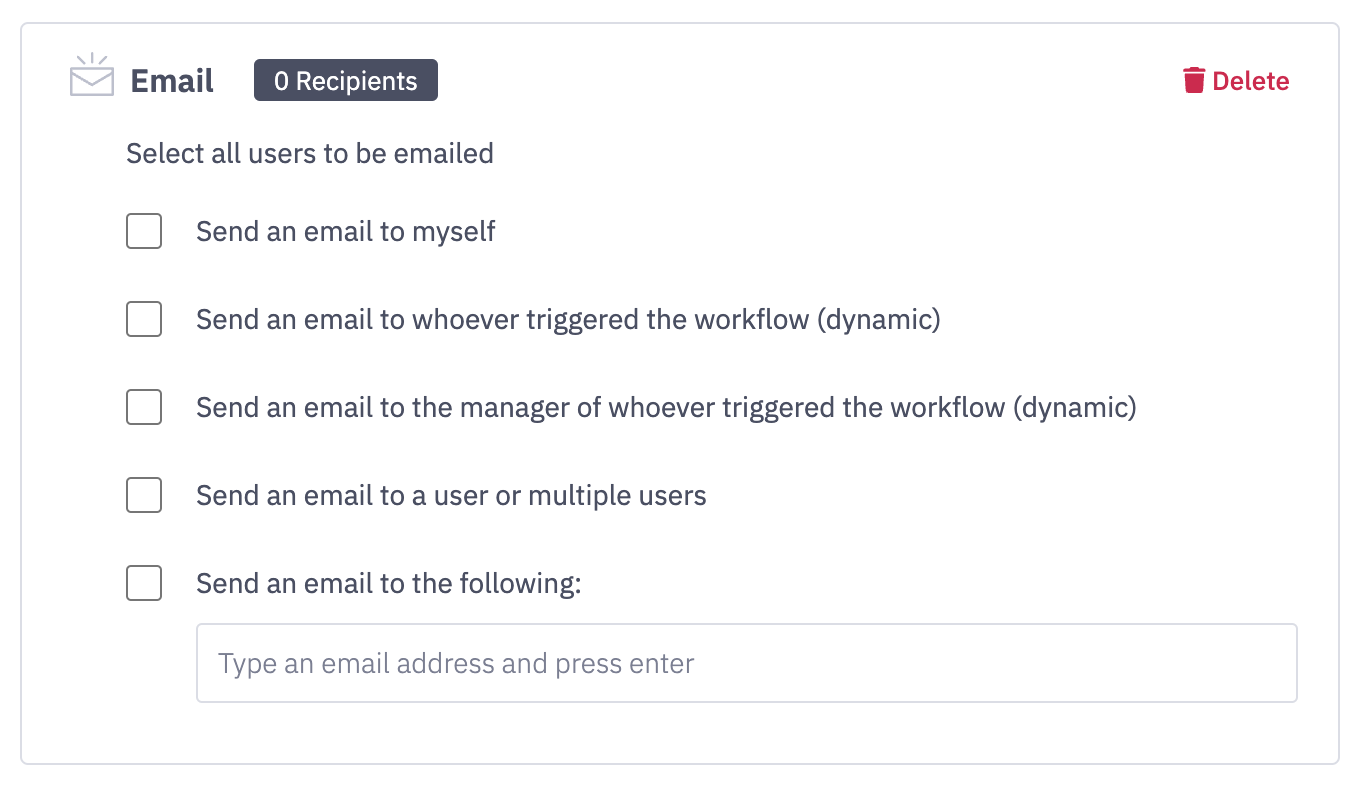
A single email will be sent to everyone selected in the same "Email" action creating a CC, reply-all behavior within the workflow email alert.
To create a BCC behavior within the workflow email alert, enable multiple "Email" actions.
Email - Action Options | Action Description |
Send an email to myself | Workflow will be sent to the workflow creator's email address. |
Send an email to whoever triggered the workflow (dynamic) | "Employees" hierarchy level selection in Step 2 is required for this notification option to appear as a selection. Workflow will be sent to the user's email who caused the workflow to fire (the user who is found in the record's selected User Field in step 2.) |
Send an email to the manager of whoever triggered the workflow (dynamic) | "Employees" hierarchy level selection in Step 2 is required for this notification option to appear as a selection. Workflow will be sent to the manager of the user who caused the workflow to fire (the user who is found in the record's selected User Field in step 2.) |
Send an email to a user or multiple users | Workflow will be sent to the selected user's email address. Additional hierarchy options will appear to allow you to designate which group(s) of Ambition users you want to receive the email alert. Learn more about hierarchy options here. Select all employees = Every active Ambition user will be notified of the workflow by email. Select employees within specific groups = You will be prompted to select one or more groups within Ambition. All members within the selected group(s) will be notified by email. Only members, and not managers, of the selected groups will be notified. Select specific employees = You will be prompted to manually select which specific users will be notified of the workflow by email. |
Send an email to the following (Custom Email Address) | An email will be sent to the input email address. Use for anyone/any group/distribution list who needs to receive workflow updates, but DOES NOT have an Ambition account. ex. salesteam@yourcompany.com or vpsales@yourcompany.com. Pro Tip: Ensure that any distributions lists have the proper protocols adjusted to allow Ambition emails to be received. If an Ambition user has unsubscribed from metric based alert workflow emails, they will still receive an email notification if their email is input as a custom email address. |
Slack Message
View an example of a metric based Slack message here.
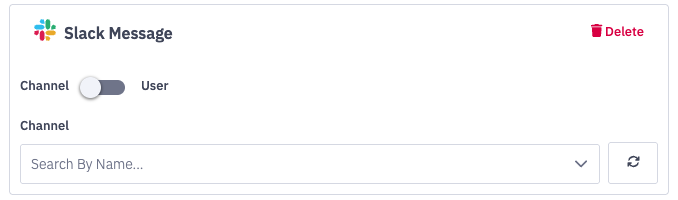
Slack Message - Action Options | Action Description |
Channel | Workflow will be sent to the selected Slack channel. If your organization has selected the "Public Access" authorization option within the Ambition > Slack Integration, you will be able to select any public channel from the "Which Slack Channel" drop down menu. Additionally, any private channels that the Ambition Slackbot has been explicitly invited to will appear here. Learn how to add Ambition to private channels here. If your organization has selected the "Invite Only" authorization option within the Ambition > Slack Integration, you will only be able to select channels that have explicitly invited the Ambition Slackbot. Learn how to add Ambition to Slack channels here. Unable to find a newly created Slack channel? Click the "reload" button or reach out to gethelp@ambition.com for additional assistance. |
User | Workflow will be sent to the selected Slack user through a direct message. Search for active Slack users by name. Unable to find a newly created Slack user? Click the "reload" button or reach out to gethelp@ambition.com for additional assistance. |
Microsoft Teams Message
View an example of a metric based Microsoft Teams message here.
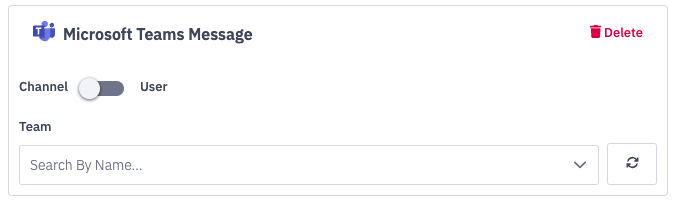
Microsoft Teams Message - Action Options | Action Description |
Channel | Workflow will be sent to the selected Microsoft Teams channel. Before workflows can be sent, the Ambition app will need to be added to the appropriate teams and channels. Steps to add Ambition here. Unable to find a newly added Microsoft Teams channel? Click the "reload" button or reach out to gethelp@ambition.com for additional assistance. |
User | Workflow will be sent to the selected Microsoft Teams user through a direct message. Search for active Microsoft Team users by name. Unable to find a newly created Microsoft Teams user? Click the "reload" button or reach out to gethelp@ambition.com for additional assistance. |
Webex Message
View an example of a metric based Webex message here.
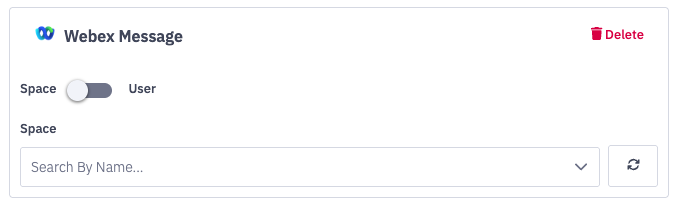
Webex Message - Action Options | Action Description |
Space | Workflow will be sent to the selected Webex space. Before workflows can be sent, the authorizing user will need to be added to the respective Webex space. Within a space, click the "People" tab and then "+Add people" to add the authorizing user. Unable to find a newly added Webex space or a space where the authorizing user was just added? Click the "reload" button or reach out to gethelp@ambition.com for additional assistance. |
User | Workflow will be sent to the selected Webex user through a direct message. Search for active Webex users by name. All users who have an Ambition account will be shown in the user dropdown, but only users who have a Webex account can receive direct messages. If you select a user who does not have a Webex account, an error of "unknown Webex email address - 'user's email address'" will appear upon saving the workflow. Unable to find a newly created Webex user? Click the "reload" button or reach out to gethelp@ambition.com for additional assistance. Since messages will be delivered through the authorizing user and Webex will not allow you to direct message yourself, the authorizing user will not be able to receive a workflow alert through a Webex direct message. |
Zoom Message
View an example of a metric based Zoom message here.
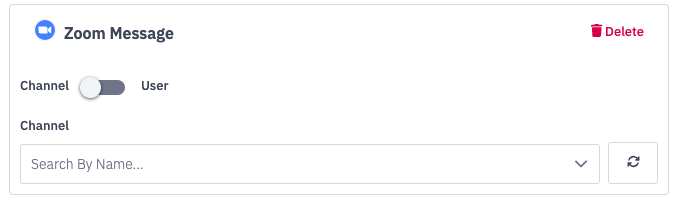
Zoom Message - Action Options | Action Description |
Channel | Workflow will be sent to the selected public Zoom channel. Unable to find a newly created Zoom channel? Click the "reload" button or reach out to gethelp@ambition.com for additional assistance. |
User | Workflow will be sent to the selected Zoom user through a direct chat. Search for active Zoom users by name. Unable to find a newly created Zoom user? Click the "reload" button or reach out to gethelp@ambition.com for additional assistance. |
TV Alert
View an example of a metric based TV notification here.
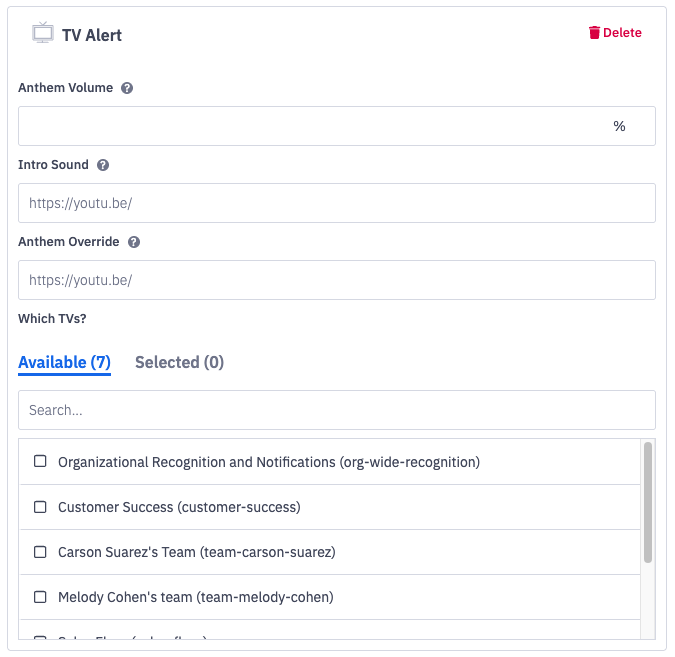
Optional TV Selections | Selection Behavior |
Anthem Volume | Determine the volume of the YouTube or Vimeo video (not the TV's volume). You can set the intro/anthem volume so that specific workflows are louder than others. Take public recognition to the next level by getting everybody's attention! The choice is yours! |
Intro Sound | Each workflow has a five-second "introduction" before the anthem starts playing where workflow details are displayed front-and-center. You can set an optional audio clip (like a gong) to play during this introduction. |
Anthem Override | A workflow specific anthem can optionally be used to override any user or groups personalized anthems. Input a shareable URL from either YouTube or Vimeo. |
TV Alert - Action Options | Action Description |
Which TVs? | Workflow will be sent to the respective Ambition TV(s) selected. Search for and select the specific Ambition TVs you want the workflow to appear on. |
Log

Log - Action Options | Action Description |
Log | Send workflow to internal log for troubleshooting purposes. Logs can be viewed under the "Jobs" tab in the manage workflow view. (Workflows: All Access permission required) You will be able to see the workflow name and the time the workflow ran to ensure that your workflow logic is performing as expected before sharing the workflow with end users. 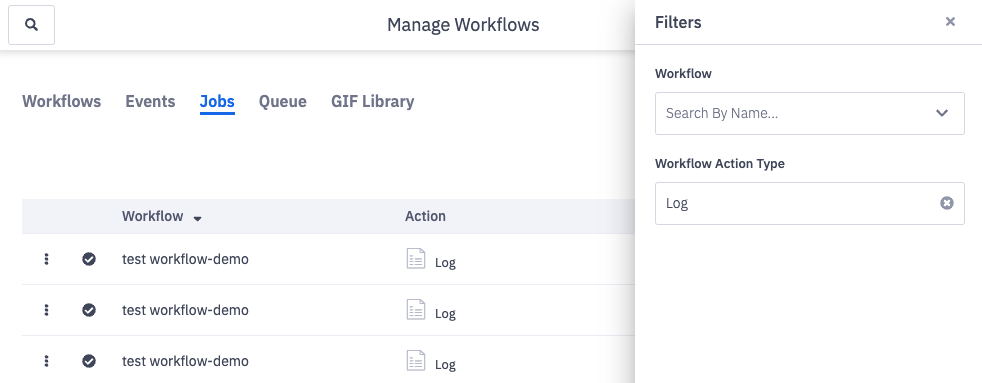 |
5. Click Create Workflow.