How do I create a scheduled leaderboard workflow?
Last updated: February 2, 2026
Scheduled Leaderboard Workflow
What is a scheduled leaderboard?
A scheduled leaderboard provides insight into the top individual performers, teams, or groups for a single metric across custom schedules.
Examples:
Send the weekly "Closed Won Revenue" rankings to Slack/Microsoft Teams/Webex/Zoom, and my inbox every Friday at 6pm.
At noon each weekday, share the current top 10 Activity Score performers in Slack.
Scheduled leaderboards can also be used as a means of proactive notification when metric thresholds are not being met.
Examples:
Notify the sales leadership email group any time a rep on the sales development team has created less than 2 scheduled meetings by Wednesday at 11am.
Send a email at 10am to the SDR manager when reps have made less than 10 phone calls.
Create a Scheduled Leaderboard Workflow
Users with "Workflows: All Access" or "Workflows: Create" permission will be able to create workflows.
Creators will be able to edit and delete workflows they create.
Users with "Workflows: All Access" permission will be able to edit and delete all workflows. Users with "Workflows: Edit" permission will be able to edit all workflows or edit workflows that users they manage created depending on the level of access.
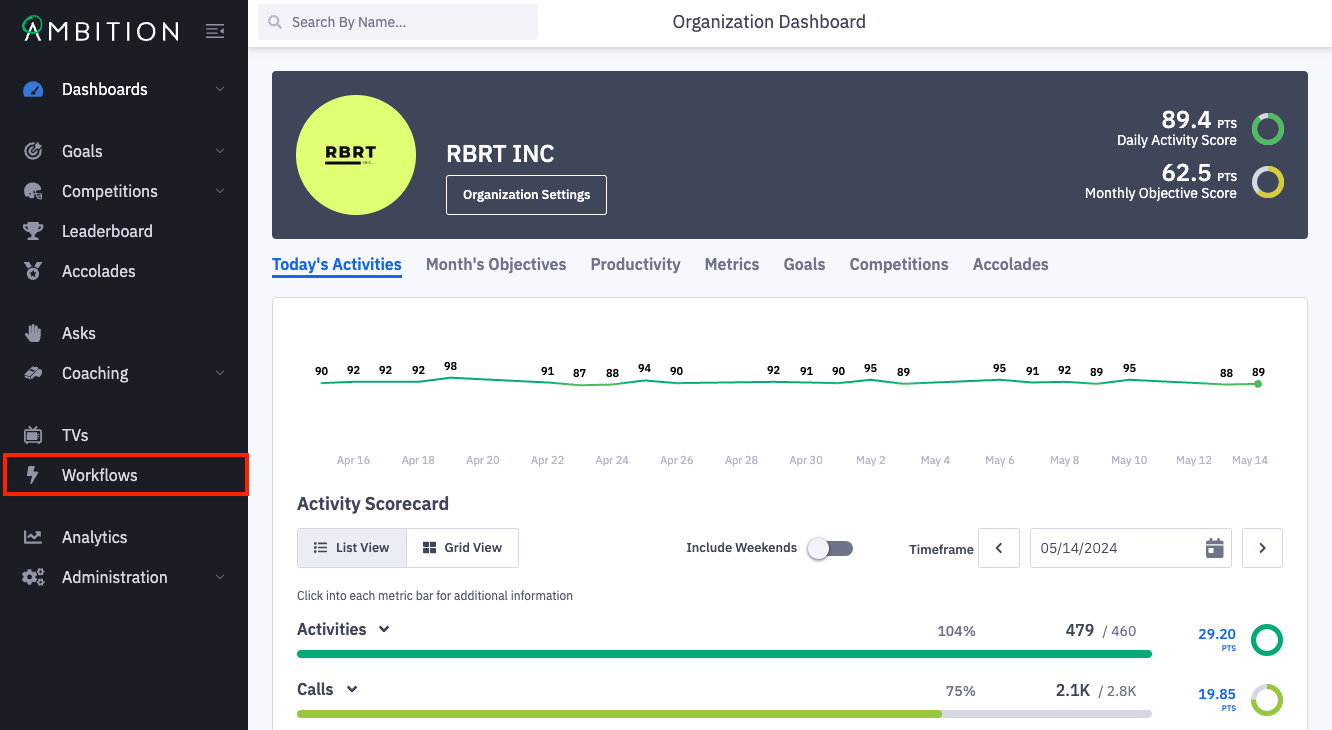
1. Open the left navigation and click Workflows.
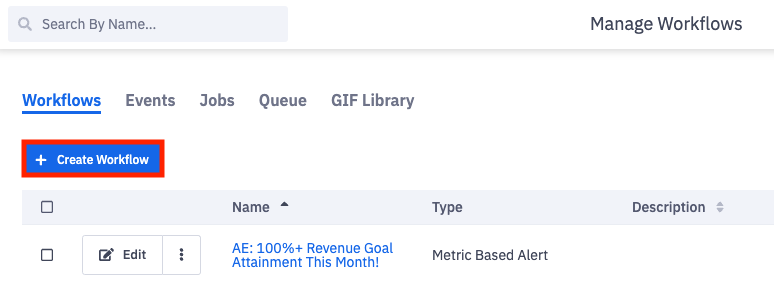
2. Click the + Create Workflow button.
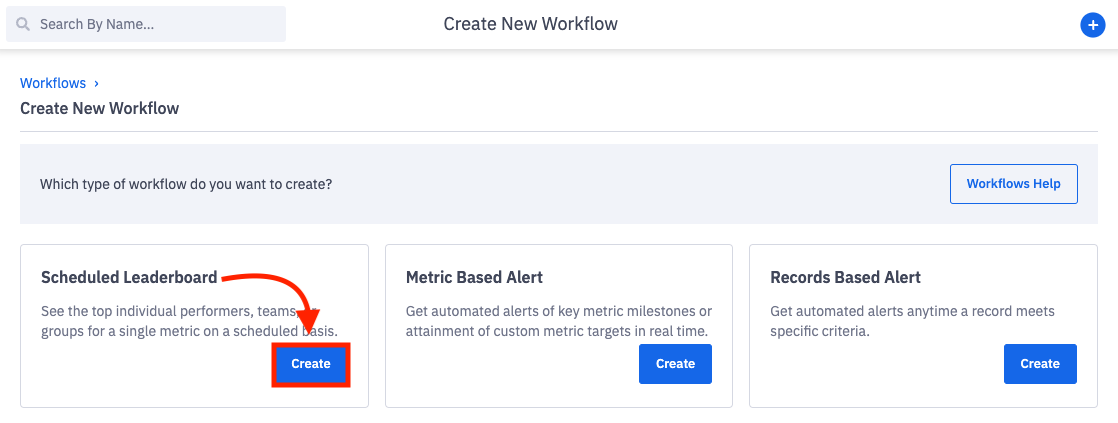
3. Click Create on the Scheduled Leaderboard tile.
4. Complete the Create Workflow Form:
Details
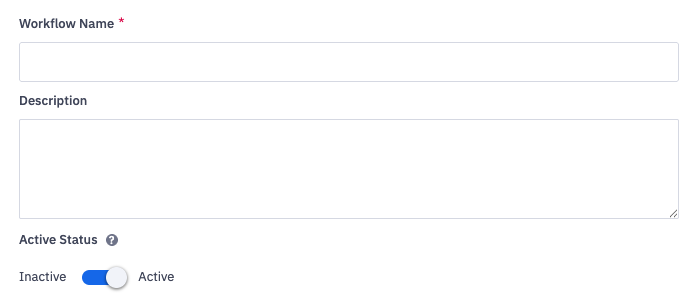
Workflow Name
The name will be displayed within Ambition and on scheduled leaderboard email notifications.
Description
Optional. Description is visible on the manage workflows page and can be helpful to provide context on the behavior the workflow is recognizing.
Active Status
Active = the scheduled leaderboard workflow will run on the set recurrence scheduled.
Inactive = the scheduled leaderboard workflow will be disabled and no alerts will be provided. Inactive workflows are not deleted and can be set back to active at the appropriate time.
Leaderboard Settings
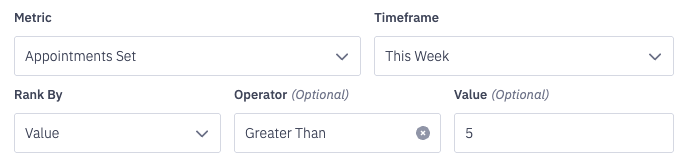
Metric
Select the single metric that you wish to rank users or groups on.
Time Frame
Select the time frame that you wish to use for the ranking. Ex. today, this week, last month
Rank By
What type of leaderboard do you wish to share?
Value, Percent-to-Target*, Most Improved Value, or Most Improved Rank.
*If Percent-to-Target is selected then you must select user for the workflow's hierarchy level.
Operator and Value
Optionally include an operator and value to further drill into the leaderboard.
Ex. Show me users who have made Less Than 10 calls by 10am
Ex. Show me users who have set Greater Than or Equal To 4 appointments by Wednesday at noon
Operator and value can be left blank for leaderboards where you wish to view a leaderboard without a specific value threshold.
Ex. Show me a leaderboard of top Activity Scores everyday at 12pm
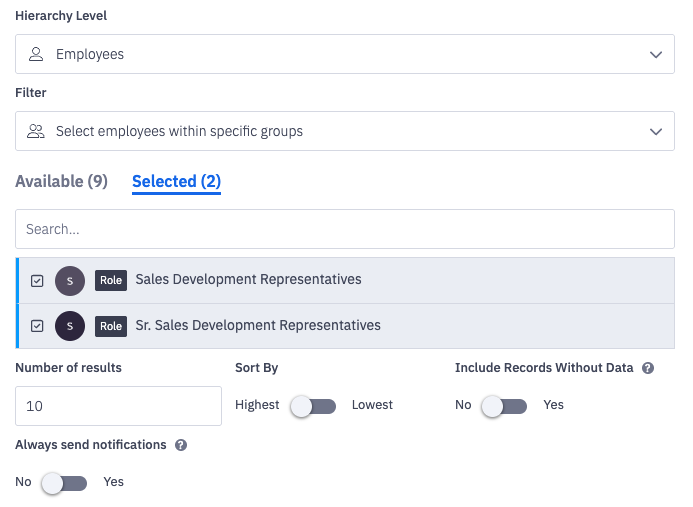
Hierarchy Level and Filter
Who should be ranked? Employees, teams, roles, etc.
Learn more about hierarchy options here.
Number of Results
10 employees or groups will be displayed by default.
Scheduled leaderboards sent to Webex will only display 10 users or groups even if a larger number of results is selected.
Sort By
Either show the top of the leaderboard or the bottom of the leaderboard.
Include Records without Data
Toggle to "Yes" if you wish to include users or groups who currently have no value for the selected metric. Helpful for scheduled leaderboards that are utilizing a "less than" operator.
Always send notifications
Toggle to "Yes" if you wish to still receive a workflow notification even when no one fits the leaderboard criteria.
Message (optional)
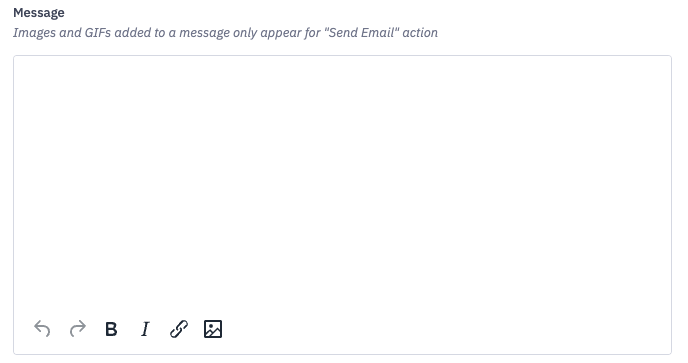
Optionally include a message to provide more context about the workflow, include additional encouragement, or add images.
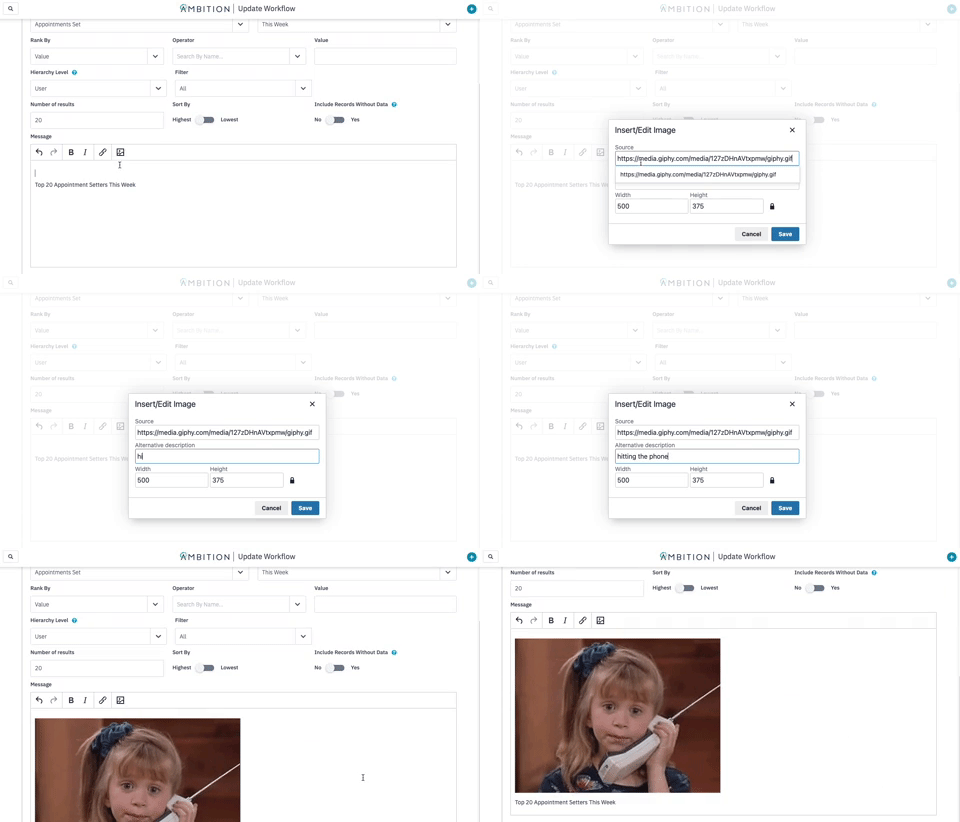
Insert Image
Images or GIFs will appear in workflows delivered to emails.
Insert an image or GIF by pasting the source link. The alternative description will appear if the image/GIF cannot load or if the user incorporates a screen reader.
Recurrence
Establish the Initial Event

Set the start date, start time, and time zone to indicate when the workflow should begin running.
The scheduled report in the image above would first send on March 3rd at 9:00am Eastern.
Establish Frequency of Each Recurring Event
Repeats Every
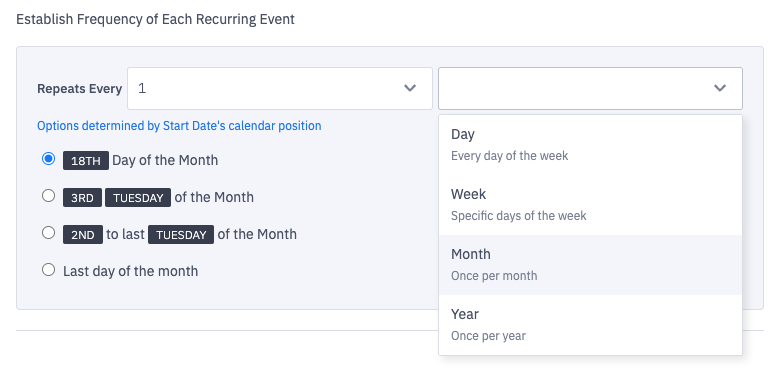
Select the appropriate number and time frame to indicate how often the workflow needs to run.
Time frame options:
Day - Workflow will run every day of the week, even weekends
Week - Select a specific day or multiple days of the week for the workflow to run
Month - Workflow will run once per month on a designated day
Year - Workflow will run once per year on a designated day
Establish When the Recurrence Ends
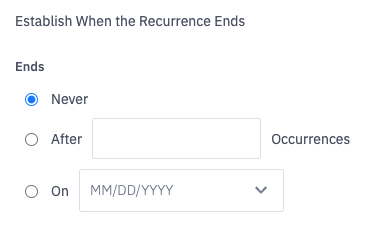
Workflows will continue on indefinitely unless an end is specified.
Workflows can end after a certain number of occurrences or end on a specific date.
Expected Occurrences
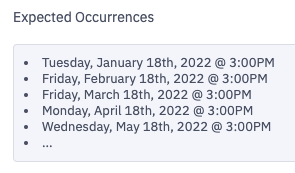
Ambition will generate a preview of expected occurrences. Ensure the dates and frequencies aligns with your expectations.
Actions
A single workflow can support multiple actions.
Ex. A workflow can be sent to both an email address and a Slack channel.
View an example of a scheduled leaderboard email here.
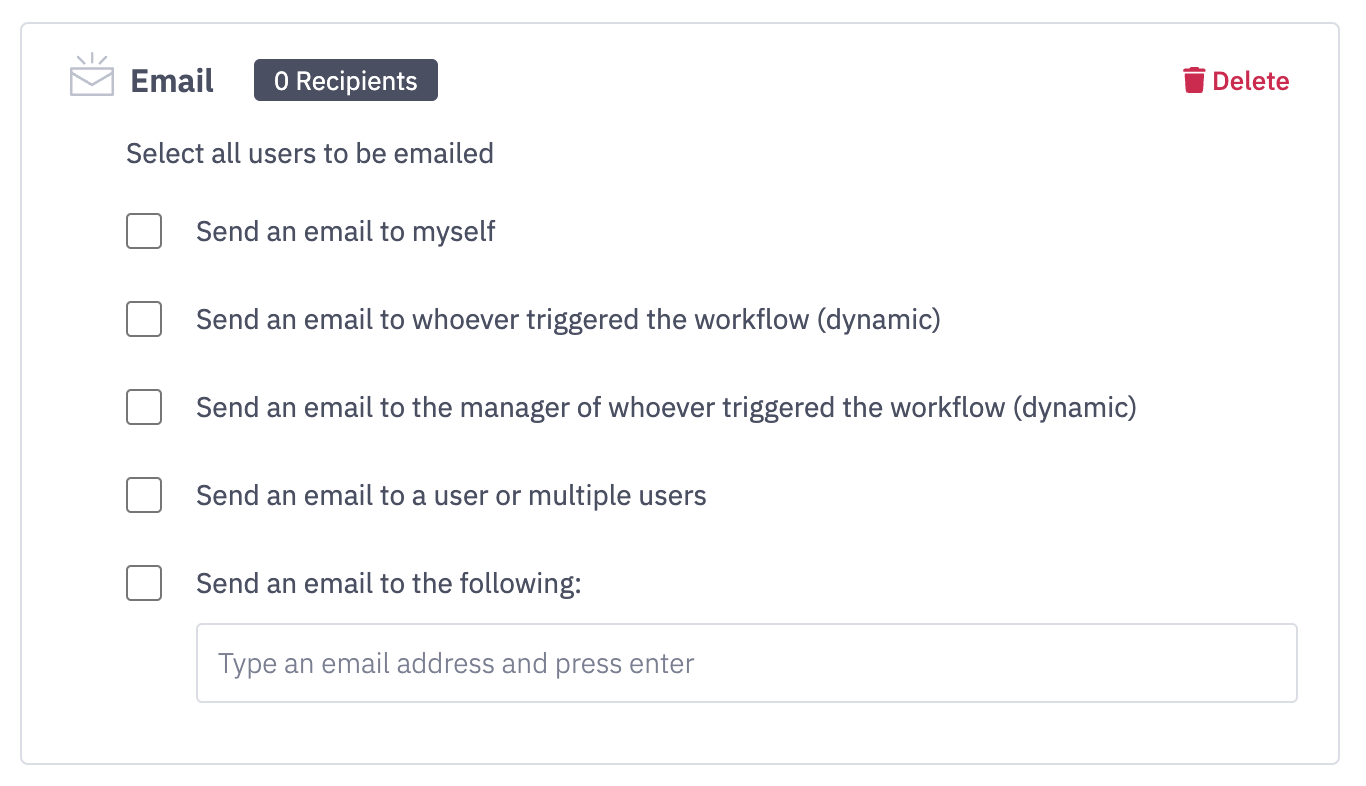
A single email will be sent to everyone selected in the same "Email" action creating a CC, reply-all behavior within the workflow email alert.
To create a BCC behavior within the workflow email alert, enable multiple "Email" actions.
Email - Action Options | Action Description |
Send an email to myself | Workflow will be sent to the workflow creator's email address. |
Send an email to whoever triggered the workflow (dynamic) | "Employees" hierarchy level selection in Step 2 is required for this notification option to appear as a selection. The number of employees who trigger the workflow is determined by the number of results selected to show on the leaderboard from Step 2 as well. Ex. Number of Result = 10, the 10 employees on the leaderboard will be notified. If the hierarchy level "Employees > Within" is selected in Step 2, only members, and not managers, of the selected groups will be notified. |
Send an email to the manager of whoever triggered the workflow (dynamic) | "Employees" hierarchy level selection in Step 2 is required for this notification option to appear as a selection. The number of employees who trigger the workflow is determined by the number of results selected to show on the leaderboard from Step 2 as well. Ex. Number of Result = 10, the 10 managers (as applicable) of employees on the leaderboard will be notified. |
Send an email to a user or multiple users | Workflow will be sent to the selected user's email address. Additional hierarchy options will appear to allow you to designate which group(s) of Ambition users you want to receive the email alert. Learn more about hierarchy options here. Select all employees = Every active Ambition user will be notified of the workflow by email. Select employees within specific groups = You will be prompted to select one or more groups within Ambition. All members within the selected group(s) will be notified by email. Only members, and not managers, of the selected groups will be notified. Select specific employees = You will be prompted to manually select which specific users will be notified of the workflow by email. |
Send an email to the following (Custom Email Address) | An email will be sent to the input email address. Use for anyone/any group/distribution list who needs to receive workflow updates, but DOES NOT have an Ambition account. ex. salesteam@yourcompany.com or vpsales@yourcompany.com. Pro Tip: Ensure that any distributions lists have the proper protocols adjusted to allow Ambition emails to be received. If an Ambition user has unsubscribed from scheduled leaderboard workflow emails, they will still receive an email notification if their email is input as a custom email address. |
Slack Message
View an example of a scheduled leaderboard Slack message here.
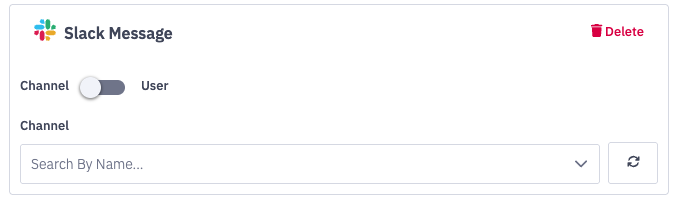
Slack Message - Action Options | Action Description |
Channel | Workflow will be sent to the selected Slack channel. If your organization has selected the "Public Access" authorization option within the Ambition > Slack Integration, you will be able to select any public channel from the "Which Slack Channel" drop down menu. Additionally, any private channels that the Ambition Slackbot has been explicitly invited to will appear here. Learn how to add Ambition to private channels here. If your organization has selected the "Invite Only" authorization option within the Ambition > Slack Integration, you will only be able to select channels that have explicitly invited the Ambition Slackbot. Learn how to add Ambition to Slack channels here. Unable to find a newly created Slack channel? Click the "reload" button or reach out to gethelp@ambition.com for additional assistance. |
User | Workflow will be sent to the selected Slack user through a direct message. Search for active Slack users by name. Unable to find a newly created Slack user? Click the "reload" button or reach out to gethelp@ambition.com for additional assistance. |
Microsoft Teams Message
View an example of a scheduled leaderboard Microsoft Teams message here.
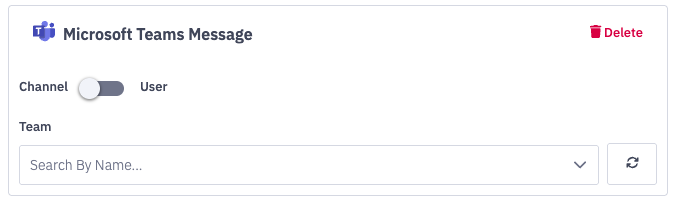
Microsoft Teams Message - Action Options | Action Description |
Channel | Workflow will be sent to the selected Microsoft Teams channel. Before workflows can be sent, the Ambition app will need to be added to the appropriate teams and channels. Steps to add Ambition here. Unable to find a newly added Microsoft Teams channel? Click the "reload" button or reach out to gethelp@ambition.com for additional assistance. |
User | Workflow will be sent to the selected Microsoft Teams user through a direct message. Search for active Microsoft Team users by name. Unable to find a newly created Microsoft Teams user? Click the "reload" button or reach out to gethelp@ambition.com for additional assistance. |
Webex Message
View an example of a scheduled leaderboard Webex message here.
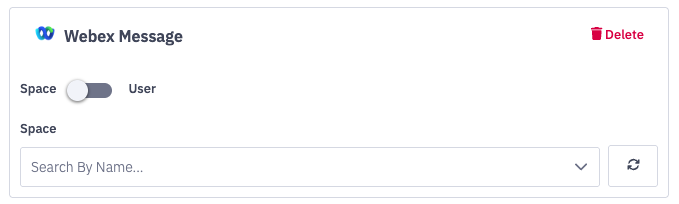
Webex Message - Action Options | Action Description |
Space | Workflow will be sent to the selected Webex space. Before workflows can be sent, the authorizing user will need to be added to the respective Webex space. Within a space, click the "People" tab and then "+Add people" to add the authorizing user. Unable to find a newly added Webex space or a space where the authorizing user was just added? Click the "reload" button or reach out to gethelp@ambition.com for additional assistance. |
User | Workflow will be sent to the selected Webex user through a direct message. Search for active Webex users by name. All users who have an Ambition account will be shown in the user dropdown, but only users who have a Webex account can receive direct messages. If you select a user who does not have a Webex account, an error of "unknown Webex email address - 'user's email address'" will appear upon saving the workflow. Unable to find a newly created Webex user? Click the "reload" button or reach out to gethelp@ambition.com for additional assistance. Since messages will be delivered through the authorizing user and Webex will not allow you to direct message yourself, the authorizing user will not be able to receive a workflow alert through a Webex direct message. |
Zoom Message
View an example of a scheduled leaderboard Zoom message here.
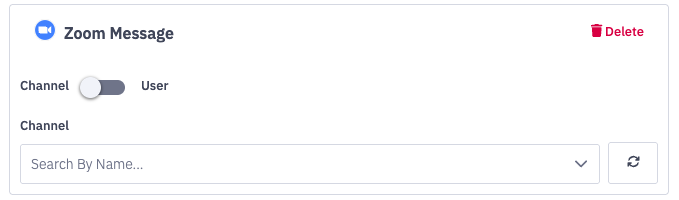
Zoom Message - Action Options | Action Description |
Channel | Workflow will be sent to the selected public Zoom channel. Unable to find a newly created Zoom channel? Click the "reload" button or reach out to gethelp@ambition.com for additional assistance. |
User | Workflow will be sent to the selected Zoom user through a direct chat. Search for active Zoom users by name. Unable to find a newly created Zoom user? Click the "reload" button or reach out to gethelp@ambition.com for additional assistance. |
Log

Log - Action Options | Action Description |
Log | Send workflow to internal log for troubleshooting purposes. Logs can be viewed under the "Jobs" tab in the manage workflow view. (Workflows: All Access permission required) You will be able to see the workflow name and the time the workflow ran to ensure that your workflow logic is performing as expected before sharing the workflow with end users. 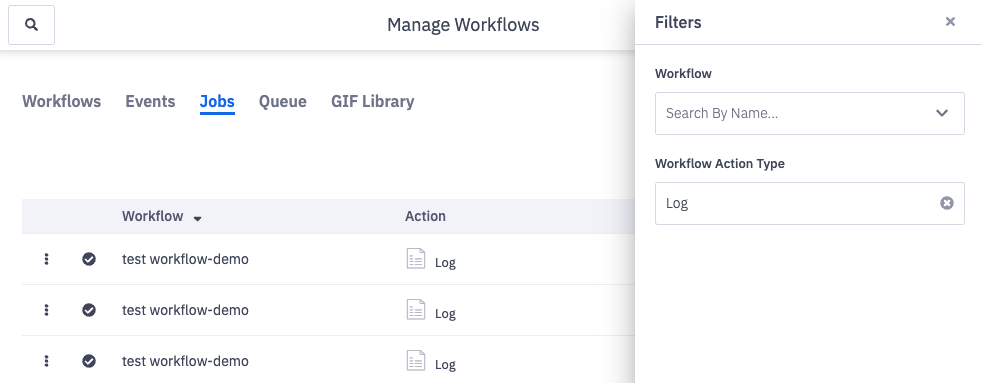 |
5. Click Create Workflow.