What is a percent-to-target leaderboard?
Last updated: June 20, 2025
Percent-to-Target Leaderboards
The Ambition leaderboard and TV leaderboard allow you to toggle between "value" (absolute) ranking and "percent-to-target" (relative) ranking.
Relative rankings are derived from the percent to activity and objective targets that have been set through Ambition scorecards.
Percent-to-target leaderboards are great for visualizing employee performance while taking into account individual metric targets!
Prerequisites
Your organization has established scorecards within Ambition.
Access Percent-to-Target Leaderboards
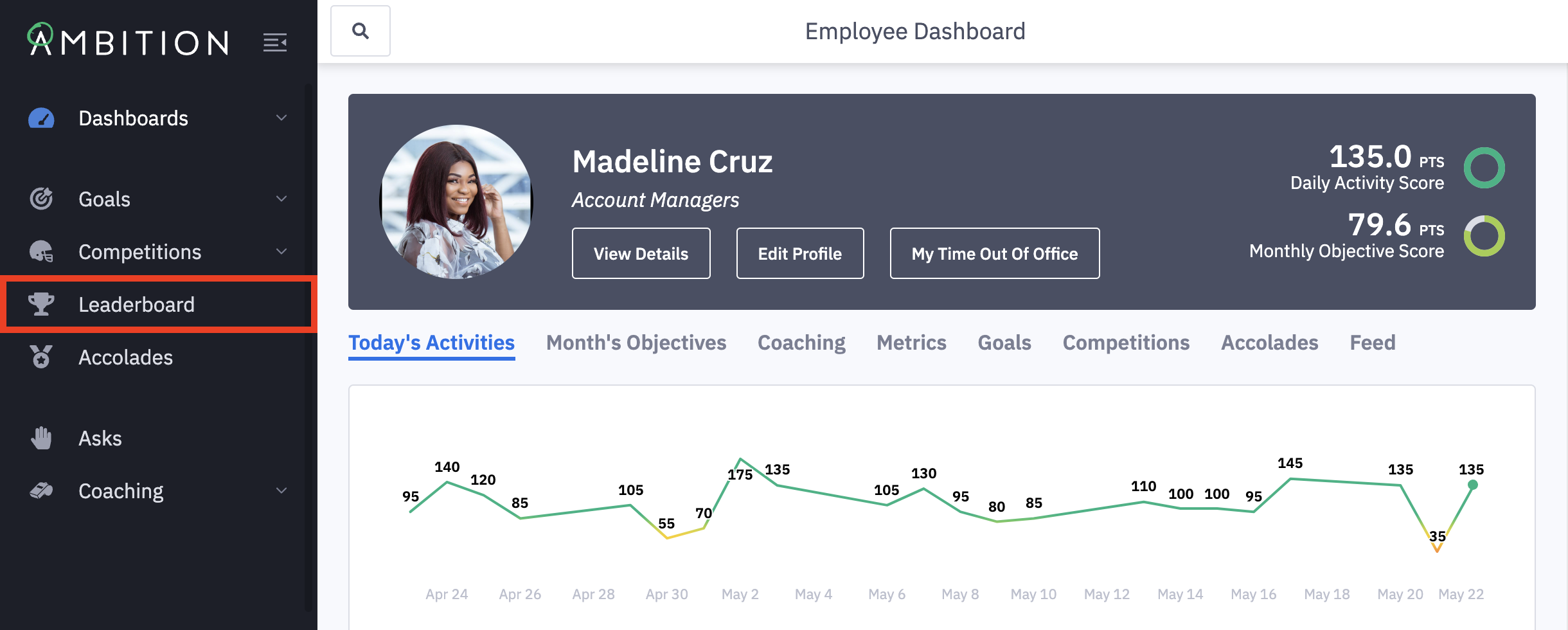
1. Open the left navigation and click Leaderboard.
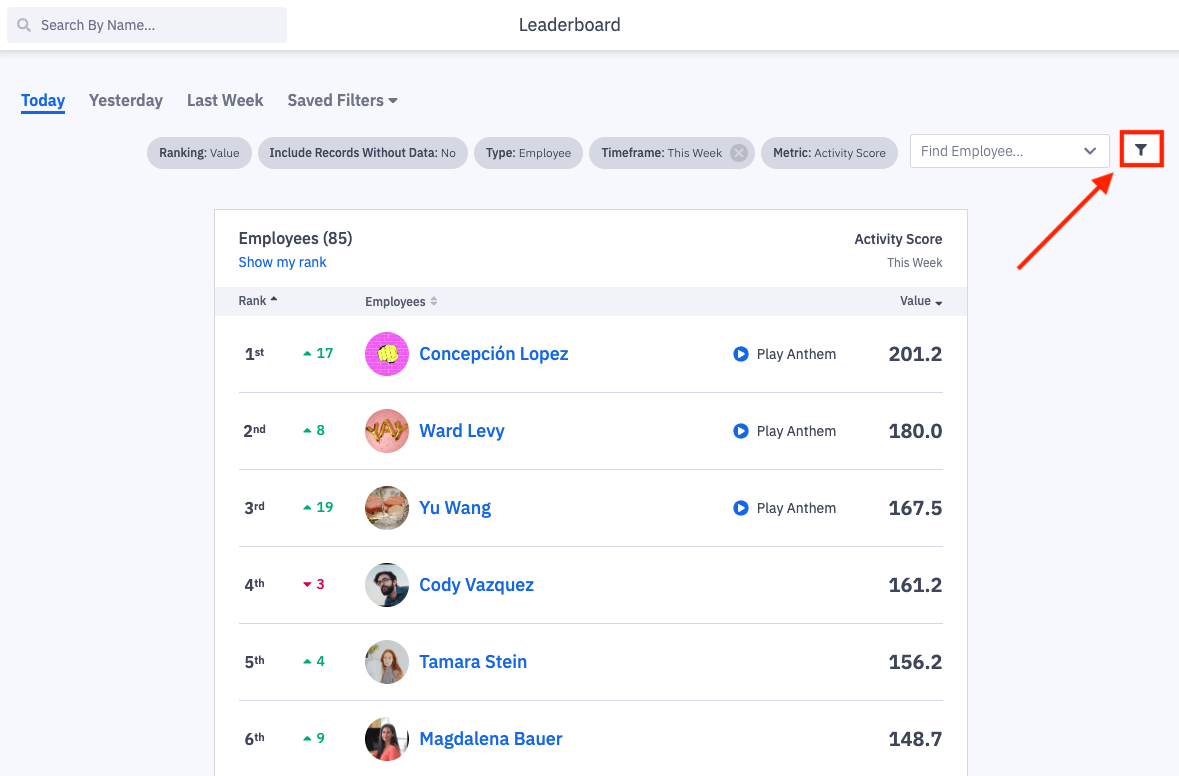
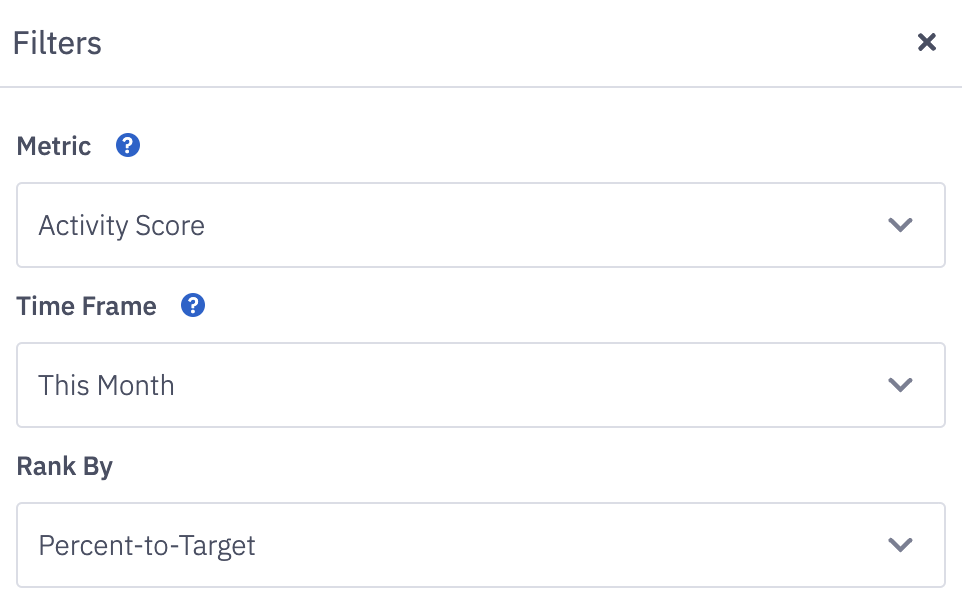
2. Click the filters icon in the upper right to access the filters pane.
Available Filter | Filter Description |
Metric | Select a single metric. The default is activity score, but any metric within your organization's account can be used here. |
Time Frame | The time frame options will be heavily dependent on the scorecard time frames your organization uses. ↳ Using a "custom" time frame will not deliver the % to target functionality you are desiring to see. Learn more about % to target time frames here. Note: A week in Ambition is Monday - Sunday. Quarters and years are based on calendar quarters and years not fiscal quarters or years. |
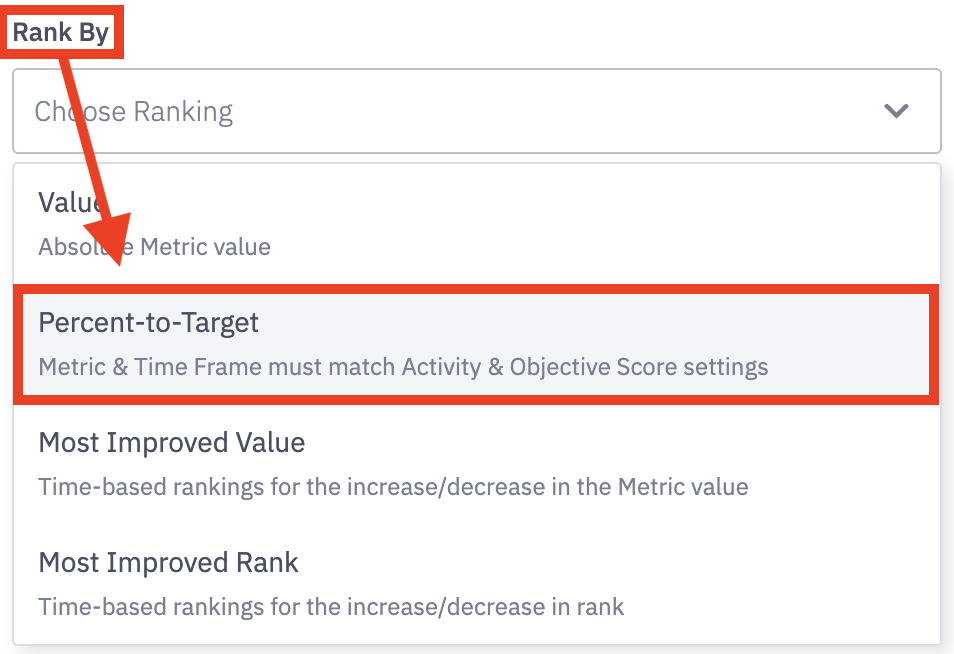
Rank By | Select percent-to-target. Learn how to access and use the most improved leaderboard options here. |
Type | "Employee" must be selected to use the percent-to-target leaderboard! ↳ On a leaderboard TV slide, the percent-to-target option will render a progress bar for other group types, but for activity and objective score only. |
Include Employees Without Data | Include users even if they haven't contributed to the selected metric. Users without data will display on the leaderboard, but have two dashes instead of a numerical value and/or progress bar aside their name. |
Filter By Group | Refine the users shown on the leaderboard by comparing individuals within the same role, team, or location. Learn more about Ambition's hierarchy levels here. |
Search | Search for a term based on the "type" being filtered. Ex. Type = Employee search for user's names. |
3. Select Percent-to-Target from the Rank By dropdown.
What is shown on a Percent-To-Target Leaderboard?
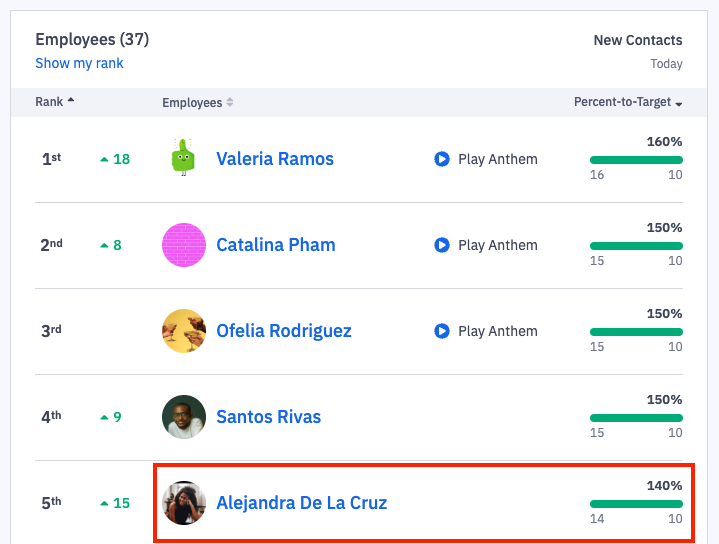
Percent-to-Target Leaderboards showcase a user's relative ranking rather than absolute.
A Percent-to-Target Leaderboard will showcase a user's name and image as well as their respective progress towards the targets set on their scorecard.
Example:
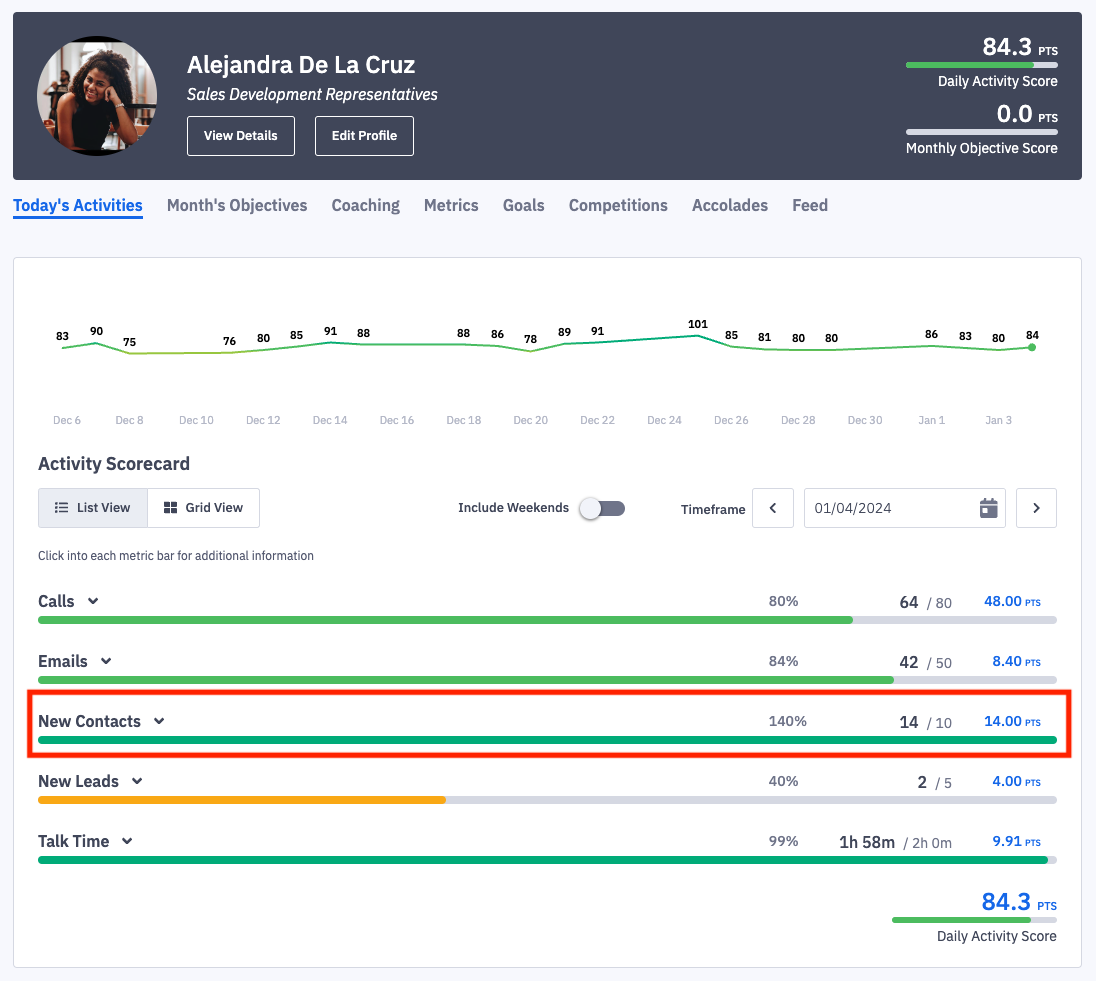
Alejandra has a daily activity score target of 10 New Contacts.
Currently Alejandra has exceeded target and created 14 out of the expected 10 which is 140% to the daily target.
User Dashboard
Why are relative rankings helpful?
We LOVE to recognize users for their efforts, and solely using absolute value rankings can leave out part of the picture.
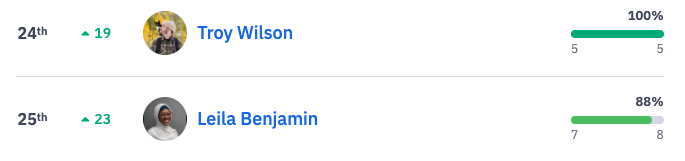
In the example below we see Troy is 100% to target. Troy has created 5 new leads today.
Leila is 88% to target. Leila has created 7 new leads today.
In an absolute rank leaderboard, Leila would appear above Troy as 7 is higher than 5.
By using relative ranking, Troy can be recognized for creating new leads and moving towards a daily personalized target!
What do I need to know before using a percent-to-target leaderboard?
Helpful Tip!
Before diving in to percent-to-target leaderboards, it's very helpful to know the respective time frames your organization uses for activity (daily or weekly) and objective (weekly, monthly, or quarterly) scores, so you can quickly select the appropriate leaderboard time frames as well.
You can verify the time frames used for activity and objective scores through viewing a dashboard.
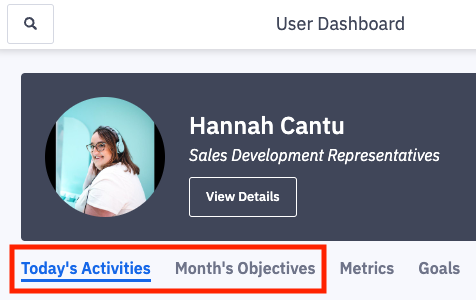
As mentioned in the helpful tip above, knowing your organization's activity and objective score time frames will help direct you towards viewing the correct leaderboard time frames as well.
Example from image above:
If Today's Activities is listed that means your company uses a daily activity score.
Select today or yesterday leaderboard time frames.
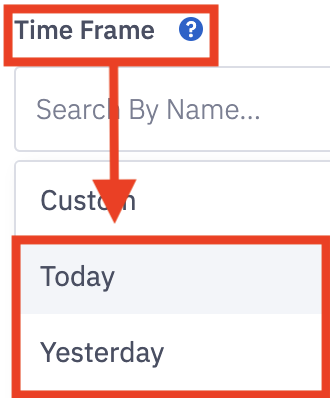
Here is a table of all scorecard options and their time frames:
Activity and/or Objective Score | Leaderboard Time Frame to Select |
Daily | Today or Yesterday |
Weekly | This Week or Last Week |
Monthly | This Month or Last Month |
Quarterly | This Quarter or Last Quarter |
Using custom time frames to reflect the activity/objective score time frame is not supported, ex. selecting Custom > Start Time = March 1st, End Time = March 31st instead of selecting "This Month" will not render a percent-to-target progress bar.
Example:
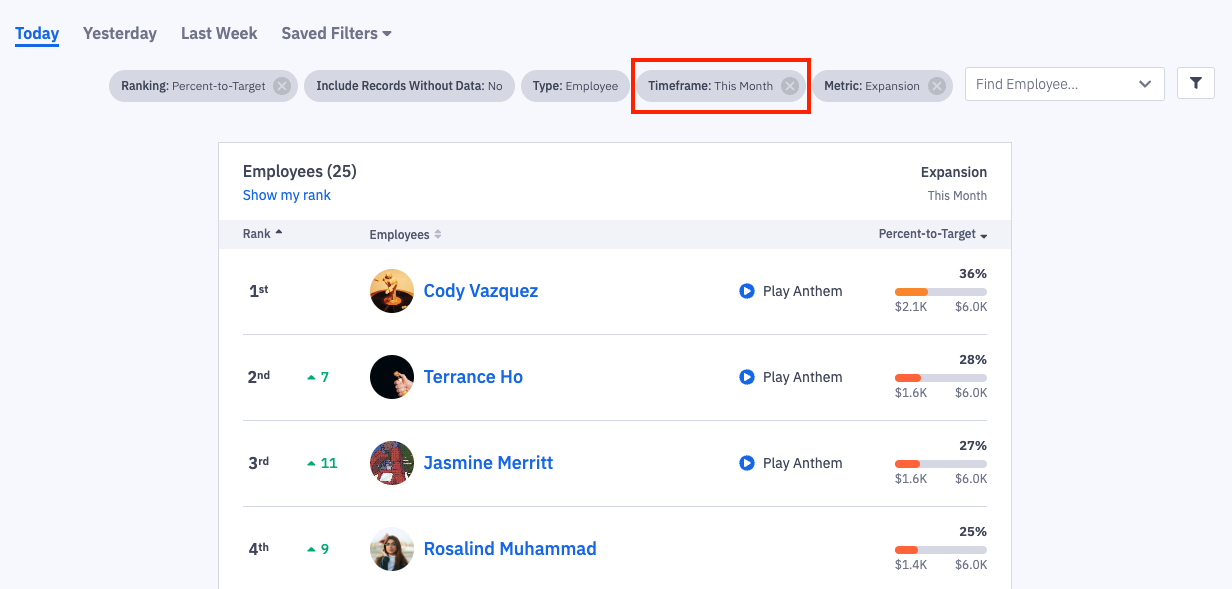
Expansion is part of user's monthly objective scores.
Percent-to-target values will only be seen when a time frame of this month or last month is selected.
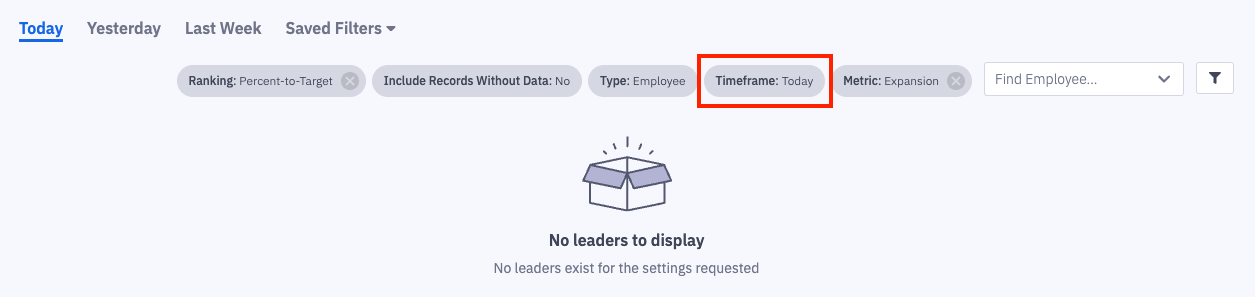
Revenue is not part of user's daily activity score.
No data will be shown since no scorecard targets exist for the metric and time frame selected.
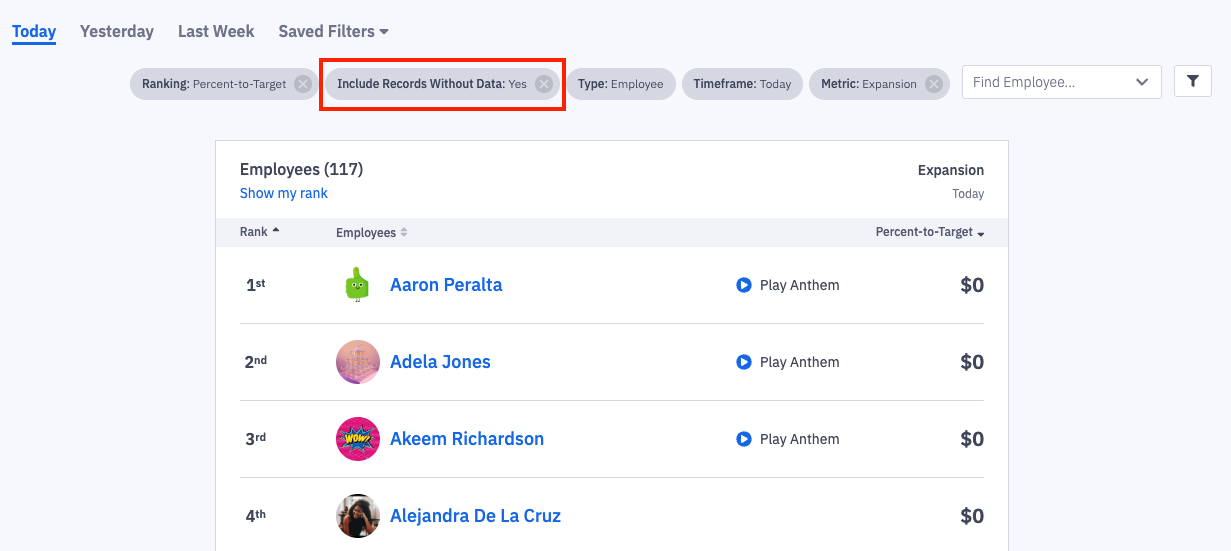
Exception to the above blank view, if the filter Include Employees Without Data is toggled to Yes, you will see 0s with users instead of the blank screen to still indicate a lack of data.
What about Activity and Objective Score?
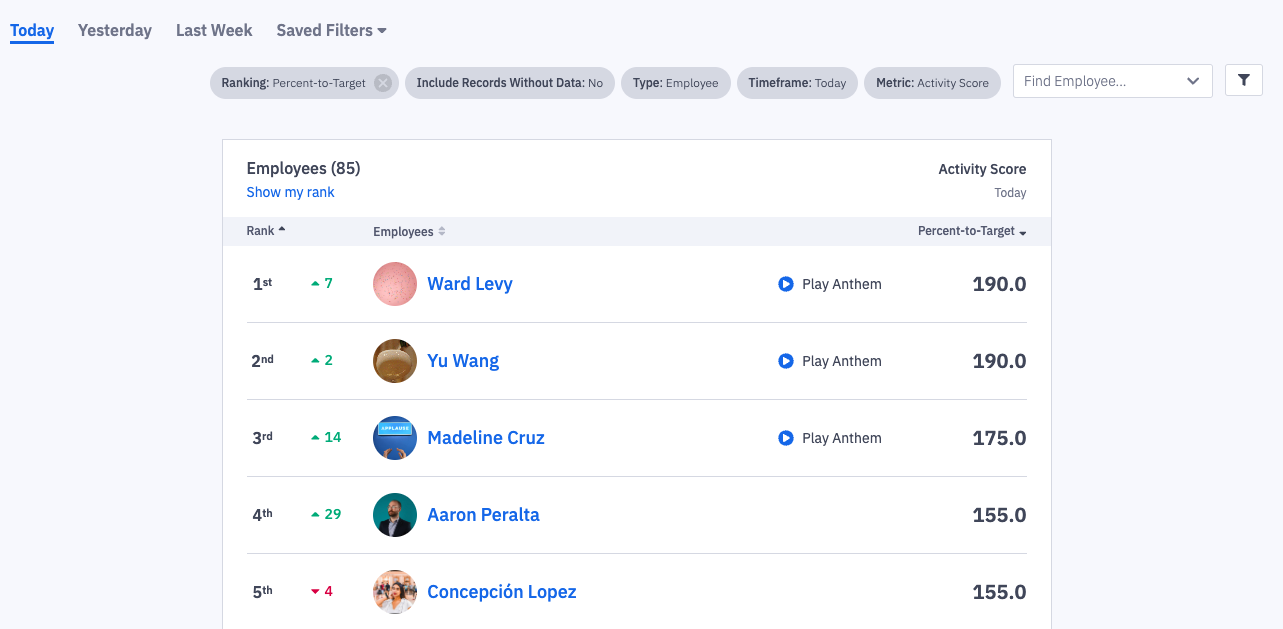
The only metrics that do not need a target set, but can be viewed when percent-to-target is selected are activity and objective score themselves. No percent-to-target progress bar will render, but the score's value will display instead. The exception is on a leaderboard TV slide where a progress bar can be seen for activity and objective score.
Activity and objective score, while scored on set time frames, will be averaged when viewed across larger time frames.
Ex. Daily activity score selected with a time frame of this month. Each individual daily activity score will be averaged over the course of the month.
 |  |