How do I edit accolades?
Last updated: June 17, 2025
Edit Accolades
Users with "Accolades: Create Accolade" permission will be able to edit and delete accolades.
Users with "Can Create Accolades for anyone" permission can edit and delete all accolades.
Combined with manager permissions, "Can Create Accolades for Subordinate Users" can edit and delete accolades they've created.
Edit an Accolade in Card View
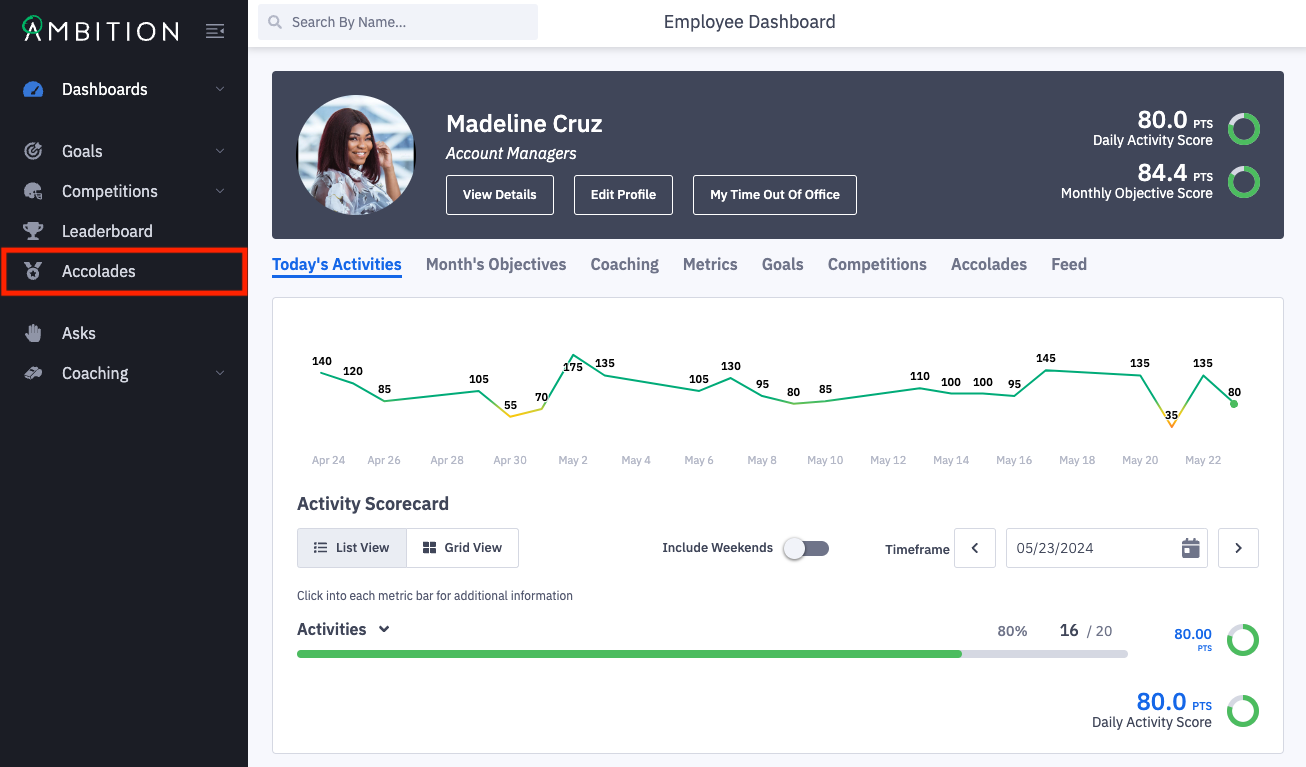
1. Open the left navigation and click Accolades.
The accolades tab gives you an overview of all active accolades as well as a list of employees who have achieved the respective accolade, the criteria, and details for each award.
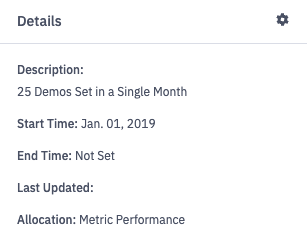
2. Click Details on any accolade to see more information about the Start Time, Allocation, Description, and Incentive.
3. Click the gear icon to edit the accolade.
Edit an Accolade in List View
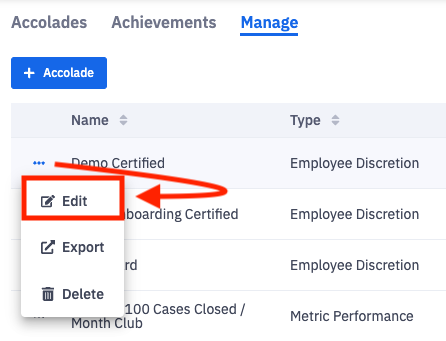
1. Open the left navigation and click Accolades > Manage.
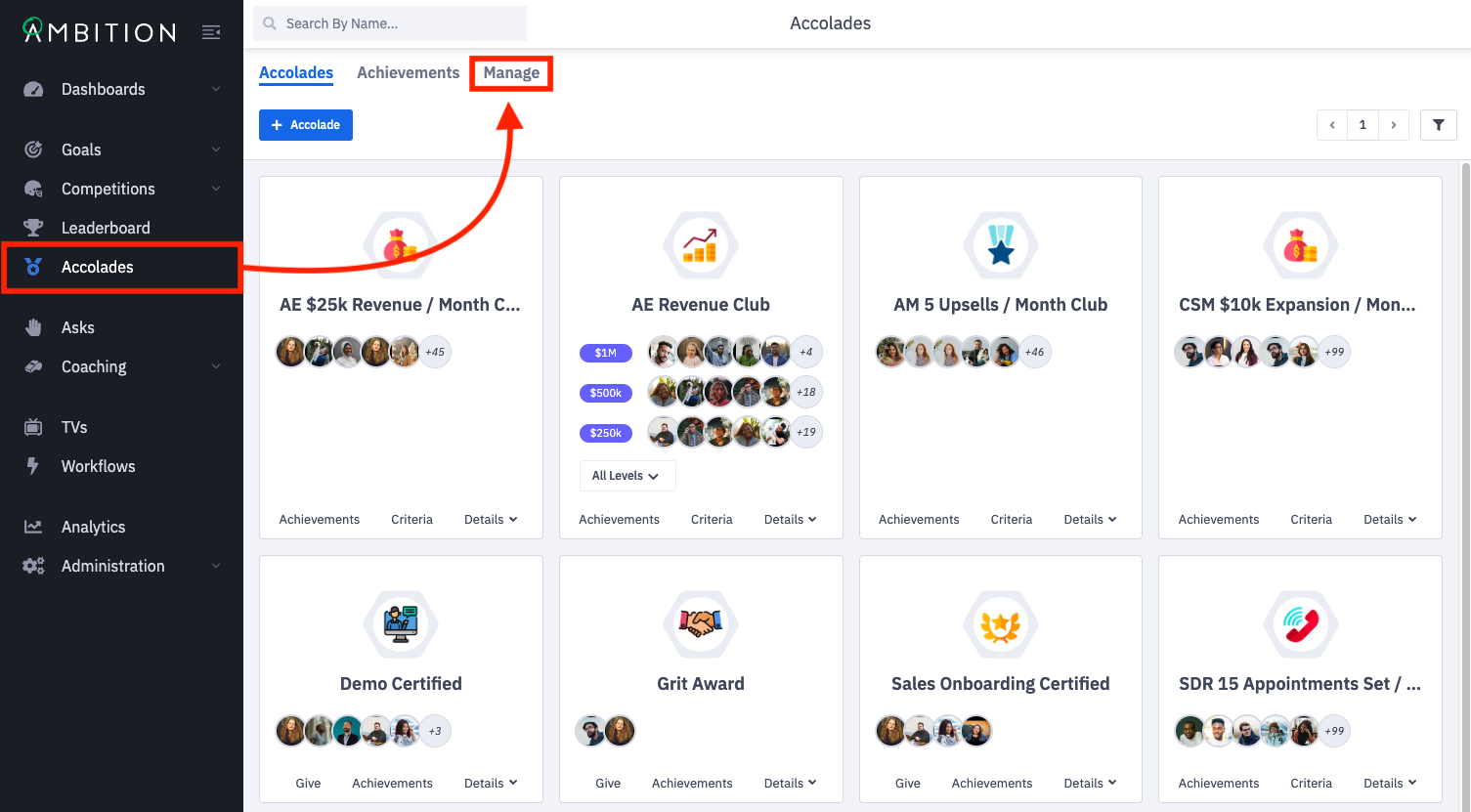
2. Click the ellipses icon in line with the appropriate accolade to open the edit form or to delete the accolade itself.
What information can I edit after an accolade is created?
After an accolade has been created, you can update the:
Name
Picture
Description
Incentives
Levels
Metric Targets
Eligibility - Hierarchy Level
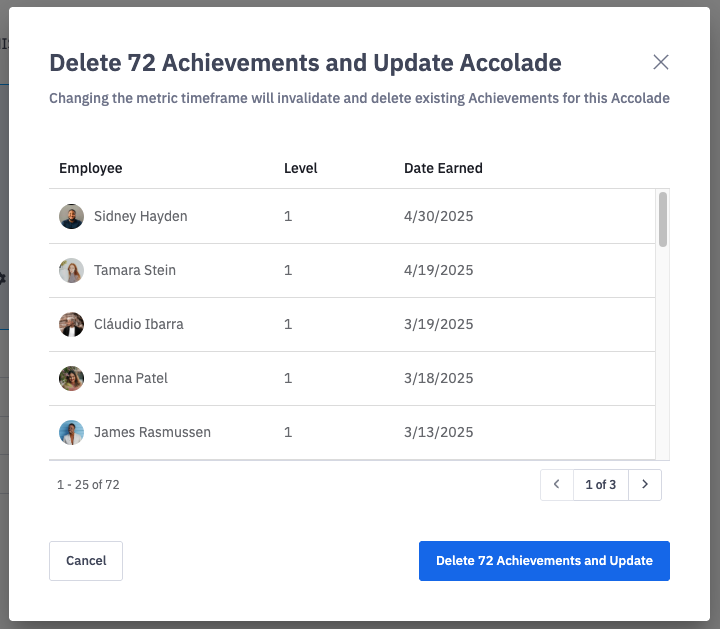
The Eligibility Time Frame and Metric Time Frame can also be edited, but will result in deletion of past achievements.
If the desire is to keep past achievements, we recommend building a new accolade with the appropriate time frames in place.
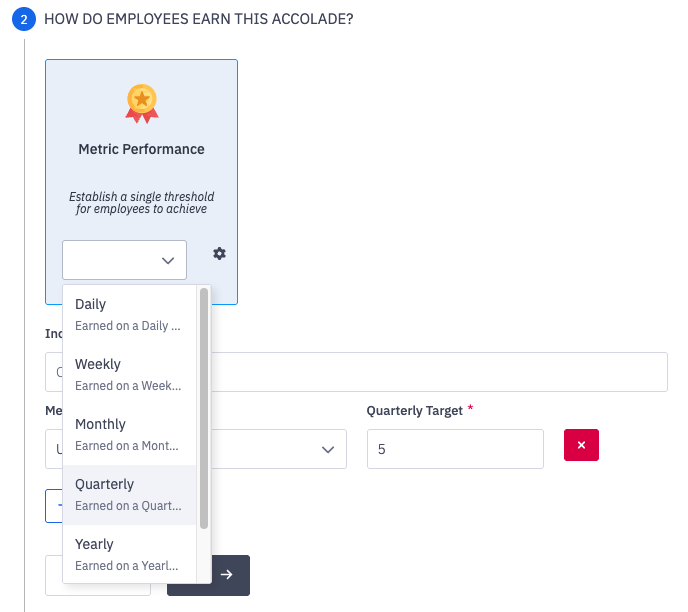
3. Make appropriate updates, and click Update to save your changes.

4. If you changed the eligibility time frame or metric time frame, you will be prompted to acknowledge that existing achievements will be deleted. Click Delete Achievements and Update to proceed.