How do I enable Google Single Sign-On?
Last updated: February 6, 2026
Google Single Sign-On (SSO)
Benefits of Single Sign-On:
Users authenticate into Ambition using your company's Google credentials.
Users already signed into your company's Google accounts will automatically be signed into Ambition.
Ambition access will automatically be revoked once employees are removed from Google Workspace.
Set Up Single Sign-On
In order to complete these steps, you must:
Be assigned Admin permissions in Ambition.
Be a Google (Google Workspace) Admin.
If using a custom domain, reach out to gethelp@ambition.com to have your domain whitelisted.
Google Identity Provider Setup
Configuring the Identity Provider (IdP)
1. In Google Workspace Admin, go to Apps > SAML apps
2. Click button in lower right-hand corner to Enable SSO for SAML Application
3. Click SETUP MY OWN CUSTOM APP
4. Download IDP metadata from Option 2 under Set up single sign-on (SSO)
5. Upload the metadata file to a publicly accessible host
If you are unable to upload the metadata file to a publicly accessible host, reach out to gethelp@ambition.com for support.
6. Click Next, set Application Name and optionally provide other information, click Next
7. Complete the form using the variables provided below, click Next
8. Complete attribute mapping as shown in image below
9. Enable app for users who need access to Ambition
ACS URL: https://SUBDOMAIN.ambition.com/account-management/login/
Entity Id: https://SUBDOMAIN.ambition.com/account-management/login/
Start URL: https://SUBDOMAIN.ambition.com/account-management/login/
Name ID: Basic Information > Primary Email
Name ID Format: Email
Replace SUBDOMAIN in the URLs above with your Ambition-assigned subdomain
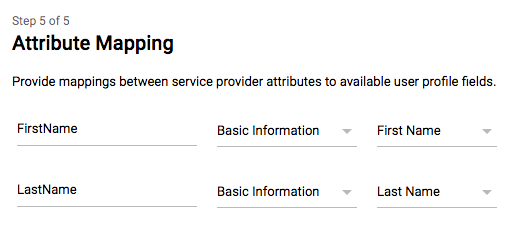
Enable Google Single Sign-On
1. Open the left navigation and click Administration > People > Single Sign-On.
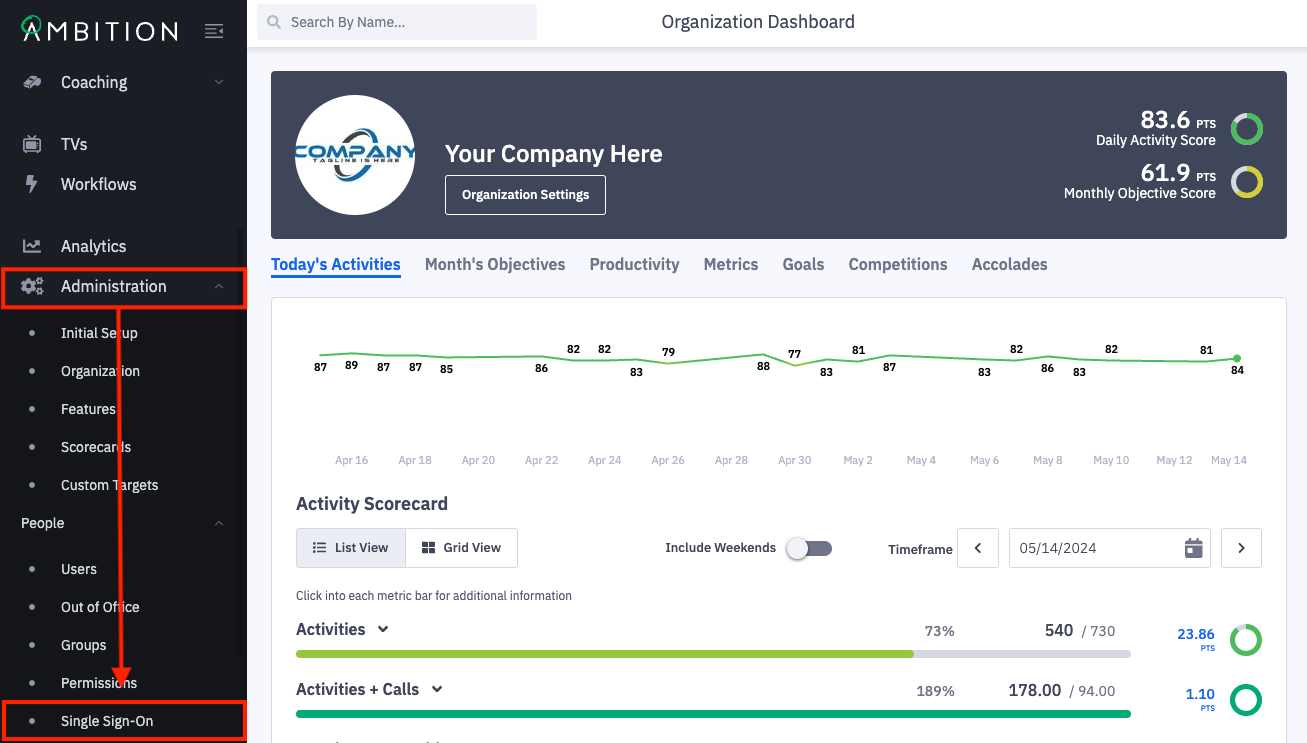
Don't see the Single Sign-On tab? The feature can be enabled by any user with system admin permissions. Enable Feature: Open the left navigation and click Administration > Features. Locate the SAML/SSO feature, and toggle "On". Click the Update Features button to save.
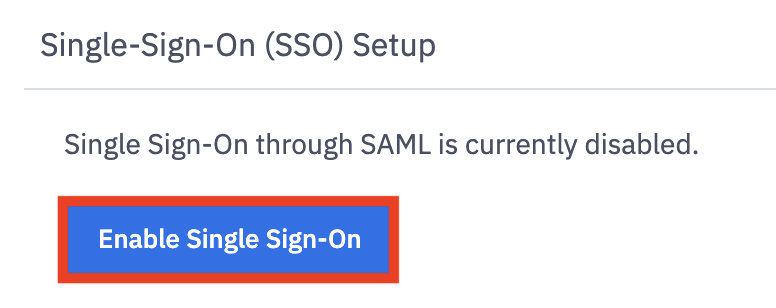
2. Click the Enable Single Sign-On button.
3. Complete the single sign-on setup form.
Integration Name: Defaults to SAML Authentication. Rename as desired.
IdP Metadata URL: The publicly accessible URL where your IdP's metadata is hosted.
If using a custom domain, reach out to gethelp@ambition.com to have your domain whitelisted.
First Name SAML Attribute: FirstName
Last Name SAML Attribute: LastName
Default User Time Zone: The corresponding default time zone your organization uses.
Just-In-Time Provisioning:
When toggled "On", Ambition will use a SAML assertion to create a user account the first time the user attempts to log in to Ambition.
When toggled "Off", you must manually create accounts for desired users, otherwise they will be denied Ambition access upon initial login. (default)
Expire Session at Browser Close:
When toggled "On", Ambition will always terminate a user's session when the browser is closed.
When toggled "Off", Ambition will preserve a user's session and prevent them from being logged out when the browser is closed.
4. Click the Save button.

Users can now log in to Ambition with G Suite credentials.