How do I select a co-coach for check-ins?
Last updated: October 30, 2025
Co-Coaches for Check-Ins
What is a Co-Coach?
A co-coach can be any Ambition user, regardless of their permission level.
Being assigned as a co-coach gives the user managerial access to the coaching check-in.
Co-coaches are a great fit for assistant managers or HR professionals who play a role in the coaching process.
The creator (manager) of the check-in can add as many co-coaches as required. Participants of a check-in or program cannot also be assigned as a co-coach for that specific check-in or program except for group check-ins.
A co-coach can do the following:
View and edit the check-in's agenda and content
View comments or public notes left in the check-in
Comment on individual agenda items
Leave a public note for the employee and manager to view*
Leave a private note that only the lead manager can view*
Approve & rate the check-in
Re-open an expired check-in
Extend an open check-in
Excuse a check-in
View a correlated action plan
Create action items
* the co-coach will need permission to create notes
A co-coach cannot do the following:
Cannot edit a program's agenda or recurrence
Cannot delete a check-in
Cannot view a private note that was created by the lead manager
Create an action plan within the check-in
Co-coaches for group check-ins can delete and make edits to both the agenda and recurrence.

Co-coaches are listed in the check-in header and on the check-in card.
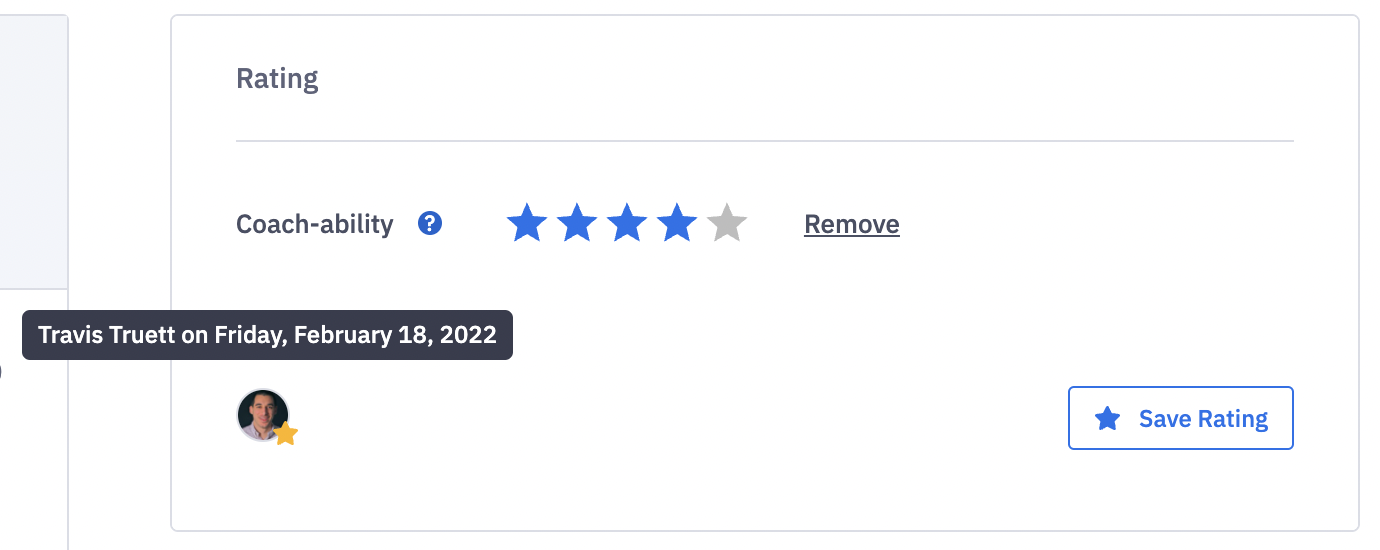
If the check-in has a co-coach, the user that last rates a check-in is denoted.
How do I assign a co-coach to a single, specific check-in?
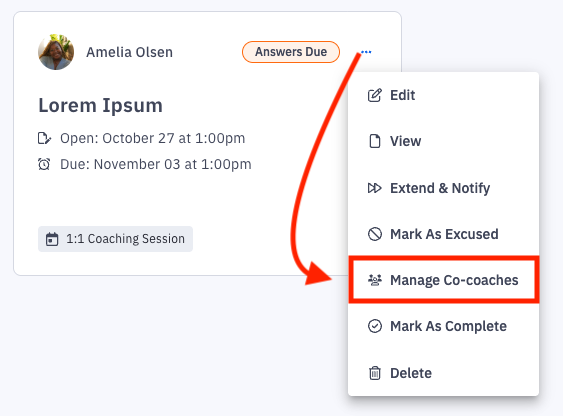
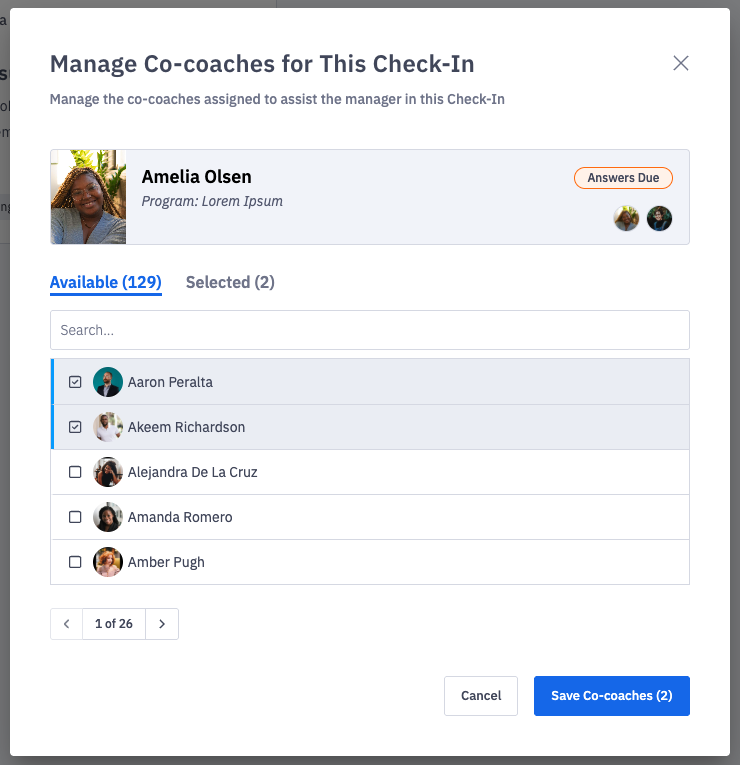
From the check-in, click the “⋮” icon then Manage Co-Coaches to add a co-coach. Multiple users can be assigned as a co-coach.
Additionally, from the check-in, click the ⋮ icon, then Edit to update co-coaches.
Co-coaches assigned through the manage co-coach button will only be a co-coach for the specific check-in where they are assigned.
 |  |
Don't see the Co-Coaches option? If your package supports co-coaches, the feature can be enabled by any user with admin permissions. Left navigation > Administration > Features. Locate the "Coaching: Co-Coaches" feature, and toggle "On".
How do I assign a co-coach to multiple check-ins?
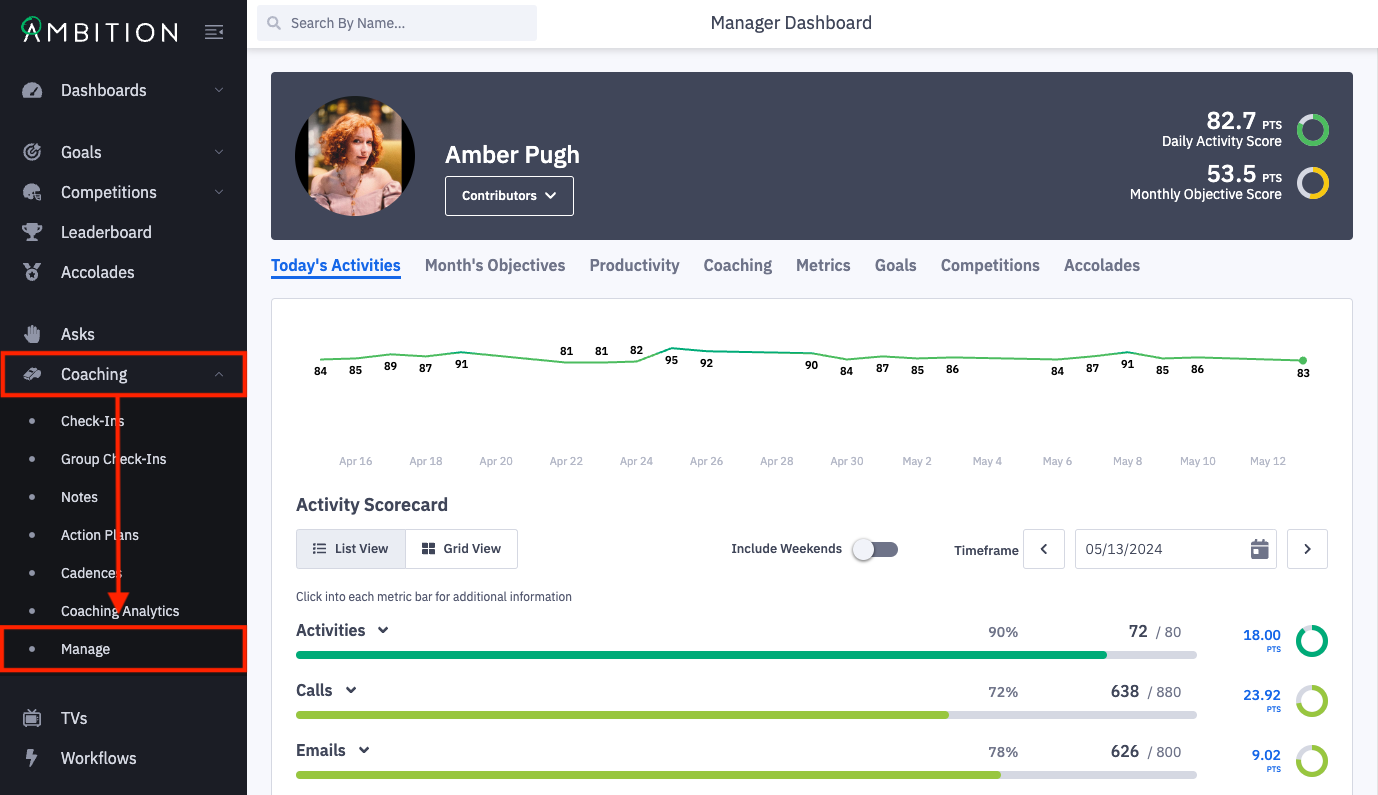
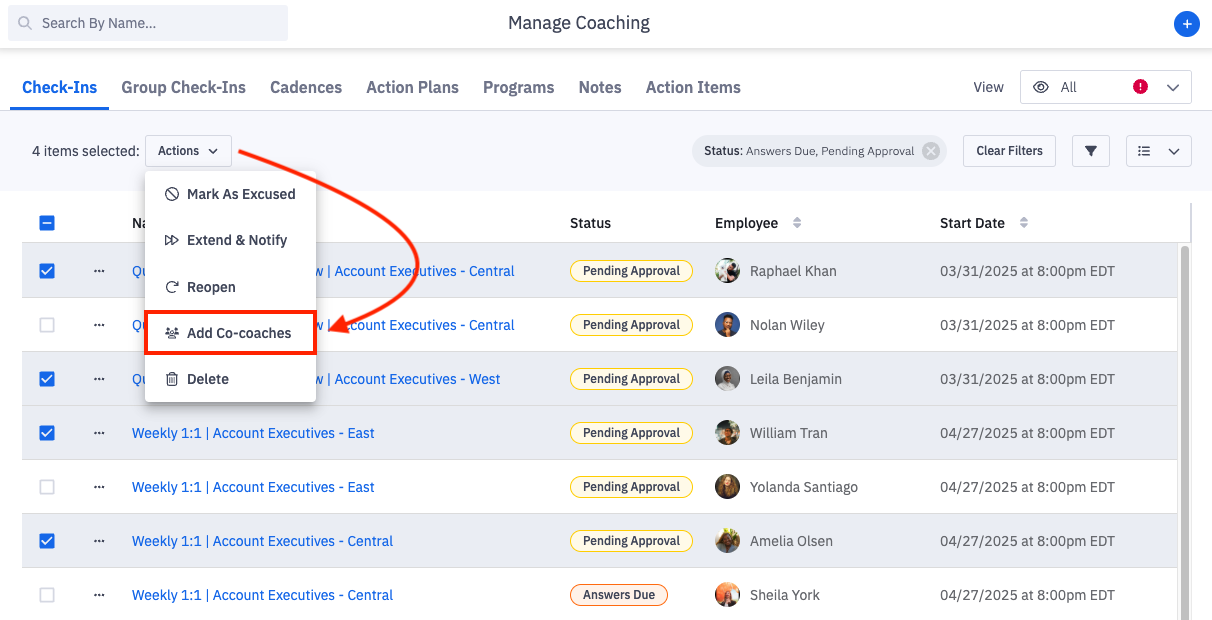
1. Open the left navigation and click on Coaching > Manage.
2. On the check-ins tab, locate the check-ins where co-coaches need to be added through searching or filters.
3. Check the box next to the check-ins where co-coaches should be added.
If all the check-ins on the page need a co-coach assigned, click the top checkbox.
4. Click the Actions button and Add Co-coaches.
How do I assign a co-coach to a recurring coaching event?
When creating a coaching program, recurring check-in, or group check-in, the form will have an optional step for assigning co-coaches. Co-coaches can be edited after the creation of the program or check-in.
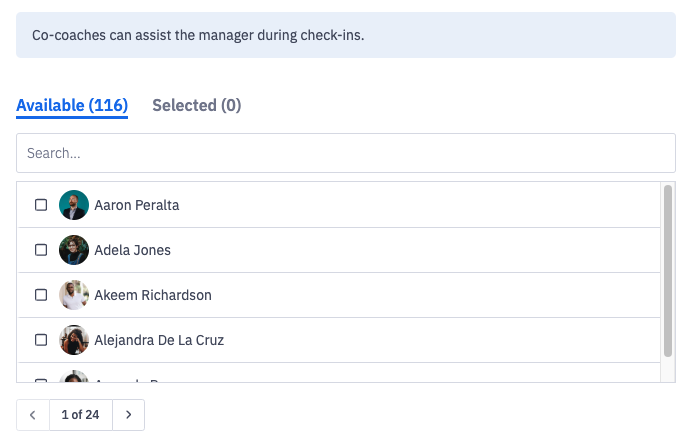
Note: If you want to add or remove co-coaches in an existing program or check-in, you can do so from the respective edit form. Any changes to co-coach settings will be reflected on check-ins going forward; historical check-ins will not inherit these co-coaches.
Where can I find check-ins where I'm assigned as a co-coach?
1. Open the left navigation and click on Coaching > Check-Ins OR Coaching > Group Check-ins.
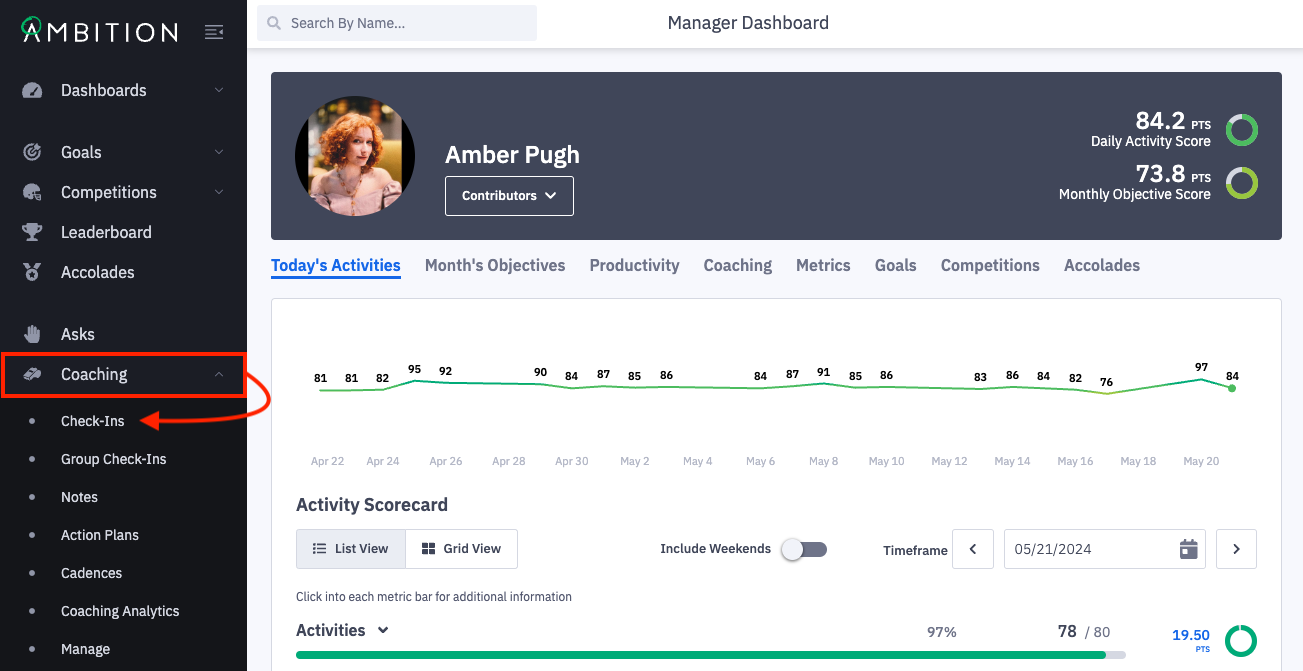
2. Across the horizontal navigation bar, click on Co-Coach.

3. Any individual/group check-ins where you have been assigned as a co-coach will appear.