How can I find and filter current users?
Last updated: June 13, 2025
Find and Filter Users
Users with the "Users: Edit" permission will be able to access the user directory and view user accounts. Users with only "Users: Create" permission will be able to access the user directory, but will only be able to view their own account.
Users with "Users: Edit - Can Edit All Users" permission will be able to view all Ambition users. Users with "Users: Edit - Can Edit Subordinate Users" permission combined with manager permissions will be able to view users they manage.
View User Directory
1. Open the left navigation and click Administration > People > Users.
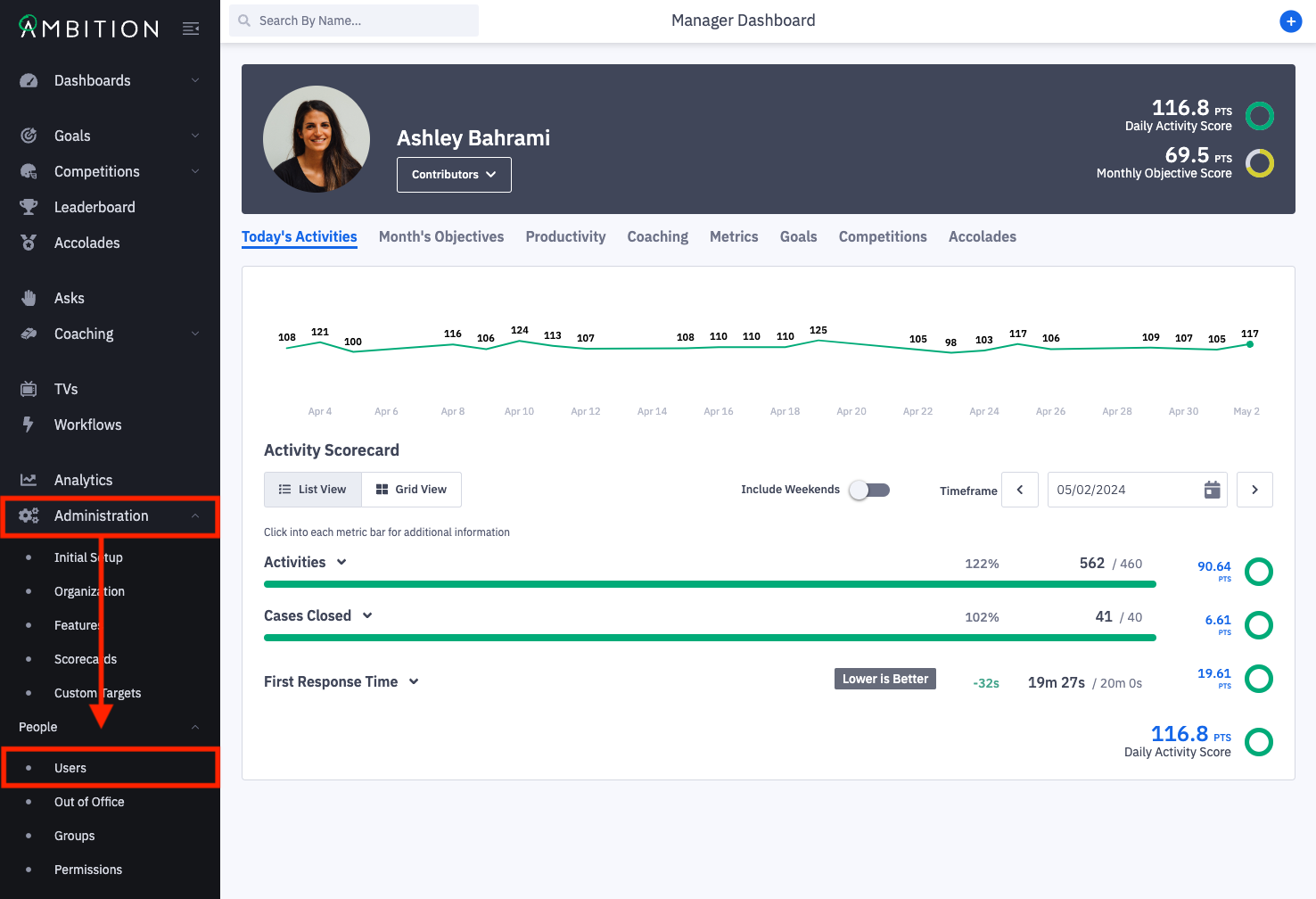
2. Users with "Users: Edit - Can Edit All Users" permission will see all users who have an active account in Ambition.
Users with "Users: Edit - Can Edit Subordinate Users" permission combined with manager permissions will be able to view users they manage.
Filter Users
1. Click the Filters icon to slide out the filter panel.
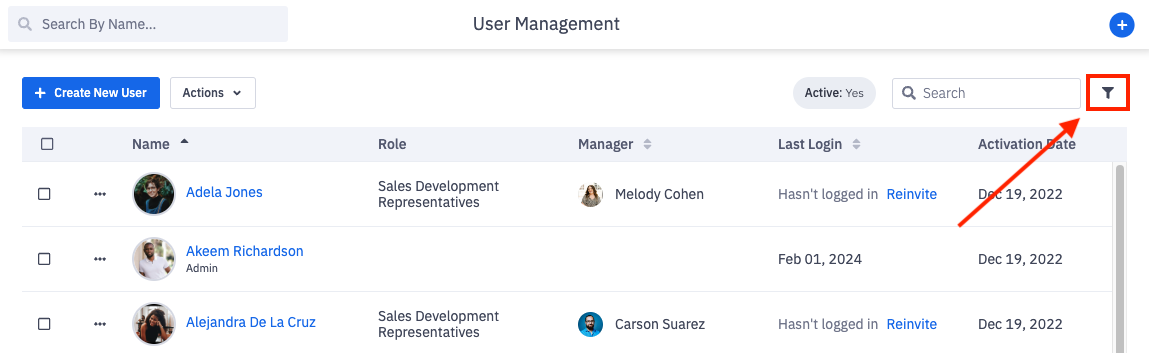
2. Filter as desired/needed.
Filter Options
Is Active
Yes = Current users with accounts in Ambition
No = Users who have been deactivated
Has Been Invited
Yes = Users who have been sent an Ambition invitation email
No = No Ambition invitation has been sent.
Has Logged In
Yes = User has been invited and logged into Ambition at least once
No = Invitation email has been sent, but user has never logged in
Has Issues
Yes = The user is missing an integration ID(s)
No = The user is not missing any integration IDs.
Permission Set
Employee = Users who have not been assigned the system manager or admin permission set
Admin = Users who have been assigned the admin permission set
Manager = User who have been assigned the manager permission set
If your organization has created any custom permission sets, you will be able to filter by those additional permission set options.
Employee Selection
Select employees within specific groups = Search for and select a group in Ambition
Ex. Employees within BDR (Role), Employees within Nashville (Office), Employees within East Pod (Competition Team).
Select specific employees = Search for and hand select a single or multiple users
Each added filter will update the users that display in the user directory.
Filtering can be helpful when needing to invite select users or update multiple users at once.