How do I create and assign custom permission sets?
Last updated: February 27, 2026
Custom Permission Sets
System Permission Sets
Ambition has three system permission sets:
Employee
Manager
Admin
The admin permission set cannot be changed and includes all available permissions.
The manager and employee permission sets can be customized to your organization's needs.
In order to manage someone in Ambition, either as their direct manager or manager of a group, a user must have the manager system permission.
Using Custom Permission Sets
Beyond Ambition’s three system permissions —Admin, Manager, and Employee—you can create additional permission sets and customize access, management, and administration capabilities to best fit each user’s role down to the individual level. Note that custom permission sets can only add permissions. To take away a permission, the changes would be made to system permission sets.
For example, a person in sales enablement may need to create managed programs and coaching templates for the entire organization, but they don’t need full manager or admin access. A custom permission set with the precise extra permissions can be created to allow for more specific access rather than upgrading an employee with manager or admin permissions.
f a user belongs to multiple permission sets or individual levels of access, the highest level of access from each permission set will be granted, ex. a user has "No" access for the Groups: Create permission from their system Employee permission set, but has "Yes" access to the Groups: Create permission from an individual permission - the user will be able to create groups!
Create Permission Set
The "Permissions: Edit" permission is needed to access the Permissions tab. "Permissions: Edit" is only assigned to those with the system admin permission.
There is no limit to the amount of custom permission sets that can be created.
If a custom permission set is being created for a single user, one-off individual levels of access can also be given. Learn more here.
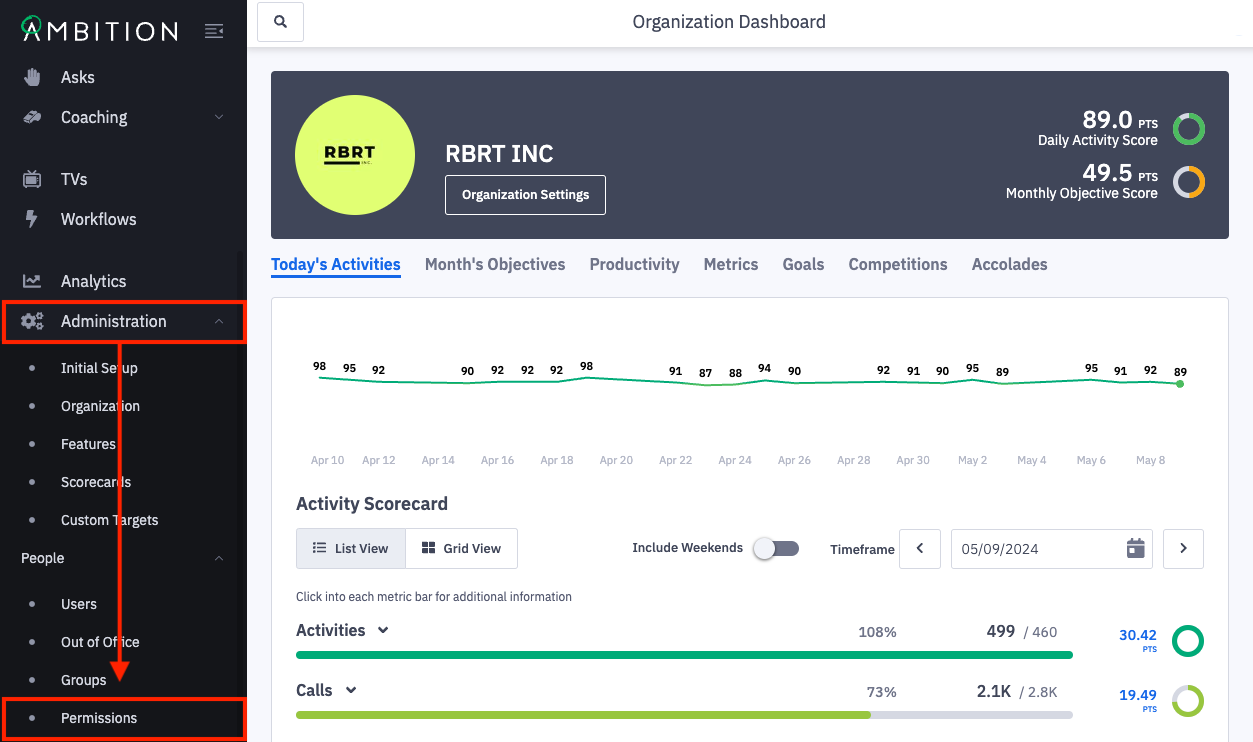
1. Open the left navigation and click Administration > People > Permissions.
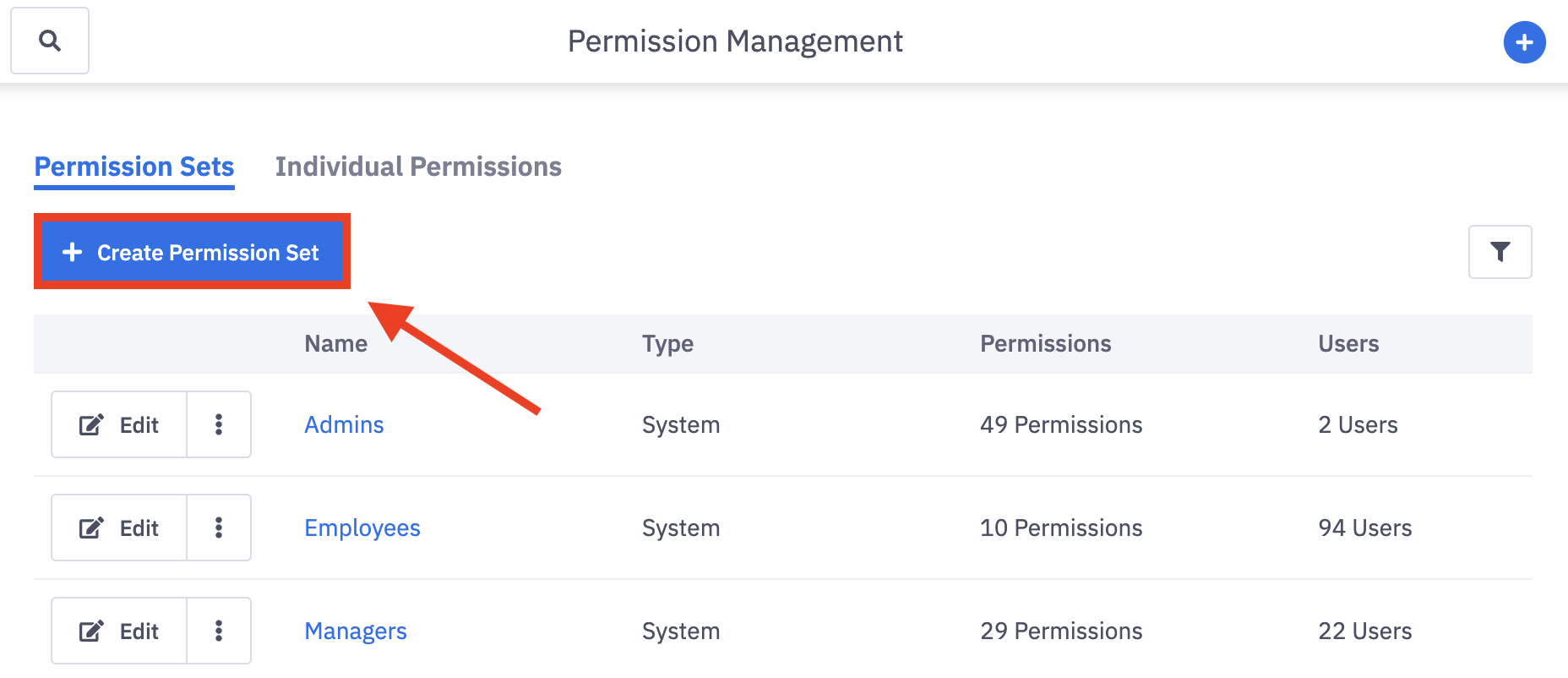
2. Click Create Permission Set.
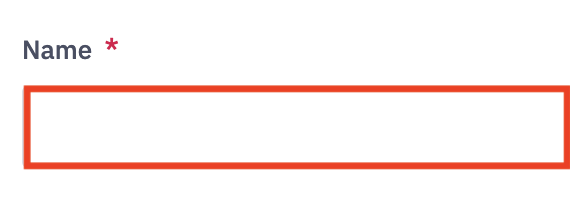
3. Name your custom permission set.
The permission set name will be seen on the "Permission Management" page and any permission set filters.
4. Customize the permission set by adding the appropriate permissions.
Each custom permission defaults to all "No" selections with no other additional permissions selected.
If you need "Coaching: All Access" assigned to a custom permission set, reach out to gethelp@ambition.com.
Learn more about what each specific permission entails here.
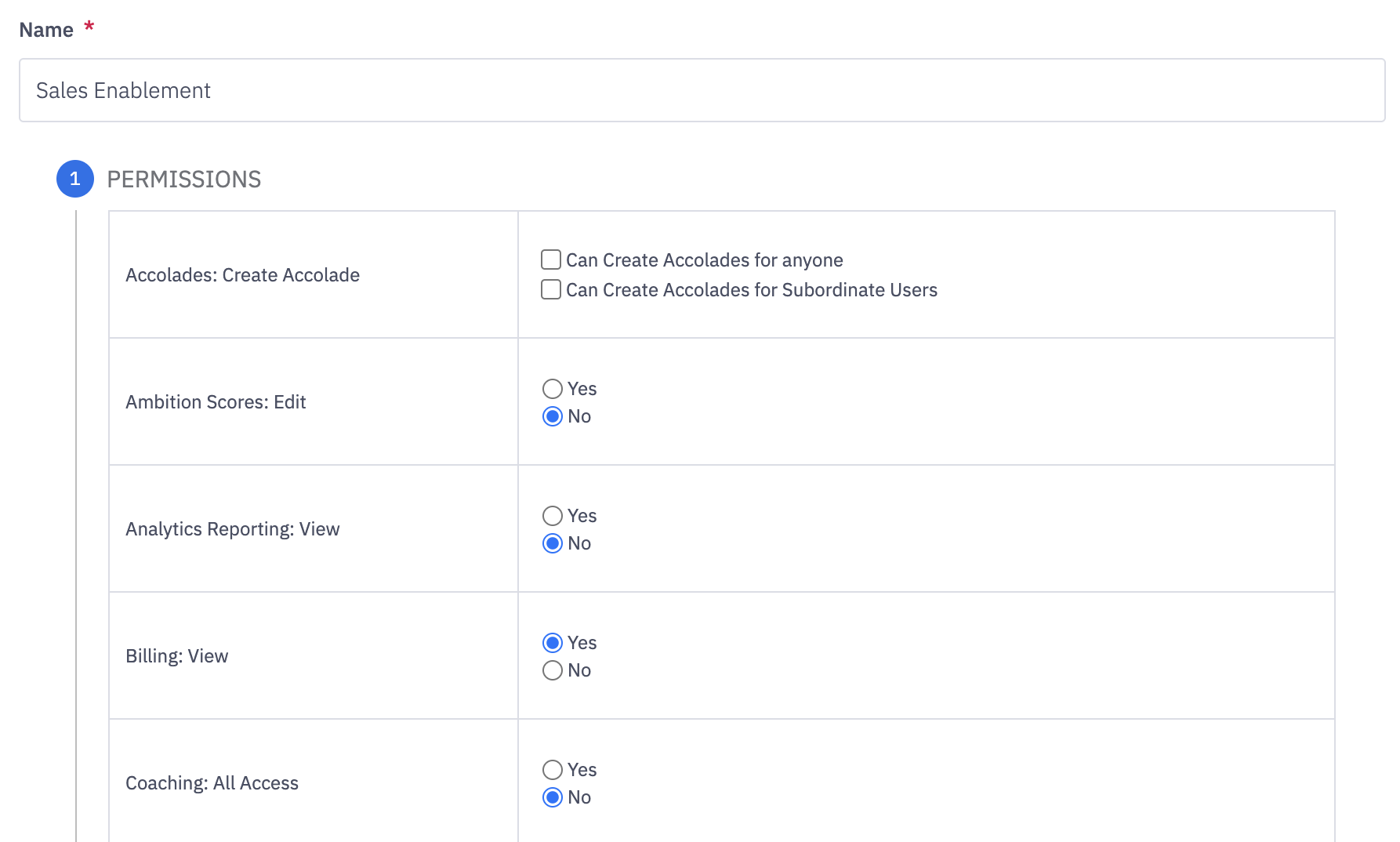
5. Select the appropriate users who need to be added to the custom permission set.
Users can belong to multiple permission sets, ex. a user with system manager permissions can also be added to a custom "Team Leads" permission set and a custom "TV Assistance" permission set.
If a user belongs to multiple permission sets, the highest level of access from each permission set will be granted, ex. a user has "No" access for the "Groups: Create" permission from their system employee permission set, but has "Yes" access to the "Groups: Create" permission from the custom "Team Leads" permission set - the user will be able to create groups!
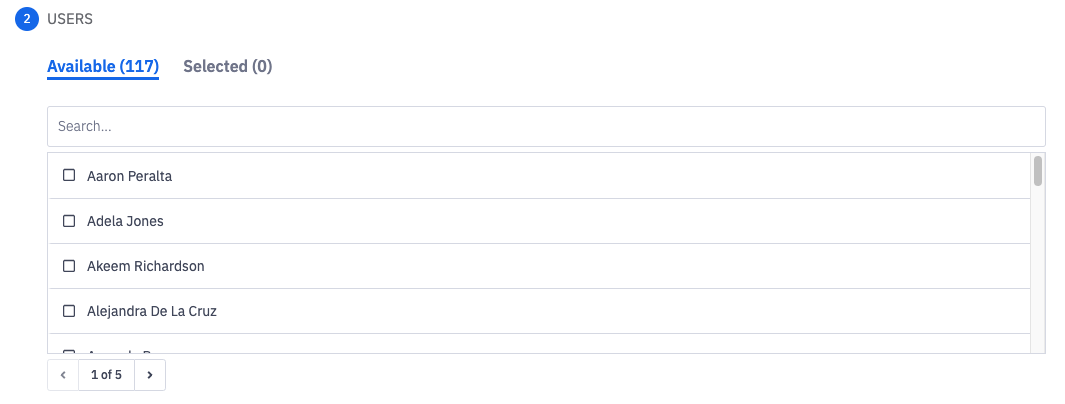
6. Click the Create Permission Set button.

Edit and Delete Permission Sets
Edit System Permissions
The "Permissions: Edit" permission is needed to access the Permissions tab. "Permissions: Edit" is only assigned to those with the system admin permission.
The admin system permission set can be viewed but not edited.
The manager and employee permission sets can be viewed and edited.
System permissions cannot be deleted or have their name changed.
1. Open the left navigation and click Administration > People > Permissions.
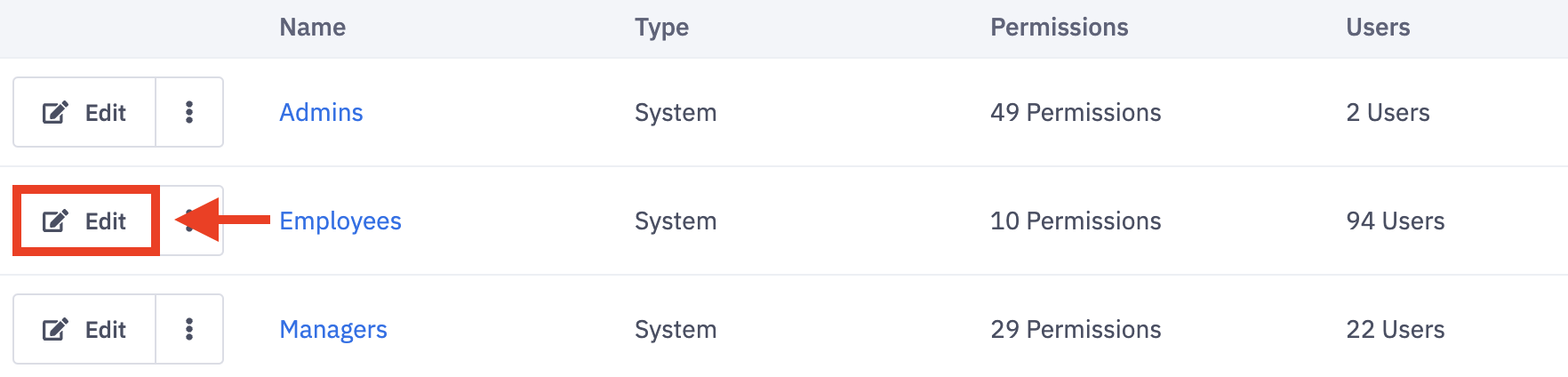
2. Locate the system permission you wish to edit and click Edit.
The admin permission set cannot be edited, only viewed.
3. Customize the permission set by updating the appropriate permissions.
If you need "Coaching: All Access" added or removed from a system permission set, reach out to gethelp@ambition.com.
Learn more about what each specific permission entails here.
The names of system permissions cannot be updated.
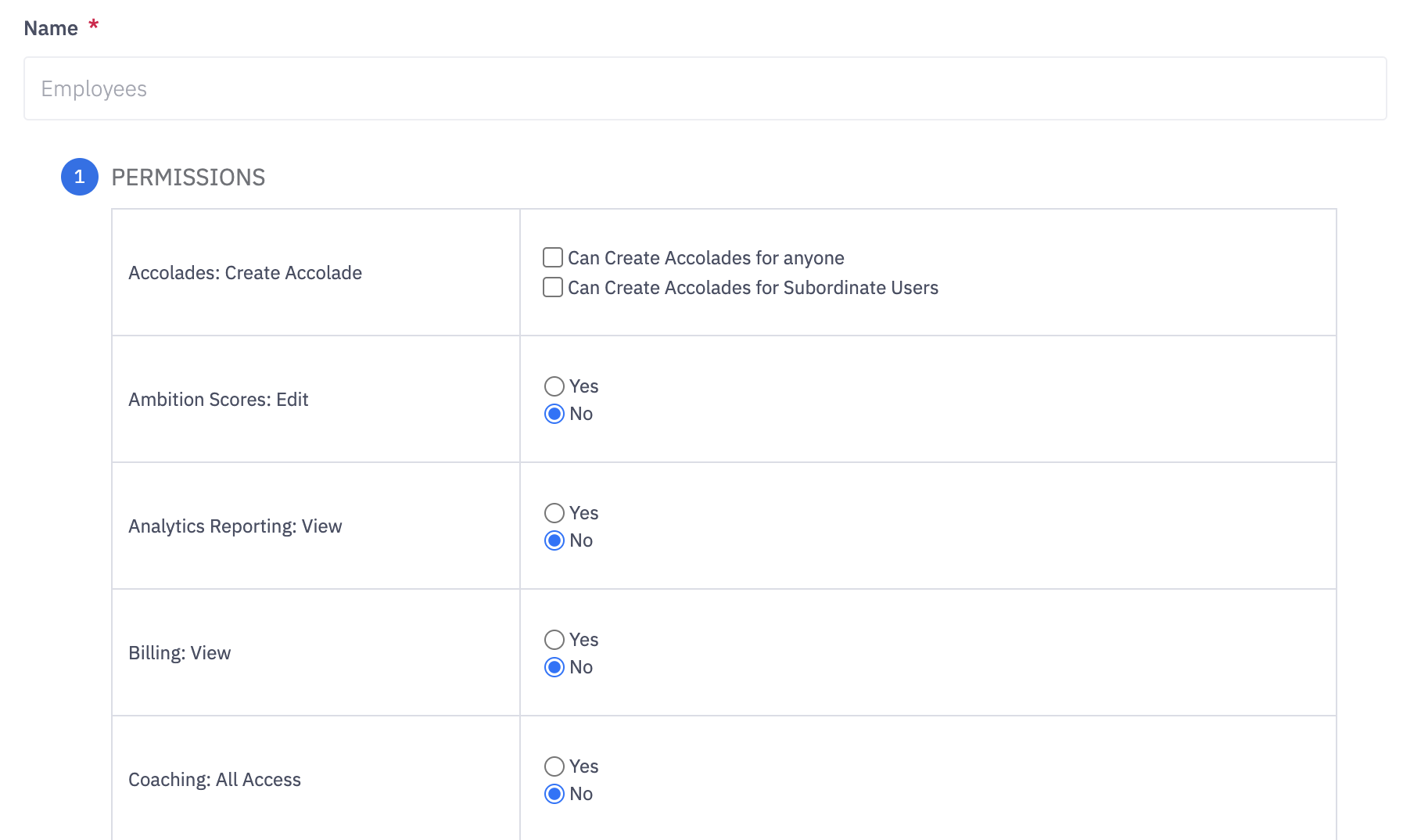
4. Click the Update Permission Set button.

Edit and Delete Custom Permissions
The "Permissions: Edit" permission is needed to access the Permissions tab. "Permissions: Edit" is only assigned to those with the system admin permission.
1. Open the left navigation and click Administration > People > Permissions.
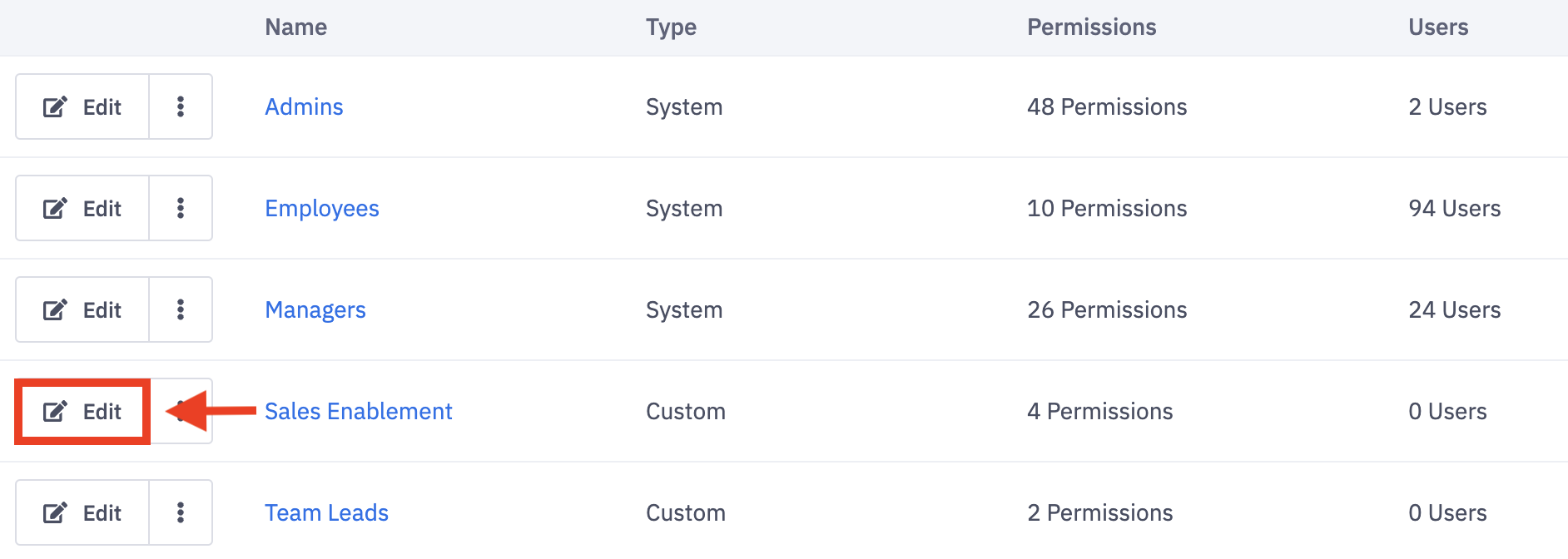
2. Locate the custom permission you wish to edit, and click Edit or click directly on the permission set name.
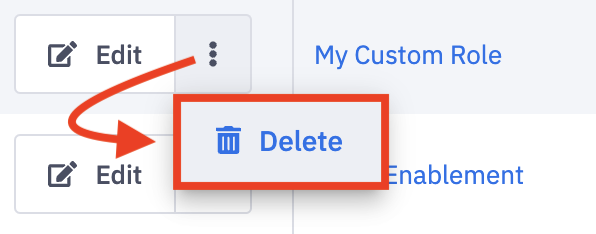
To delete a custom permission set, click the ellipses icon and Delete.
Deleted permission sets are not preserved. Users assigned to the deleted permission set will have those respective permission revoked.
3. Customize the permission set by updating the appropriate permissions.
If you need "Coaching: All Access" added or removed from a custom permission set, reach out to gethelp@ambition.com.
Learn more about what each specific permission entails here.
4. Click the Update Permission Set button.
Assign Permission Set to a User
Users have to be manually assigned to a custom permission set either within the custom permission set or through their user settings.
Assigning users to custom permission sets in bulk is not currently supported through the CSV User Upload, User API, or Salesforce User Attribute sync options.
Users can be assigned to system permissions, admin and manager, through their user settings or the CSV User Upload, User API, or Salesforce User Attribute sync options.
Assign Permission Set to User within Custom Permission Set
The "Permissions: Edit" permission is needed to access the Permissions tab. "Permissions: Edit" is only assigned to those with the system admin permission.
1. Open the left navigation and click Administration > People > Permissions.
2. Locate the custom permission that you wish to assign to users, and click Edit or click directly on the permission set name.
If creating a new custom permission set, you will assign users upon creation of the permission set.
3. Scroll down to section 2, Users, and select the appropriate users who need to be added to the custom permission set.
Users can belong to multiple permission sets, ex. a user with system manager permissions can also be added to a custom "Team Leads" permission set and a custom "TV Assistance" permission set.
If a user belongs to multiple permission sets, the highest level of access from each permission set will be granted, ex. a user has "No" access for the "Groups: Create" permission from their system employee permission set, but has "Yes" access to the "Groups: Create" permission from the custom "Team Leads" permission set. The user will be able to create groups!
4. Click the Update Permission Set button.
Assign System or Custom Permission Set to User within User Settings
The "Permissions: Edit" permission is needed in order to assign custom permission sets within a user's settings. "Permissions: Edit" is only assigned to those with the system admin permission.
If a user has either "Can Edit All Users" or "Can Edit Subordinate Users" level of the "Users: Edit" permission AND "User: Assign Managers" permission, they will be able to assign the system manager permission within a user's settings.
The manager system permission can also be granted within the group editor if attempting to assign a user as a manager of a group.
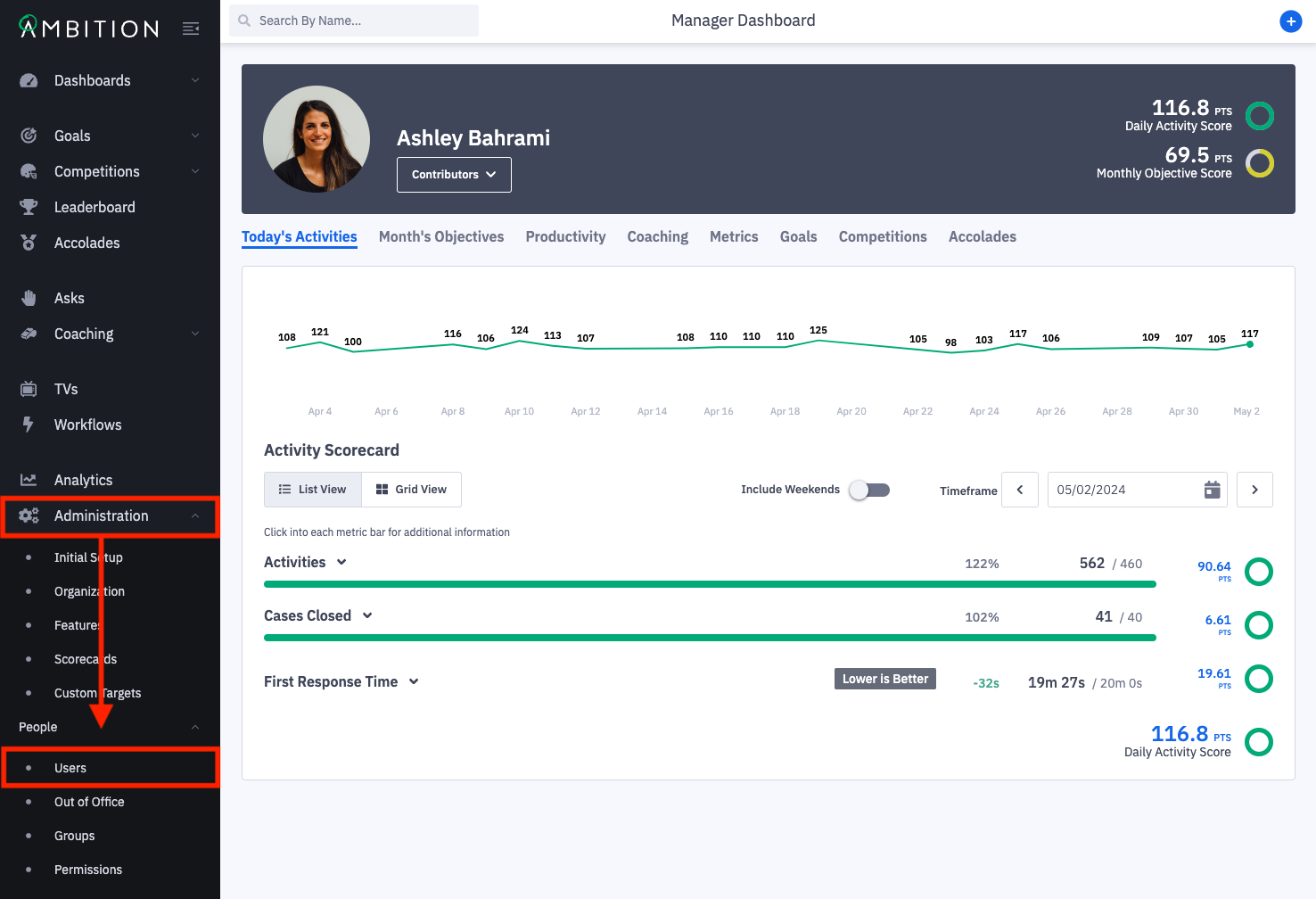
1. Open the left navigation and click Administration > People > Users.
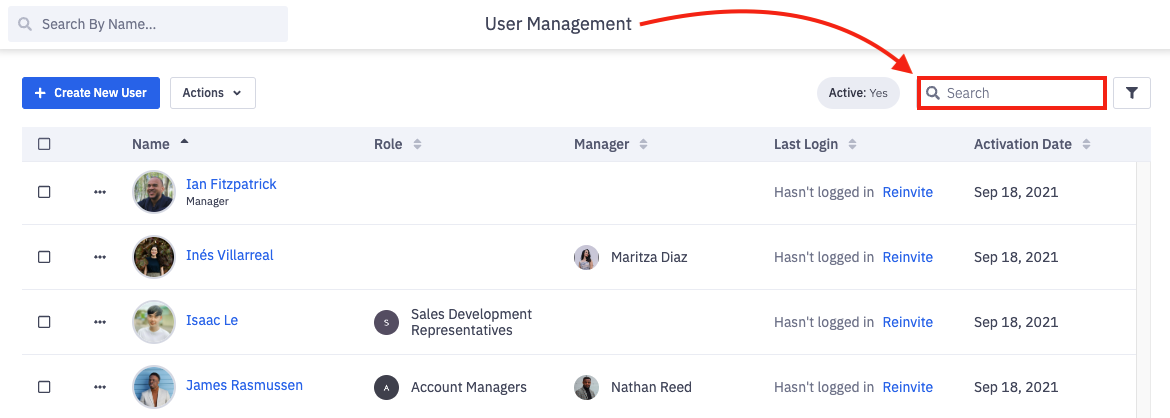
2. Use the search bar to search for the respective user.
3. Once you've found the user you'd like to edit, click on their name (in blue).
Alternatively click the ellipses icon in line with the user and Edit.
4. Locate the "Permissions Sets" section, and select any appropriate system and/or custom permission sets.
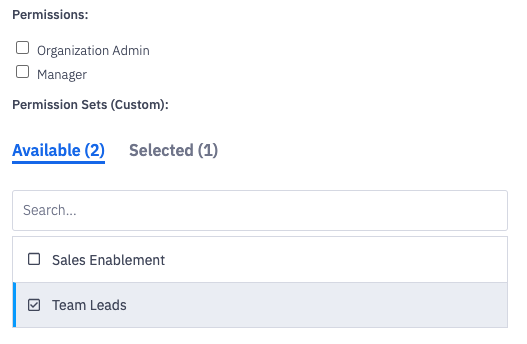
5. Click the Save Changes button at the bottom of the user's settings.