How do I sync fields from user's Salesforce profile into Ambition?
Last updated: June 16, 2025
Sync Fields From User's Salesforce Profile
What is Salesforce user field sync?
When syncing fields from a user's Salesforce profile to Ambition, changes in those fields will automatically be updated in Ambition. Administrators can configure these sync settings for multiple Ambition user fields at once (i.e. role, permissions, groups, manager, location.).
Once the user attributes are mapped over to Ambition, any changes to the user's profile in Salesforce will automatically be reflected in Ambition.
If you have existing groups tied to scorecards in Ambition, read these additional directions.
Note: If you wish to map users into specific group types - Location, Competition Team, Department, etc - ensure those group types exist in Ambition before attempting to sync.
Learn more about groups and group types here.
Enable User Attribute Syncing
Users with the "Integrations: Edit" permission will be able to access the Integrations tab.
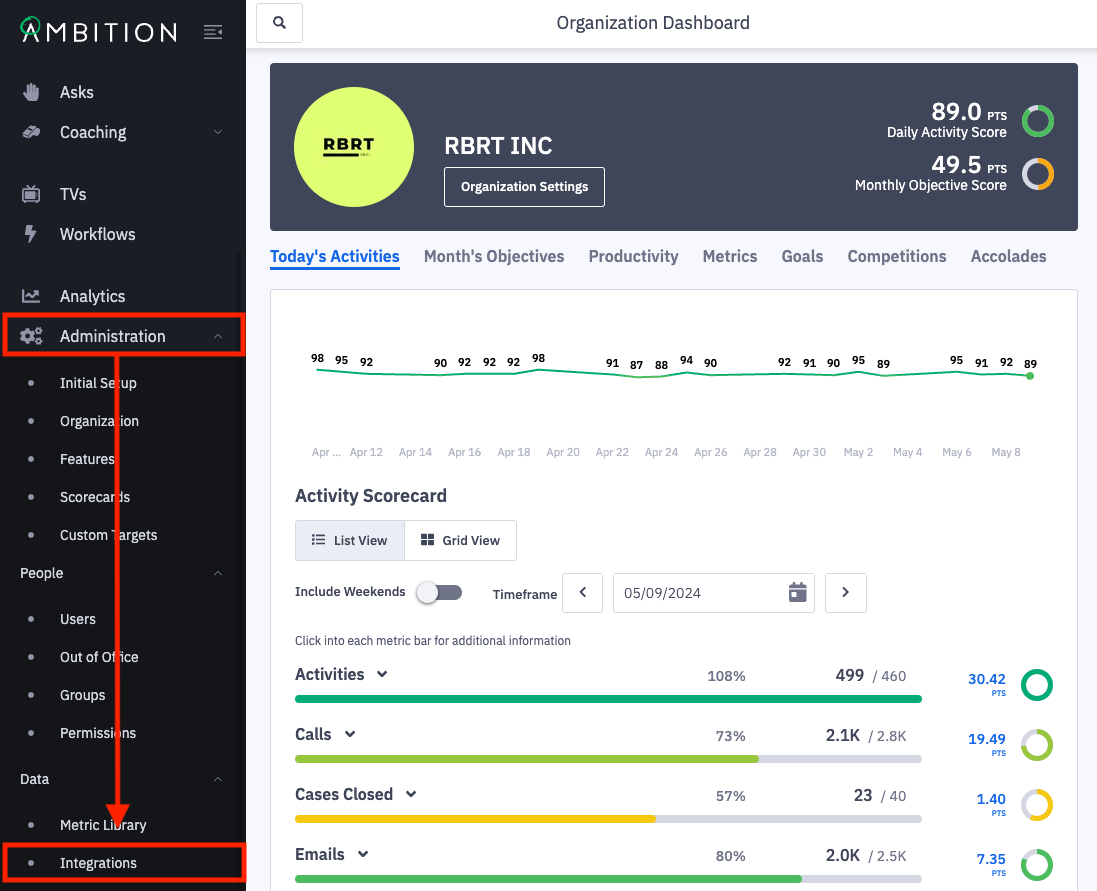
1. Open the left navigation and click Administration > Data > Integrations.
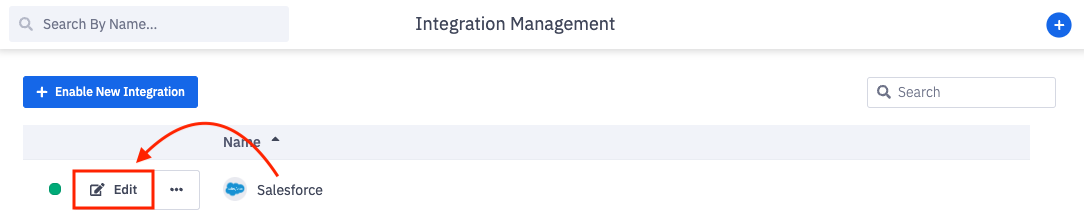
2. Click Edit in line with the Salesforce integration.
3. Click on User Sync Configuration.
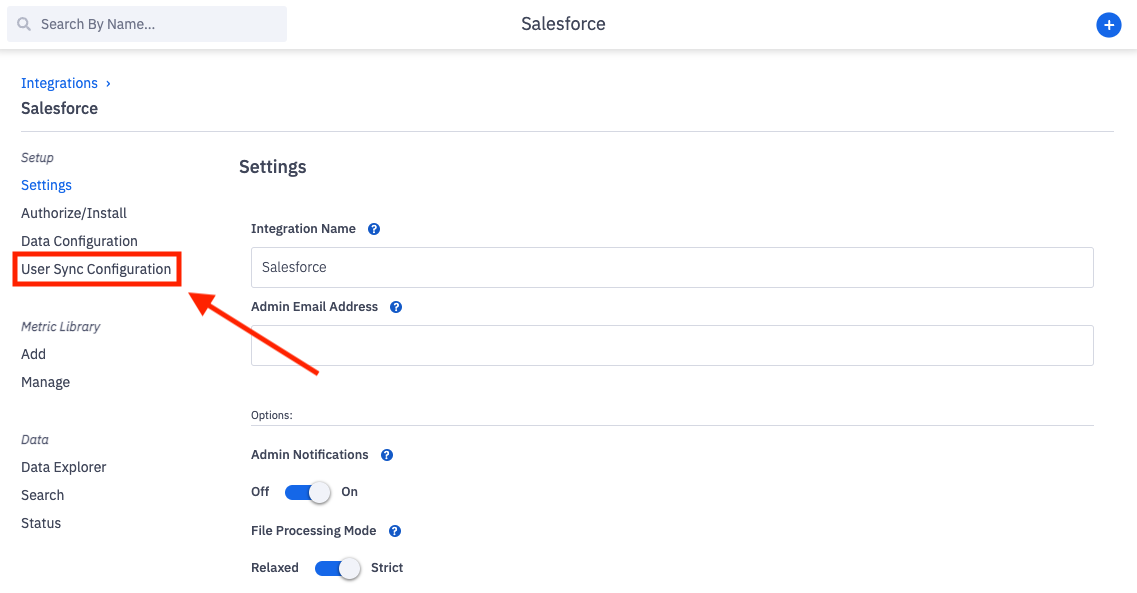
Don't see the User Sync Configuration tab or the User Attributes option? The feature can be enabled by any user with system admin permissions. Enable Feature: Open the left navigation and click Administration > Features. Locate the Salesforce User Field Syncing feature, and toggle "On". Click the Update Features button to save.
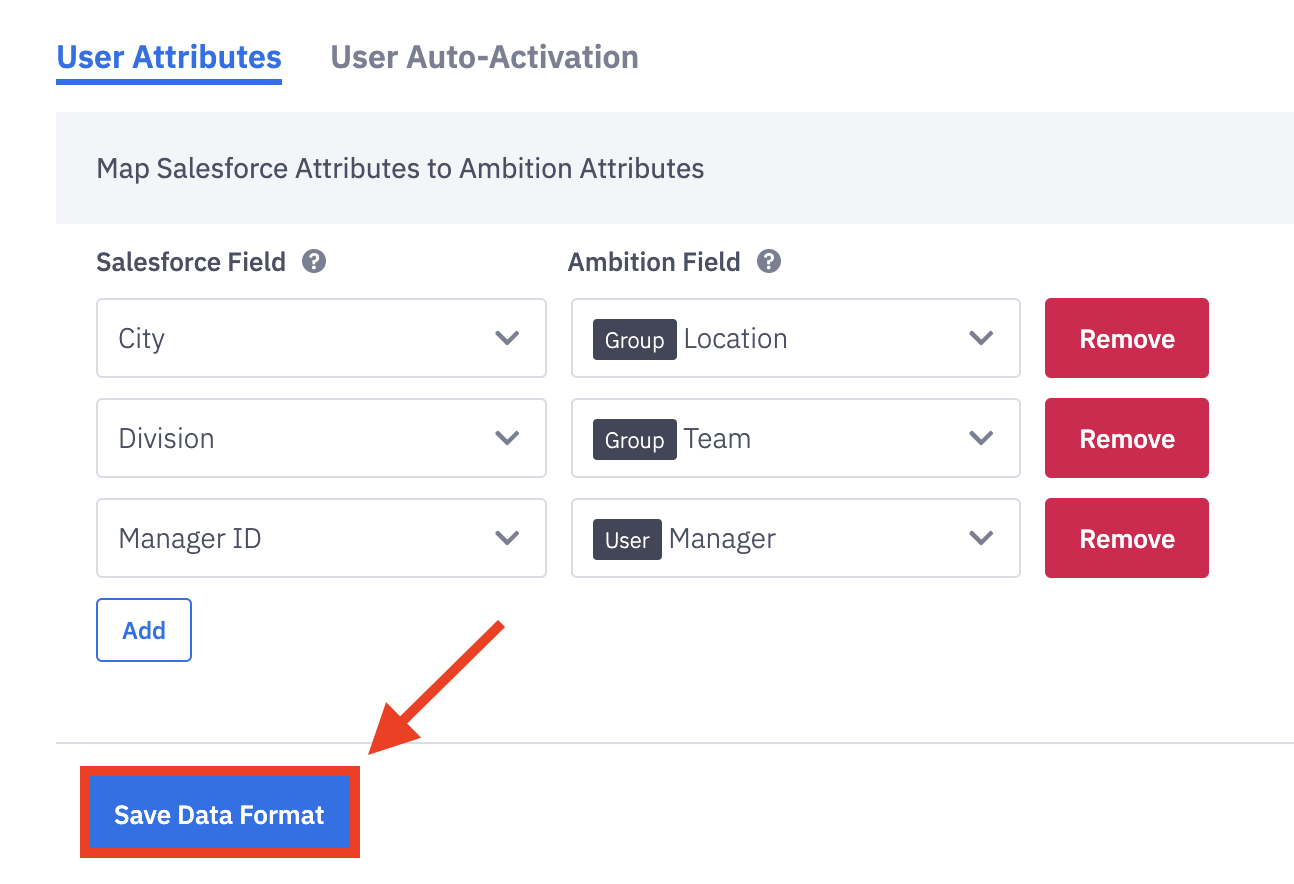
4. Click Add to begin mapping your Salesforce User Attributes to the corresponding Ambition field.
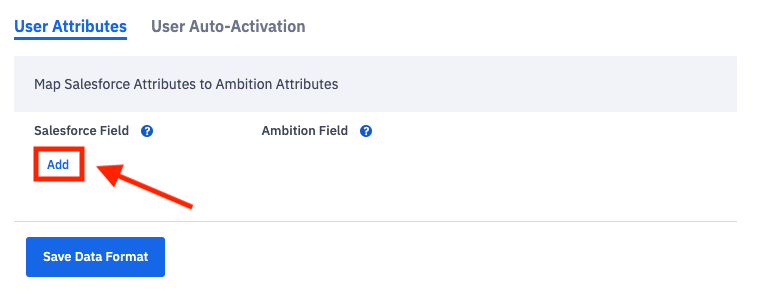
Salesforce Fields: Salesforce User fields that contain the input value to map to Ambition. For example, when mapping to an Ambition group, choose the Salesforce field that contains the name of the group. If mapping to the Ambition "manager" field in a user's settings, select "ManagerID" as the Salesforce field. "ManagerID" corresponds to the "Manager" field found on a user's Salesforce profile.
These fields include any attribute found in your Salesforce account. In order to quickly find the correct field, begin typing to search by name.
Changes Made in Salesforce will be mapped to Ambition.
Ex: Spelling Errors: If a field (team, department, etc.) is misspelled in Salesforce, Ambition will create a new group with the incorrect spelling and assign the user with the incorrect spelling to the newly created group in Ambition.
Ambition Fields: Ambition user attributes that serve as the destination for the mapped value.
Available fields consist of user permission levels, manager, and any group type available in your Ambition account.
If mapping to Ambition groups, ensure that no semicolons are in the group names.
If mapping to the Ambition "manager" field in a user's settings, select "ManagerID" as the Salesforce field. "ManagerID" corresponds to the "Manager" field found on a user's Salesforce profile.

Mapping a Salesforce Field to an Ambition "group membership" will result in users being added as a member of the respective group. If the user needs to be assigned as a manager of a group, map a Salesforce Field to an Ambition "group manager" field, or that manager assignment will be done manually in the group editor or in bulk by CSV upload.
5. Once you're finished mapping over the Salesforce User Attributes, click the Save Data Format button.
After your synced attributes are submitted, Ambition user data will automatically update whenever the selected fields are updated in Salesforce.
Options for Syncing with Existing Ambition Groups
These options are intended for Ambition/Salesforce customers who would like to automatically sync user attributes (e.g. UserRole assignments) from Salesforce objects to Ambition groups, but who already have Ambition groups tied to configuration like scorecards. If group names in Salesforce don't match those in Ambition, new groups will be created and the associated users will be reassigned in Ambition.
There are two options to help facilitate a sync when Ambition groups already exist:
Option 1
If there is flexibility with changing either the group names in Ambition to reflect those in Salesforce, or vice versa, this is the simpler option. You only need to be an admin of Ambition or Salesforce, depending on where you want to update the names. It is extremely important that you guarantee that the names in both systems match exactly. Group names cannot contain semicolons.
Option 2
If changing group names in Salesforce or Ambition is not an option, you can use the following work-around to achieve the same configuration:
In this example, we'll be implementing the work-around for the UserRole object to map to Ambition Role-type group assignments
Add a custom, string-type field to UserRole (e.g. UserRole.Ambition_Name__c)
Set the value of this field for all UserRole records that have associated Ambition users. These values must match the corresponding group names in Ambition exactly.
Create a support ticket to re-sync user fields in Ambition, in order to recognize the newly created custom field
Within the Salesforce data configuration page in Ambition, configure the sync'd attributes as you normally would, but select the new custom field as the Salesforce field and group: Role as the Ambition field
Submit the form