How do I create a bracket competition? (Beta)
Last updated: March 13, 2026
Create Bracket Competition
Users with the "Competitions: All Access" permission will be able to create, edit, and delete all bracket competitions.
"Competitions: Create Challenges for Anyone" allows for creation of bracket competitions for all users. Creators will be able to edit and delete bracket competitions they create.
Combined with manager permissions, "Competitions: Can Create Challenges for Managed Users/Groups" allows for creation of bracket competitions for users and groups the manager manages. Creators will be able to edit and delete bracket competitions they create.
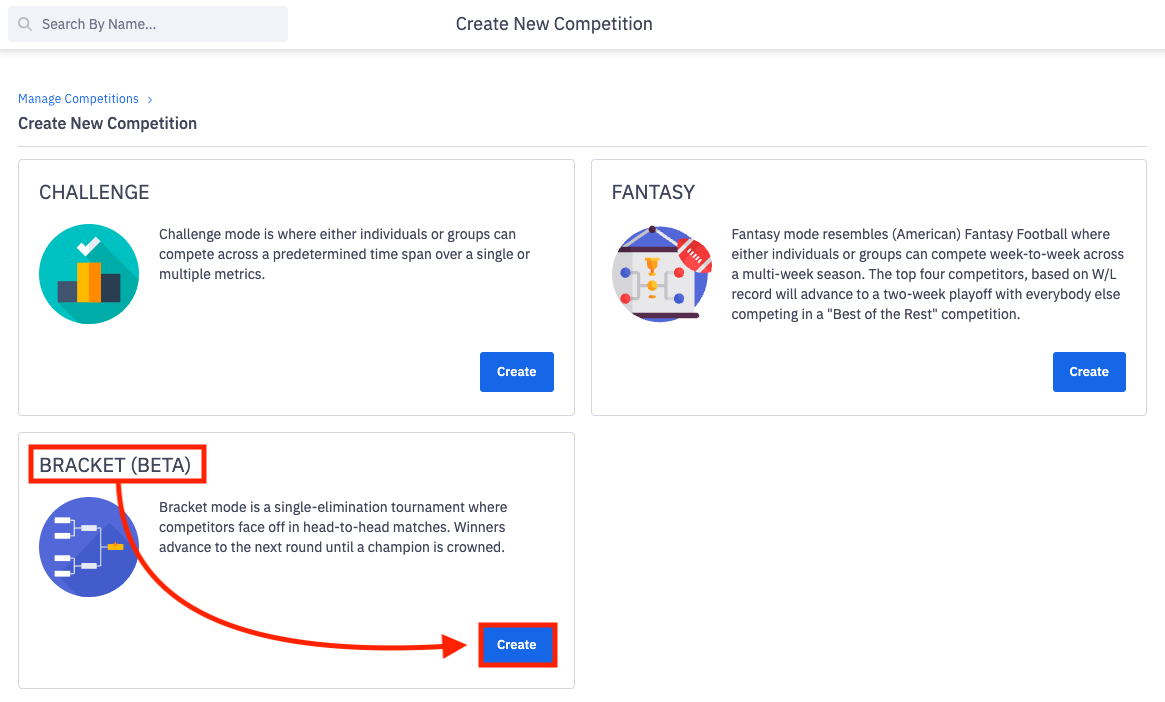
Open the left navigation and click Competitions > Create.
Click Create on the Bracket tile.
Complete the create bracket form.
Competitors
Bracket Name: Name the bracket challenge.
Hierarchy Level:
What style of bracket competition do you want to create?
User vs User? --> Select Employee as the hierarchy level.
Team vs Team? --> Select the corresponding group type within your instance (Role, Team, Location, Pod, etc).
Competitor Selection:
A minimum of 2 competitors are required to create a bracket competition.
A maximum of 256 competitors are allowed in a single bracket competition.
Select whether all of the chosen hierarchy or just specific employees / group members will compete in the challenge.
If a specific or within grouping is selected, pick specific users / groups to compete in the challenge.
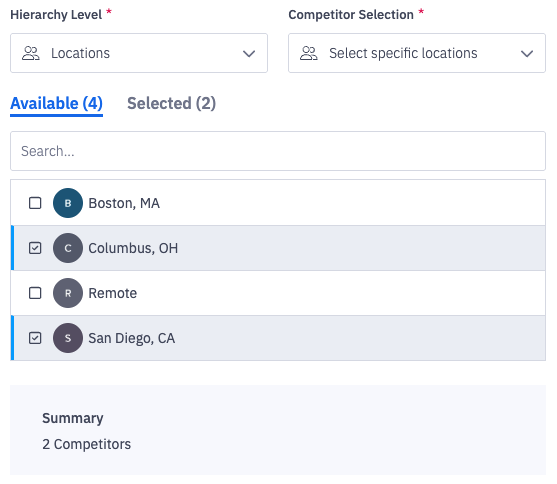
In the example below, the Columbus office location will be competing against the San Diego office location. Not a employee vs employee competition, but rather the Columbus location as a whole vs the San Diego location as a whole = 2 competitors.
Employee > Select employees based on custom filters
When "employee" is the selected Hierarchy Level, there will be an additional Competitor Selection option of "select employees based on custom filters".
If custom filters is selected, you can incorporate AND, OR, and NOT logic to correctly segment competition participants based on multiple group memberships, ex. Location = “Atlanta” OR Location = “Nashville” AND Role = “Account Executive”, instead of having to create bespoke competition group, ex. Southeast Account Executives.
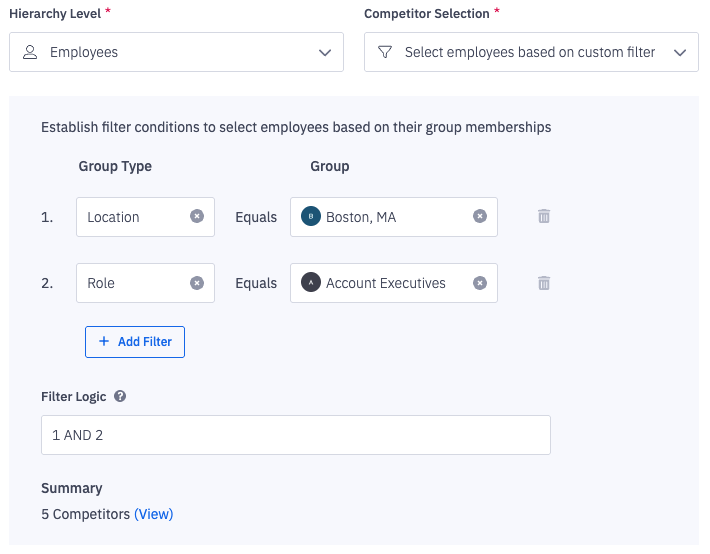
To incorporate custom logic:
1. Select the appropriate Group Type.
Any Group Type that's visible in your organization's group manager will be available.
2. Select the appropriate Group.
3. Click Add Filter to continue selecting group types and groups as appropriate.
4. Construct the appropriate filter logic, using AND, OR, and NOT based on the desired participants.
5. Verify the competitors are matching your expectation through the "View" button. Adjust filters and filter logic as needed.
Scoring
Establish how competitors will earn points.
Up to 8 metrics can be combined to create multi-metric competitions.
Be mindful that a single-day or hour long round won't be very impactful if your metric data is pushed to Ambition once a day, every night at midnight, etc.
For summed metrics (calls for example) only data that Ambition receives during the competition's time frame will contribute toward's the competition's score.
If the scoring configuration is set to use a daily average, the competition may contribute data received outside of the competition's time frame. For example, if the competition begins mid day, but it is built off of an averaged metric like a daily Activity Score, the competition score will include the entire day's data for the daily average calculation.
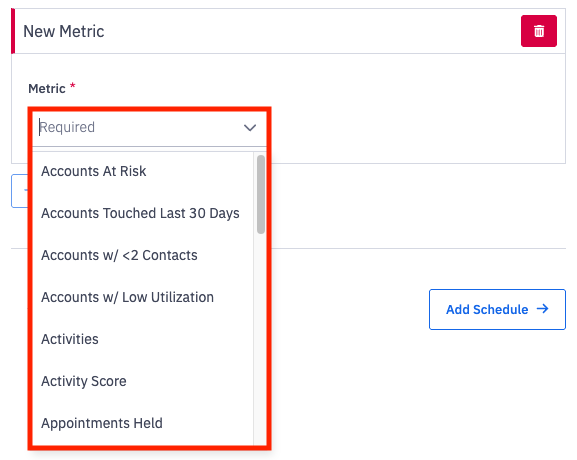
Click Add Metric to begin compiling your competition metrics.
Select a Metric.
Adjust the "points per value" selections to fit your needs. Points are required to be whole numbers.
A 1 point per metric value will award a point for every point increase in the metric, ex. Metric = Revenue, 1 Point per Metric Value is selected, a $75,000 deal would result in 75,000 points.
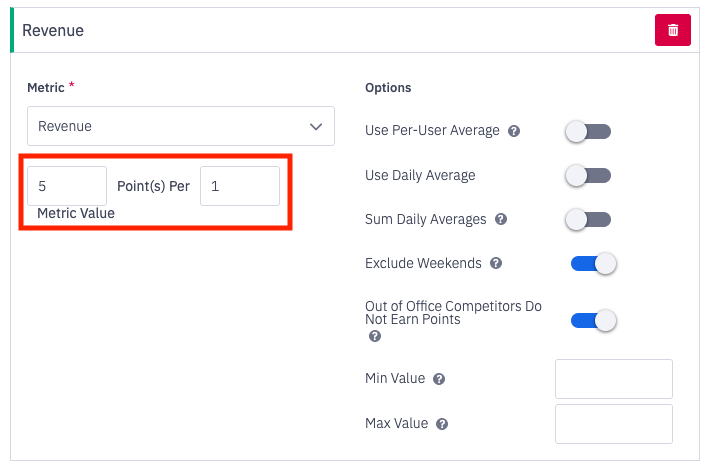
Determine and set options for each metric.
Option | Recommended Use | Behavior |
Use Per-User Average | Recommended for group competitions when competing groups are not the same size, and the bracket round's time frame is at least 1 day. If an hour long or half-day bracket round is utilizing averages, the full day's average will be used in the score calculation.
Since Activity and Objective Scores are inherently averaged, they will already use a Per-User Average. This toggle will have no additional impact towards either Activity or Objective Score. Out of office will not be factored in when calculating the per-user average. | If toggled off, the metric value will be used: This setting will use the value of the metric associated with the user/team to generate the score. Example: If a user/team creates 10 new leads every day for 1 work week, their weekly value is 50.
If toggled on, the average value will be used: If the competitors being scored are a group (team, role, location, etc), use the average metric value of each group member to generate the score. Example: Team A has two team members. Respectively, they each have call averages of 80 and 100 for the week, so their average score is 90 [(80+100)/2]. |
Use Daily Averages | Recommended for when the bracket round's time frame is at least 1 day. If an hour long or half-day bracket round is utilizing averages, the full day's average will be used in the score calculation. | If toggled off, the metric value will be used: This setting will use the value of the metric associated with the user/team to generate the score. Example: If a user/team creates 10 new leads every day for 1 work week, their weekly value is 50. If toggled on, each user's daily average will be used to generate the score. The competition length will greatly impact this scoring. |
Sum Daily Averages | Recommended for long durations where affecting the average becomes increasingly difficult. | For bracket rounds that last longer than a day and contain more than one metric value (Monday's value, Tuesday's values, etc) we must determine how to aggregate these values together, for example, summing or averaging:
If toggled off, default scoring applies = This will depend on the metric being scored. If the metric is an average metric, the value will be averaged across the time span of the competition. If the value is summed, the value will be summed. Note: Activity Score and Objective Score are Average metrics
If toggled on, sum scoring applies = Ignore the metric type and always sum the daily values together |
Exclude Weekends | Do not include weekends in the scoring calculation. Only applicable for brackets spanning over the weekend days, Saturday or Sunday. | If toggled on = all weekend values will be ignored. If the user/team generates metrics over the weekend, they will not be counted towards the round's score. |
Out of Office Competitors Do Not Earn Points | Employees who are out for sick days, PTO, etc will not be calculated into a team's score. If the out of office employee is competing as an individual, any data they contribute while being marked out of office will not contribute to their score. | If toggled on = metric values generated on days where employees are marked out of office will be ignored. If the per-user average is being used, out of office has no impact. |
Min Value* | A "pay to play" setup. One must cross a threshold before generating a score. | The floor that must be reached before score contribution is made.
Note: After the threshold is crossed, a user's score will be representative of the threshold's value and not starting from 0. Ex. An employees crosses a min value of $10,000 Revenue, and their score will reflect their $10,500 metric value. NOT from starting $0 once the threshold is crossed. |
Max Value* | A "cap" on the amount of contribution a user can receive from a single metric. Prevent inflation of score from a single metric. | The ceiling at which no additional score contribution is made.
1 point per value example: If a max value of 20 is set for Calls, the max points you could receive in each round of the bracket competition for Calls is 20. Multiple points per value example: If Calls are worth 2 points a piece and a max value of 20 is set, the max points you could receive in each round of the bracket competition for Calls is 40. |
* Note about min/max values and multi-round brackets:
Since each bracket round is treated as a separate competition, a minimum or maximum threshold will be applicable to each round of the bracket competition.
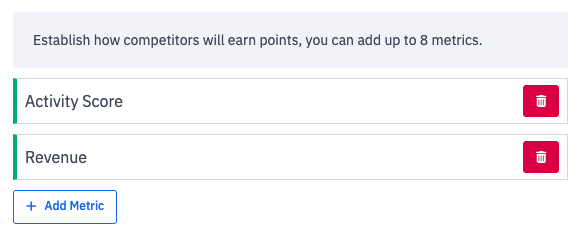
Repeat the above steps for each desired metric.
A bracket competition can include up to 8 different metrics.
Schedule
Based on the amount of competitors, the bracket will have a predefined number of rounds with the applicable number of byes, but you can customize when each round begins and ends and the duration.
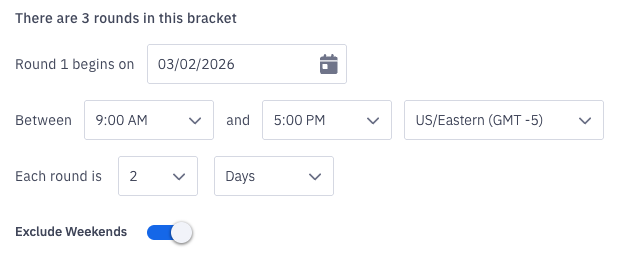
Round 1 Begins on:
Select when the bracket competition will begin.
Live or hidden bracket competitions cannot begin in the past.
Between "x" and "x" <timezone>:
Select when the first round of the bracket competition should begin, end, and which timezone should be used.
Each round is "x" hours, days, months:
Determine the length of each round by selecting the desired length (1-12) and time frame (hour, day, week).
The shortest a round can be is 1 hour.
The longest a round can be is 12 weeks.
Exclude Weekends:
Weekends are excluded from scheduling by default, but toggle off (toggle will be gray) if you wish for the bracket competition to include weekends.
Round Details:
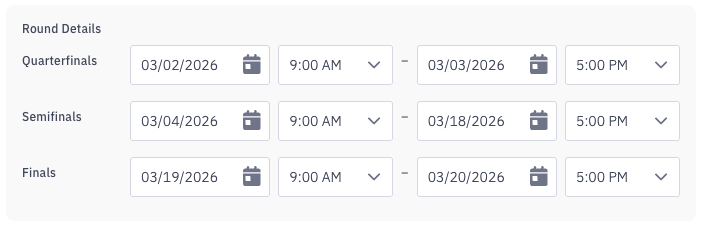
Further customize the bracket schedule as desired.
Ex. The first round and the finals can last a single day, but the semifinals can last two weeks.
Seeding, Matchups, and Bracket
After selecting the competitors and scoring, you will be able to view the bracket's seeding. Initial rankings are based off of 30-days of historical data where applicable.
Click between the Seeding, Matchups, and Bracket tabs to view and customize your bracket competition.
You are able to manually change a user's overall initial seeding and customize first round matchups as desired.
Click Reset to Default on any of the tabs if you wish to return to the initial, default rankings.
TV (optional)
If you have "TVs: Edit" permission, you can optionally display your bracket competition on an Ambition TV.
A countdown timer will be displayed on the slide if the bracket competition has not yet started.
Add Bracket Competitions to TV:
1. Select the respective TV(s) you'd like your bracket competition to appear on from the "Available" list.
2. Optionally select a Start and End Date from the respective dropdown if you'd like the slide to be added and/or removed from the TV at a specific point in time.
If the bracket is created in hidden mode, you will not be able to add the competition to a TV within the TV editor - only here within the create form. After a competition has hidden more turned off, you will be able to add the competition to a TV within the TV editor.
Save and Create
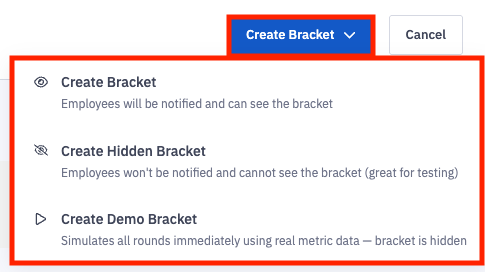
4. If the bracket is ready for competitors to view and interact with, click the Create Bracket > Create Bracket.
If you'd like to preview/test the bracket's setup and view the competition without notifying competitors, click Create Bracket > Create Hidden Bracket.
↳ A hidden bracket allows you to test drive a competition's setup and scoring configurations without notifying users that a competition has been created. The bracket can be viewed and deleted by the competition creator and users with "Competitions: All Access" permissions, but it is hidden from any user without "Competitions: All Access" permission in Ambition.
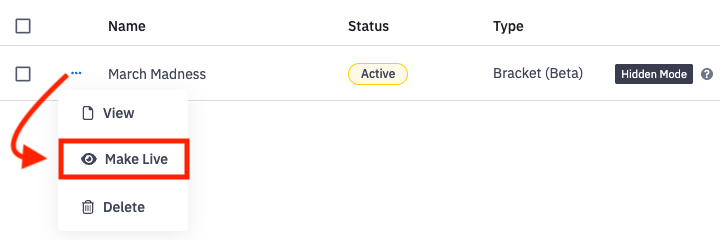
When you are ready to make your hidden competition live to competitors, open the left navigation > competitions > manage. Locate the hidden competition and click on the ellipses in line with the desired competition. Click Make Live.
If you've selected start dates in the past in order to preview the entirety of your bracket competition (start dates in the past are supported when creating a demo bracket), click Create Bracket > Create Demo Bracket.