How do I edit coaching templates?
Last updated: June 17, 2025
Edit Coaching Templates
Users with "Coaching: Create Check-In Template" or "Coaching: All Access" permission will be able to edit coaching templates.
Creators of templates will be able to edit the templates they create. Users with "Coaching: All Access" permission can edit all templates.
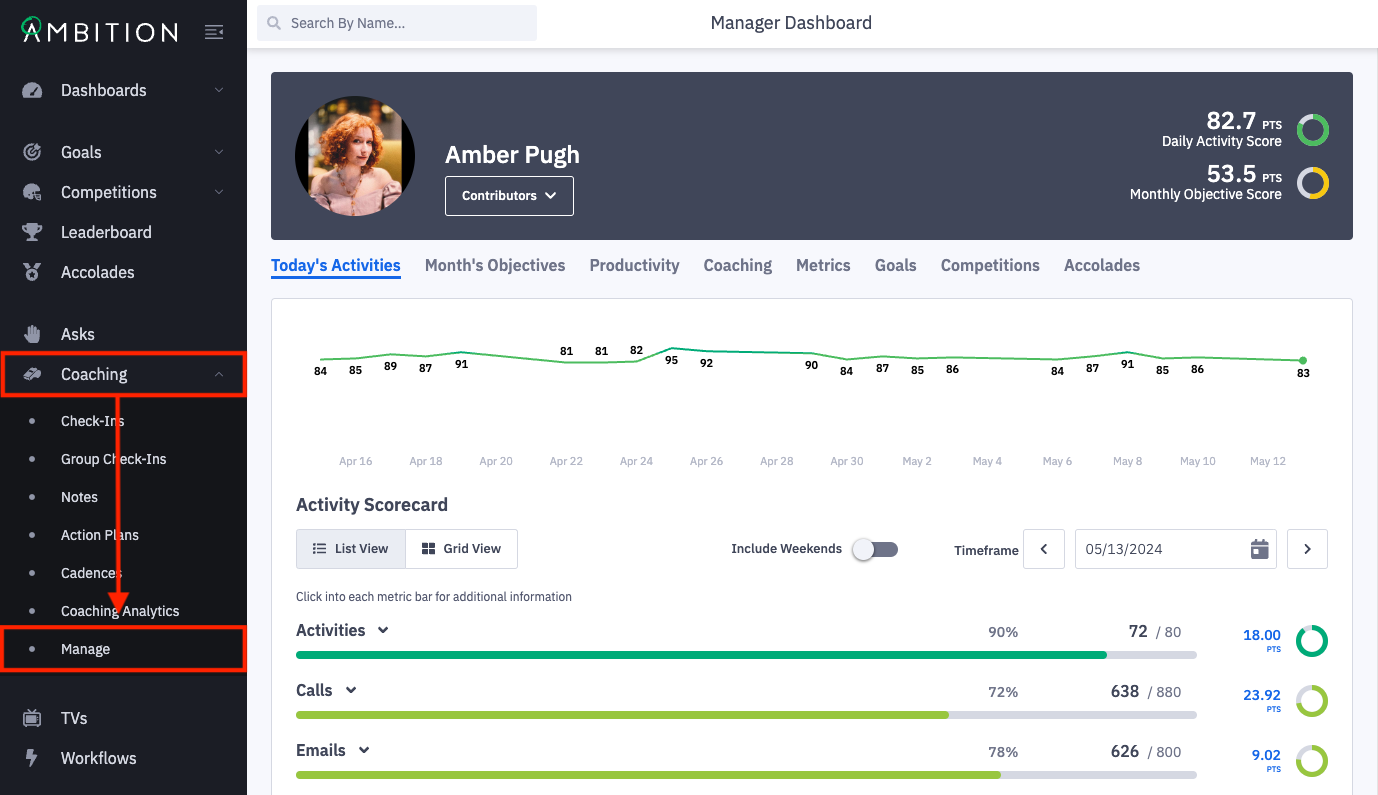
1. Open the left navigation and click Coaching > Manage.
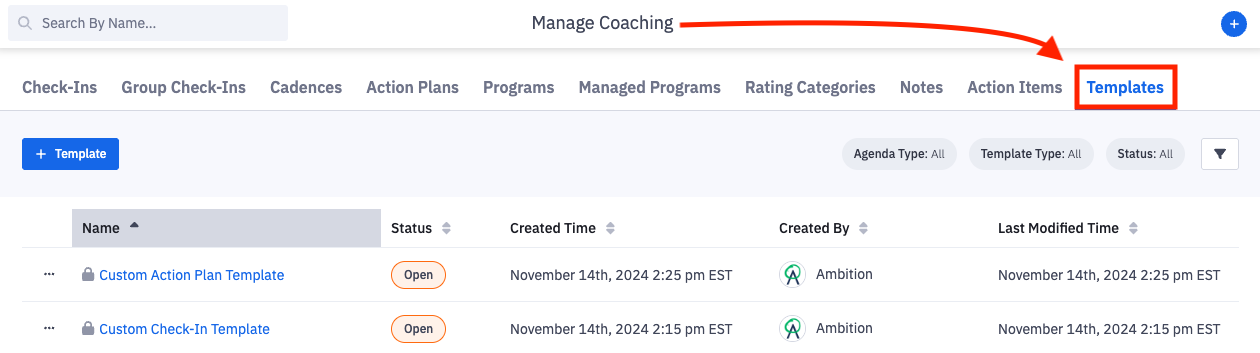
2. From the manage coaching page, select the Templates tab.
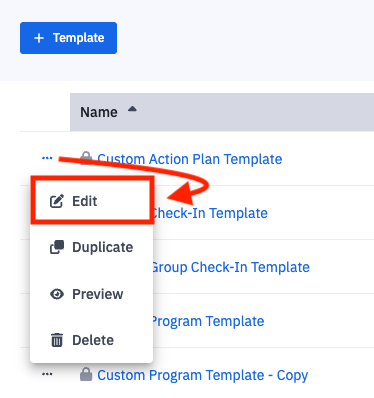
3. Click the ellipses icon and Edit on the template you wish to edit.
Templates in both "Draft" and "Open" status can be edited.
4. Make the appropriate edits.
Any updates made to the template agenda will not be reflected on any open coaching events that were created using the respective template. Adding or removing rating categories will update open check-ins created with the template. If a rating category is removed from a template, any open check-ins that already have a rating left in that category will be unchanged.
If the template is a draft, you may edit all of the same fields that were available during template creation.
If the template is open, you may edit all of the same fields that were available during template creation except template type, locked or unlocked.
If editing agenda items, note that 1 agenda item must be required (not optional) to save.
Saving an Open Template
5. Click the Update Template button to save your changes.

Save a Draft Template as Draft or Open
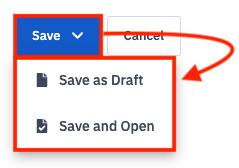
6. After making the desired edits, click Save > Save and Open.
If your template has at least one required item and managers have been selected in Step 2, the template will move out of "Draft" status and will now be "Open". Once open, coaching events can be created with the template.
If the template is still in progress, click Save and then Save as Draft. Your template will not be available to create coaching events with until the template is "Open". You must have at least one required item and have selected managers in Step 2 before being able to save your template as a draft.