How do I access the Ambition Widget? (Lightning)
Last updated: June 23, 2025
Salesforce Lightning Component Options
Prerequisite
Installation of Ambition's Salesforce Managed Package is required in order to access the Ambition Salesforce Lightning Components.
Ambition makes available two Lightning Components that can be accessed within Salesforce.
Lightning Component Option 1
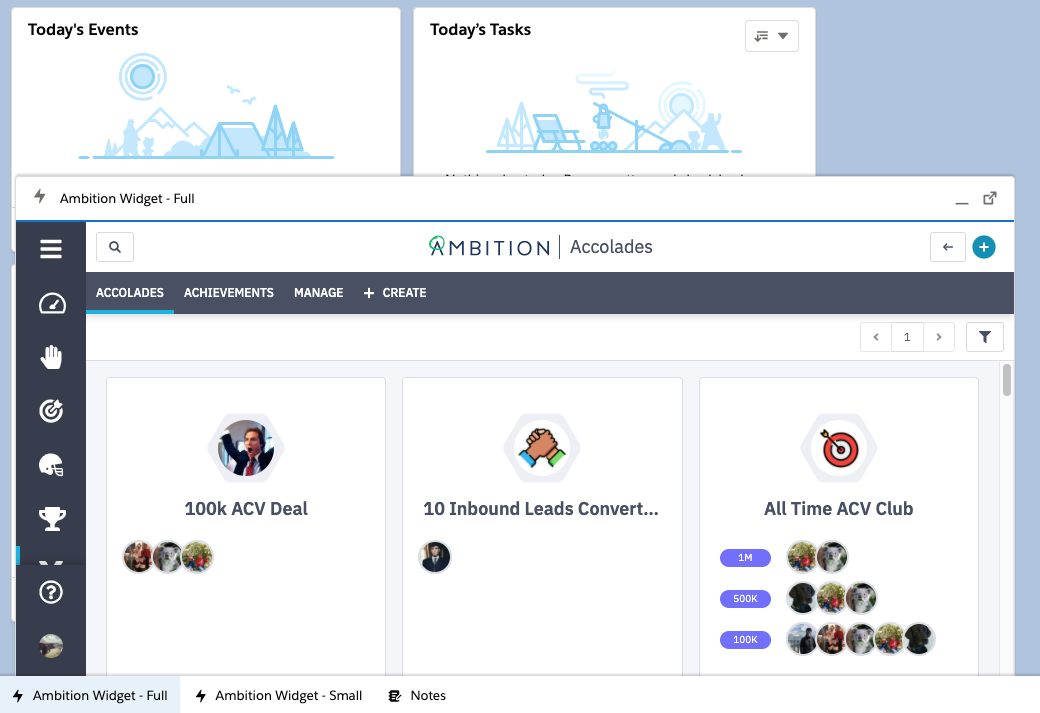
Ambition Lightning Widget
Full Ambition experience similar to the Ambition tab
Lightning Component Option 2
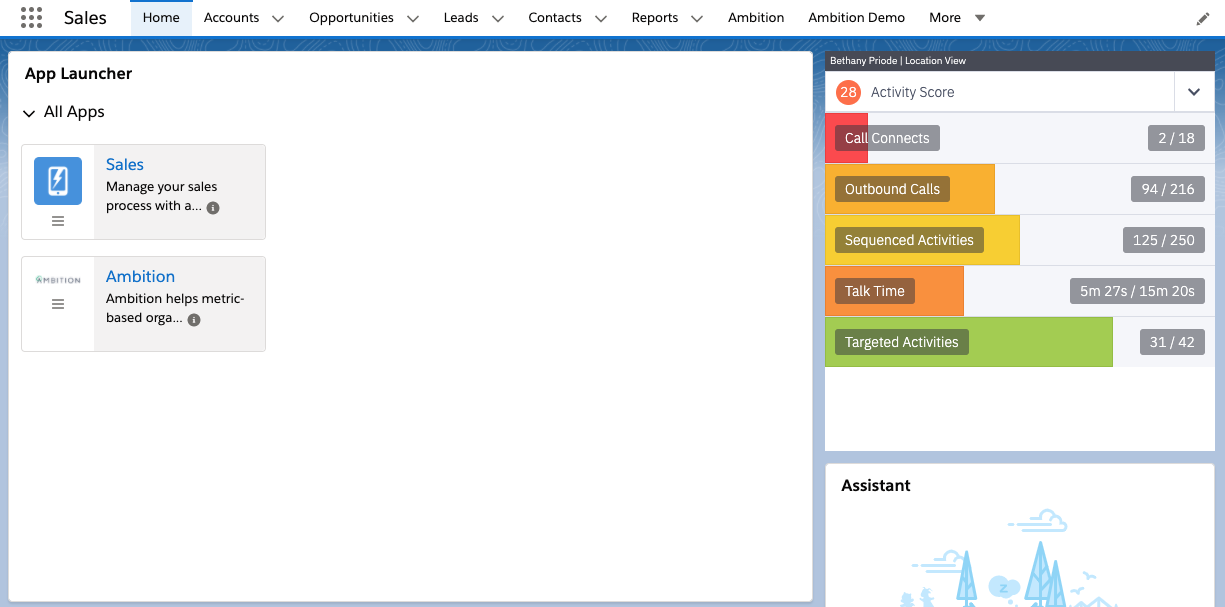
Ambition Lightning Sidebar Widget
Simplified experience showcasing high level Activity Score, Objective Score, Metrics, and Competitions.
Note for Admin:
In Ambition, Users can customize the data that the AmbitionLightningSidebarWidget displays.
Under your Settings in Ambition, select a preferred Landing Page (Personal, Manager, Team, etc).
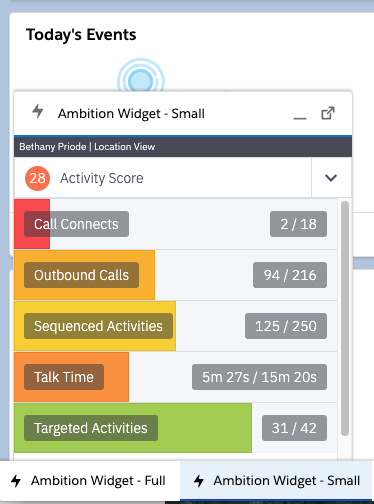
While our components can be embedded anywhere using the Lighting App Builder, we also love the Utility Bar... it's so nice to quickly overlay Ambition on top of what you're working on, check progress, then minimize and get back to work. Sure beats context-switching from tab to tab!
Add Ambition Components to Salesforce Lightning
Within Salesforce, you can add Ambition Component to two locations:
Note: To add Lightning Components, one must have permission to access your Organization's Setup menu in Salesforce.
Placement Option 1
Add an Ambition Lightning Component to a Lightning App's Layout
1. Login to Salesforce.
2. Access the Setup menu by locating the gear icon at the top of any Lightning Salesforce page.
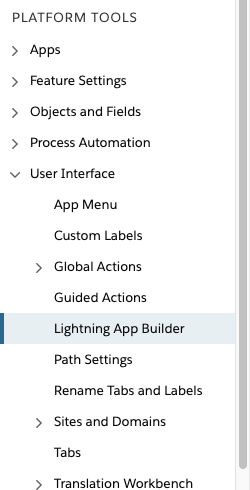
3. Click Setup > User Interface > Lighting App Builder.
4. Click Edit on the App where you'd like to add an Ambition Lightning Component.
Two Ambition Components will appear under the Custom - Managed tab.
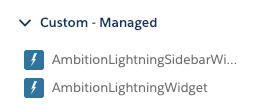
5. Select the desired Component(s) and drag onto the App's layout. We recommend the AmbitionLightningSidbarWidget for use on page layouts.
6. Click Save.
Placement Option 2
Add an Ambition Lightning Component to the Utility Bar
1. Login to Salesforce.
2. Access the Setup menu by locating the gear icon at the top of any Lightning Salesforce page.
3. Click Setup > Apps > App Manager.
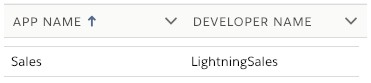
4. Click Edit on App Name = "Sales", Developer Name = "Lightning Sales".
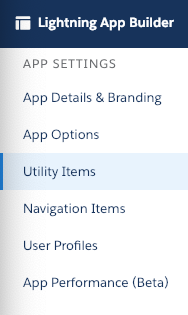
5. Select Utility Items.
6. Click the Add Utility Item button.
You can search for "Ambition" or scroll down to the Custom - Managed tab.
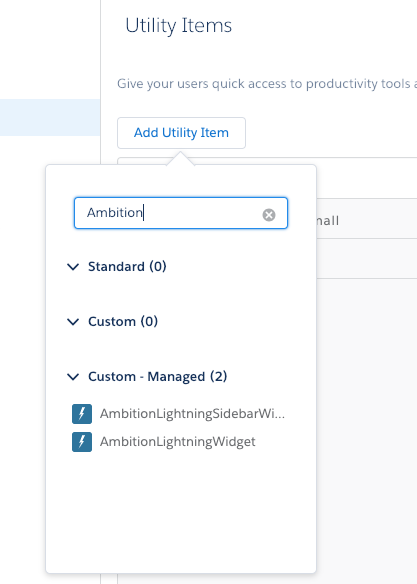
7. Select the Utility Item you'd like to add.
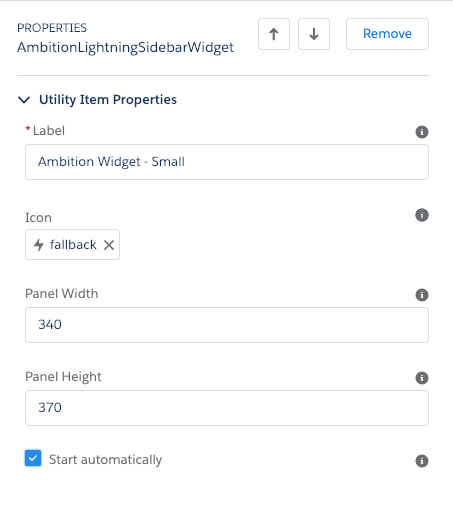
8. Update the Utility Item Properties as needed.
Label - Give your utility a name so that Users know what it does. The name will appear in the Utility bar. We recommend placing Ambition in the naming convention
Icon - This icon appears in the Utility Bar. Ambition places no restriction on what icons can be selected.
Panel Width and Panel Height
Does Ambition recommended a Panel Width and Height?
Panel Width and Height are customizable to your Org's needs, but we suggest a 340 Panel Width and 370 Panel Height for the AmbitionLightningSidebarWidget
Recommend a 1000 Panel Width and 500 Panel Height for AmbitionLightningWidget
Start Automatically - Ambition recommends opting to Start Automatically
9. Click Save.