How do I edit a group check-in?
Last updated: October 30, 2025
Edit Group Check-In
Edit a Single Occurrence of a Group Check-In
The creator of the group check-in, the assigned manager, users with "Coaching: All Access" permission, and co-coaches assigned to the group check-in can edit the group check-in.
1. Open the left navigation and click Coaching > Group Check-Ins.
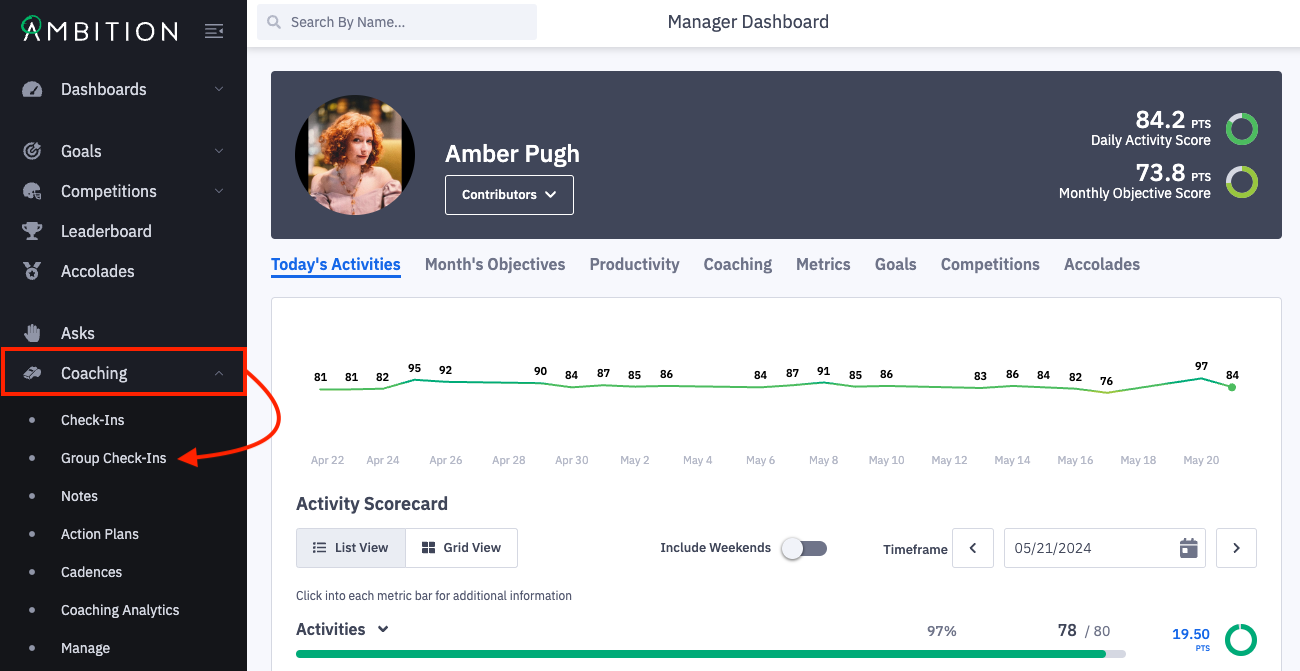
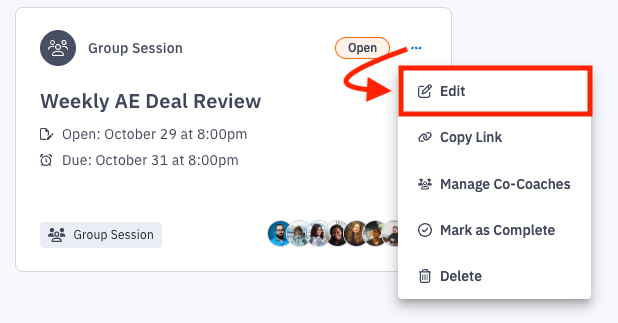
2. Click the ellipses icon and Edit on the group check-in you wish to edit.
Completed meetings cannot be edited. However, if an edit needs to be made to a completed group check-in, you can select the "reopen" option and then have access to editing capabilities.
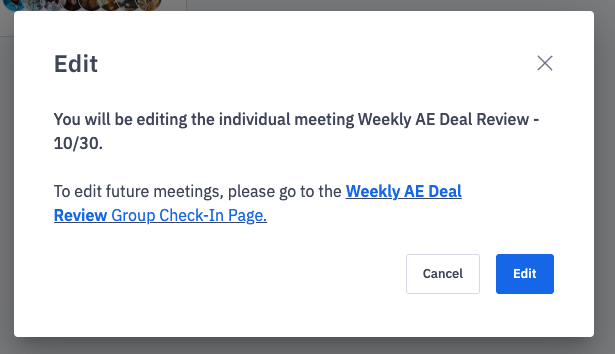
3. You will be prompted to select between editing just an individual meeting, or edit all future meetings. Click Edit to proceed with editing a single meeting.
To edit future meetings, learn more below.
4. Make the appropriate edits to the individual meeting.
The changes made will only be reflected on the individual occurrence of the respective group check-in.
Date and Time
Update the start date, start time, or time zone.
You cannot select a start date previous to the existing start date.
If the start date, start time, or time zone is edited, those changes will be reflected on the single meeting.
Participants
The assigned manager cannot be changed, but you can add or remove participants.
Agenda
Agenda items can be added, edited, or removed.
At least one agenda item is required for save.
If you are editing an agenda items where a comment has already been left, you can still edit that item. Existing comments will be left on the agenda item.
Co-Coaches (optional)
C-Coaches can be added and removed.
Co-Coaches will be able to edit the group check-in.
5. Click the Save Group Check-In button.

Edit All Future Occurrences of a Group Check-In
The creator of the group check-in, the assigned manager, users with "Coaching: All Access" permission, and co-coaches assigned to the group check-in can edit the group check-in.
1. Open the left navigation and click Coaching > Group Check-Ins.
If you have access to the Coaching > Manage tab, you can alternatively click Manage > Group Check-Ins. Locate the check-in you wish to edit, and click the ellipses icon and Edit. You can skip ahead to step # 5.
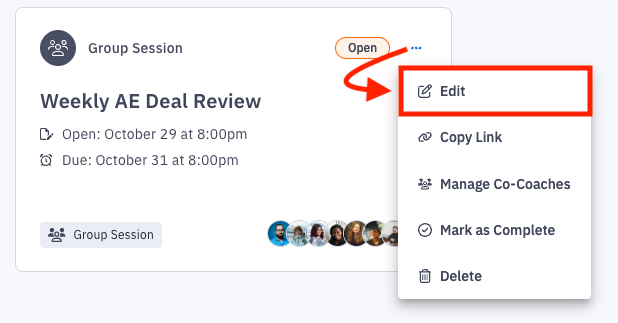
2. Click the ellipses icon and Edit on the group check-in you wish to edit.
Completed meetings cannot be edited. However, if an edit needs to be made to a completed group check-in, you can select the "reopen" option and then have access to editing capabilities.
3. You will be prompted to select between editing just an individual meeting, or edit all future meetings. Click the linked name of the Group Check-In to proceed with editing all future meetings.
To edit just a single meeting, learn more above.
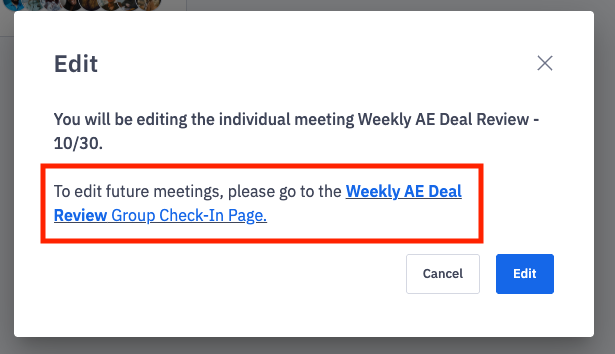
4. You will be redirected to the group check-ins parent page. Click Edit.
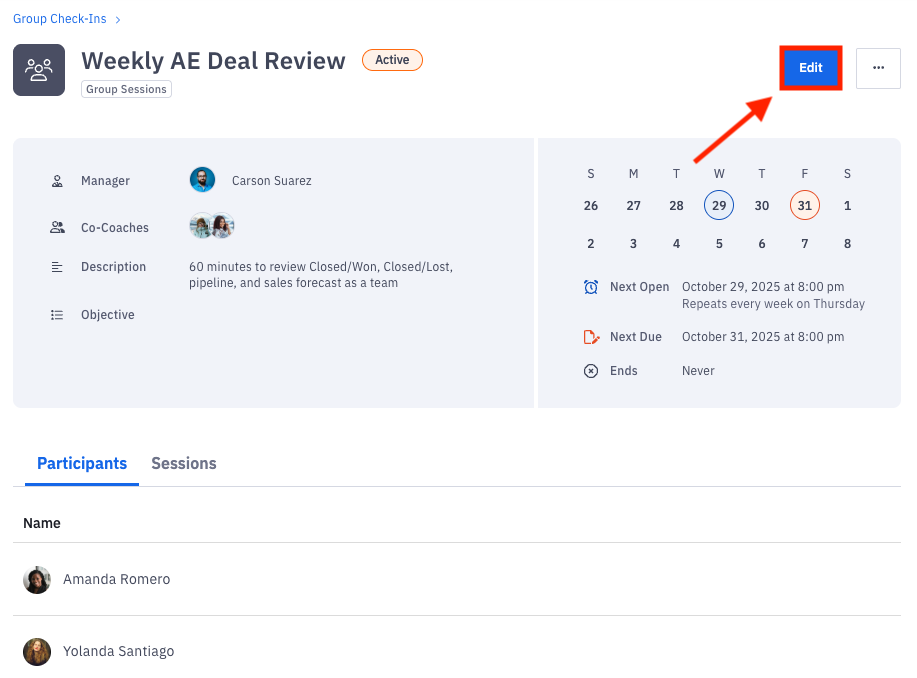
5. Click Edit Group Check-In.
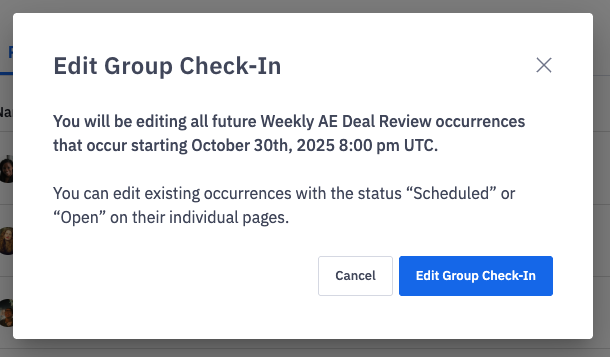
6. Make the appropriate edits that should apply to all future meetings.
The changes made will not be reflected on any occurrences of the respective group check-in that are already in the status "scheduled" or "open".
Details
Update the name or description.
Recurrence
Update the start date, start time, or time zone
Participants
The assigned manager cannot be changed, but you can add or remove participants.
Agenda
Agenda items can be added, edited, or removed.
At least one agenda item is required for save.
Co-Coaches (optional)
Co-coaches can be added and removed.
Co-coaches will be able to edit the group check-in.
7. Click the Save Group Check-In button.
The changes made will not be reflected on any occurrences of the respective group check-in that are already in the status "scheduled" or "open".