How do I access and navigate the Metric Library?
Last updated: June 24, 2025
Metric Library
Metric Library Overview
While each data integration in Ambition will house its own "Manage" tab that contains a list of all active metrics within that integration, the metric library provides a single pane for viewing all active metrics from all data integrations at once.
Access the Metric Library
Users with the "Integrations: Edit" or "Metrics: Edit" permission will be able to access the metric library and create, edit, and delete all metrics.
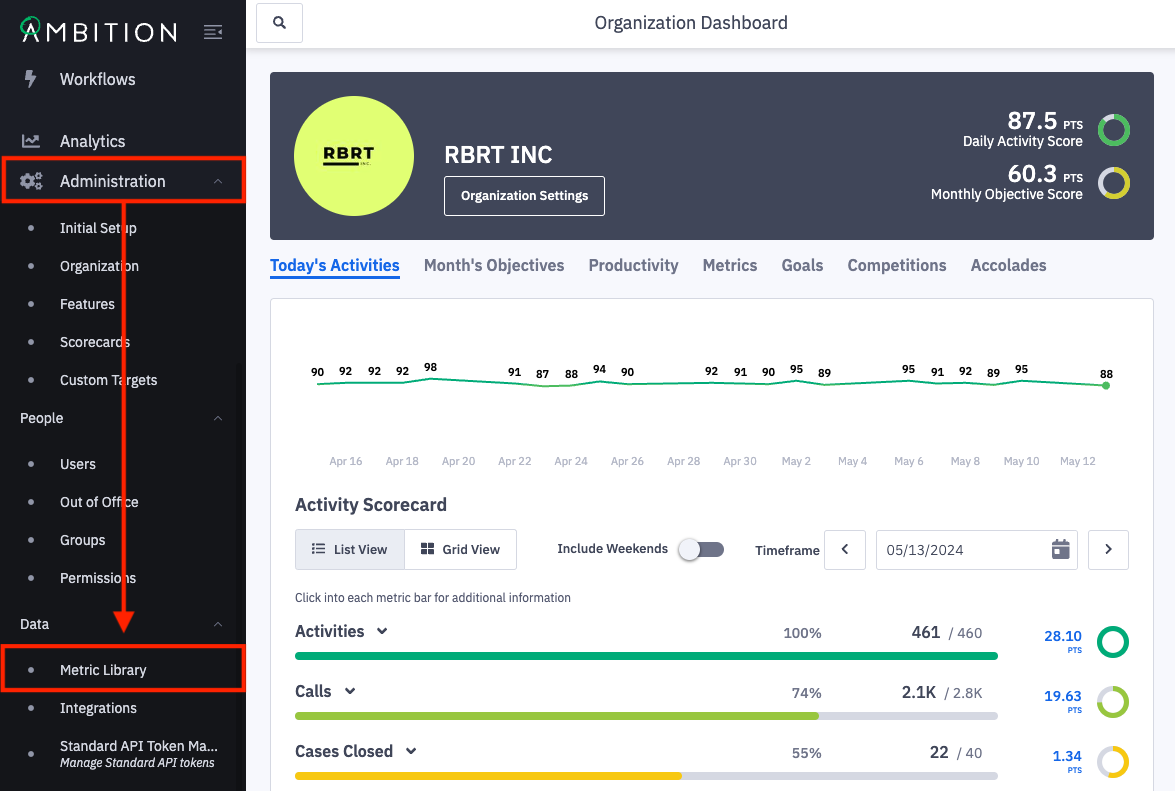
1. Open the left navigation and click Administration > Data > Metric Library.
Navigate the Metric Library
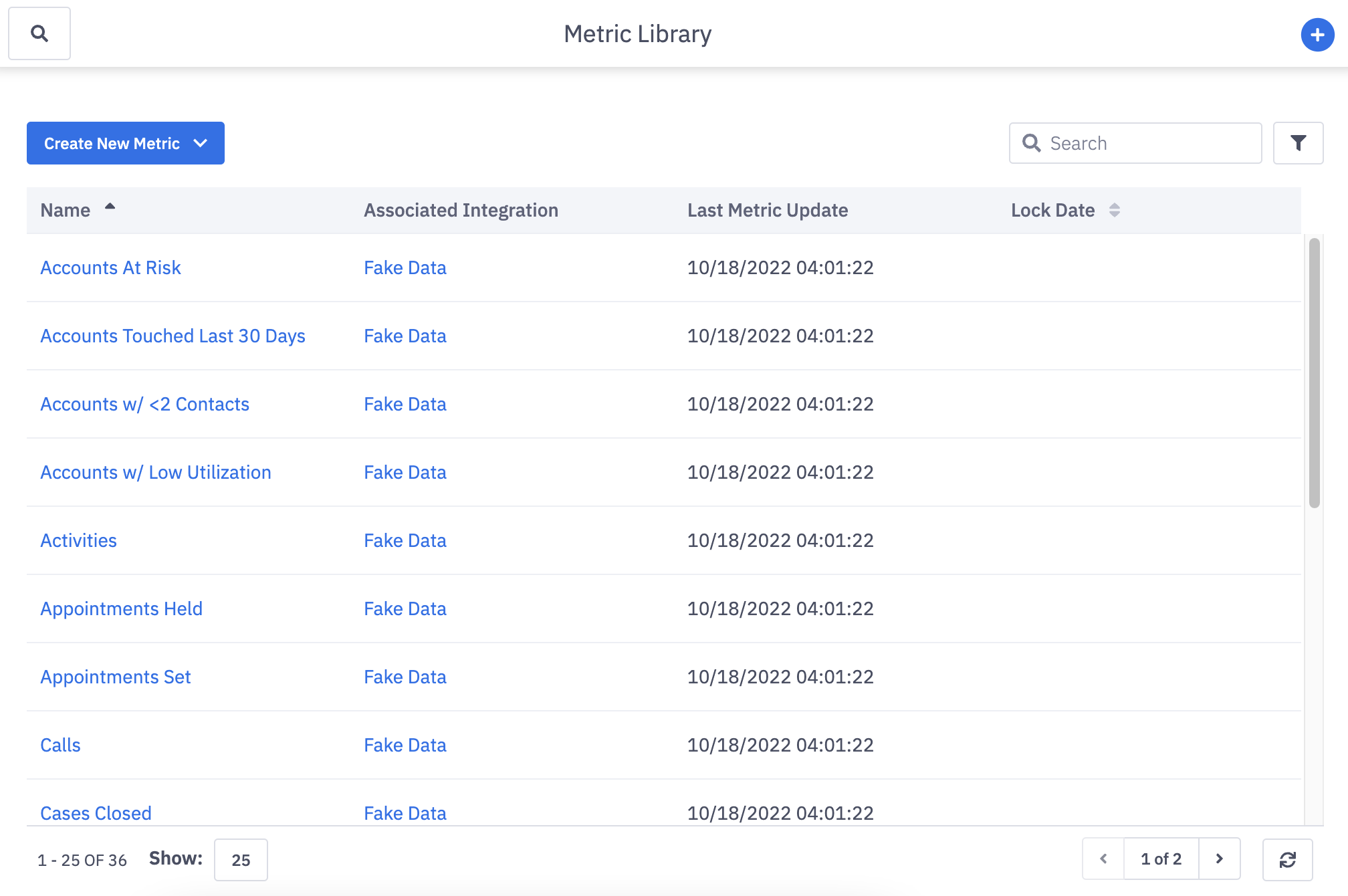
Upon entering the metric library, you are presented with a list of all the metrics that have been built within a data integration in Ambition.
Metrics that have been created in an integration with "Sandbox Mode" enabled will be accessible within the metric library as well.
No active integrations yet? Click here to get started.
Locate an Existing Metric
Metrics will be listed in alphabetical order by name. The "Name" column is sortable and can be sorted from Z-A with a single click on the column header.
Metrics can also be be found through searching or filtering.
Search
Use the "Search" in the upper right to search for a metric by its name.
Filter
Click the filters icon to filter the metric list by:
Associated Integration - Search by the name of the data integration that receives data to populate the metric. ex. Salesforce, API - Daily Totals, Cisco.
Last Metric Update - Select a time frame that reflects when Ambition last received a data upload within the respective integration that receives data to populate the metric. If a Salesforce metric, the "Last Metric Update" will reflect when Ambition last received an upload from the object or report that populates the metric. Formula Builder metrics will not display a "Last Metric Update" time.
Metric Config Modified Time: Search for a specific timeframe or date where a metric was manually modified by a user.
Metric Config Modified By: Search for the user who has made the most recent manual change to a metric.
Metric Config Created Time: Search for a specific timeframe or date where a metric was manually created by a user.
Metric Config Created By: Search for the user who created a metric
Lock Date - Select a time frame the reflects the lock date on a metric. Not all metrics will have lock dates as a lock date is only selected when making a notable change to metric logic. Learn more here.
Create a New Metric
The metric library will display all active metrics, but also allows for creation of new metrics!
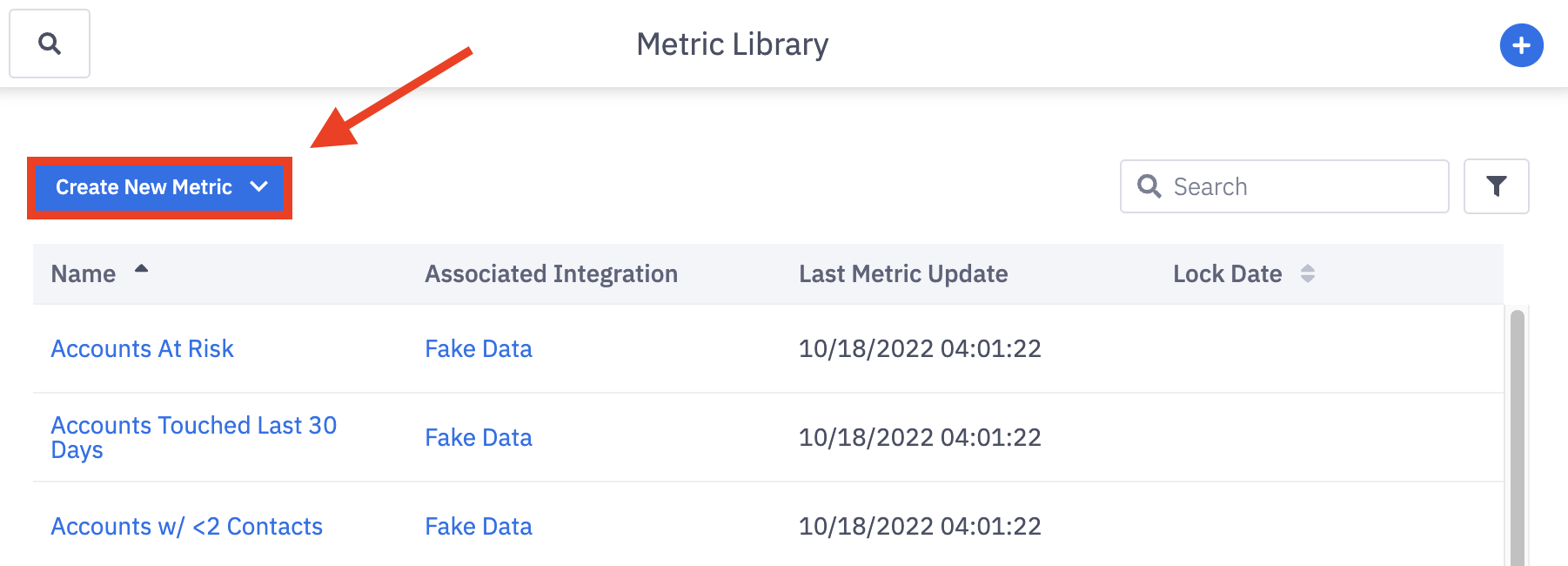
1. Click the Create New Metric button.
2. If multiple integration types are enabled, additionally select what type of new metric you want to create.
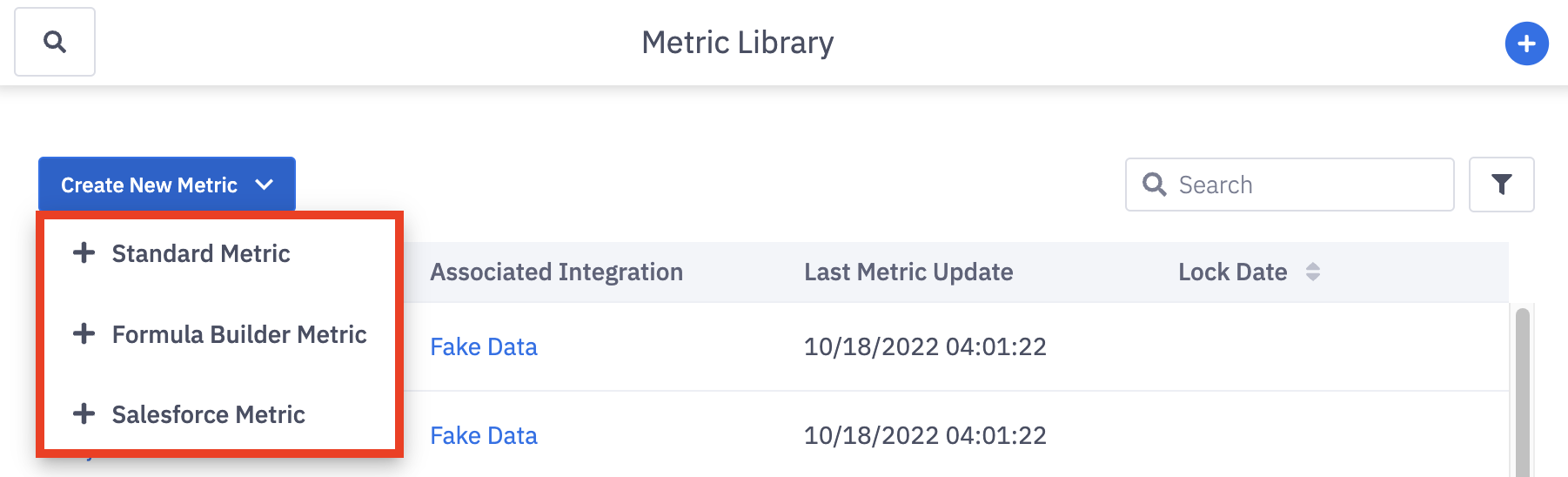
Standard Metric - A metric that will be populated with data from an API, FTP, File Upload, or Manual Entry integration.
You will be prompted to select the specific API, FTP, File Upload, or Manual Entry Integration in Step 2 of the metric creation form.
Formula Builder Metric - A metric that combines two existing metrics in Ambition, or a metric that combines an existing metric with a constant number.
Learn more about creating Formula Builder metrics here.
Salesforce Metric - A metric that will be populated with data from the Salesforce Integration.
You will be prompted to select the specific Salesforce Object or Report in Step 2 of the metric creation form.
Learn more about creating Salesforce metrics here.