Why are anthems not playing?
Last updated: March 3, 2026
Anthems Not Playing on TVs
Browser Autoplay Settings
When a workflow pops up on an Ambition TV, you should see an anthem, an employees/groups/roles selected video, begin to play
In some cases, the video will load and fail to play automatically. If you are seeing the "play" icon displaying across the video instead of the video beginning to play as normal, please identify the web browser you are using to display your Ambition TV as each browser has unique autoplay restrictions.
Google Chrome Browser
Ambition is optimized for Chrome. However, an update to Chrome 66 on May 4, 2018 changed the way Anthems play on Ambition TVs. The Autoplay changes continues to affect all current updates of Google Chrome.
The autoplay settings for Google Chrome can be modified depending on the Operating System (Windows 10, MacOS) that you are using.
Click here and here to read Google's article on autoplay changes.
Interacting with the video in any way, easiest is clicking the Play icon that appears on the screen, will tell your Chrome browser the respective video is safe to play.
If you wish to put a more permanent solution in place, learn more about modifying your respective Operating System's settings, Windows or Mac OS, below.
If you are using a Chromecast to display Ambition TVs, ensure the "Optimize Fullscreen Videos" option is turned off in order to allow videos to play as expected.
Windows
CONSULT YOUR IT DEPARTMENT BEFORE MAKING ANY CHANGES TO YOUR REGISTRY.
Use the Windows Key + R keyboard command to open “Run”.
Type “regedit” and press Enter.
Navigate to HKEY_LOCAL MACHINE\SOFTWARE\Policies\Google\Chrome.
Find the registry key “AutoplayAllowed” and double-click to open.
Set the value to “1” and close the window.
Restart Google Chrome.
Mac OS
CONSULT YOUR IT DEPARTMENT BEFORE MAKING ANY CHANGES TO PROGRAM FILES.
Open the file location ~/Library/Preferences.
Locate com.google.Chrome.plist.
Open Terminal.
Type cd ~/library/preferences and press Enter.
Type plutil -convert xml1 com.google.chrome.plist.
You should see the “Date Modified” of the file update in the folder. Leave Terminal open for step 10.
Right-click the file and select “Open With” TextEdit.
Add the following lines:
<key>AutoPlayAllowed</key><true/>
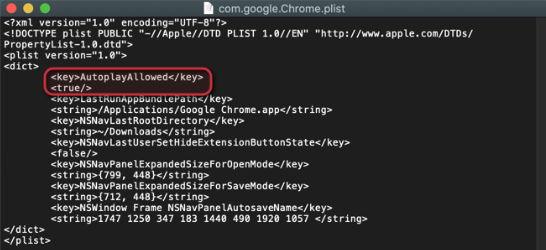
9. Save the file and close the TextEdit window.
10. In Terminal, type plutil -convert binary1 com.google.chrome.plist.
11. You should see the “Date Modified” of the file update in the folder again.
12. Restart Google Chrome.
All media should now be playing automatically in Google Chrome. If any issues occur these settings can be modified back to their original state. Alternatively, you can also uninstall and reinstall Google Chrome to restore original settings.
Firefox Browser
Firefox blocks all media with sound from playing automatically, by default.
If you want a website to automatically play media or make other changes to your autoplay settings, you can use one of the methods below.
Click here to read Firefox's article on autoplay
1. Click the menu button and select Preferences.
2. Select the Privacy and Security panel located on the left-hand side of the page.
3. Scroll down to the Permissions section.
4. Find Autoplay and click the Settings… button.
5. Use the Default for all websites drop-down menu to select “Allow Audio and Video”.
6. Restart Firefox.
Safari Browser
Safari allows you to set preferences on which websites are safe to autoplay videos.
Click here to read Apple's article on autoplay in Safari
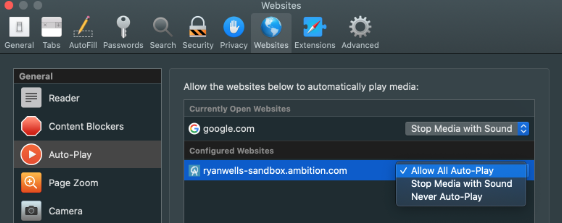
1. Navigate to your Ambition TV.
2. Choose Safari > Preferences.
3. Choose the Websites tab > Auto-Play pane.
4. Locate your Ambition URL (company.ambition.com).
5. Select the drop-down menu and select “Allow All Auto-Play”.
6. Restart Safari.