How do I purge all metric data from an integration?
Last updated: June 24, 2025
Remove Test or Historical Data with Purge
If your organization needs to reset all value data for a non-Salesforce integration, you can do so with the Purge All Data button, instead of cloning and deleting an integration.
Note: Purging all data is not applicable for Salesforce integrations within Ambition's UI. If you have questions about removing Salesforce data, reach out to gethelp@ambition.com.
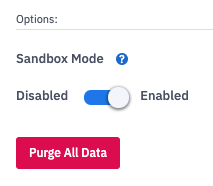
Purge All Metric Data for a Specific Integration
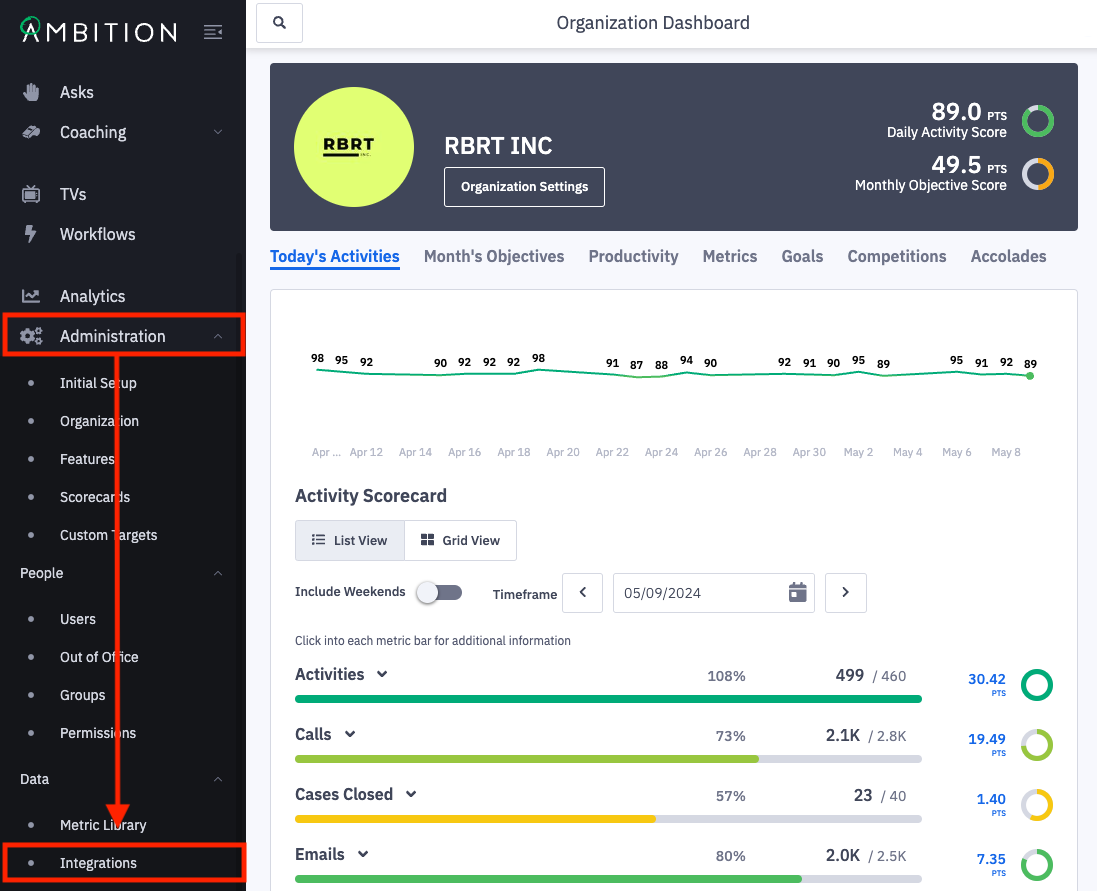
1. Open the left navigation and click Administration > Data > Integrations.
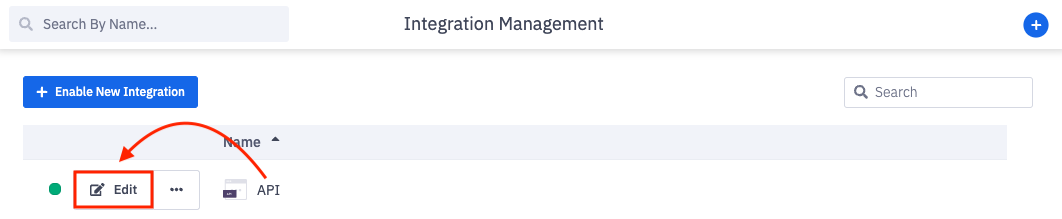
2. Click Edit in line with the appropriate integration.
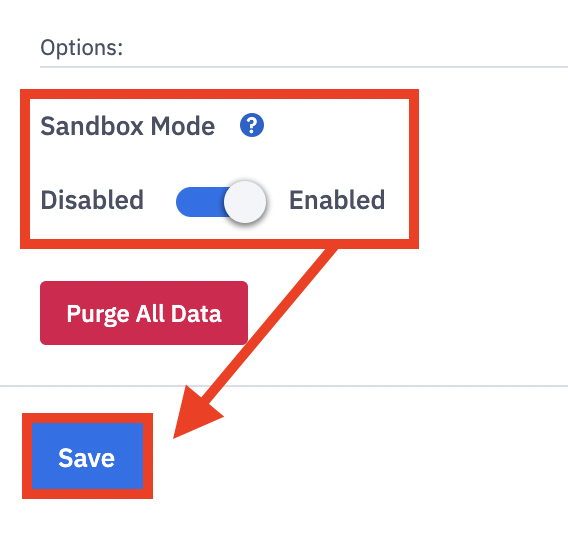
3. Toggle "Sandbox Mode" to Enabled. Click Save.
4. Refresh the page and confirm the integration has sandbox mode enabled.
Click the Purge All Data button.
5. Carefully read the warning modal:
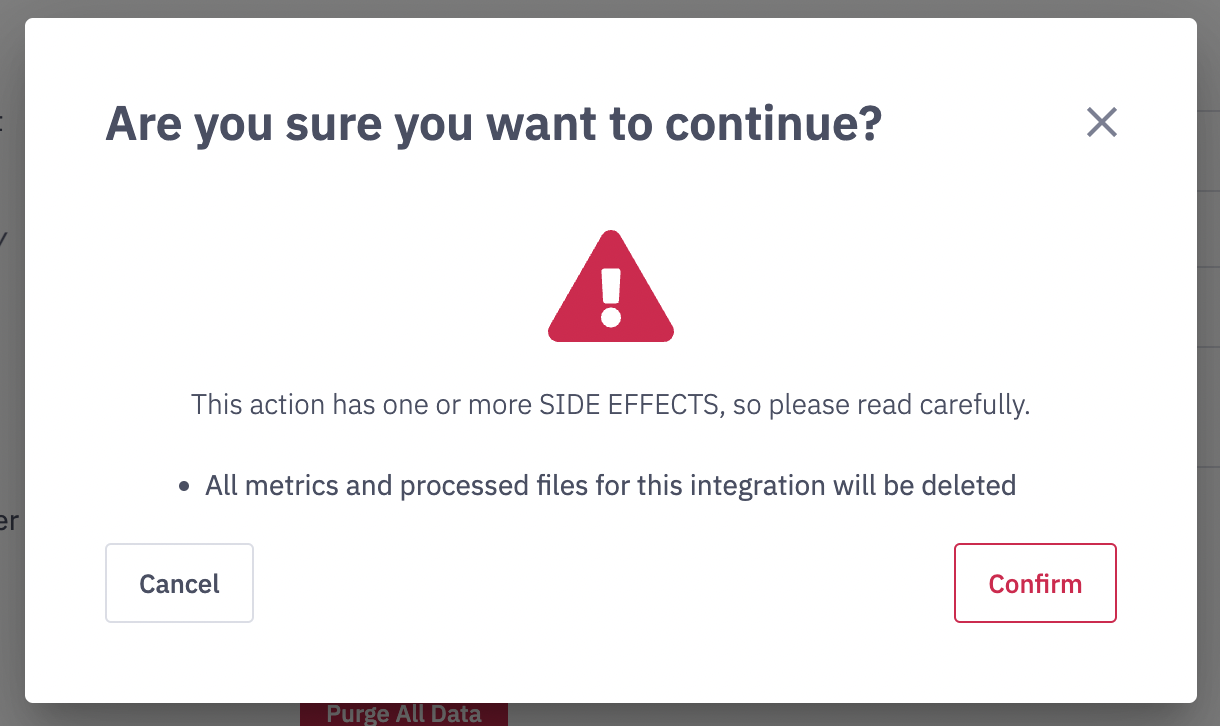
All metric values and processed files for this integration will be deleted.
Purging will delete any metric records. However, it will not delete any existing metric configurations or applied filters within this integration.
6. Click Confirm.