What do I need to know about using Ambition?
Last updated: March 3, 2026
Employee: How to Get Started with Ambition
Visit your user settings and update your profile picture, anthem, and GIF! This will make sure when you’re being recognized, everyone knows it’s you!
Your personal dashboard is your home base in Ambition! Click through and familiarize yourself with the different tabs on your dashboard!
On the left navigation, visit leaderboards and build a leaderboard to see how you stack against your peers! You can copy+paste the URL to share your leaderboard with others or create a saved filter so you can quickly access your customized setup.
Update Ambition
Visit your user settings and update your profile picture, anthem, and GIF! Adding a personal touch to Ambition will make sure when you’re being recognized, everyone knows it’s you!
Access Your Settings
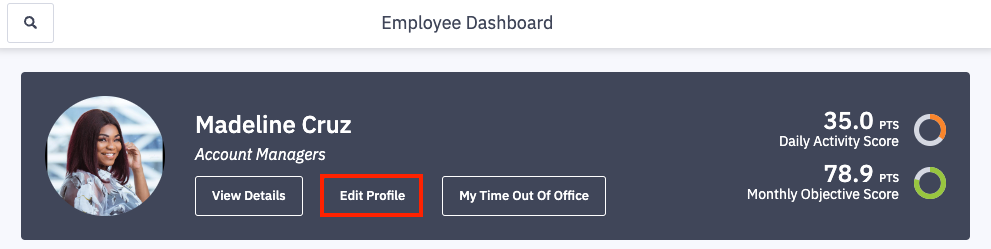
1. Click Edit Profile on your personal dashboard.
You will be navigated into user settings.
Update Profile Image
If your organization uses our Salesforce integration, your Salesforce profile picture will have been synced over. If not, please take the time to upload a profile picture!
1. Click Choose File.
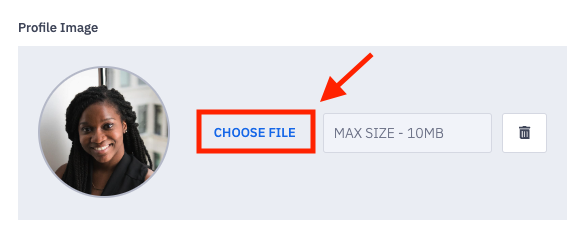
2. Select and upload the desired image from your device.
Running into an error? Make sure your image doesn't exceed our 10MB file size.
3. If you are not making other updates at this time, scroll to the bottom of your settings and click Save Changes.
Update Anthem
Find Anthem on Youtube
1. Find your desired video on YouTube.
Currently, Youtube Shorts cannot be used as Ambition anthems.
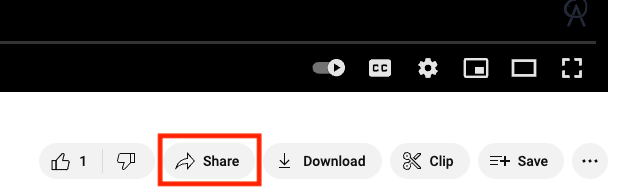
2. Click the Share button found under the right corner of the video.
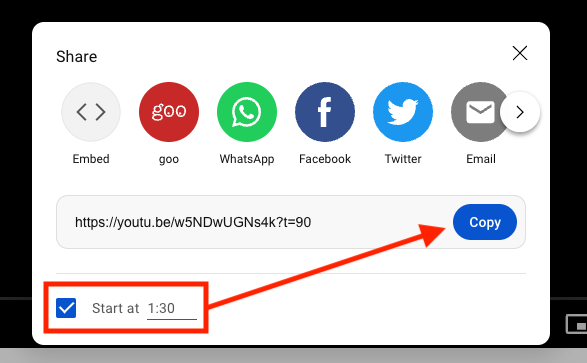
A pop-up will be generated containing the video's shareable URL.
Can I set my anthem to start at a specific section of the YouTube video?
Ambition supports the ability to start your video at a specific time. Feel free to check the "Start At" box and set the start time which will update the shareable URL.
3. Update the Start At time if desired, and click Copy.
Find Anthem on Vimeo
1. Find your desired video on Vimeo.
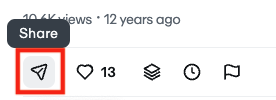
2. Click the Share button found under the video.
A pop-up will be generated containing the video's shareable URL.
Can I set my anthem to start at a specific section of the Vimeo video?
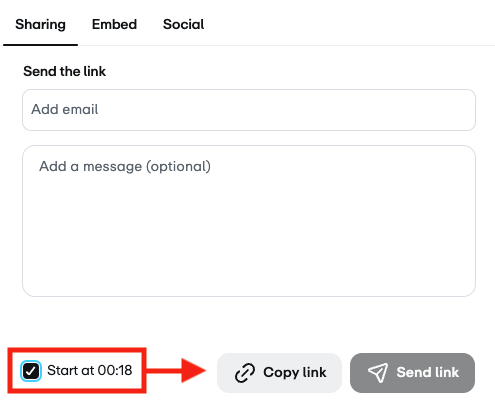
Ambition supports the ability to start your video at a specific time. Feel free to check the "Start At" box and set the start time which will update the shareable URL.
3. Update the Start At time if desired, and click Copy Link.
Set Anthem in User Settings
4. Paste the Share URL that was copied from YouTube or Vimeo.
↳ Optionally click the Test button to preview your anthem within Ambition.
Note: Copying and pasting the full URL from YouTube will not work here. You will need to use the Shareable URL.
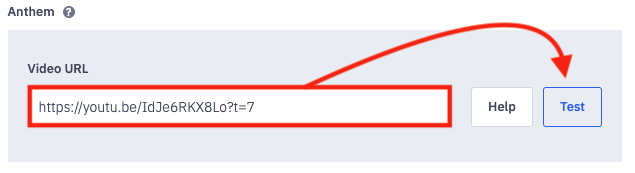
5. If you are not making other updates at this time, scroll to the bottom of your settings and click Save Changes.
Update GIF
1. Locate the the GIF section of your settings, click the Choose a GIF Button.
↳ Don't see the "Choose a GIF" Button? Learn how to set your GIF here.
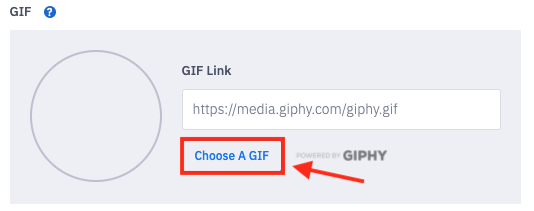
2. In the GIPHY window, search for and select the perfect GIF.
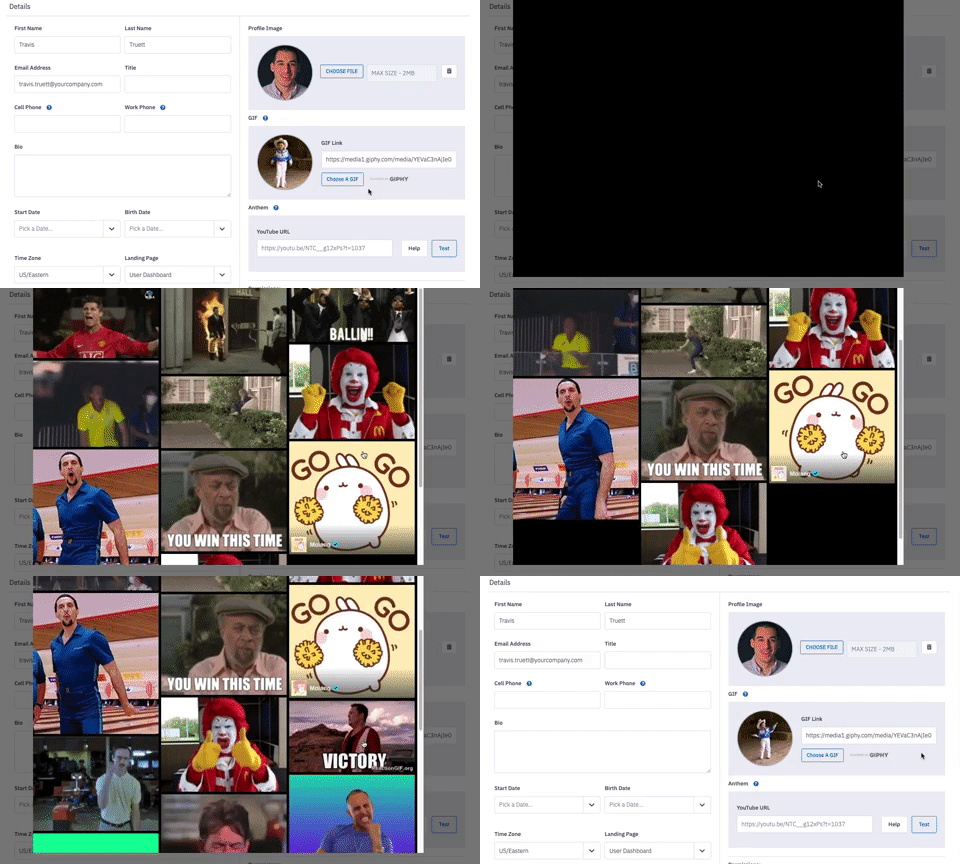
3. If you are not making other updates at this time, scroll to the bottom of your settings and click Save Changes.
Dashboard Tabs
On your user dashboard you have access to the Activities and/or Objectives (Scorecard), Metrics, Competitions, Accolades, and Feed tabs.
What do I need to know about my Scorecard?
↳ Can I see how my Scorecard is calculated?
How can I interact with the Coaching tab?
How can I use the Metrics tab?
What can I expect to see on the Goals tab?
What can I expect to see on the Competitions tab?
What will be on the Accolades tab?
Access Leaderboards
Ambition helps foster an atmosphere of transparency, so seeing where you and your teammates stand is only ever a few clicks away!
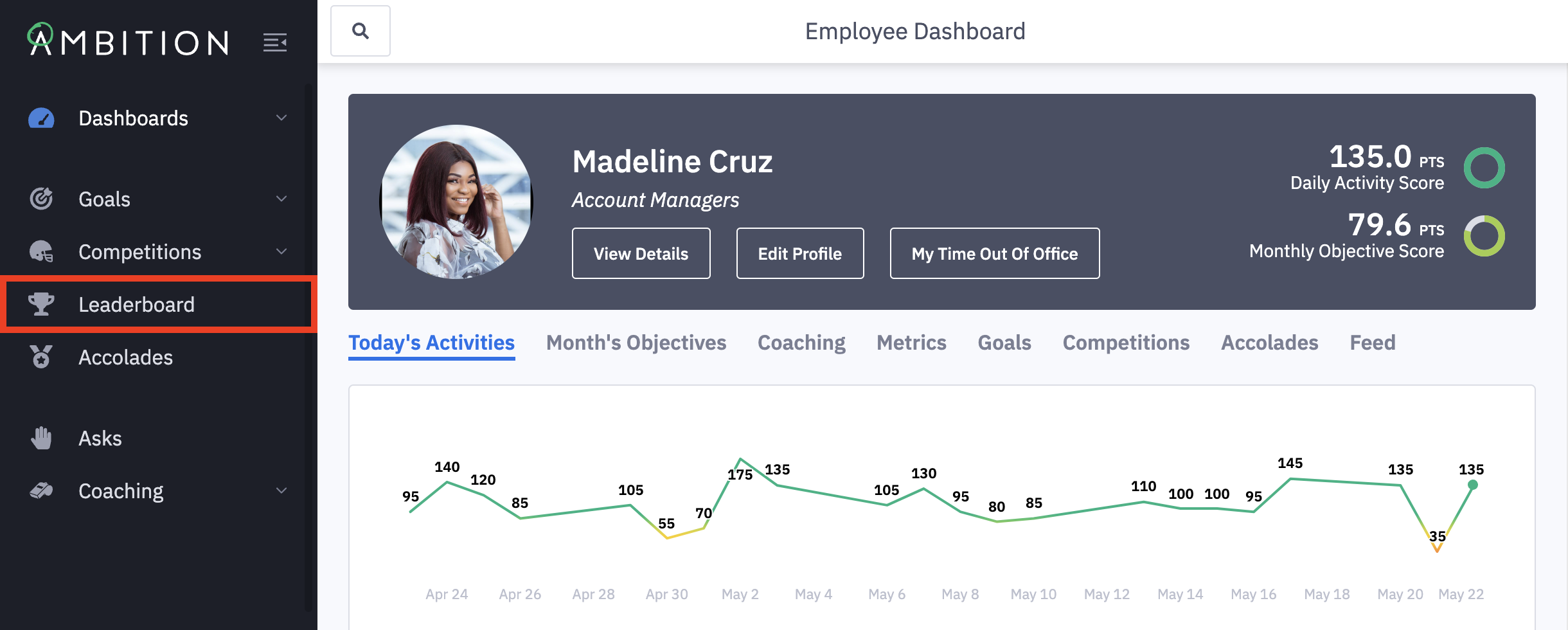
Leaderboards are accessible through:
1. The Leaderboard tab on the left navigation.
Learn more about the different filtering options for leaderboards here.
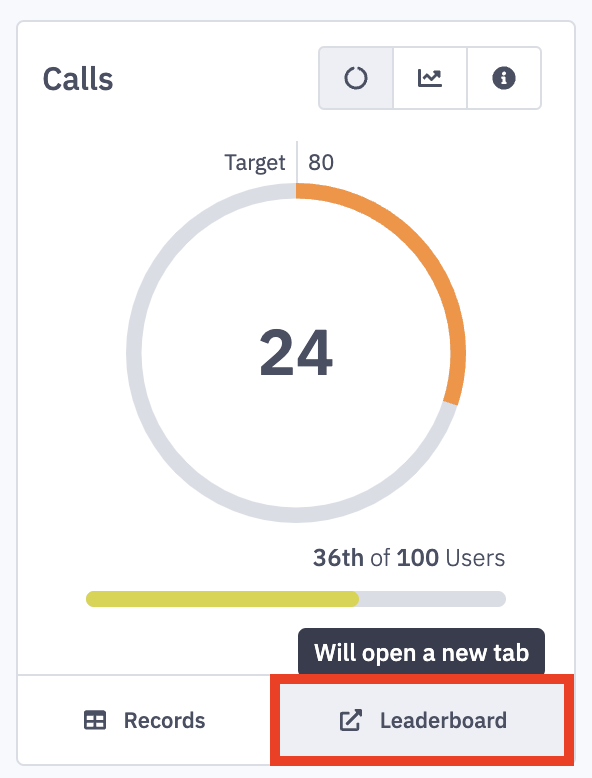
2. The Leaderboard button on a Metric Card.
Access Metric Cards by clicking the Metrics tab on your Dashboard.
Learn more about how to use the Metrics tab here.
Ambition Email Notifications
If at any time you wish to disable all or select email notifications you receive from Ambition, you can do so in your user settings.
Note: You cannot opt out of Workflow emails as they are created by your managers and admins as a means of notification. Only email notifications automatically generated by Ambition features can be disabled.
1. Click Edit Profile on your personal dashboard.
You will be navigated into user settings.
2. Click on the Notifications tab.
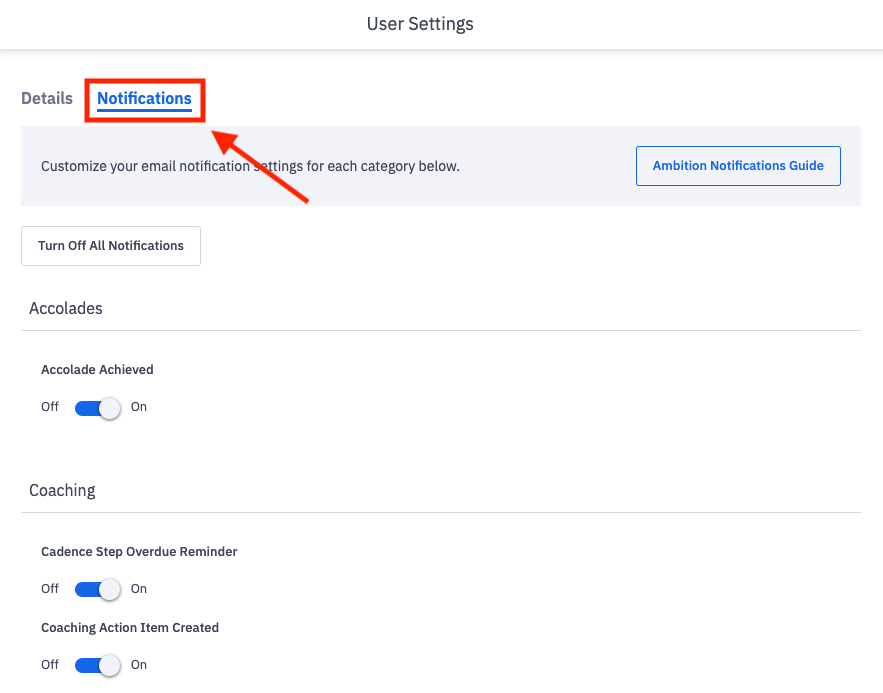
3. Unsubscribe, Subscribe, Customize options.
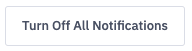
Unsubscribe to All Emails by clicking TURN OFF ALL NOTIFICATIONS.
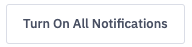
Subscribe to All Emails by clicking TURN ON ALL NOTIFICATIONS.
Customize the emails you receive by scrolling to the application in question:
Accolades
Asks (if enabled for your Organization)
Coaching
Comments
Competitions
Digests (Manager and Admin permissions only)
Goals
By default, all notifications are turned on.
4. Turn on or disable email notifications by clicking the Off/On toggle.
Note: If disabling emails, any emails that are already scheduled will still be sent. Email preferences will update upon the next recurrence.