How do I complete coaching sessions assigned to me?
Last updated: July 23, 2026
Ambition sessions are where managers and employees can document their recurring coaching conversations and plan next steps for employee excellence.
When you are assigned a coaching session through a coaching cadence, program, or a 1:1 session, you will be notified in Ambition.
By default, Ambition will notify you by email when a session starts, is due, is approved, or needs additional context added. You can opt out of these notifications at any time.
📄 What notifications will users receive about coaching?
📄 How do I subscribe/unsubscribe to Ambition email notifications?
This article outlines how employees can access and submit their coaching sessions for review.
Where can I see my coaching sessions?
There are two places where you can view your coaching sessions in Ambition.
Your dashboard's Coaching tab
Click on the Coaching tab on your personal dashboard menu. You'll then see a list of all open coaching sessions. As you scroll down the page, you'll see your coaching history of completed and expired sessions, too.
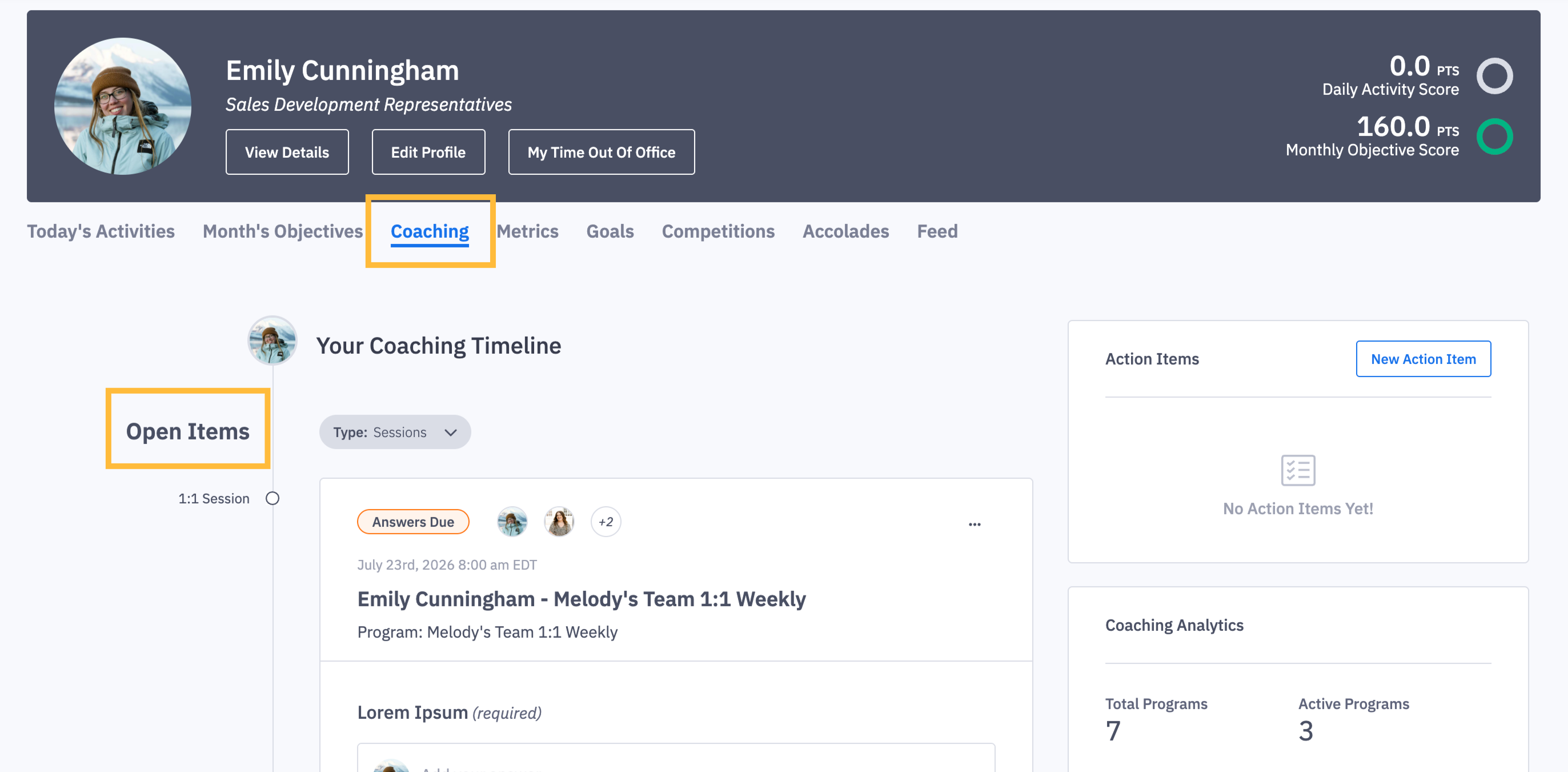
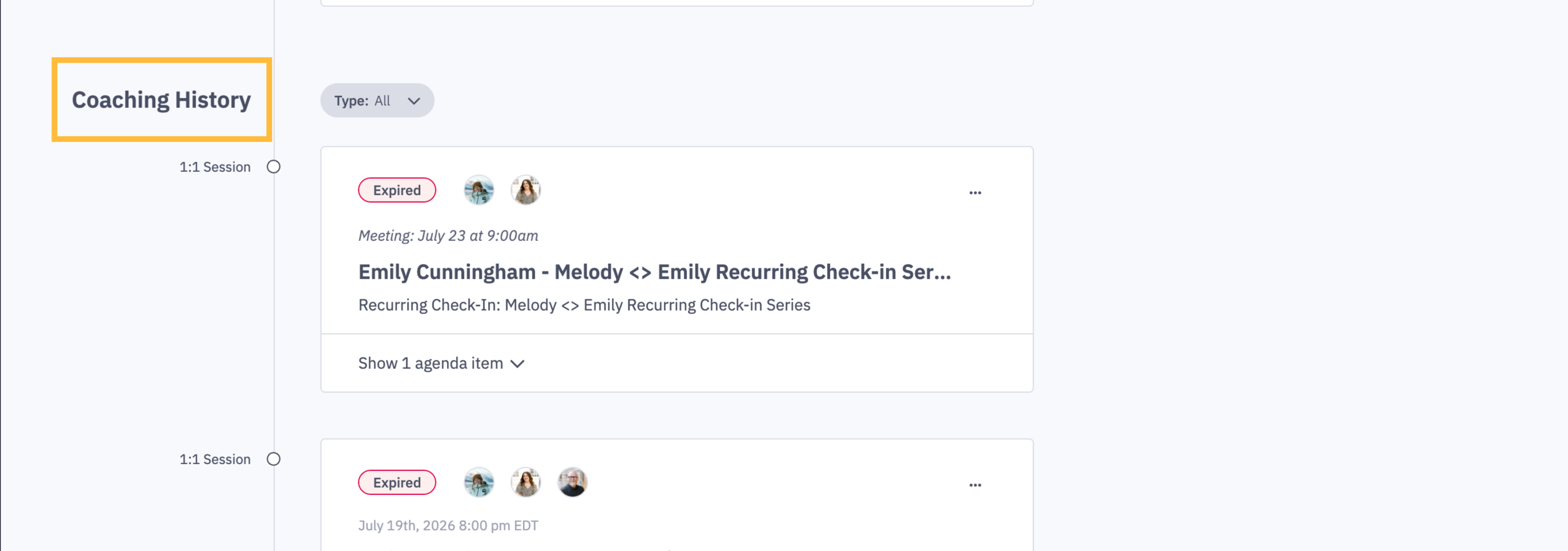
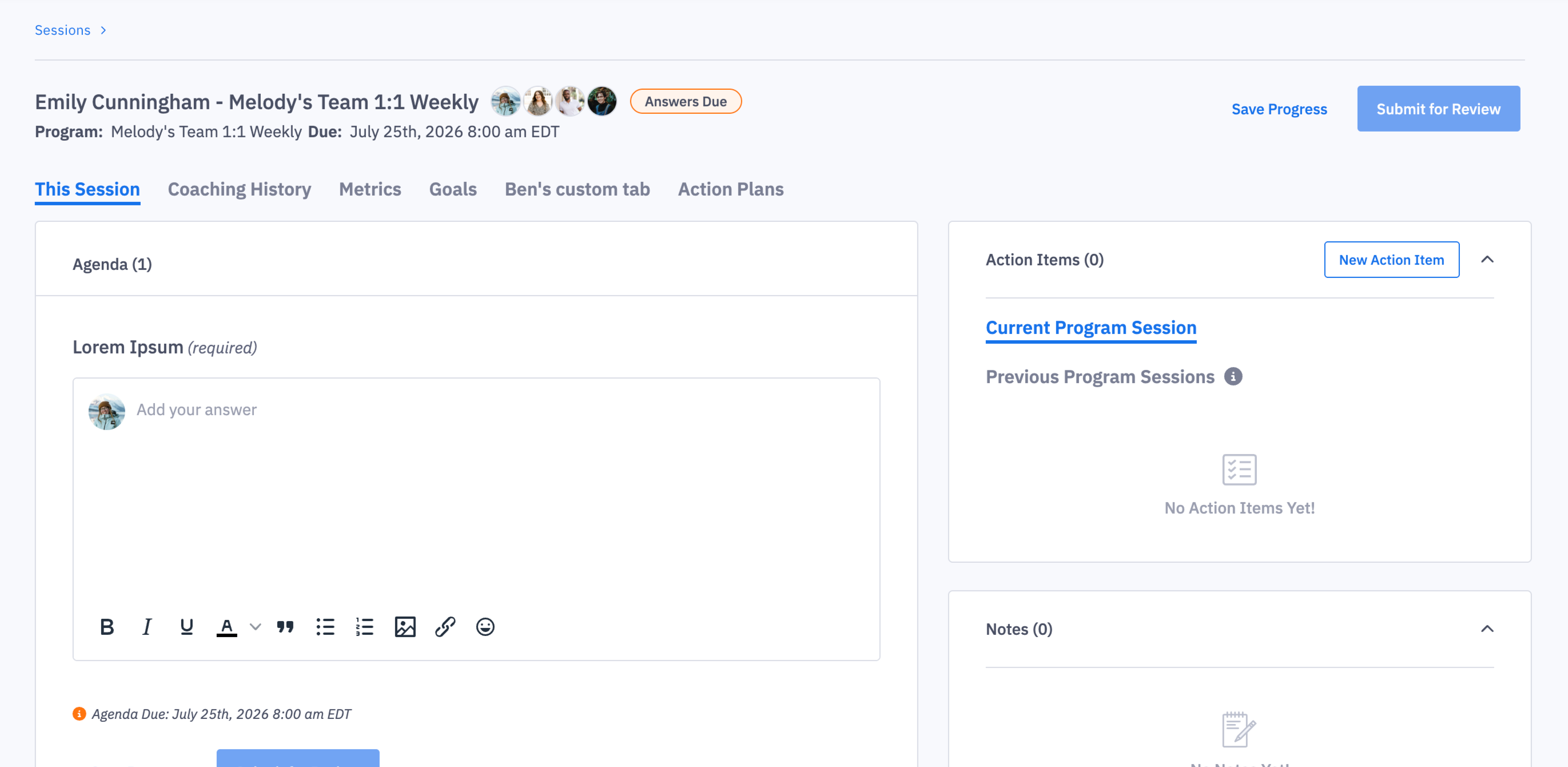
Click on the title of any coaching session and you'll be taken to that session's page.
The main menu's Coaching tab
Click on the left-hand main menu's Coaching tab, then click on Sessions from the drop-down menu.
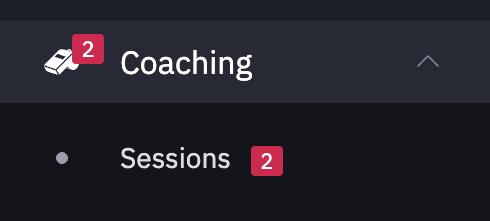
You'll then see a list of all of your open, completed, and expired coaching sessions.
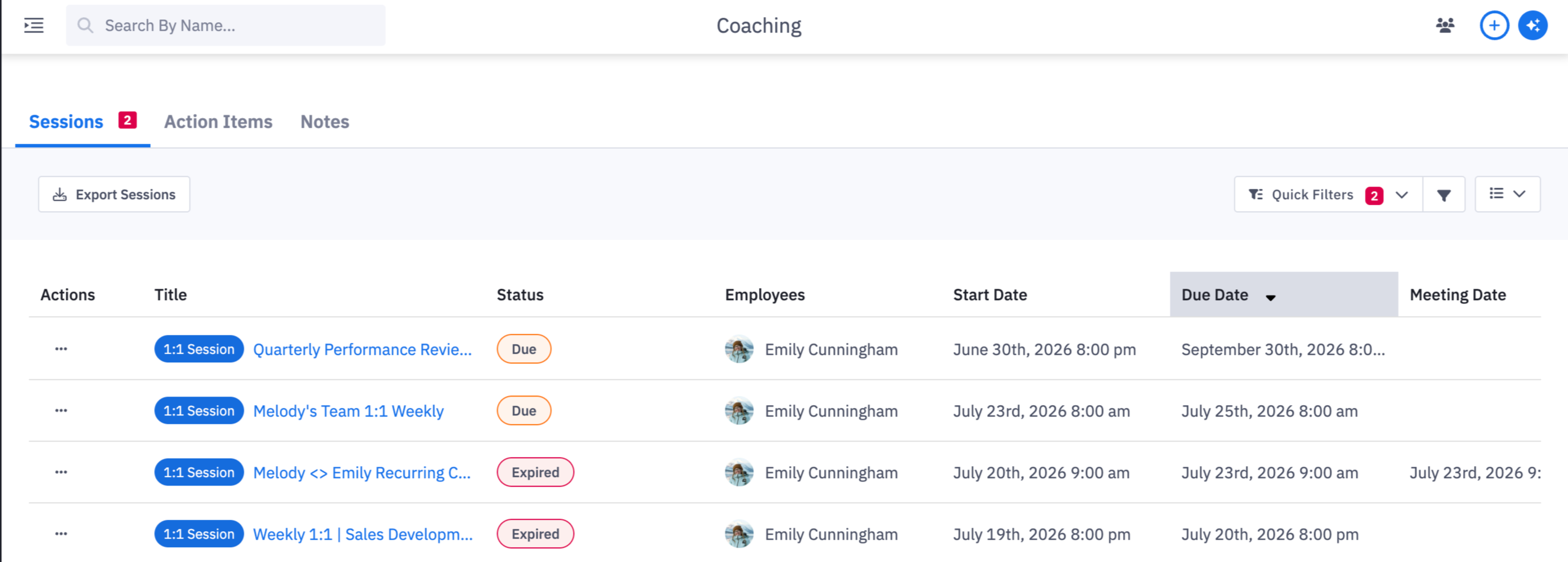
Click on the hyperlinked name of a session to open it.
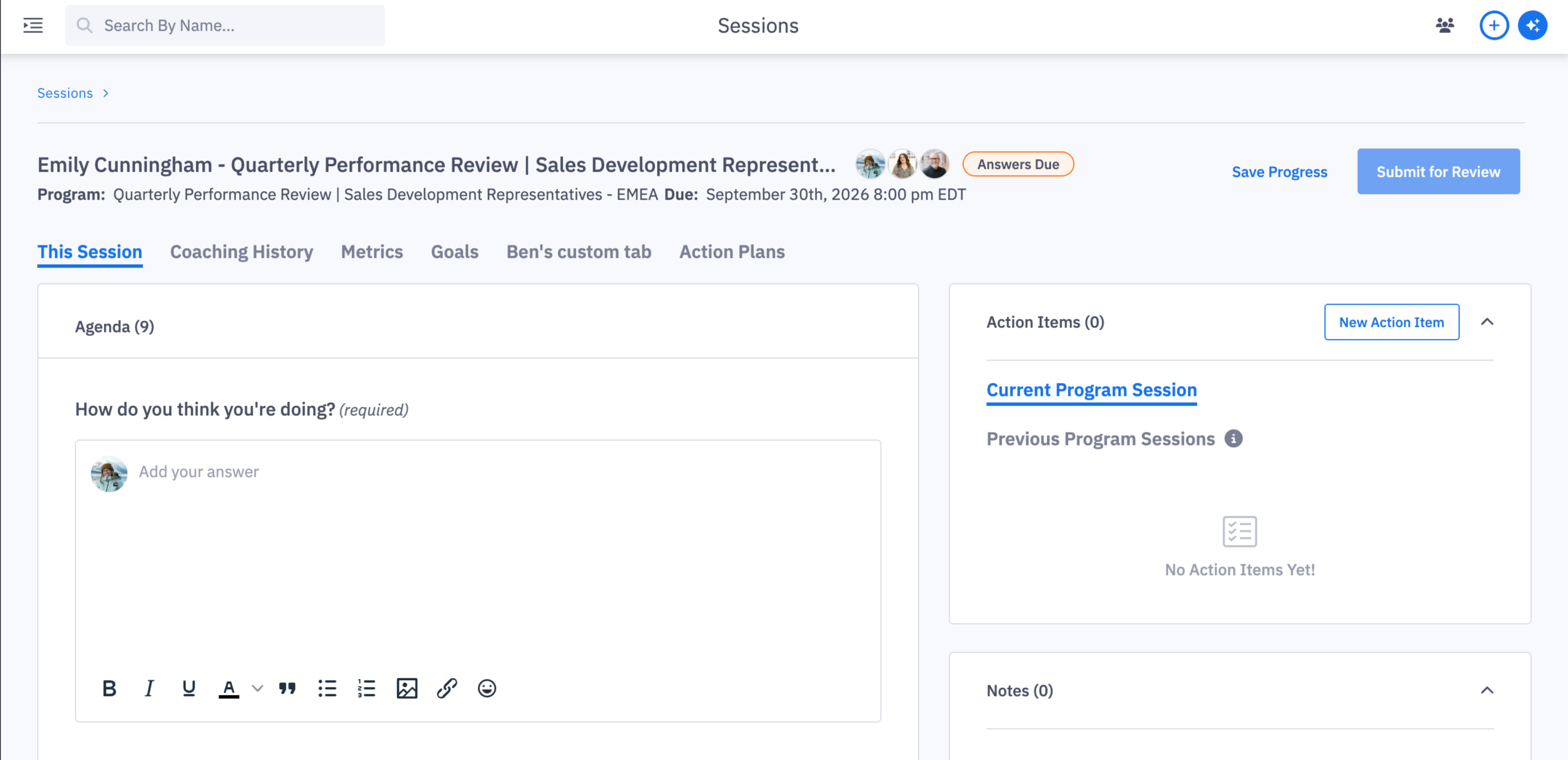
How do I submit my coaching session to my manager?
You can only complete your session if it's in Answers Due status.
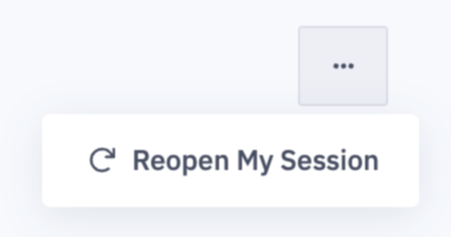
If your session has expired, use the Reopen My Session feature to request that your manager reopen the session and set a new due date.
The Reopen My Session button can be accessed by clicking on the breadcrumb menu in the upper right corner of the page.
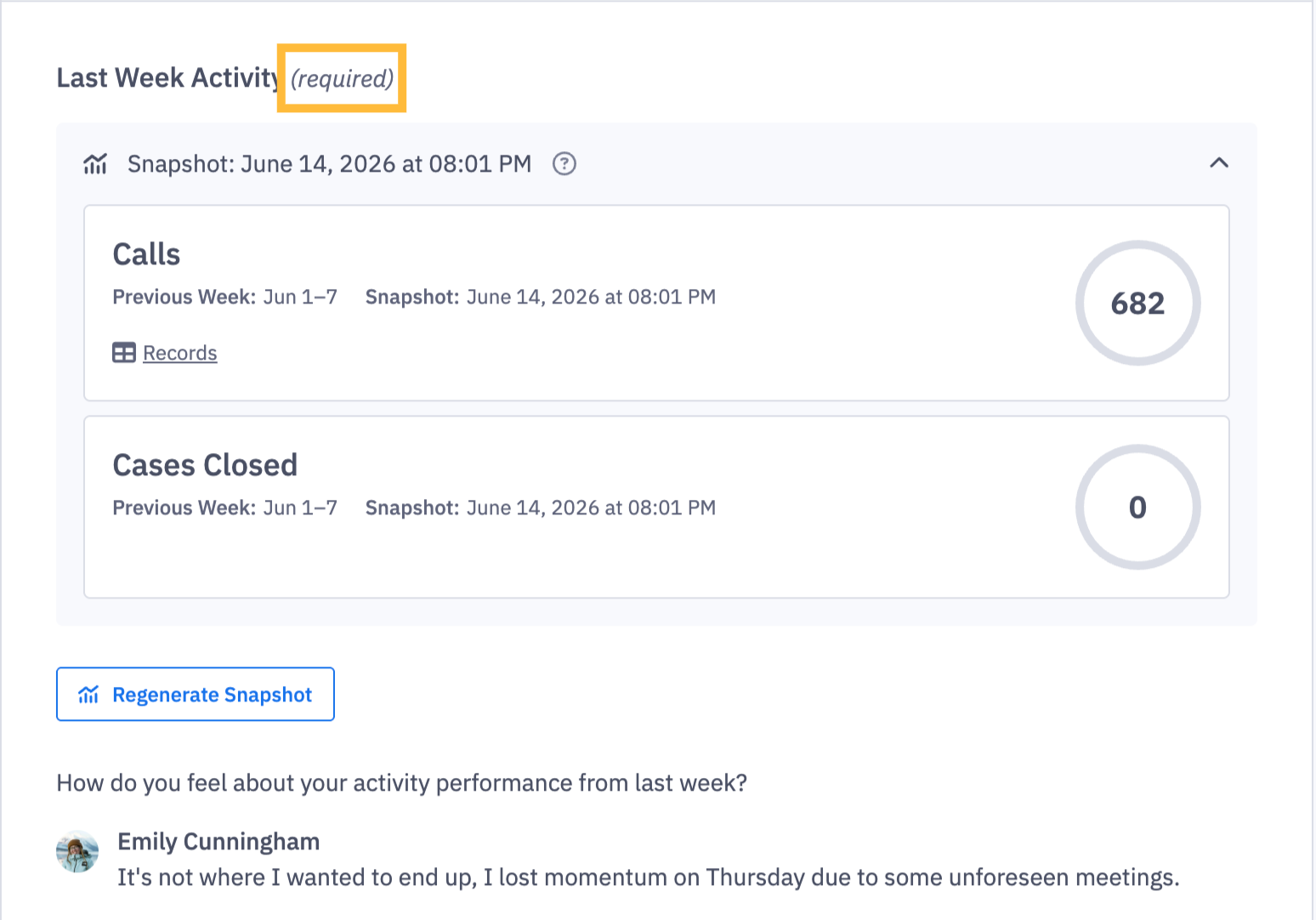
Once you've clicked in your session, you'll see a list of questions to answer. These are called agenda items in Ambition.
Some agenda items will have "required" next to the question text. You must leave replies for all required items before you can submit the session to your manager for review.

Make sure to leave your replies in the text box that says "Add your answer."
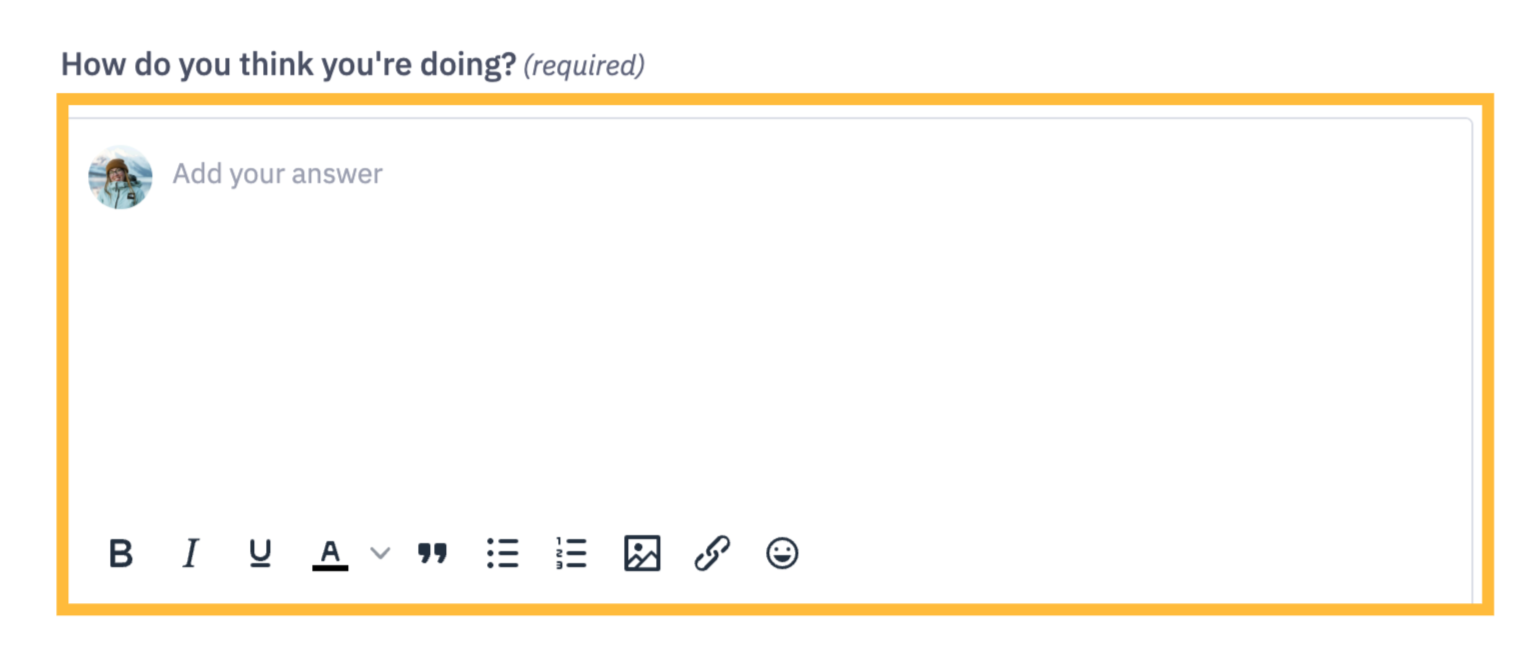
You can use the formatting menu at the bottom of the answer box to add text styling, such as different text colors, bullet points, images, hyperlinks, and emojis.

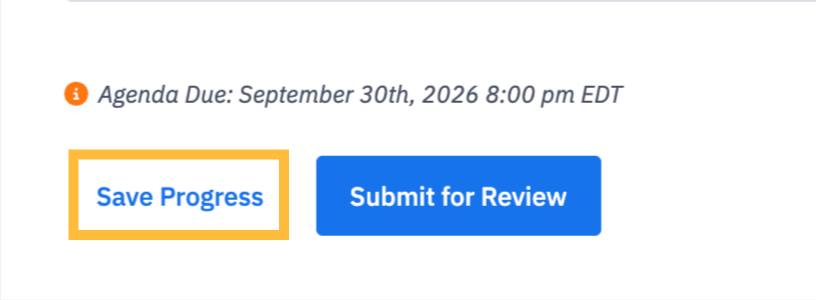
If you've started your session but need to finish your replies later, you can click on the Save Progress button. This button appears at both the bottom of the session and the upper right corner of the screen.
If you've completed all required items, click on Submit for Review. This will submit the session to your manager, who must mark the session as "Completed."
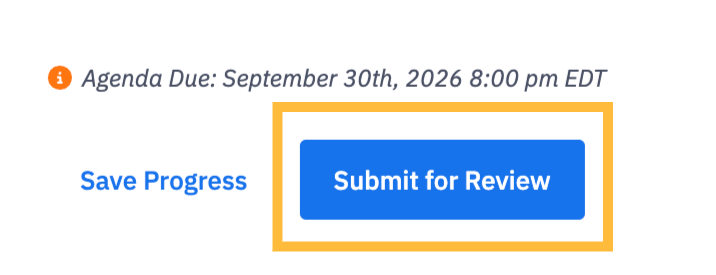
Your session will remain in "Pending Approval" status until your manager approves it.
