How do I review asks that have been submitted for me to complete?
Last updated: August 18, 2026
This feature is no longer supported in the 2026 Agentic Ambition release.
Review, Complete, Export Asks
Review Asks
1. Open the left navigation and click Asks.
If a user has submitted an ask, open and completed asks can also be accessed on their Coaching Timeline, User Dashboard > Coaching tab or Manager Homepage.
2. Asks can be viewed, filtered, escalated, and modified through the asks grid.
To view more details about the Asks, change the toggle to Show Content.
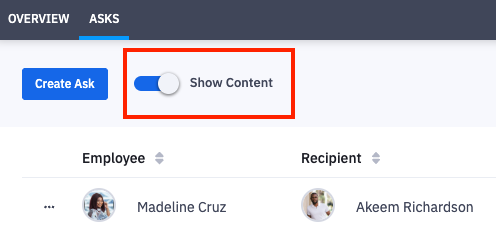
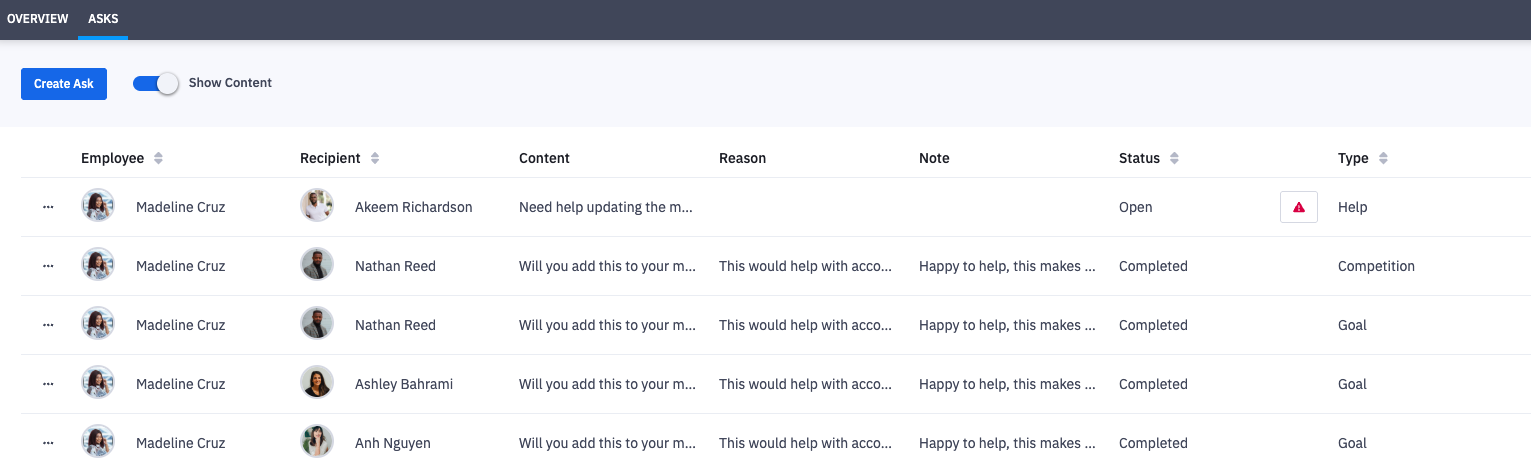
When Show Content is selected, the content, reason, and note from recipient will display.
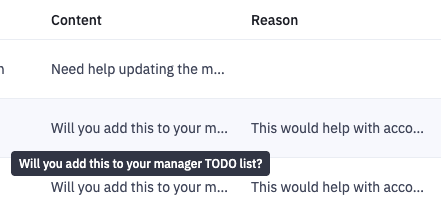
If you are unable to read the entire content or reason section, hovering over the respective sentence will reveal the full contents.
Click the filters icon to slide out the filter panel.
You are able to filter by:
Status - Open, Escalated, Dismissed, Completed
Type - Coaching, Competition, Edit, Goal, Help, Idea
Employee - Search for a specific User's name
Search Content - Type to search content, reasons, notes of Asks.
Search Content Example. You remembered a rep submitting an Ask about a competition, but couldn't remember the exact type. Able to search for "competition" and quickly locate the specific Ask.
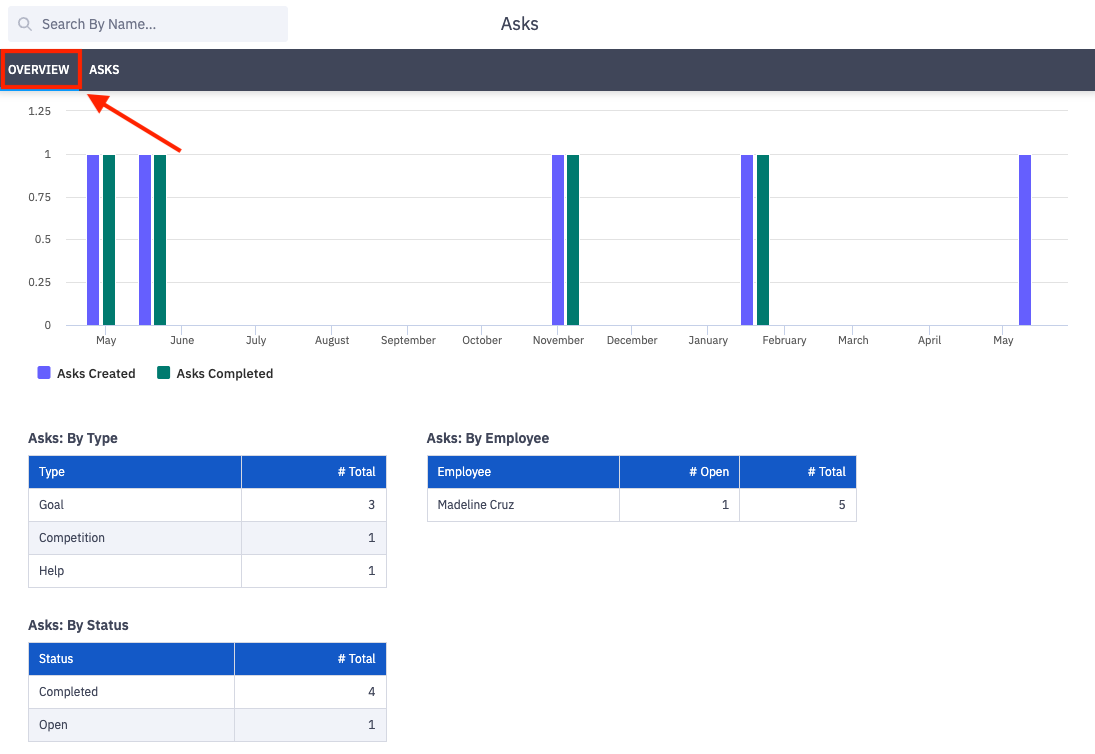
Alternatively, a timeline and holistic view into all time asks can be viewed by clicking the Overview tab within Asks. Accessible through the left navigation > Asks.
Complete an Ask
As a Manager you are able to interact with asks that were submitted to you OR asks that an employee you manage submitted to an admin.
Ex. An employee could submit a request for a goal to be created to an admin, but as their direct manager you are able to create the requested goal and mark the ask complete.
1. Open the left navigation and click Asks.
If a user has submitted an ask, open asks can also be accessed and completed from their Coaching Timeline, User Dashboard > Coaching tab or Manager Homepage.
2. Locate the ask you intend to complete.
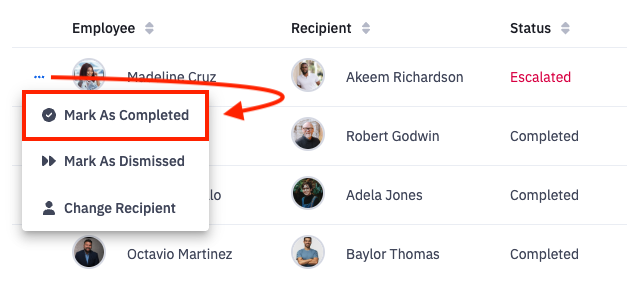
3. Click the ellipses icon on the respective ask.
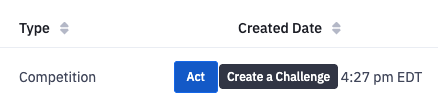
Make sure you've carried out the ask before marking complete! If the ask entails creating a goal, challenge, or coaching item, and the ask was assigned directly to you, you will find quick access to creating the ask via the Act button.
4. Click Mark as Completed.
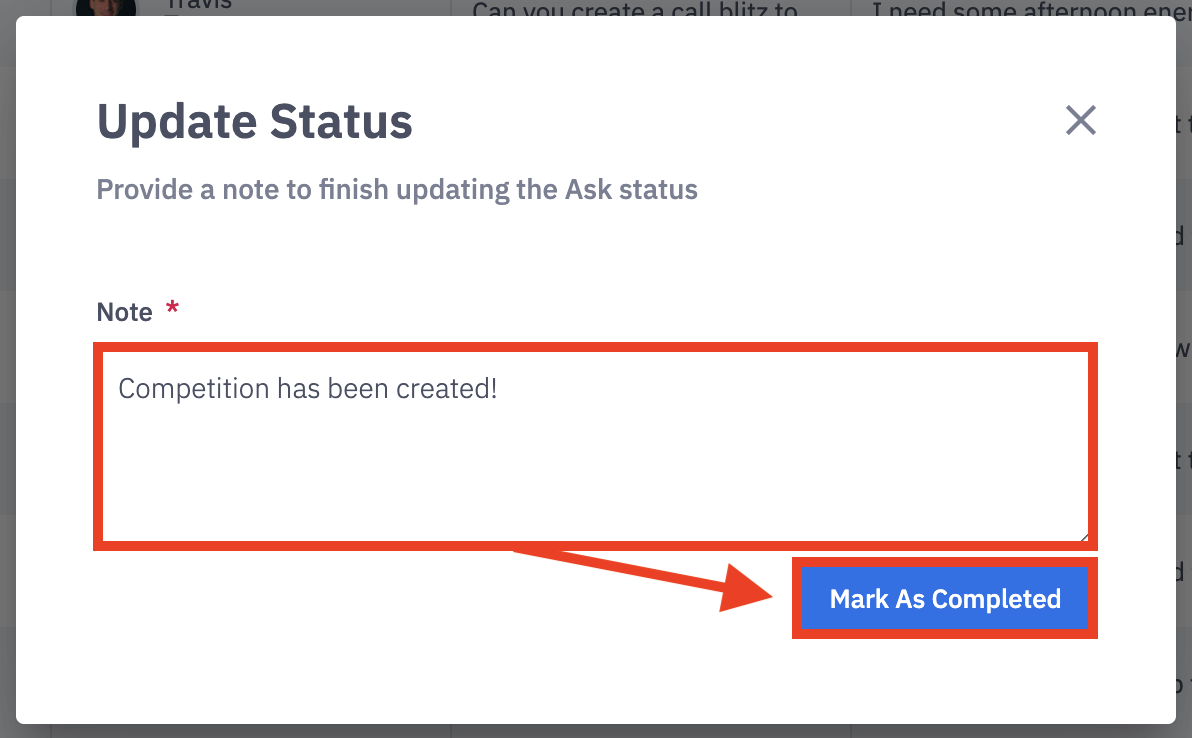
5. Provide a Status Update Note and click Mark as Completed.
While the Note is required, Ambition does not restrict the content.
Example Notes: Thanks for this Ask!, Knocked this out, great ask!
Dismiss an Ask
If an Ask is submitted that is no longer relevant, it can be dismissed.
1. Open the left navigation and click Asks.
If a user has submitted an ask, open asks can also be accessed and dismissed from their Coaching Timeline, User Dashboard > Coaching tab.
2. Locate the ask you intend to dismiss.
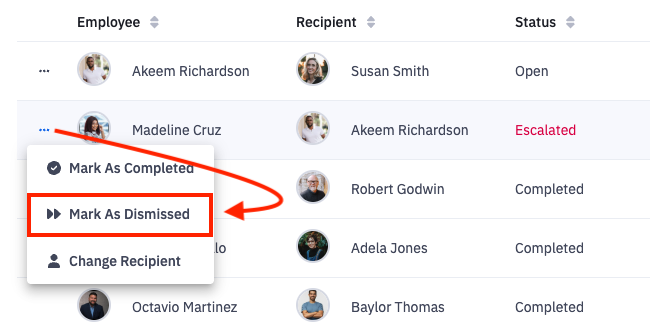
3. Click the ellipses icon on the respective ask.
4. Click Mark as Dismissed.
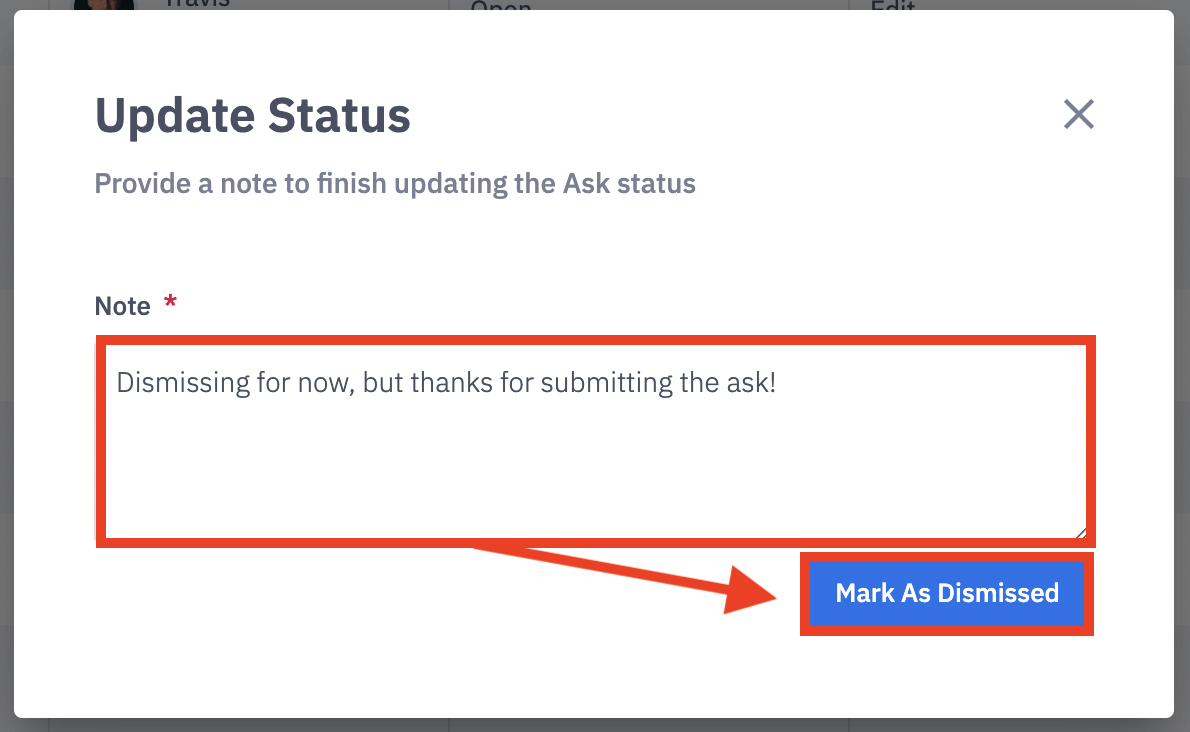
5. Type in a Note to let the user know the ask was dismissed. While required, Ambition does not restrict the content.
Example Note: I dismissed this for now, but thank you for making the ask.
6. Click Mark as Dismissed.
Change Recipient
If an ask is submitted to you and you realize you are unable to complete the ask/there is a more appropriate recipient, you are able to change the recipient. Additionally, if you need to change the recipient of an ask you submitted to an admin, the steps are the same.
1. Open the left navigation and click Asks.
If a user has submitted an ask, open asks can also be accessed and have the recipient changed from their coaching timeline, User Dashboard > Coaching tab or Manager Homepage.
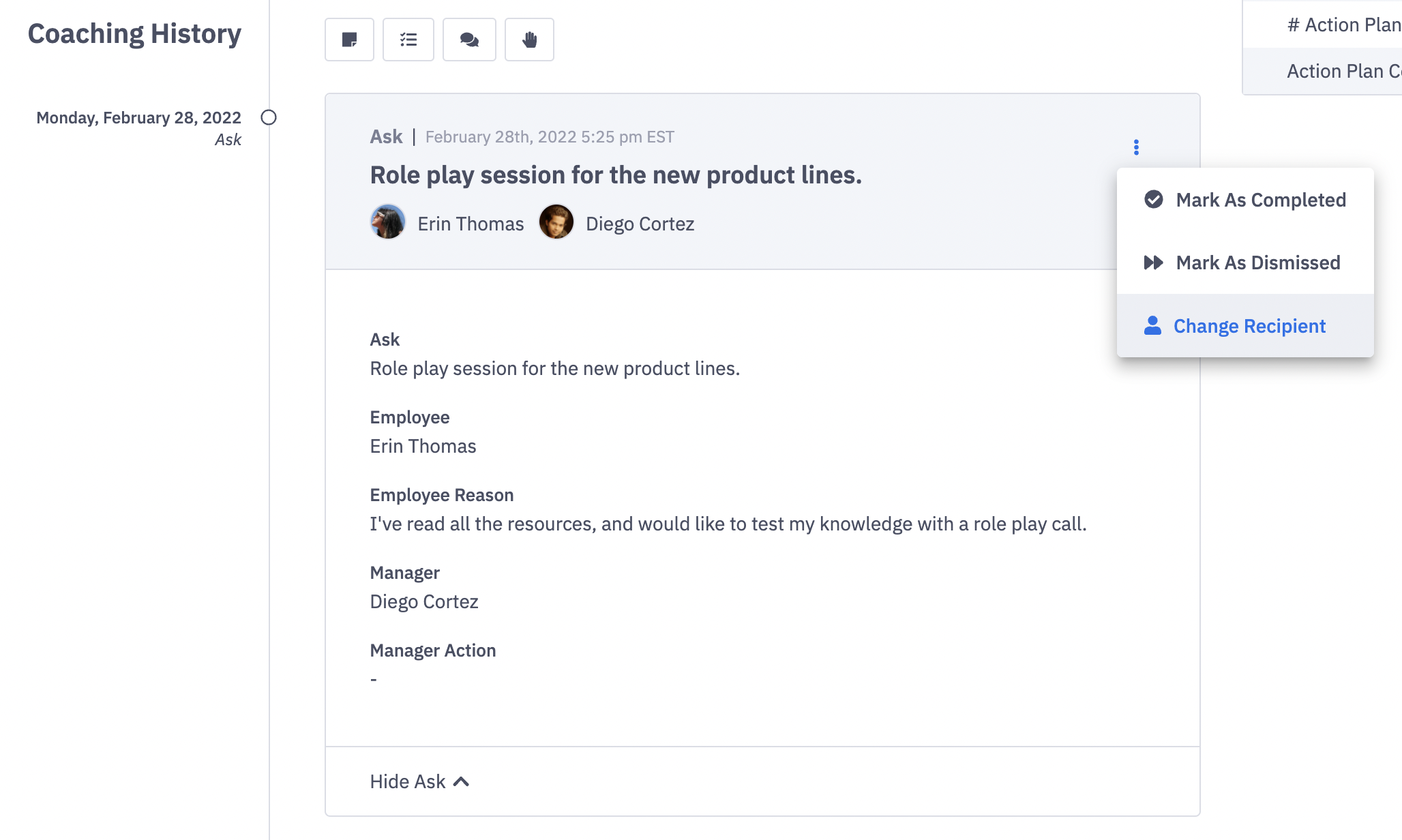
2. Locate the open ask where you need to change the recipient.
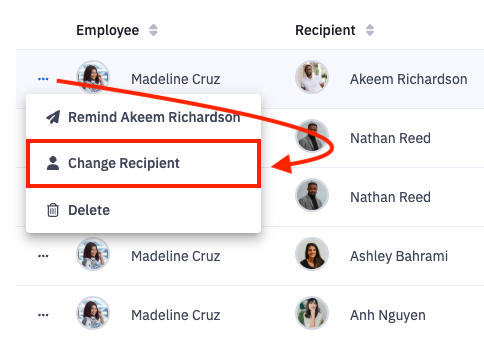
3. Click the ellipses icon on the respective ask.
4. Click Change Recipient.
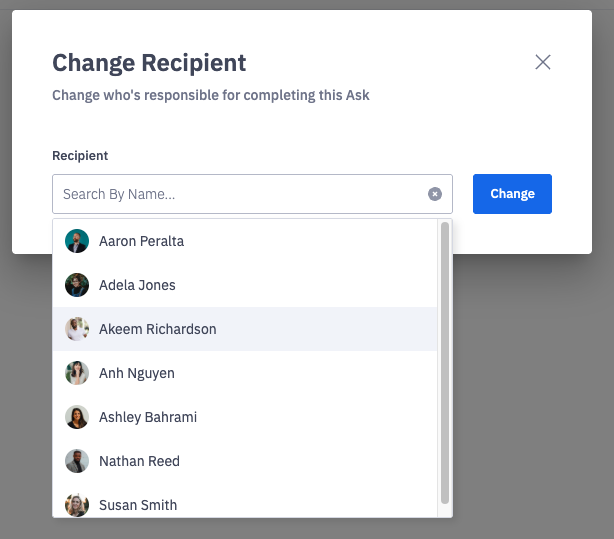
5. Select a new recipient and click Change.
Recipient choices will be any of your direct reports and any user with admin permissions in Ambition. If you are changing the recipient of an ask you submitted personally, recipient choices will be your direct manager in Ambition and any one with admin permissions in Ambition.
Export Asks Data
1. Open the left navigation and click Asks.
2. Click the Export button.
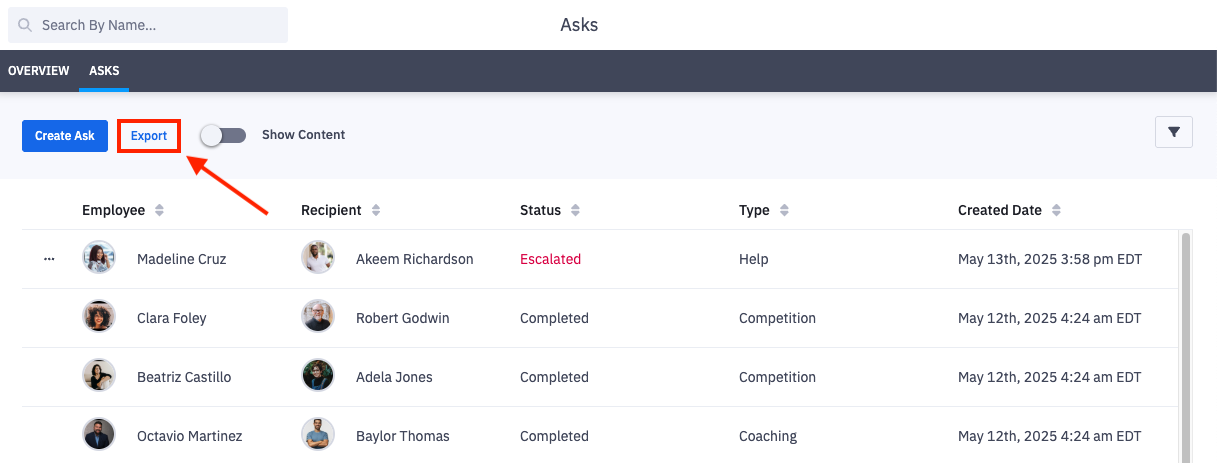
3. Open the file as CSV.
Exported fields include:
Employee Name
Employee Email
Recipient Name
Recipient Email
Status
Type
Created Time
Completed Time
Content
Reason
Note