How do I add new users? - Manual Entry
Last updated: June 16, 2025
Create User Manually
Users with the "Users: Create" permission will be able to add new users.
Create User
If you're creating more than 15 users, it may be faster to create users through CSV upload.
1. Open the left navigation and click Administration > People > Users.
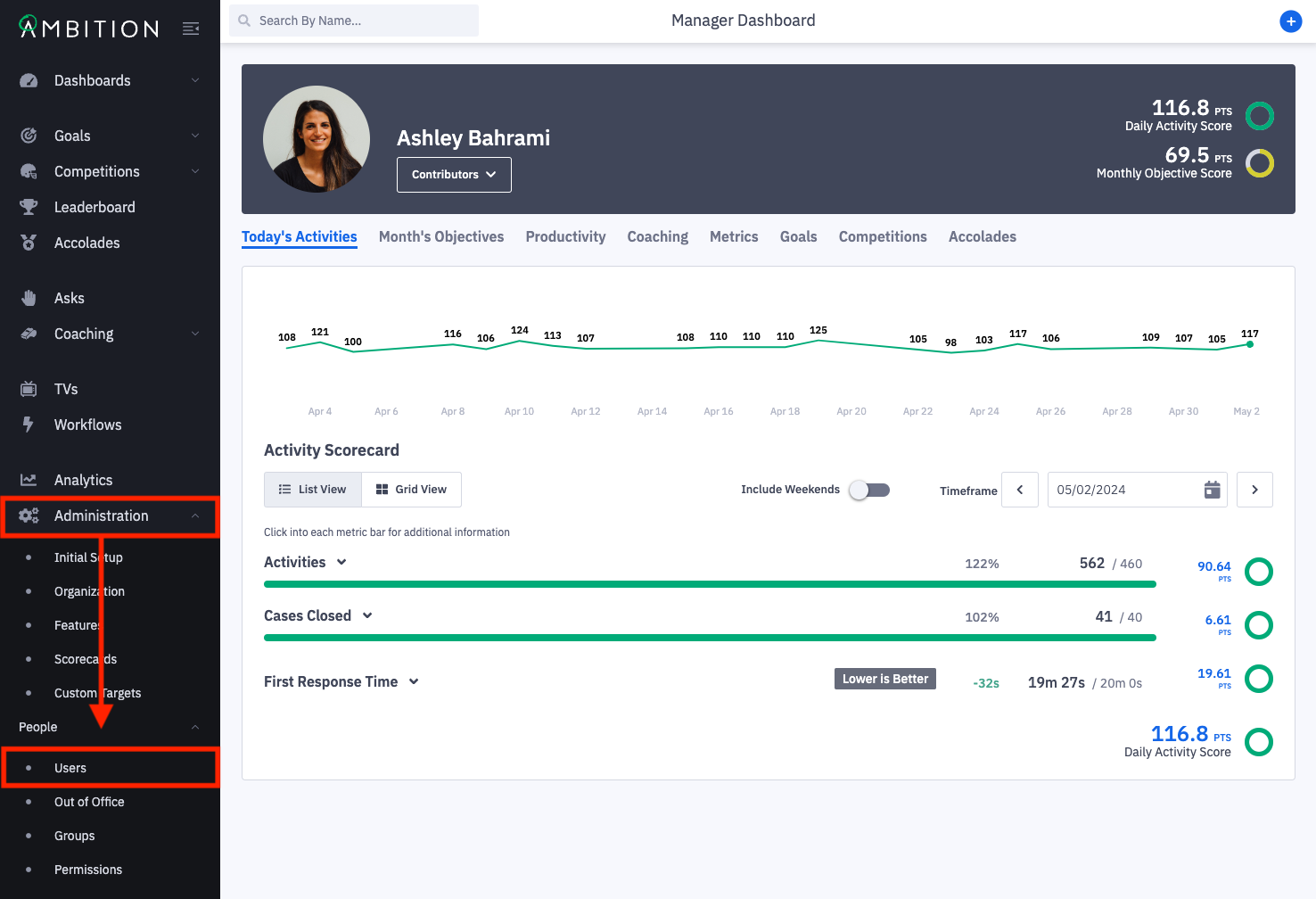
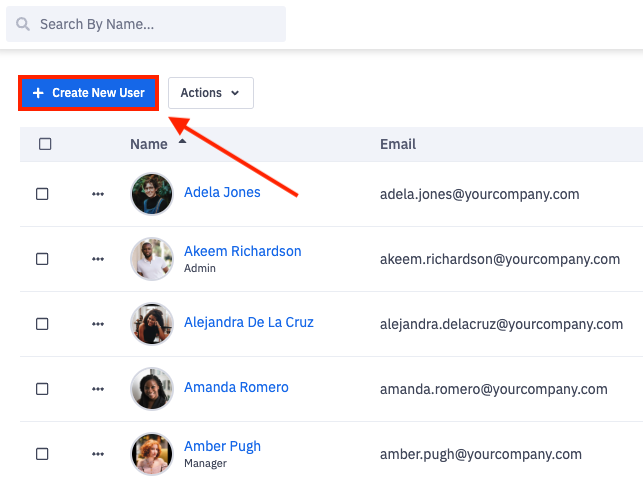
2. Click the + Create New User button.
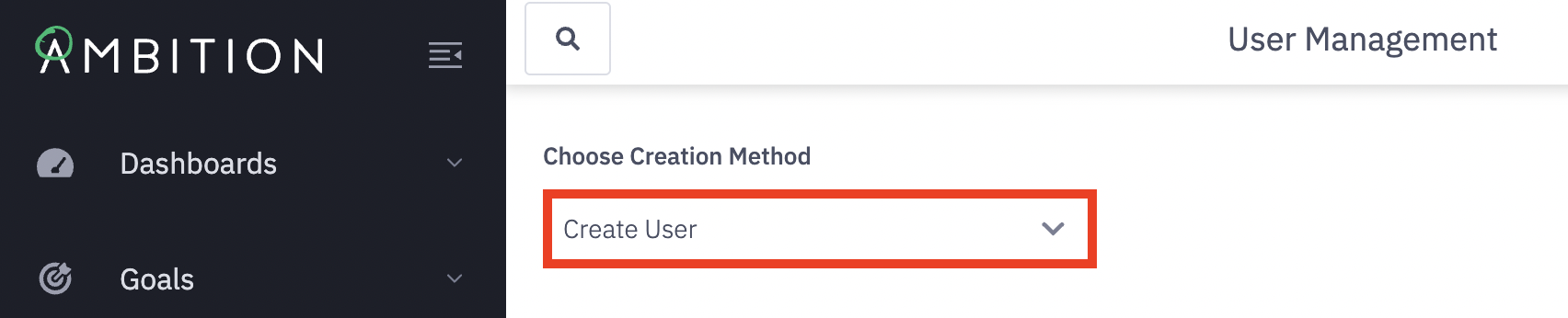
3. Ensure Create User is selected in the Choose Creation Method dropdown.
3. Complete the Create User form.
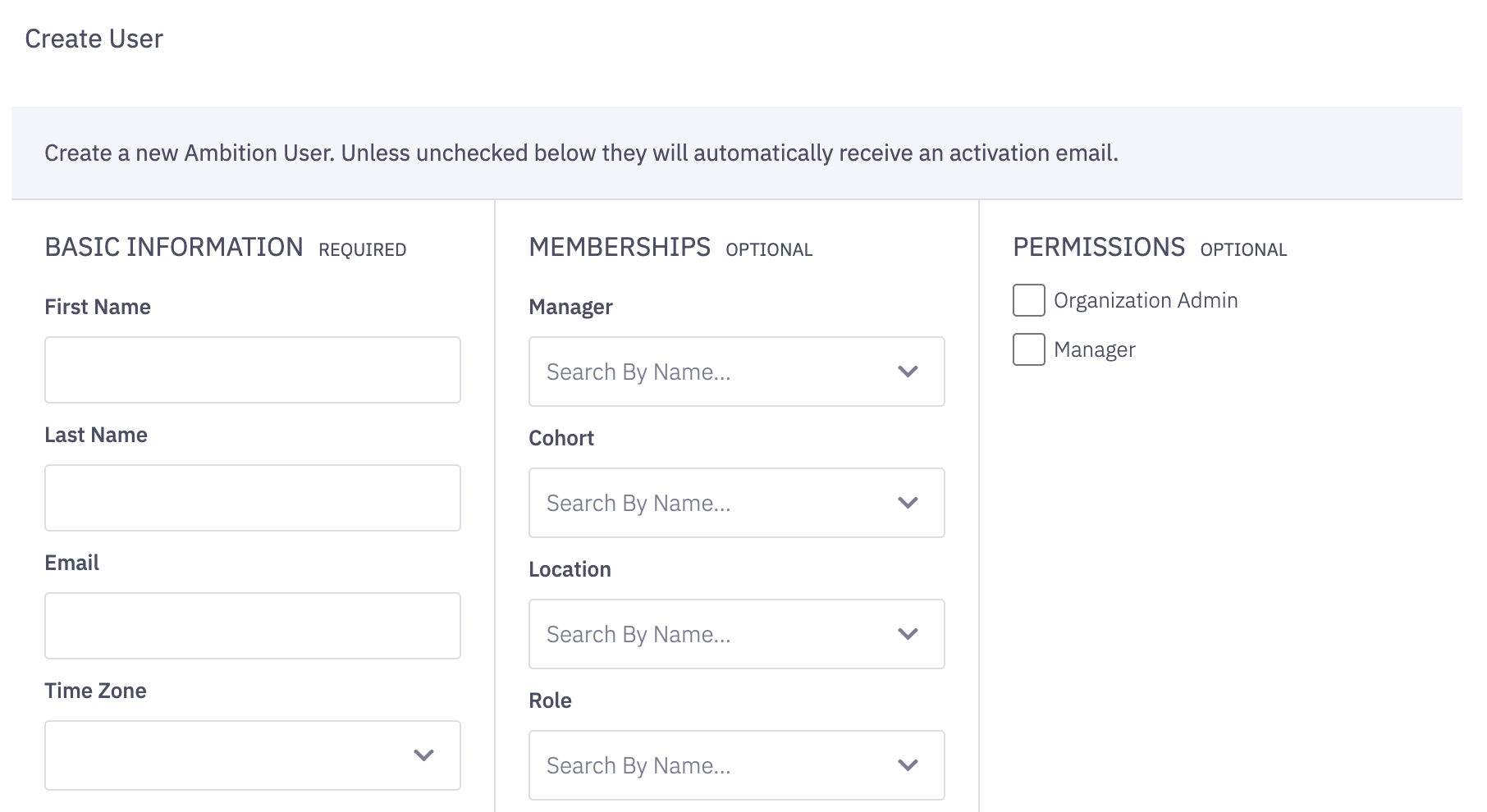
Required Information
First and Last Name
First and last name of the user you are adding.
Corresponding @yourcompany.com email tied to the user.
If a user has multiple @company email addresses (ex. travis@yourcompany.com and travis.truett@yourcompany.com), select a single, most reliable email to be tied to that user.
Time Zone
Select the time zone where the user is located.
Available time zone options found here.
Optional Information
Memberships and permissions sections are optional. These aspects can be updated at anytime.
Including group membership information will result in users being added as a Member of the respective group. If the user needs to be assigned as a Manager of a group, that assignment will be done manually in the Group Editor.
4. Click the Create User button.
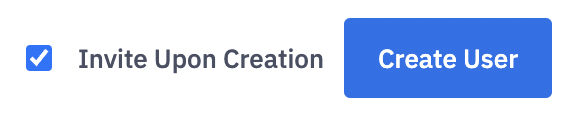
Invite Upon Creation is automatically checked, meaning Ambition will automatically send an email to the new user asking them to set a password and login.
Ambition recommends unchecking these boxes during onboarding.
If your organization is using single sign-on, sending an invite email will redirect the user to sign in with company-managed credentials rather than setting an Ambition password.