How do I reprocess historical data after making changes to metrics?
Last updated: March 3, 2026
Metric Reprocessing
When changing a metric's logic you have the ability to determine if this change should apply retroactively or moving forward.
Using "version control" in your metric library allows your operations team to have maximum flexibility in keeping process changes in-sync with Ambition metrics.
How is existing data impacted?
After editing a metric's logic, you will have the choice of determining if the change to metric logic should apply retroactively and reprocess existing data with the logic just put in place, or only be applied from today moving forward so historical data will not be impacted.
If you need the changes applied retroactively, you can select a specific date from which the changes should be in place. Ambition will then reprocess your existing historical data back to the chosen date.
In the case where brand new User Fields, Date Fields, or Filters are added to metric logic and needed to be applied historically, all relevant data will need to be re-uploaded/re-imported into Ambition in order to accurately reprocess historical metric values.
Example:
Ambition has not been sent records containing the theDispatcher User Field until July 10th.
The "loads booked" metric is updated to use the Dispatcher User Field and the metric is opted to be reprocessed back to July 1st.
Records from July 1st - July 9th without the Dispatcher User Field will not count towards the "loads booked" metric until the records are updated and resent to Ambition.
If your organization uses our Salesforce integration and has added new fields to metric logic, reach out to gethelp@ambition.com for assistance with reimporting historical Salesforce data.
Example Use Case for Opting Out of Historical Reprocessing
You are a new company and you're currently using Salesforce and have built an "outbound calls" metric based on Task records using the logic below.
Subject CONTAINS Outbound Call
This is typically how organizations start out but realize over time it's imperfect, it would be more accurate to transition from the Subject Field looking for a phrase (assuming it was entered correctly) to a Type Field where you simply pick the correct option from a dropdown.
Type EQUALS Outbound Call
You can now transition your Ambition metric from looking at the Subject Field to the Type Field and maintain historical accuracy by telling Ambition exactly when to take your change into effect. Since the Type field is a new field in your SFDC instance, there is no need to reprocess historical data because the field did not exist.
Reprocess Historical Data Upon Editing a Metric
These steps begin after a metric has been edited. All metrics can be found and accessed through the metric library tab, left navigation > Data, Integrations, or within the specific integration where the metric was created.
1. After making the needed changes, click the Confirm and Save Changes button at the bottom of the metric form.

2. A pop-up will appear asking at what point in time the changes just made need to go into effect.
If you do not wish to make changes, click the Cancel button in the lower left hand corner.
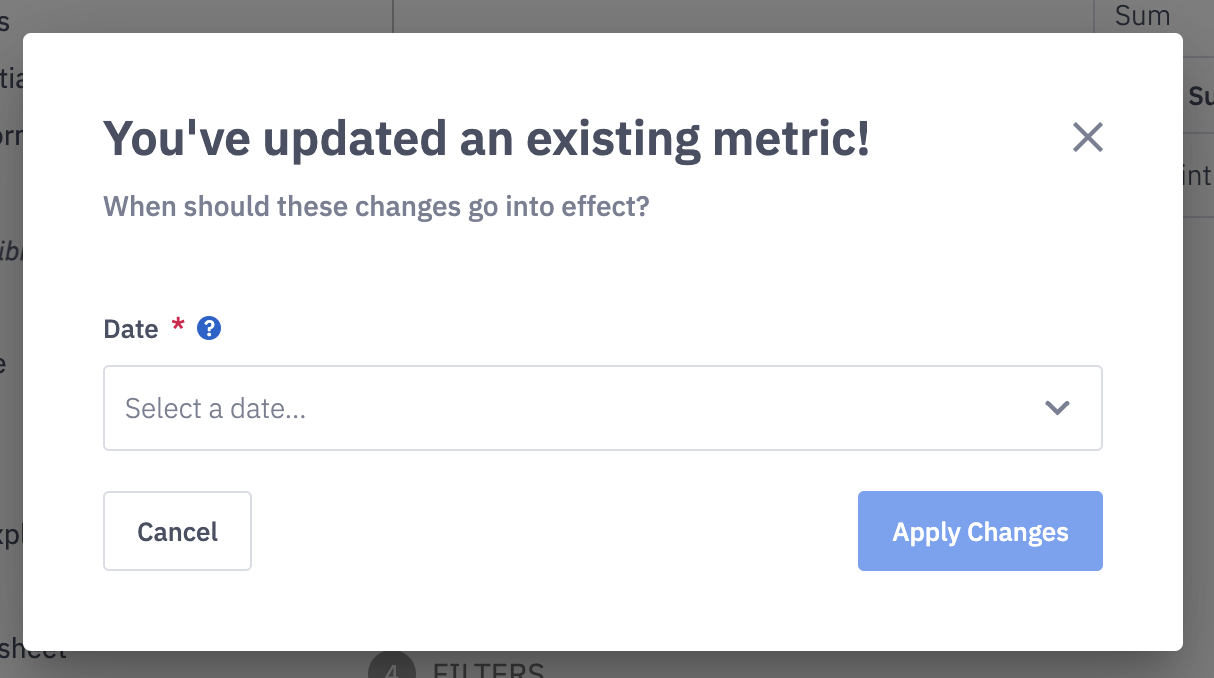
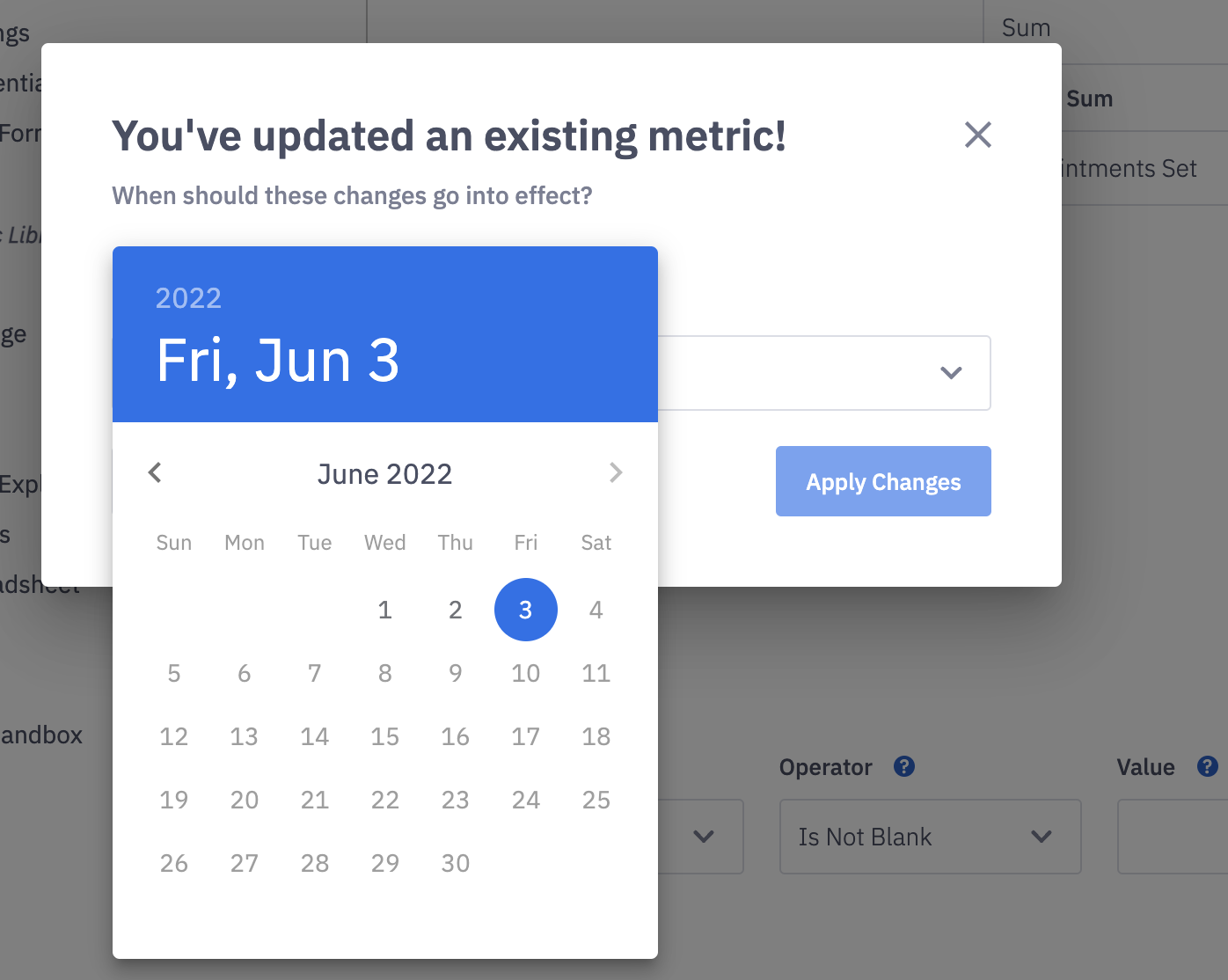
3. Click on the Date dropdown to reveal a calendar picker.
Select the Date from which you need the metric changes to be applied.
The calendar will default to today's date.
If the changes need to be put in place historically, select the appropriate day in the past.
If the changes need to be put in place from today forward, select today's date.
↳ view example use case for opting out of historical data here.
Note: We do not support the ability to schedule changes into the future.
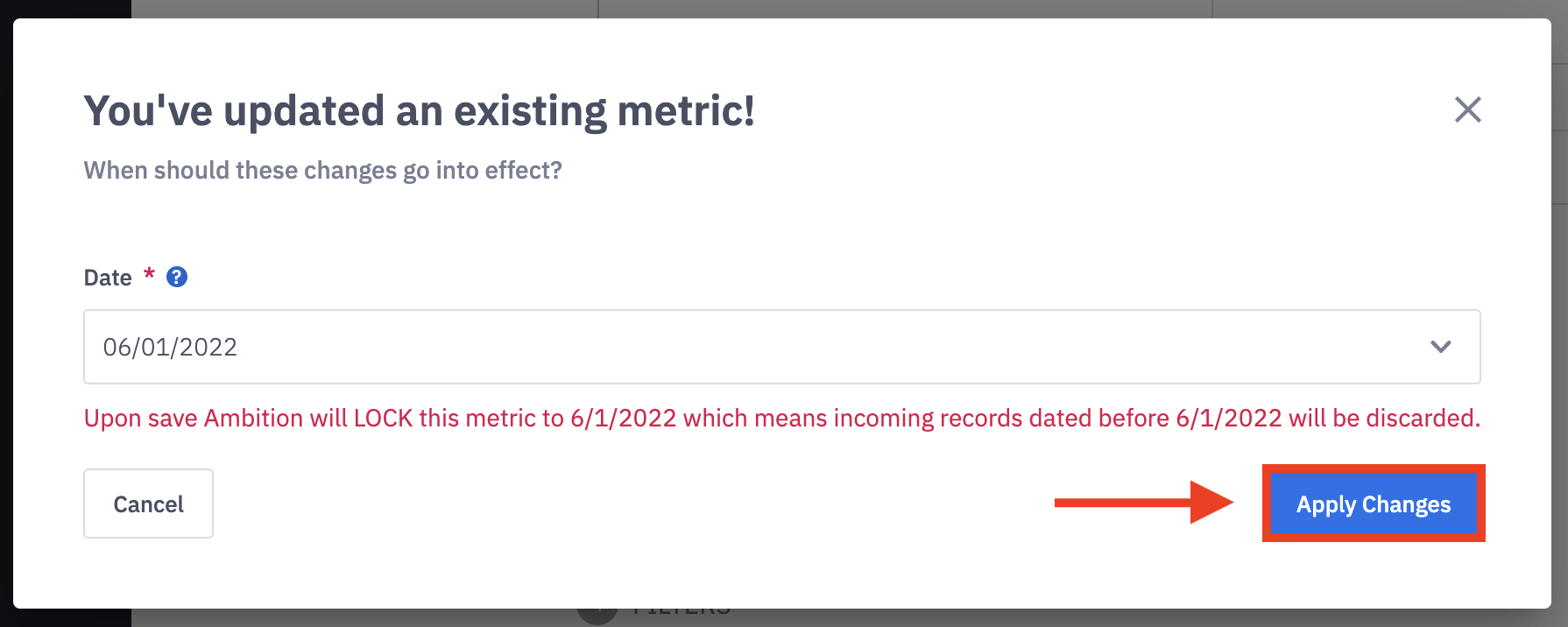
5. Verify that the date selected from which you need the metric changes to be applied is correct.
6. Click the Apply Changes button.
How will I know a metric is locked?
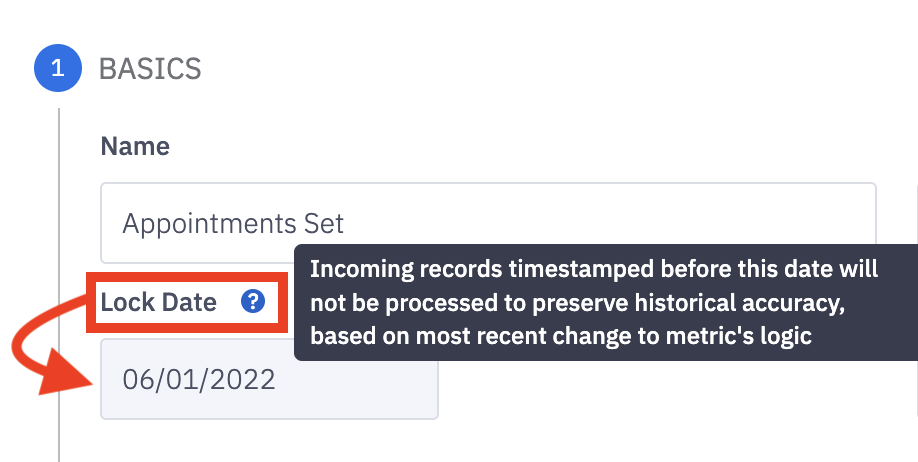
If a member of your team opted to change the metric logic, subsequently "locking" a metric, you will be able to view the lock date in two places.
Any metric that have been "locked" will list the respective date, month, and year of the lock date.
Incoming records timestamped before the lock date will not be processed to preserve historical accuracy.
1. Upon accessing each respective integration's metric library or the overall metric library tab, left navigation > Data > Metric Library, you will see a Lock Date column.
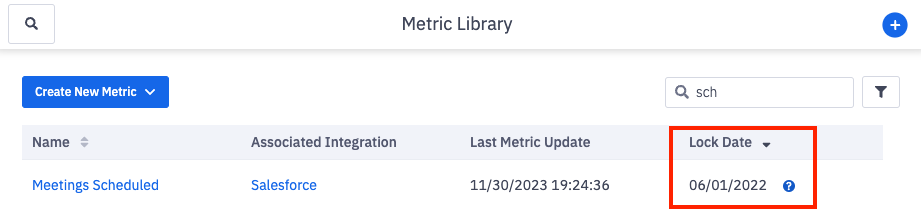
2. Within the Metric Builder.
Can a "lock date" be updated?
Once set, a metric lock date cannot be altered by Ambition users in order to preserve historical accuracy of your organization's data.
If a lock date was put in place accidentally or needs to be updated, reach out to gethelp@ambition.com for assistance with reprocessing historical data.
Verify Accuracy with Lock Dates
If you are attempting to verify a date which is previous to the lock date found under the metric name, the verify accuracy tool will not populate a daily value despite record being present that would fit the new metric logic.
Lock Date 6/1/2022
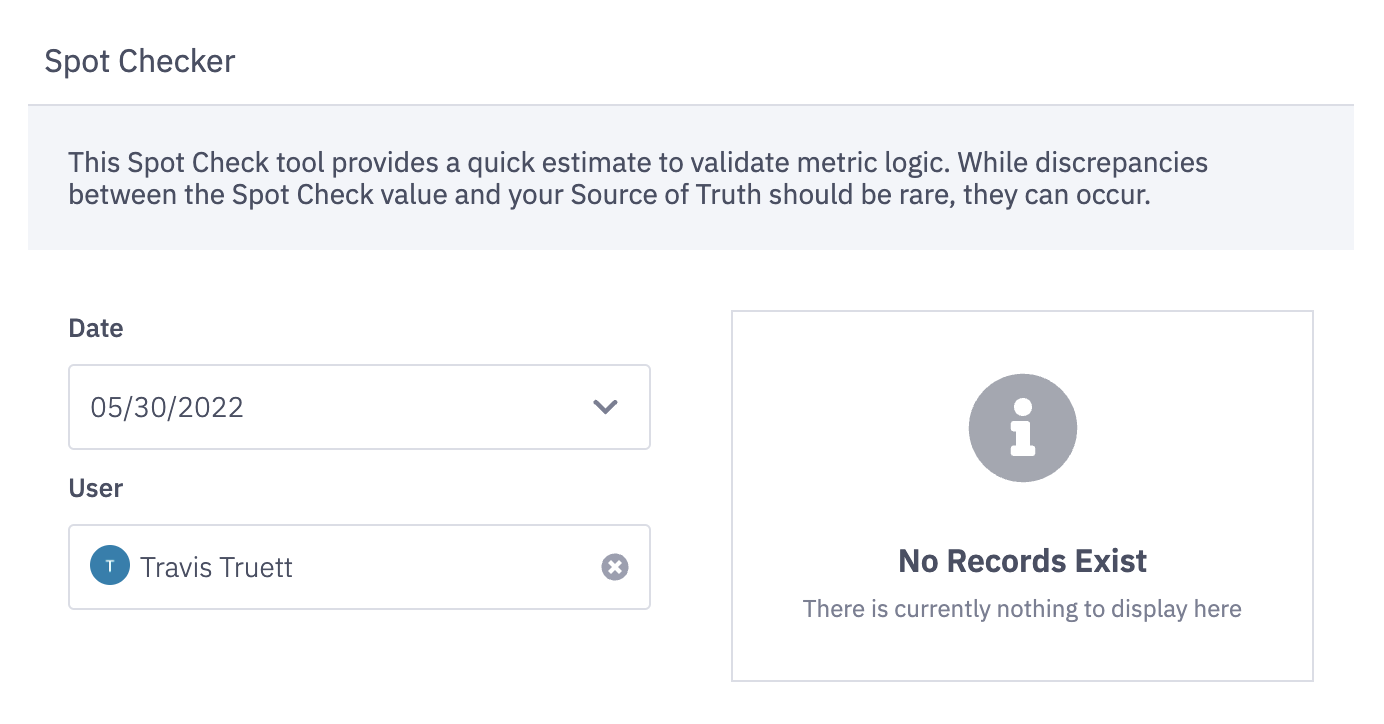
Spot Check Date 5/30/2022