What do I need to update in my user settings?
Last updated: October 22, 2025
User Settings
Users with "Users: Edit - Can Edit Self" permission will be able to edit their user settings.
Walkthrough
As you check out the details page in your user settings, you may find that several parts of your form is locked. At the bottom of the page, you may find a series of personal integration identifiers. Integration IDs will be set based on how your organization calculates data and assigns it to you.
If your organization uses our Salesforce integration and find areas in the details section of a user's profile grayed out (ex. email address) or unable to select the dropdown menus (ex. Time Zone), these fields were populated directly from Salesforce.
Updates must first be made in Salesforce and then will be reflected in Ambition.
While not grayed out, if your organization uses Single Sign-On with Ambition, any manual changes made to your First or Last name will be overwritten. Any needed updates must be first made in the Identify Provider and then will be reflected in Ambition.
Details

First Name, Last Name, and Email are most commonly locked and cannot be edited. These will be publicly displayed on your dashboard.
Username cannot be edited and displays the email or Salesforce username that makes this account unique!
Title (optional) will be publicly displayed in the header and details section of your personal dashboard.
Work Phone (optional) will be publicly displayed alongside your email address in the details section of your personal dashboard.
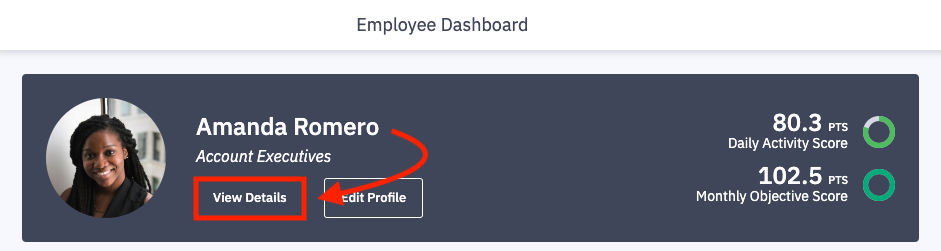
The majority of this information will be displayed to other Ambition users through clicking the View Details button on your employee dashboard.
Profile Image
If your organization uses our Salesforce Integration, your Salesforce profile picture will have been synced over. If not, please take the time to upload a profile picture!
📄 How do I update my Ambition profile image/picture?
Running into an error? If you are uploading an image and getting a "An unknown error occurred. Please contact support." message, make sure your image size does not exceed the 10MB file size.
Bio
Optional. You are given the space to write a short bio about yourself, your role, your history with your organization, etc.
Your bio will also be viewable by clicking the View Details button on your dashboard.
You may be given internal guidelines or requirements as to what information needs to live here, but even if not required, please take a moment to tell your co-workers about yourself!
GIF
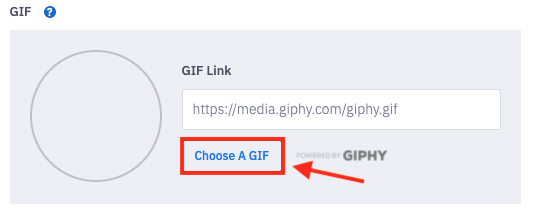
Set a custom GIF to add extra personalization to your profile image, presence on leaderboards, and Slack/Teams/Zoom-based workflows.
If a GIF is set, it will reveal itself:
When your profile image is hovered over on in-product leaderboard
On in-product leaderboards or card style TV leaderboards when you're in the Top 3
When you are in 1st place within an Ambition competition, your GIF will appear in the competition interface as well as a competition TV slide if applicable
If your organization uses our Slack, Microsoft Teams, or Zoom Integration, this GIF will be displayed within Slack/Teams/Zoom-based workflows you initiate
If a user does not have a GIF set, a GIF from the GIF Library will display.
The GIF URL must end in .gif
We recommend using Giphy as the source for finding GIFs.
Anthem
What is an anthem?
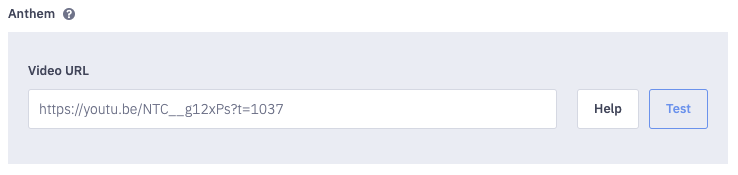
An anthem is your personalized YouTube or Vimeo video that will play on an Ambition TV when you've reached a company-defined threshold.
Your anthem can be viewed:
On an Ambition TV
On in-product leaderboards when you're in the Top 3
📄 How do I set my video anthem?
Start Date and Birth Date
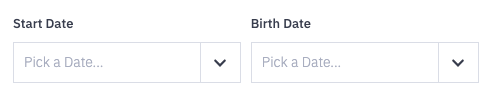
Because Ambition supports the capability to recognize birthdays and work anniversaries, be sure to set both of these notable dates.
Set yourself up for that work anniversary and birthday shout-out by setting these two dates!
1. Clicking anywhere within the start or birth date field will populate a calendar where you can select the month and date for each occasion.
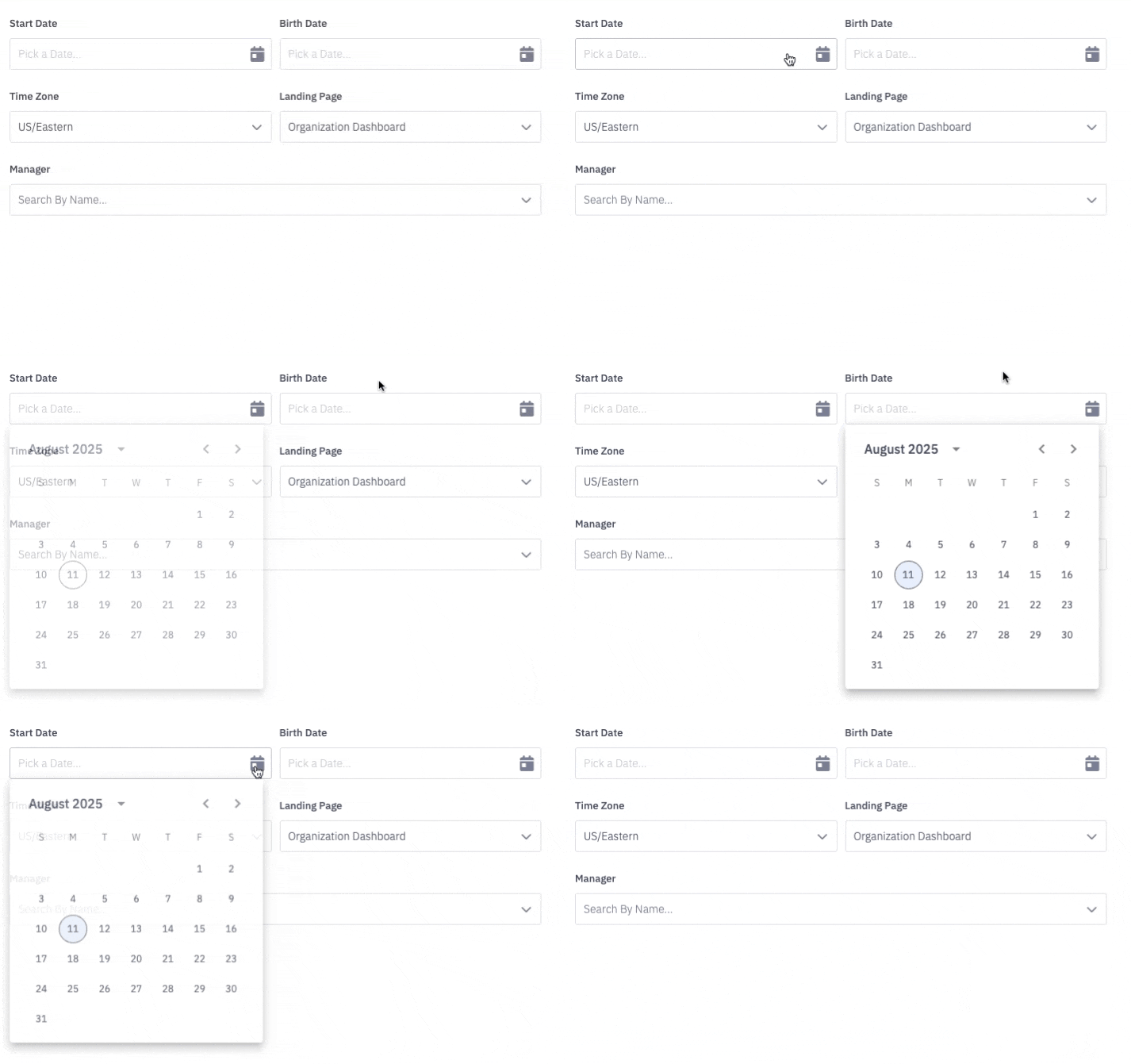
2. For both start date and birthdate, use the side arrows to toggle to the correct month. Click on the correct day.
No need to fret, the year of your birth date will not be displayed!
However, be sure to select the correct year for your start date so you can be recognized correctly for your tenure.

Time Zone
Ensure that the time zone selected in your profile reflects your location.
If your organization uses Salesforce, this drop down will be disabled. Updating the time zone field for a user in Salesforce will then update their time zone in Ambition!
Landing Page
By default, when you log into Ambition as an end user, the dashboard shown is your personal, employee dashboard.
Those with manager permission will default to the managerial dashboard.
Those with admin permission will default to the organizational dashboard.
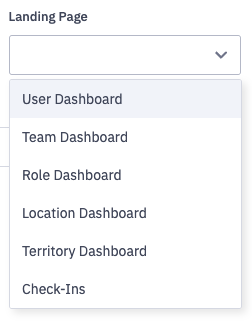
However you may find viewing your team or role dashboard is more beneficial to set as your "Landing Page". Those who use the coaching check-in feature will have the additional option of setting the check-in page as their landing page.
Group dashboard options will be limited to groups where the user is a member.
📄 How can I set what page I see upon login?
Manager
While this field is editable by users, we advise only making changes to the manager field as instructed by your internal team.
If manager information is sent to Ambition from Salesforce or another external system, this field will not be editable within a user's profile.
Save Changes
After all your updates are made, click the Save Changes button at the bottom of the settings page.