How do I schedule a coaching report?
Last updated: February 2, 2026
Scheduled Coaching Report
What is a scheduled coaching report?
A scheduled coaching report workflow allows users to schedule and send check-in data from a saved check-in filter to their email inbox. The frequency and recipients (licensed and unlicensed users) can be customized. The report will be sent to the respective email addresses as a downloadable .xlsx file, and the file will contain agenda items and responses. Coaching reports have a limit of 20k check-ins.
Columns on Check-In Export | Column Contents |
Check-In ID | The ID of the respective check-in. |
Employee | Name of the employee in Ambition who is responsible for submitting responses to the check-in's agenda items. |
Employee Email Address | The email address of the user found in the employee column. |
Manager | Name of the manager in Ambition who is responsible for approving the check-in. |
Manager Email Address | The email address of the user found in the manager column. |
Program | If applicable, the name of the program which the check-in is related to. |
Managed Program | If applicable, the name of the managed program which the check-in is related to. |
Cadence | If applicable, the name of the cadence which the check-in is related to. |
Recurring Check-In | If applicable, the name of the recurring check-in series which the check-in is related to. |
Check-In Template | If applicable, the name of the check-in template which was used to generate the check-in. |
Program Template | If applicable, the name of the program template which was used to generate the check-in. |
Status | The check-in's status, includes:
|
Start Date | The date the check-in was opened. |
Due Date | The date the employee's answers are due. |
Completed Date | The date that the manager approved and marked the check-in as complete. |
Co-Coaches | If applicable, the names of the check-in's co-coaches. |
Average Rating | If the manager opts to leave ratings on individual check-ins, the average will be displayed here. |
Description | If applicable, the description of the coaching check-in/program/managed program/cadence |
Objective | If applicable, the objective of the coaching check-in/program/managed program/cadence |
Agenda Items and Responses | Each agenda item will be represented in a column with the answers in the corresponding rows below. Agenda items will also be labeled with their type, ex."question:What is holding you back?" |
Create a Scheduled Coaching Report Workflow
Users with "Workflows: All Access" or "Workflows: Create" permission will be able to create workflows.
Additionally, a user must be listed as the owner of the check-in saved filter in order to select a report to be scheduled.
Creators will be able to edit and delete workflows they create.
Users with "Workflows: All Access" permission will be able to edit and delete all workflows. Users with "Workflows: Edit" permission will be able to edit all workflows or edit workflows that users they manage created depending on the level of access.
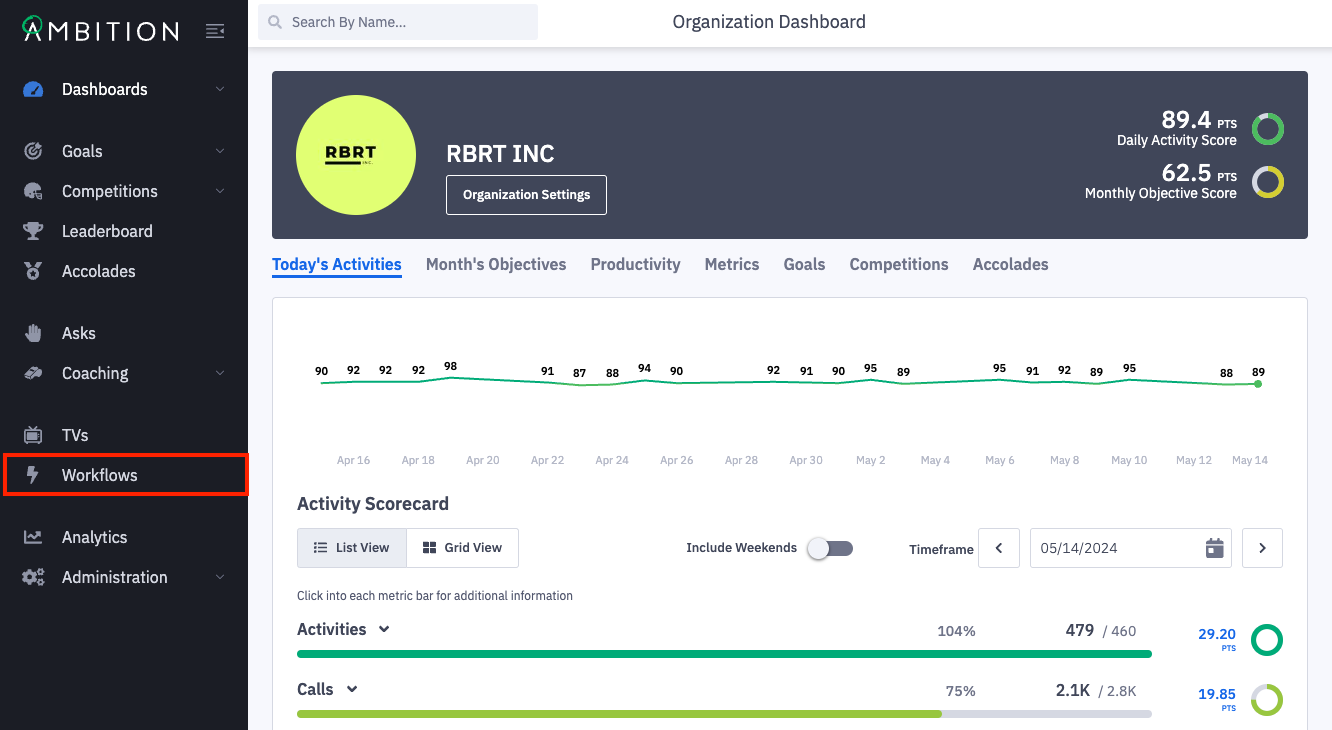
1. Open the left navigation and click Workflows.
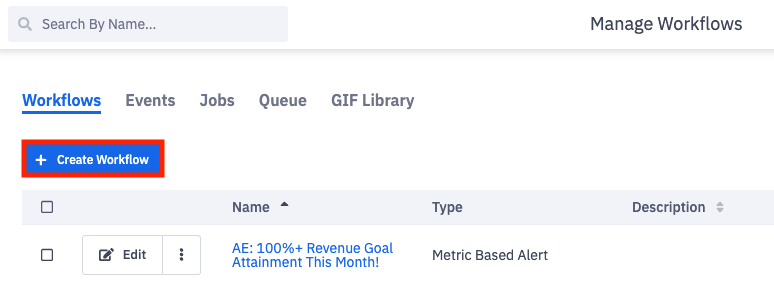
2. Click the + Create Workflow button.
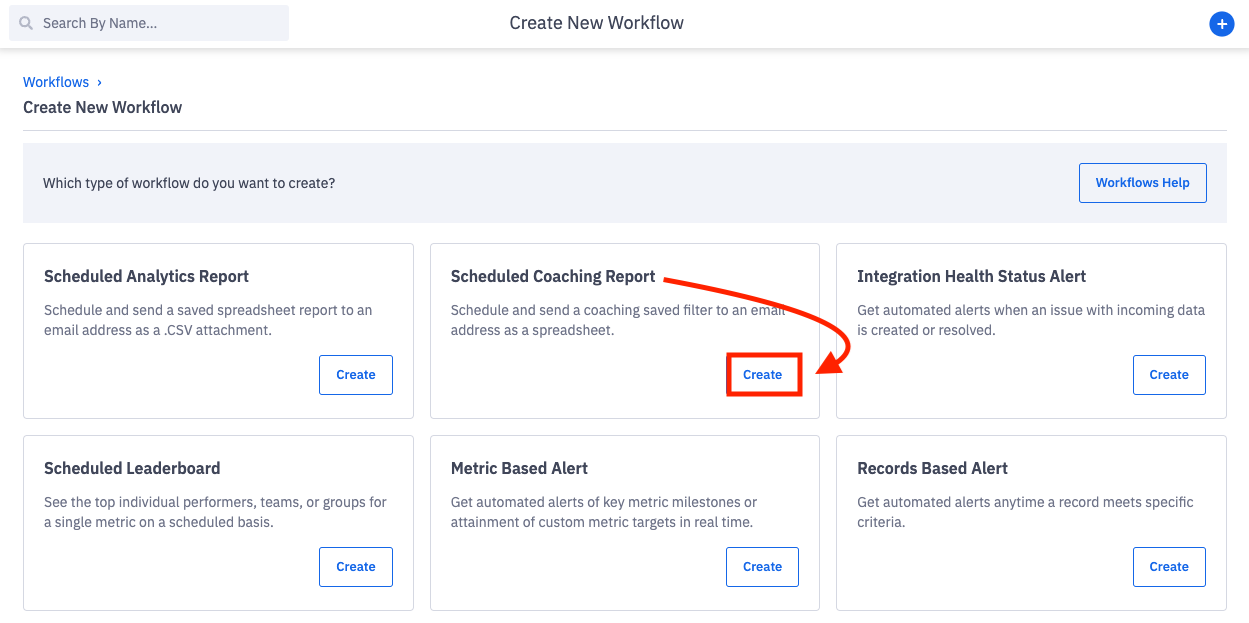
3. Click Create on the Scheduled Coaching Report tile.
Before starting to create the scheduled coaching report, make sure you've saved a check-in filter of the data you wish to have emailed to you!
Don't see the Scheduled Coaching option? The "coaching" feature is required for use. If coaching is included in your package, the feature can be enabled by any user with system admin permissions. Enable Feature: Open the left navigation and click Administration > Features. Locate the Coaching feature, and toggle "On". Click the Update Features button to save.
4. Complete the create workflow form:
Details
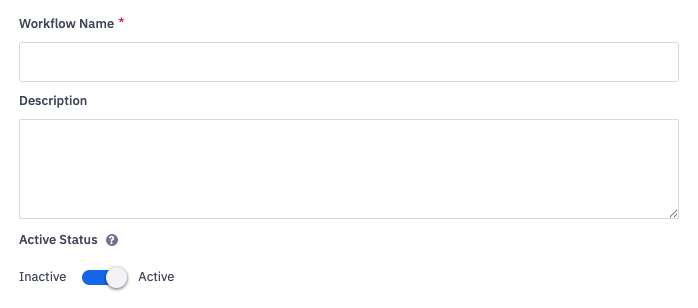
Workflow Name
The name will be displayed within Ambition and on scheduled report notifications.
Description
Optional. Description is visible on the manage workflows page and can be helpful to provide context on the behavior the workflow is recognizing.
Active Status
Active = the scheduled coaching report will run on the set recurrence schedule.
Inactive = the scheduled coaching report will be disabled and the report will no longer run on the set recurrence. Inactive workflows are not deleted and can be set back to active at the appropriate time.
Coaching Report
Select a saved check-in filter.
You will be able to select saved check-in filters where you are listed as the owner.
Recurrence
Establish the Initial Event

Set the start date, start time, and time zone to indicate when the workflow should begin running.
The scheduled report in the image above would first send on March 3rd at 9:00am Eastern.
Establish Frequency of Each Recurring Event
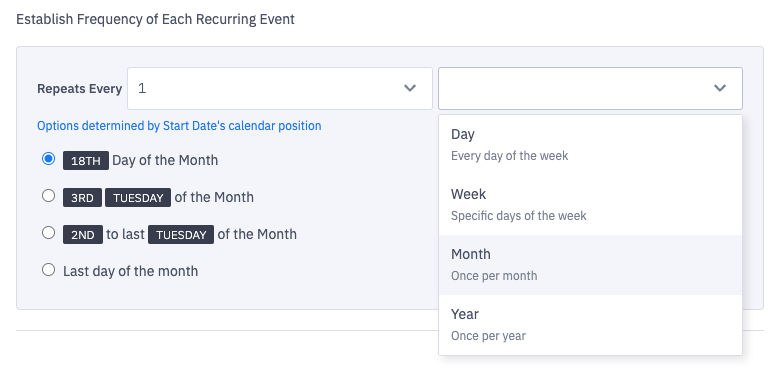
Repeats Every
Select the appropriate number and time frame to indicate how often the workflow needs to run.
Time frame options:
Day - Workflow will run every day of the week, even weekends
Week - Select a specific day or multiple days of the week for the workflow to run
Month - Workflow will run once per month on a designated day
Year - Workflow will run once per year on a designated day
Establish When the Recurrence Ends
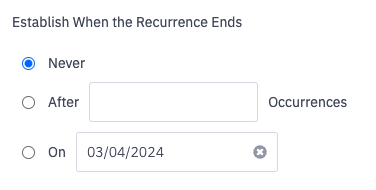
Workflows will continue on indefinitely based on their recurrence schedule unless an end is specified.
Workflows can end after a certain number of occurrences or end on a specific date.
Expected Occurrences
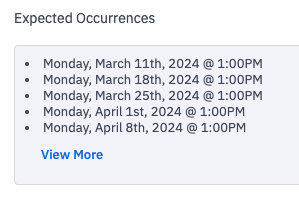
Based on the recurrence selection above, a preview of expected occurrences will generate. Ensure the dates and frequencies aligns with your expectations.
Actions
A single workflow can support multiple actions.
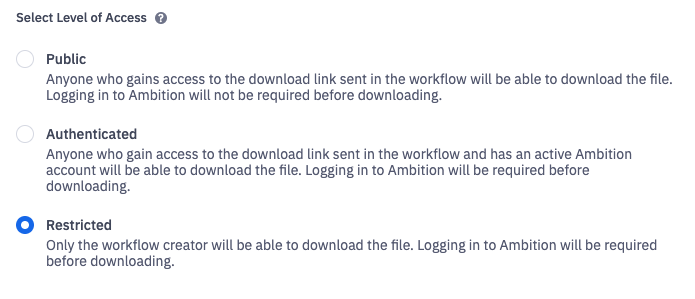
Level of Access
Report workflows support selecting an explicit level of access since sensitive employee and coaching data can be contained within the selected report.
Select the appropriate level of access that's the best fit for the workflow.
View an example of a scheduled report email here.
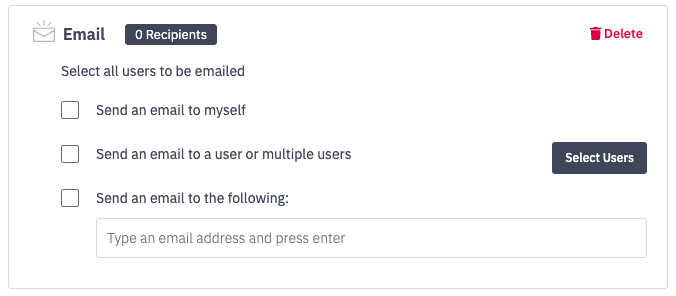
Email - Action Options | Action Description |
Send an email to myself | Workflow will be sent to the workflow creator's email address. |
Send an email to a user or multiple users | Option for public or authenticated level of access. Workflow will be sent to the selected user's email address. Additional hierarchy options will appear to allow you to designate which group(s) of Ambition users you want to receive the email alert. Learn more about hierarchy options here. Select all employees = Every active Ambition user will be notified of the workflow by email. Select employees within specific groups = You will be prompted to select one or more groups within Ambition. All members within the selected group(s) will be notified by email. Only members, and not managers, of the selected groups will be notified. Select specific employees = You will be prompted to manually select which specific users will be notified of the workflow by email. |
Send an email to the following (Custom Email Address) | Option for public level of access. An email will be sent to the input email address. Use for anyone/any group/distribution list who needs to receive workflow updates, but DOES NOT have an Ambition account. ex. salesteam@yourcompany.com or vpsales@yourcompany.com. Pro Tip: Ensure that any distributions lists have the proper protocols adjusted to allow Ambition emails to be received. If an Ambition user has unsubscribed from scheduled coaching report workflow emails, they will still receive an email notification if their email is input as a custom email address. |
Log

Log - Action Options | Action Description |
Log | Send workflow to internal log for troubleshooting purposes. Logs can be viewed under the "Jobs" tab in the manage workflow view. (Workflows: All Access permission required) You will be able to see the workflow name and the time the workflow ran to ensure that your workflow logic is performing as expected before sharing the workflow with end users. 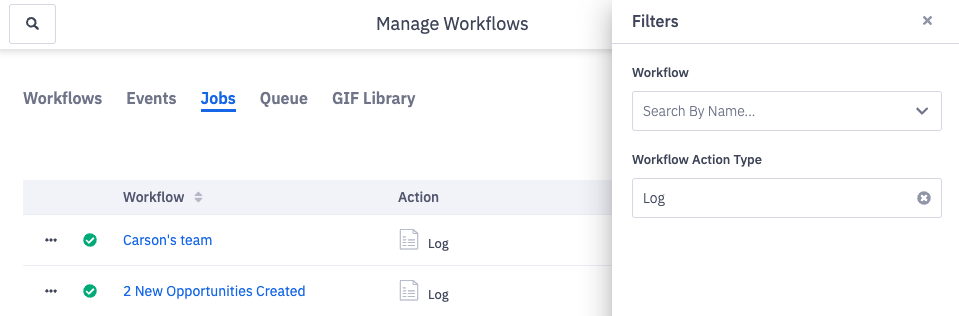 |
5. Click Create Workflow.