How do I create saved filters for check-ins?
Last updated: September 25, 2025
Check-Ins Saved Filters
What are saved filters for check-ins?
Check-ins offer default view for employee, manager, co-coach, and all access (where applicable), but custom views can be created and saved for quick access.
If you wish the check-in information in a saved filter to also be sent to you through email, users with "Workflows: Create" or "Workflows: All Access" permission can additionally set up a "scheduled coaching report" workflow where the check-in information from your saved filter can be emailed to you and others on a scheduled basis. Learn more here.
Create Saved Filter
1. Open the left navigation and click on Coaching > Check-Ins or Coaching > Manage > Check-Ins.
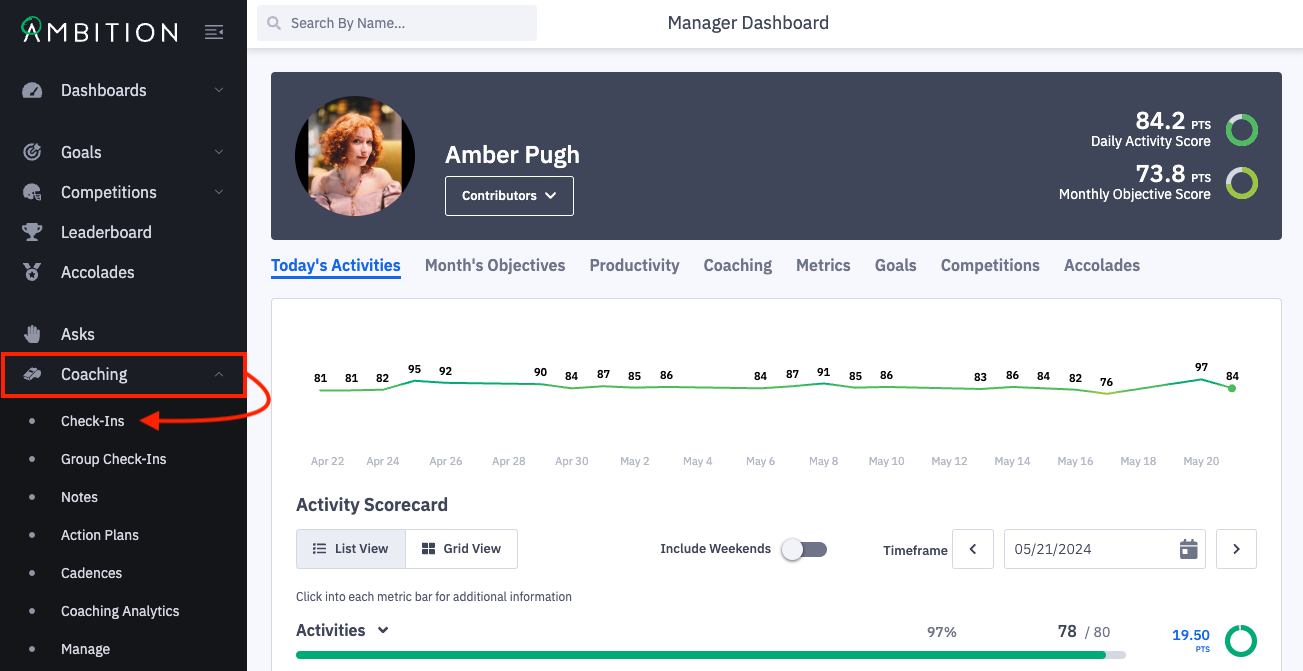
2. Select the tab across the top of the check-ins page to view the correct type of check-in.
Tab | Content Tab Displays |
Employee | All check-ins that you are required to complete, for your manager to approve (if applicable). |
Co-Coach | All check-ins that you have been assigned as a co-coach for (if applicable). |
Manager | All check-ins that your direct reports are required to complete for you to review & approve (only shown to users with manager permissions). |
All Access | Tab only shown to users with the "Coaching: All Access" permission. Shows all check-ins in the organization. |
3. Once on the tab you wish to view, click the filters icon in the upper right to refine your search.
There are multiple sort options available as well to assist with your search. That can be found under the "Sort" dropdown.
Available Filters
Filter | Filter Options |
Search | Search for check-ins by name or search for specific contents of action items, comments, agenda items*, answers, and notes. |
Manager | Search for managers who own check-ins. Filter specific to those with manager/all access permissions |
Employee | Search for the employee who is responsible for completing the check-in's agenda items. Filter specific to those with manager/all access permissions |
Co-Coach | Search for check-ins by assigned co-coaches (if applicable). |
Group | Search for check-ins based off the employee's manager or group memberships. |
Check-In Type | One-Offs: Show check-ins that were created as a one-off check-in. Recurring: Show check-ins that are created based off a recurrence schedule. Programs: Show check-ins that are created from coaching programs. Cadences: Show check-ins that are created from coaching cadences. |
Status | Answers Due: Waiting for the employees response. Pending Approval: Waiting for review from the manager. Completed: Completed by both parties. Expired: Due date passed before being completed by the employee. If expired but stills needs to be completed, the check-in can be reopened by the check-in's owner. Excused: Excused by the manager, for events like vacations. Scheduled: This filter will only show upcoming one-off check-ins. Recurring check-ins/check-ins from programs are made available just-in-time, and will be shown in the open filter. |
Rating | Search for check-ins by their average rating. If there are multiple rating categories, this filter will show the average rating for each check-in. Example: Preparedness = 5 |
Check-In Template | Search for check-ins created with a specific check-in template. |
Program Template | Search for check-ins created with a specific program template. |
Cadence | Search for check-ins by cadence name. |
Managed Program | Search for check-ins by managed program name. |
Program | Search for check-ins by program name. |
Start Date | Search for check-ins starting during a specific time frame. |
Due Date | Search for check-ins due during a specific time frame. |
* Searching for Content in Agenda Items
The following portions of agenda items support searching for keywords and content:
Question
Metric Snapshot
Feedback Left For User
Content Block Content
Poll
External URL - URL
Embed Media - URL
File Upload Action
Checkboxes
Multiple Choice
Gong Agenda Item Title
The following portions of agenda items do not currently support searching for keywords and content:
Feedback Type
Content Block Title
Poll Question
External URL Action
Embed Media Question
Checkbox Options
Multiple Choice Options
Gong Agenda Item Feedback
Seismic Learning Agenda Item Title
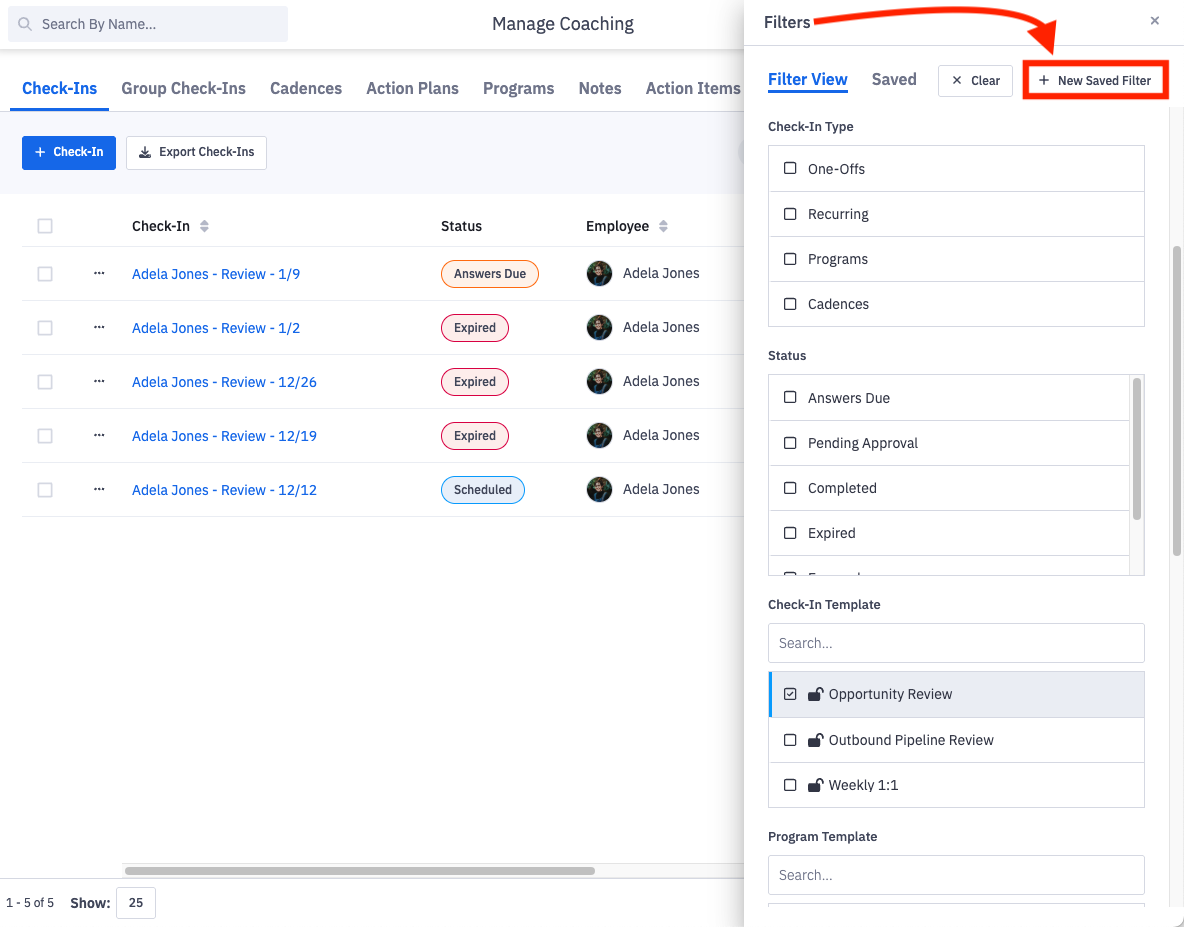
4. Once you have the desired filters selected, click + New Saved Filter.
5. Name your filter and optionally provide a description. Click Save Filter.
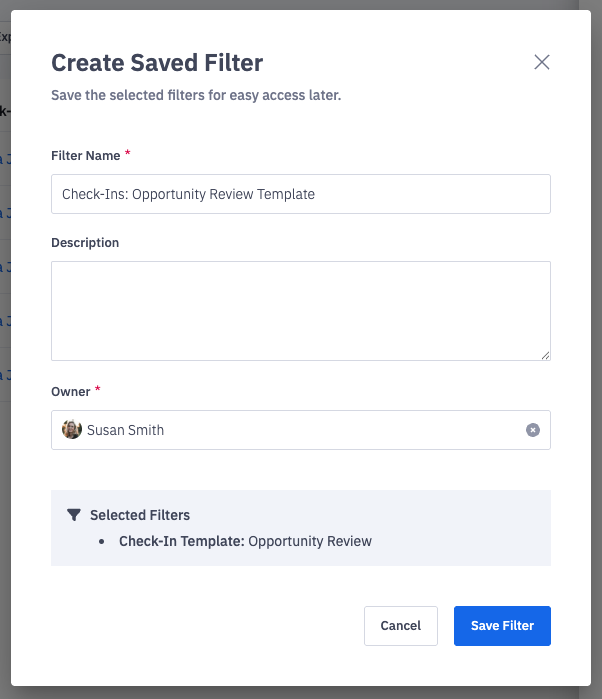
You can optionally change the filter owner if you wish to create and save a check-in filter view on behalf of another user. Depending on their permissions, they may not be able to view the same data that you have saved in the filter.
Access Saved Filters
1. Open the left navigation and click on Coaching > Check-Ins or Coaching > Manage > Check-Ins.
2. Click the filters icon in the upper right and then click on the "Saved" tab.
All of the saved filters you created or filters where you were assigned as the owner will appear in the saved filters list.
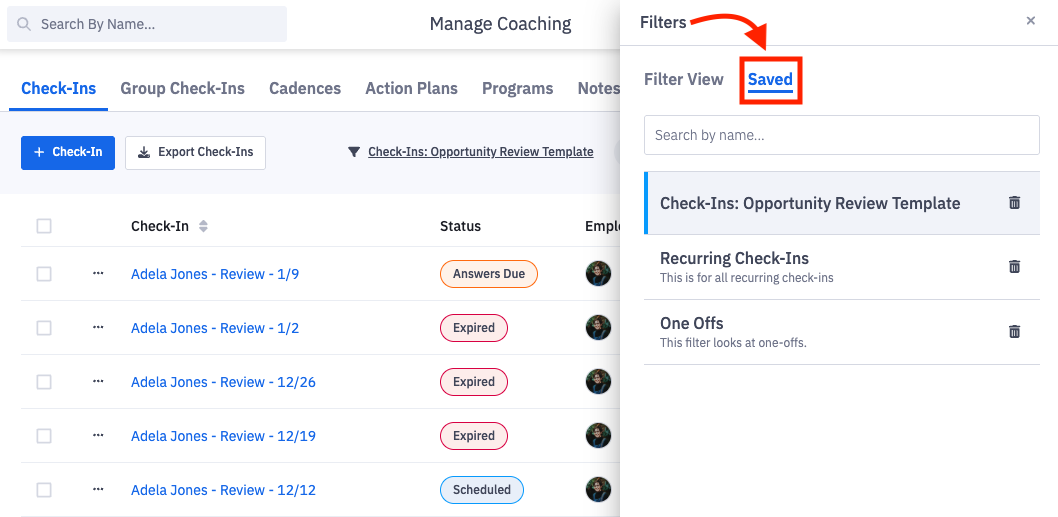
3. Clicking on a saved filter will load all applicable check-ins that fit the filter's criteria.
Edit a Saved Filter
Saved filters for check-ins can not be edited at this time. If you wish to preserve changes made to your saved filter, you will need to delete the existing saved filter and create a new one.
1. Click the filters icon in the upper right and then click on the Saved tab.
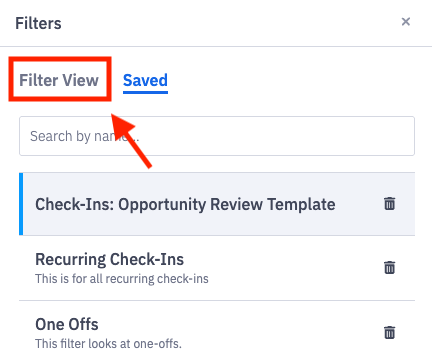
2. Click on the name of the saved filter you wish to view and update.
3. Click on the Filter View tab and make any needed updates and edits.
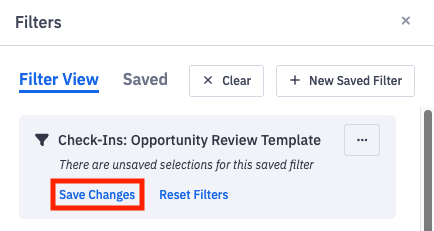
4. Click on Save Changes.
To make subsequent changes, continue to adjust filters as needed and click "Save Changes".
Delete a Saved Filter
1. Click the filters icon in the upper right and then click on the "Saved" tab.
2. Locate the saved filter that is no longer applicable.
3. Click the trashcan icon in line with the filter's name.