How do I monitor my team's goals?
Last updated: September 19, 2025
Monitor Goals
Once a goal has been created, it will appear on the respective goal owner's dashboard as well as under the Goals tab. Private goals will only be visible to the creator, the users involved in the goal, and those with the system admin permission set. If a private goal is created for an employee, their manager will also have visibility into the goal
Users with permission to edit goals will have the additional Manage Goals interface to view existing and past goals.
Monitor Active Goals on Dashboard
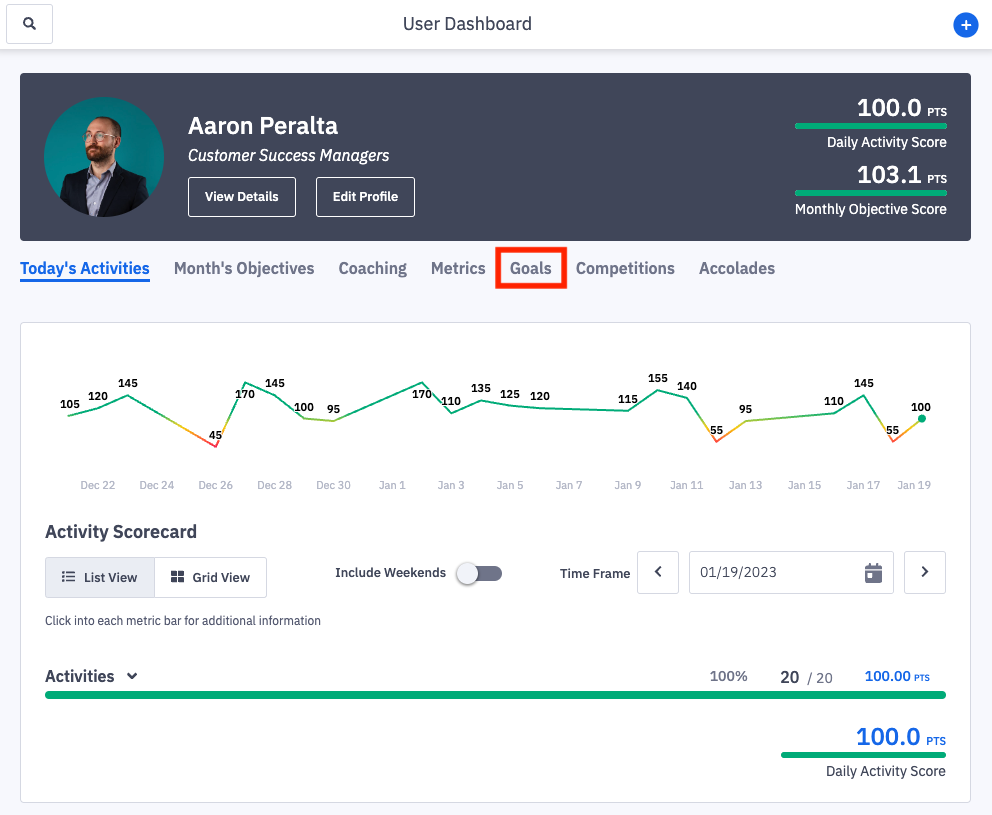
If a user, role, team, etc is involved in an Ambition goal, the goal can be monitored directly on the respective Dashboard by clicking the Goals tab.
A managerial dashboard will show all goals for the users and/or groups the manager manages in Ambition.
If there are active goals on the dashboard, click the See All button to view all other active goals in your organization.
If there are no active goals on the dashboard, you will be instructed to click on the Goals tab in the left navigation to view past goals or create new goals.
Monitor Active and Completed Goals (Manage Goals)
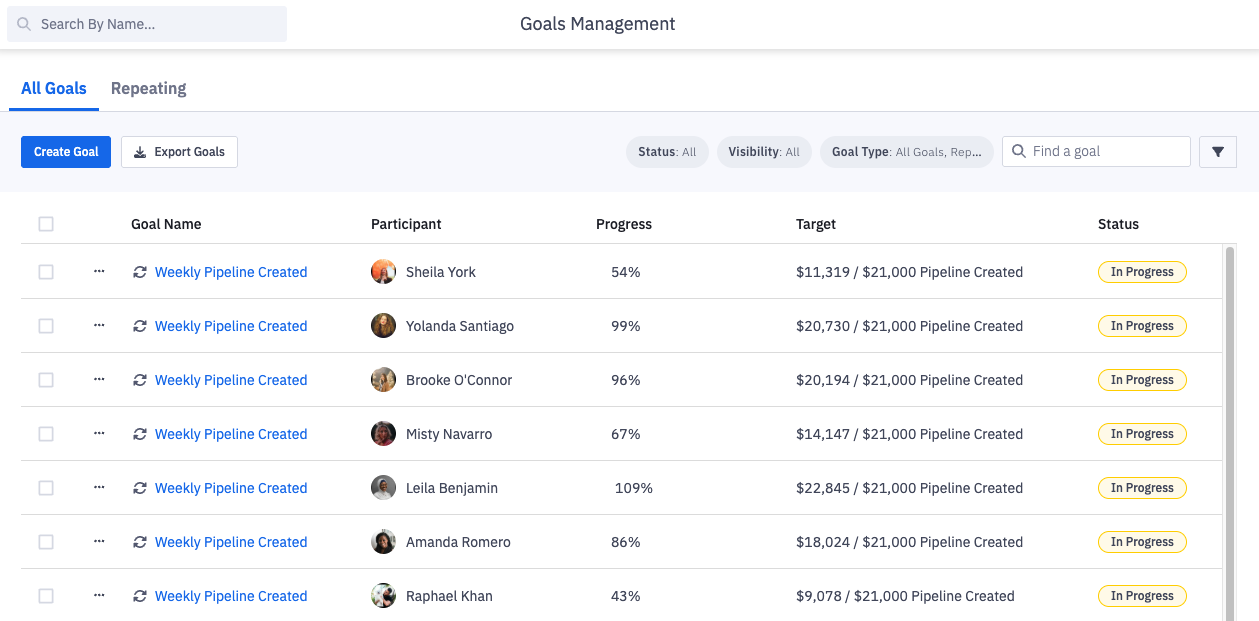
If you'd like to view a table of all active and historical goal progress:
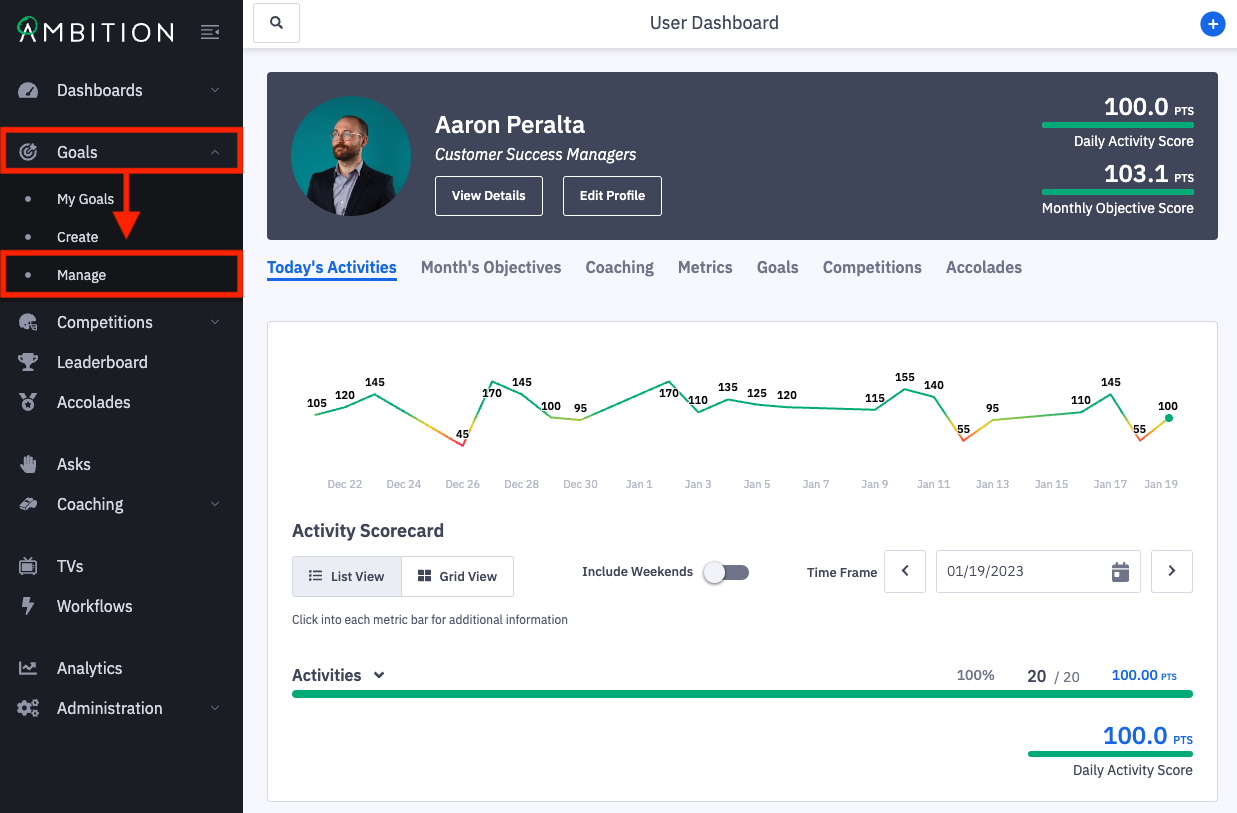
1. Open the left navigation and click Goals > Manage.
Users with a level of "Goals: Edit" permission will be able to access the Manage Goals interface to view active and past goals that they have access to.
The manage goals page displays all goals, their progress, and status.
Monitor Active and Completed Goals (My Goals)
Alternatively, you can access a card view of goals by:
1. Open the left navigation and click Goals > My Goals.
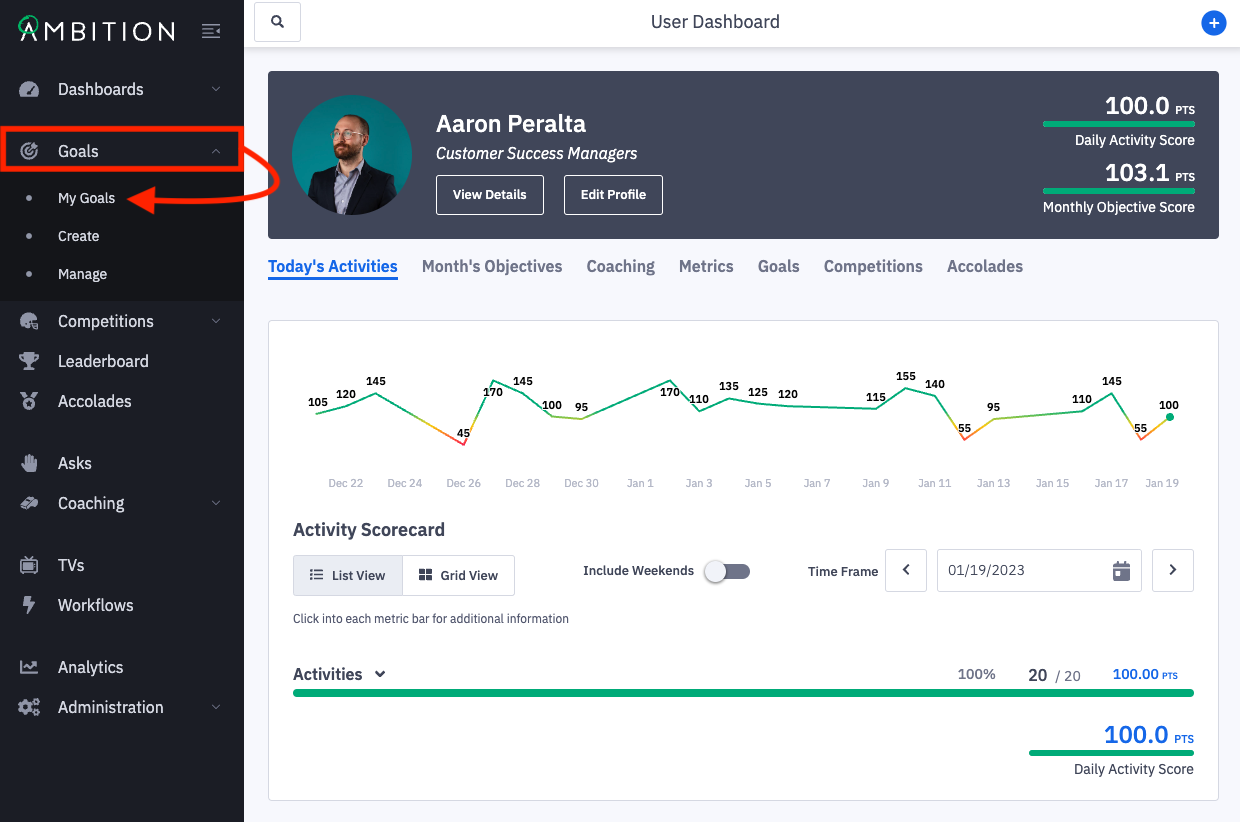
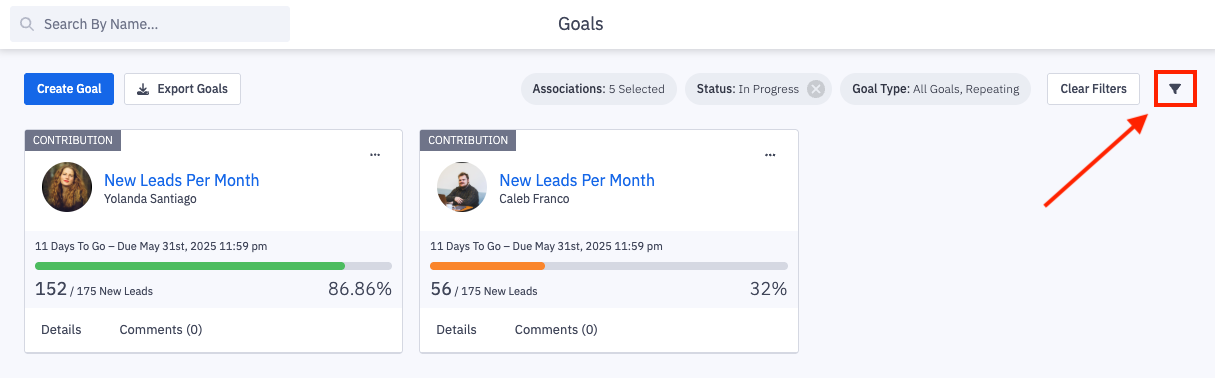
By default, the "My Goals" view will filter goals you are actively participating in.
If you are personally not participating in any goals, the view will be blank and filters will want to be adjusted.
2. Click the filters icon to access the filter menu.
You can filter by Goal Name, Association, Visibility, Status, Goal Type, Progress, or Time Frame.
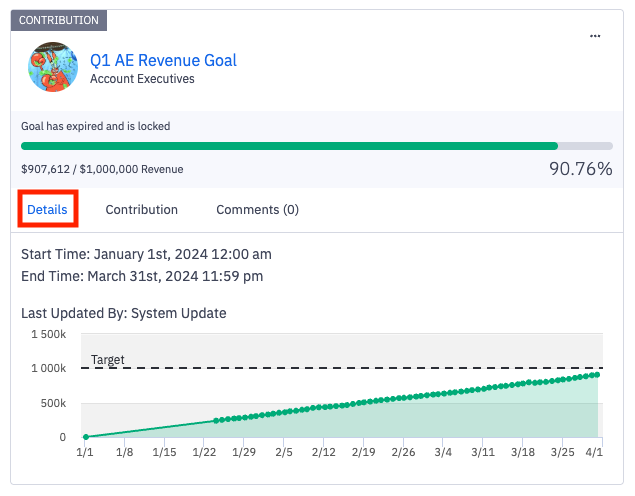
3. Click Details on any goal to see more information about the start and end times of the goal, as well as historical performance.
Goal Contribution
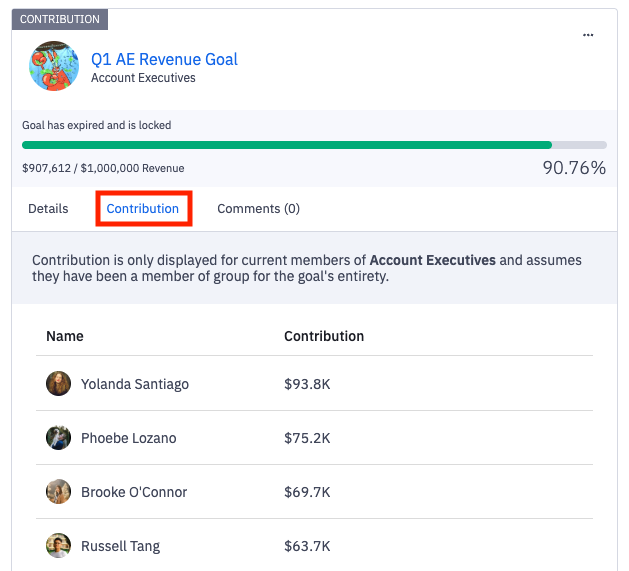
Click Contribution on any group based goal to revel the user's images, names, and respective contribution values that have contributed to the goal.
User's are ranked from highest contribution to lowest.
Note the text above the contribution values, "Contribution is only displayed for current members of -- respective group -- and assumes they have been a member of the group for the goal's entirety"
The names of deactivated users OR users who are now in a different group will not be listed in the contribution view, BUT their data will count towards the group's goal.