How do I edit goals?
Last updated: September 19, 2025
Edit Goals
The creator of a goal is able to edit all goals they create even if they lack a level of "Goals: Edit" permission.
The respective level of the "Goals: Edit" permission will control which goals you are able to edit.
Can Edit All Goals or Can Edit Goals for Subordinate Users/Groups.
What information can be edited?
After a goal has been created, you can update the following information:
Name
Description
Visibility
Category
End Date
Target Value
Participants (can only be updated for repeating goals and changes will not be be applied to active goals, only future occurrences)
Opting into reminder emails (repeating goals only)
Changes to any other fields, such as start date or metric cannot be made after creation and will require a new goal to be made.
Once a goal is marked "Complete", it can no longer be edited.
Edit a Goal on a Dashboard
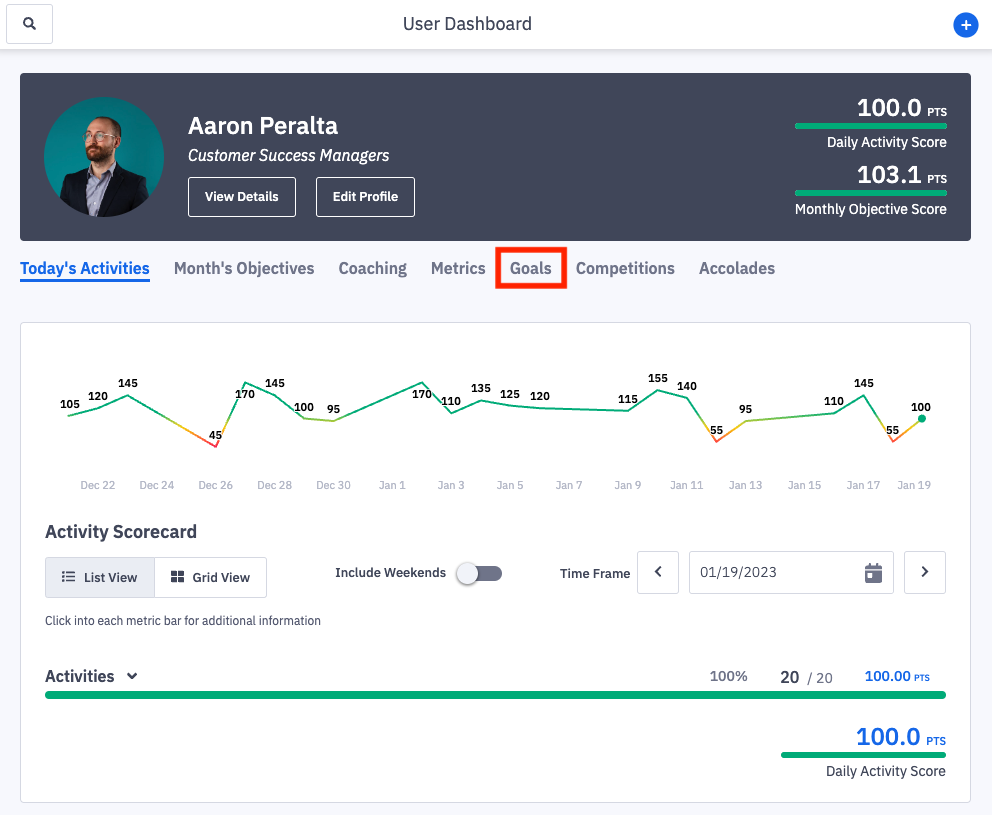
1. Access the respective Dashboard and click the Goals tab.
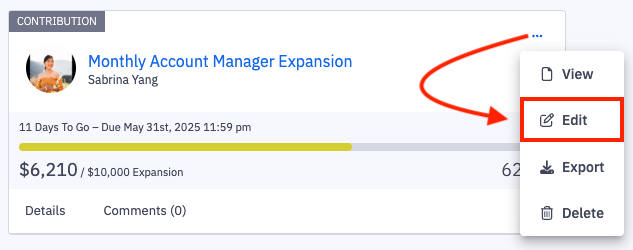
2. Click the ellipses icon icon in the upper right corner of the goal and select Edit.
Delete a Goal
Click the Delete option seen above, and then click Confirm when prompted.
3. Make appropriate updates, and click the Update Goal button.

Edit a Goal through the My Goals Tab
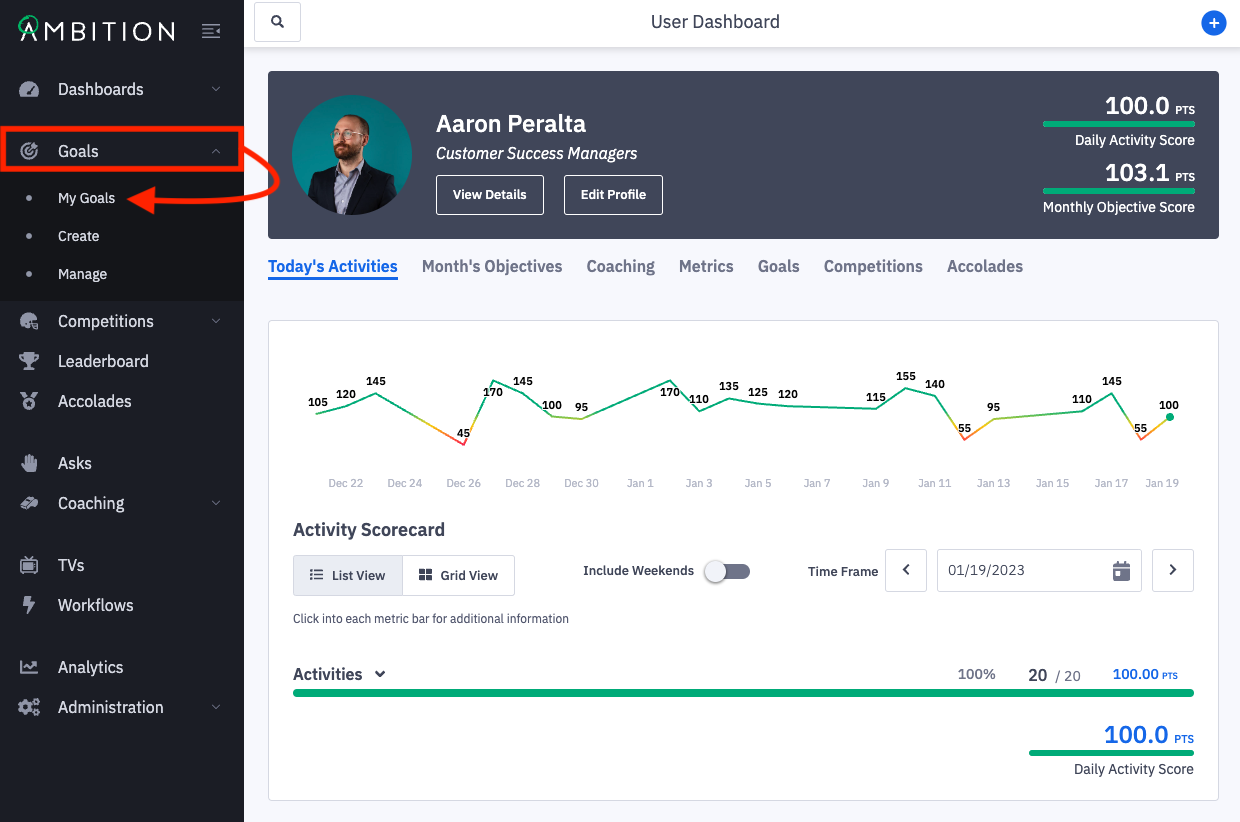
1. Open the left navigation and click Goals > My Goals.
2. Click the filters icon to access the filter menu.
You can filter for a goal by Goal Name, Association, Status, Goal Type, Progress, or Time Frame.
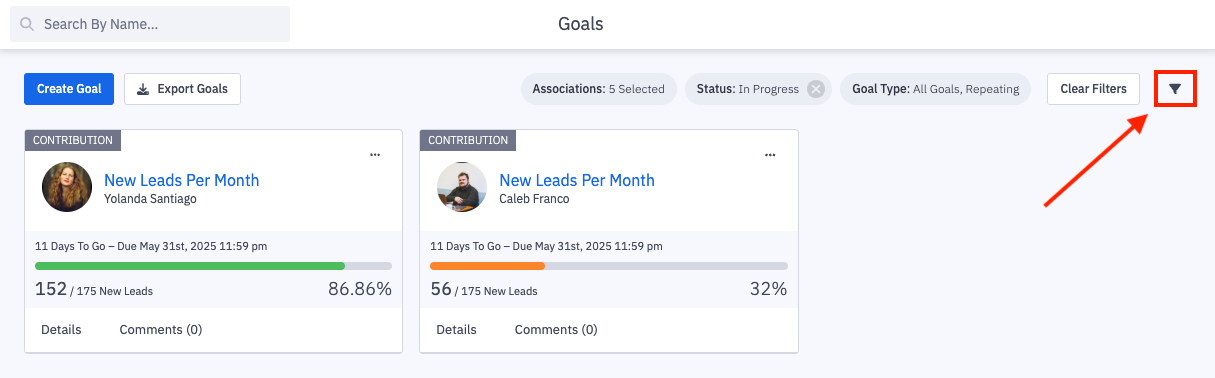
3. Click the ellipses icon icon on the appropriate goal and select Edit.
Delete a Goal
Click the Delete option seen above, and then click Confirm when prompted.
4. Make appropriate updates, and click the Update Goal button.
Edit a Goal Through the Manage Page
Any user who has permission to create goals will have access to the "Manage" page, but users will only be able to view goals on the "Manage" page that they have access to edit.
Ex. Aaron created a goal for himself, and a goal was created for Aaron by Aaron's manager. On the "Manage" page, Aaron will only be able to view and edit the goal he created for himself.
1. Open the left navigation and click Goals > Manage.
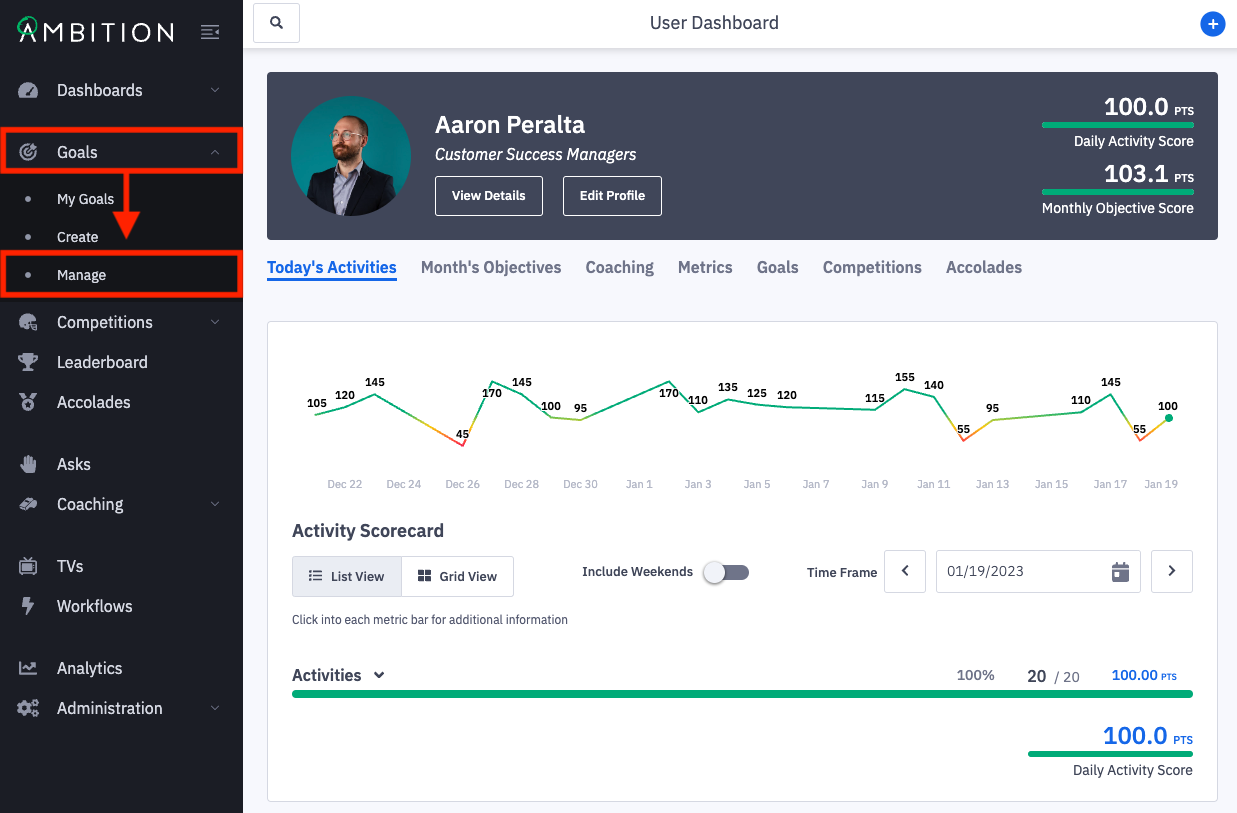
2. Click the filters icon to slide out the filter menu.
The filter menu allows you to search for a goal by Goal Name, Owner Hierarchy Level, Status, Progress, or Time Frame.
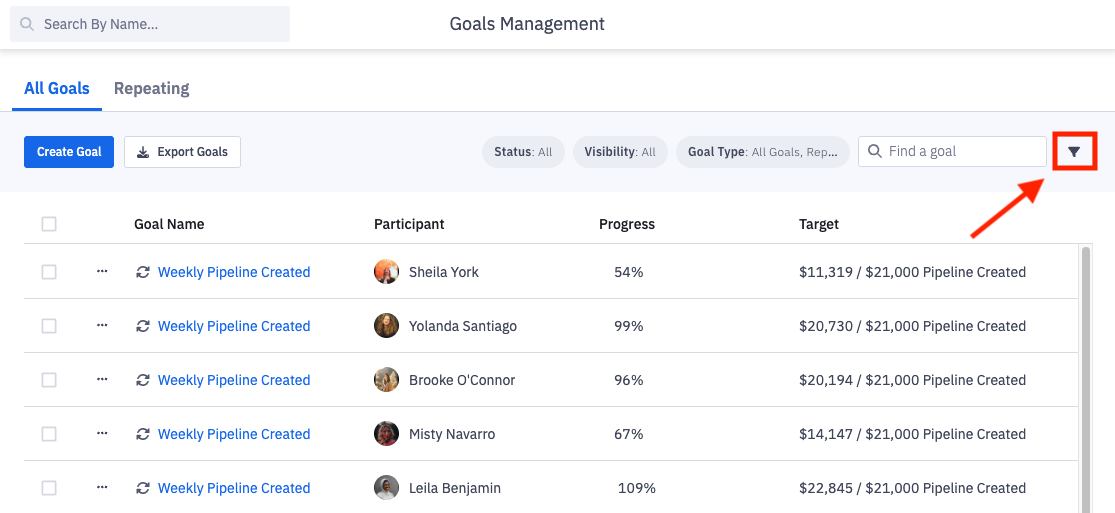
3. Click the ellipses icon on the appropriate goal and select Edit.
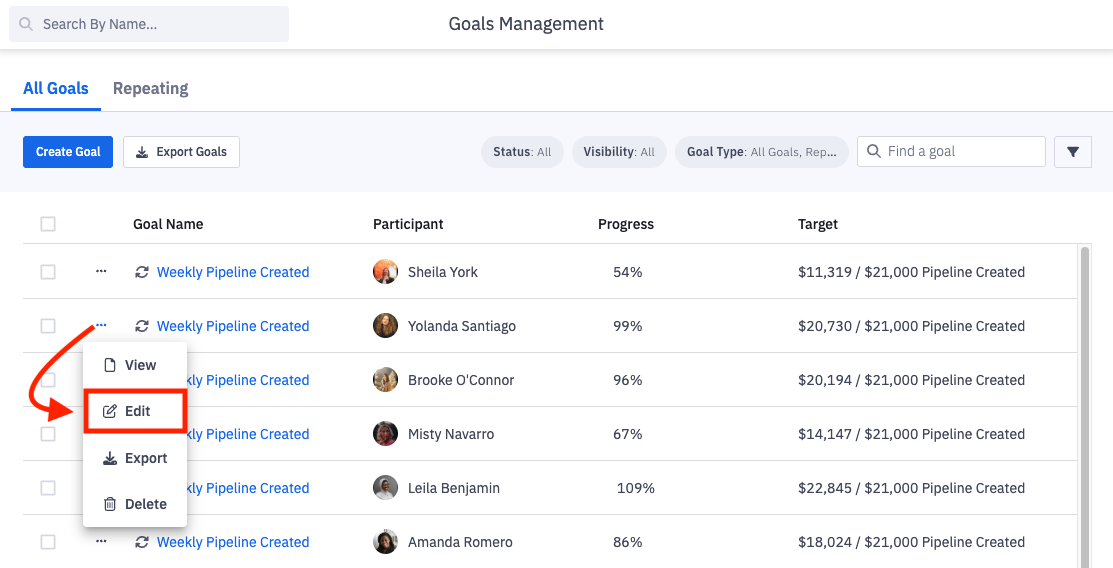
Delete a Goal
Click the Delete option seen above, and then click Confirm when prompted.
4. Make appropriate updates, and click the Update Goal button.
Update Targets of Repeating Goals
Since goals can be created to repeat and targets can change with time, it's important that each occurrence of a goal has up to date, current targets.
Edit Targets of Upcoming, Repeating Goals
1. Open the left navigation and click Goals > Manage.
2. Click on the Repeating tab.
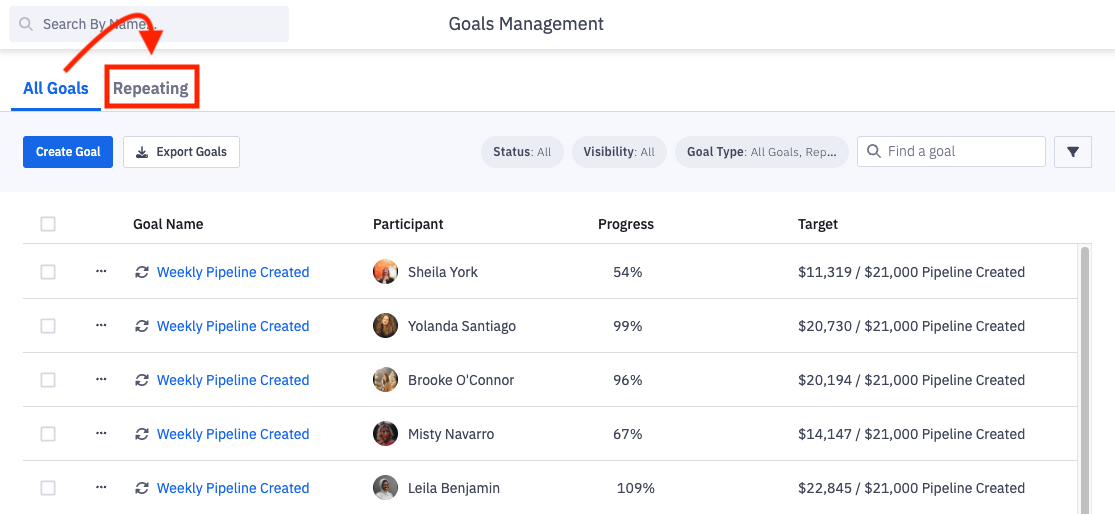
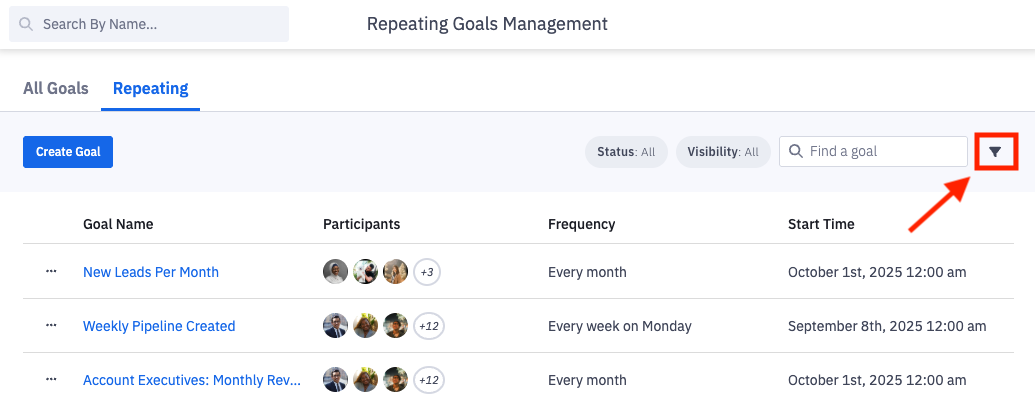
3. Optionally, to locate the goal you need to update, click the filters icon to slide out the filter menu.
You can filter by Goal Name, Owner Hierarchy Level, Status, Progress, or Time Frame.
4. Click the ellipses icon on the appropriate goal and select Update Targets.
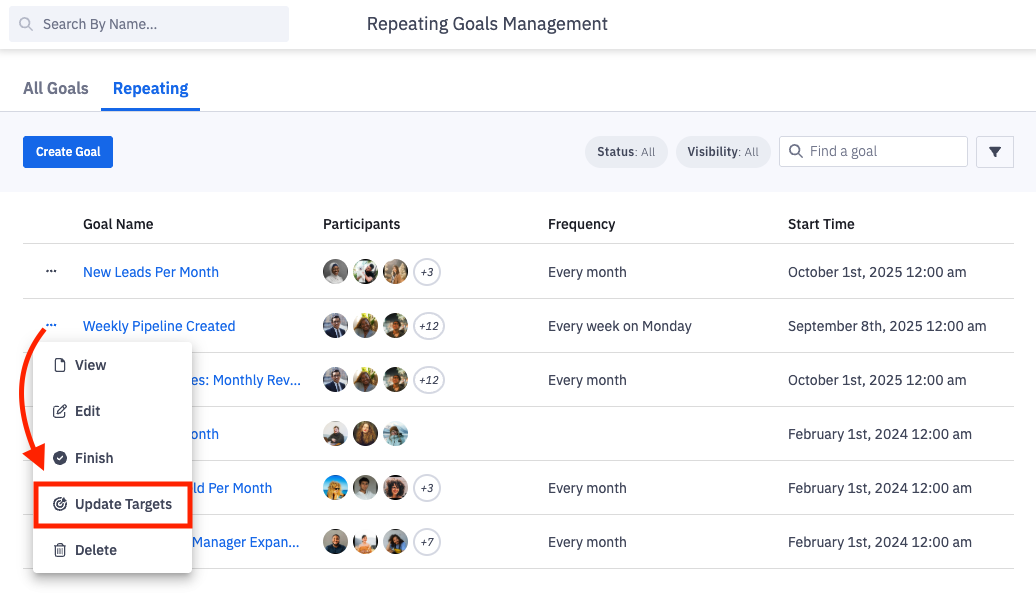
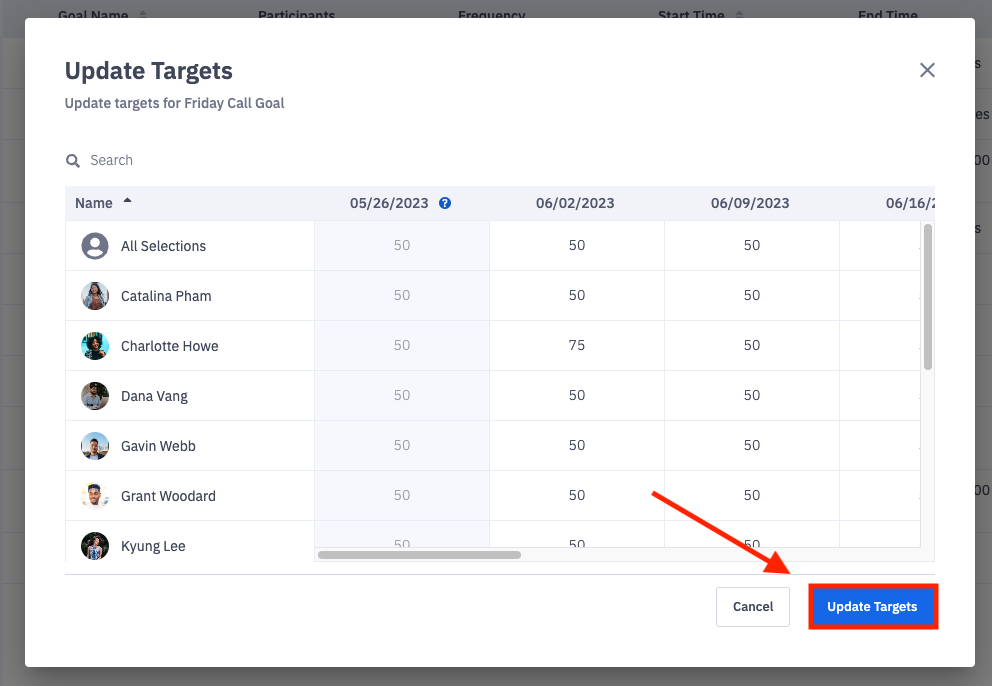
Within the Update Targets modal, adjust targets for any upcoming goals.
Can I update the target of an active, repeating goal?
The targets of active or past goals will be locked with the repeating goal edit form. If you need to update a target of an active, repeating goal, go to the "All Goals" tab, locate the specific goal that needs a target updated, click the ellipses icon and Edit.
5. Update targets as needed and click Update Targets to save your adjustments.