How do I prorate scorecard targets for employees that are out of office?
Last updated: July 29, 2025
Prorate Scorecard Targets
Prorating Overview
Prorating allows for scorecard targets to automatically adjust based on how many working days per scorecard time frame an employee is marked out of office.
If prorating is enabled and an employee is marked out of office, daily activity score targets will automatically be set to 0. For weekly, monthly, and quarterly score time frames, prorating can be enabled per metric as appropriate. Ex. If an employee is marked out of office 5 days during the month, their monthly objective score "revenue" target may need to stay the same while it's appropriate for their "meetings set" goal to be prorated based on the amount of working days they were out of office.
Prorated targets will be calculated based on the amount of working days an employee is present/workdays in the score time frame.
Proration Calculation:
Original Target * (Employee Workdays / Workdays in the Score Time Frame) = Prorated Target
Scorecard targets, any custom targets, and any stop/start values will be prorated by the same calculation.
Lower-is-Better metrics, average metrics, and formula builder metrics created through multiplication or division cannot be prorated. The exception is if an employee is out of office for the full score time frame - out a full day or an entire week - in those cases, target for all metrics will be set to 0. Learn more here.
Due to Ambition's global audience, no holidays or time off is automatically assumed in the calculation of working days in a given week, month, quarter.
Benefits of Prorating
Prorating ensures that scorecard targets for both employees and the groups they are a part of are accurate. If an employee is out on vacation, the groups they are a part of should still be able to hit their targets even though they are missing a contributing member. If enabled, prorating will normalize targets for both the employee and the groups they are a part of to reflect the employee's time out of office per scorecard time frame.
Prorate Scorecard Metrics
Users with the "Ambition Scores: Edit" permission will be able to access scorecards and prorate scorecard targets.
Scorecard targets will be prorated based on an employee being marked out of office. Learn more about marking employees out of office here.
Prorating is enabled per metric per scorecard configuration. However, if prorating is enabled and daily activity scores are used, all activity score metrics will automatically be prorated and daily targets set to 0. In the case of daily activity scores with proration enabled, scorecard targets for Saturday and Sunday will automatically be prorated (daily targets for Saturday and Sunday will be set to 0 and any metric contribution towards those daily activity scores is ignored) even if an employee is not marked out of office.
Ex. Both the Account Executive role and Sales Development Rep role have "Emails" as part of their activity score.
A weekly "Email" activity score target can be prorated for the Account Executive role but not for the Sales Development Rep role when employees in those roles are marked out of office.
A daily "Email" activity score target will automatically be prorated for both the Account Executive role and the Sales Development Rep role when employees in those roles are marked out of office.
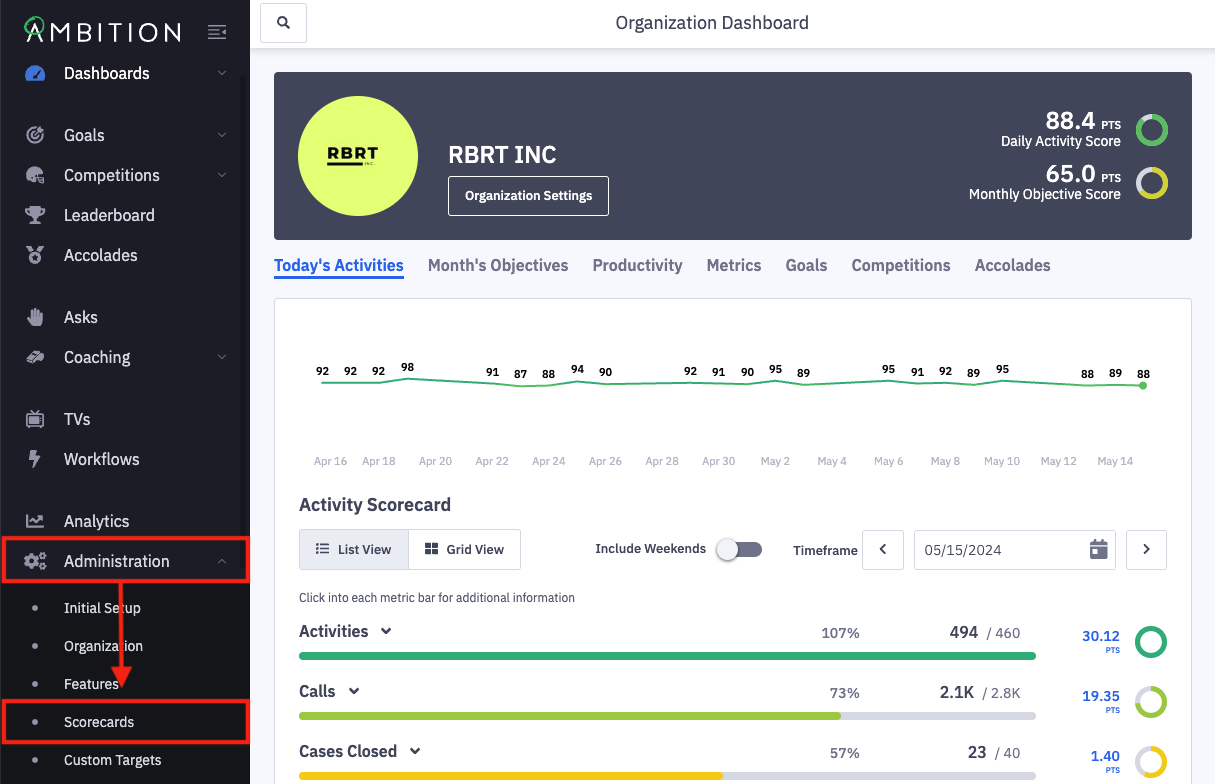
1. Open the left navigation and click Administration > Scorecards.
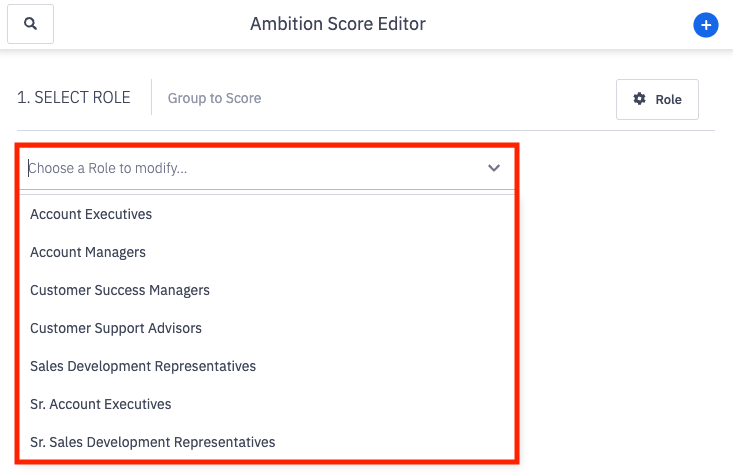
2. Select the respective role, or appropriate scored group type, from the drop down menu that has a metric target you wish to prorate.
If a scorecard has not yet been configured for the role, you can select prorating upon scorecard creation as well.
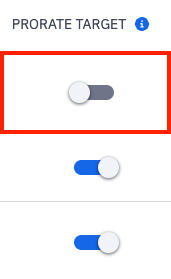
3. Locate the Prorate Target section on the appropriate scorecard configuration, activity or objective score.
If the activity score time frame is set to daily, applicable activity score metrics will automatically have the "Prorate Toggle" set to On. Proration for daily activity scores cannot be opted out of if the proration feature is enabled.

Don't see the Prorate Target option? The feature can be enabled by those with system admin permissions. Enable Feature: Open the left navigation and click Administration > Features. Locate the Scorecards: Target Proration feature, and toggle "On". If the "Out of Office" feature was not already enabled, it will be turned on as well when enabling Scorecard: Target Proration. Click the Update Features button to save.
Any daily activity score metrics will be prorated based on employees being marked out of office from the point the "Scorecards: Target Proration" feature is enabled. For time frames larger than a day, prorating a scorecard metric's target is effective from this week, this month, or this quarter forward based on your respective scoring time frame.
4. Toggle "Prorate Target" On for the metrics you wish to prorate.
Lower-is-better metrics, average metrics, and formula builder metrics created through multiplication or division cannot be prorated.
In the example below, the weekly "Calls" target will be prorated based on the amount of working days, Monday-Friday, they are marked out of office, while they will still be responsible for setting 5 Appointments.
The "Appointments Set" metic will only be prorated if an employee is marked out of office for the entire score time frame, in this example of a weekly activity score, Monday - Friday.
If one metric on a particular score, activity or objective, has prorating enabled, and an employee is out of office the entire time frame, all metrics on the respective score will have their target set to zero. Otherwise the employee, and any groups their data rolls up into, would only have the ability to earn a partial score, ex. 75% would be the highest attainment they could achieve.

5. Click the Saves Scores button.

6. Confirm that you understand the changes being made will result in scores being recomputed by typing I UNDERSTAND.
Then click the button stating, I Understand, Show me the Next Warning.
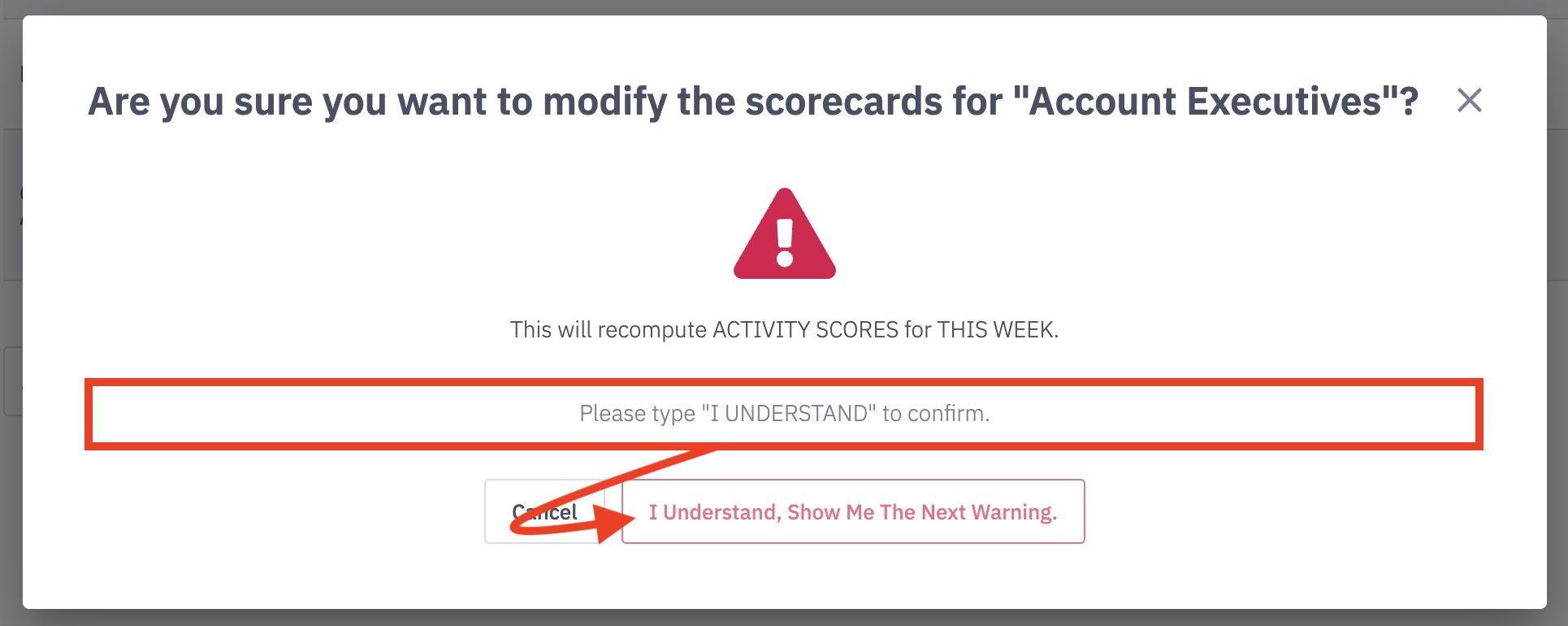
7. Type I UNDERSTAND for Objective Score and click I Understand, Save Scores.
Your newest scorecard configuration will then be reflected across Ambition.
By default, enabling prorating for a scorecard metric is effective from this week, this month, or this quarter forward based on your respective scoring time frame.
If you need prorating changes to be reflected historically, reach out to gethelp@ambition.com.
Making changes retroactively is not something we recommend carrying out regularly as we want employees to have a clear understanding of their metrics and targets.
Disable Prorating
Just as prorating is enabled per metric per scorecard configuration, it can be disabled per metric per scorecard configuration.
Disabling prorating at the scorecard level, toggling "Prorate Target" to Off for one of more metrics, will reprocess scores for the current time frame (this week, this month, this quarter). Disabling prorating at the scorecard level will not impact historical time frames (last week, last month, last quarter) and historical scores will not be recalculated. If you need historical scores recalculated with prorating disabled, reach out to gethelp@ambition.com.
Turning the prorating feature off at the feature flag level, will reprocess scores for the current time frame (this week, this month, this quarter) and any daily activity scores will have their targets restored and scores will be reprocessed without the prorating calculations for any days an employee was marked out of office.
1. Disable prorating by following the steps found here, with step 4 changed to toggling "Prorate Target" Off for the metrics you wish to no longer prorate.
Prorating Behavior Based on Time Frame
Daily Activity Scores
If prorating is enabled and an employee is marked out of office, all daily activity targets are set to 0 and all metric contribution towards their daily scorecard is ignored.
Any data contributed while out of office will be visible on the metrics tab on the employee's dashboard and will appear on leaderboards, goals, in analytics reporting, etc.
If proration is enabled for daily activity scores, scorecard targets for Saturday and Sunday will automatically be prorated (daily targets for Saturday and Sunday will be set to 0 and any metric contribution towards those daily activity scores is ignored) even if an employee is not marked out of office.
Weekly Activity or Objective Scores
If prorating is enabled for a weekly scorecard metric and an employee is marked out of office, weekly scorecard metric targets will be prorated based on a traditional Monday-Friday work week.
If at least one metric on a weekly time frame scorecard has prorating enabled and the employee is out of office for the entire scorecard time frame (Monday-Friday), the other weekly targets will be set to 0 and all metric contributions towards their weekly scorecard is ignored.
Any data contributed while out of office will populate on a weekly scorecard (unless out the entire scorecard time frame, Monday-Friday), be visible on the metrics tab on the employee's dashboard, and will appear on leaderboards, goals, in analytics reporting, etc.
Employee is Out of Office 1 Day of the Work Week | Employee is Out of Office 3 Days of the Work Week | Employee is Out of Office the Entire Work Week, Monday - Friday | |
Original Weekly Target | 100 | 100 | 100 |
Proration Calculation | Target * (Employee Workdays / Workdays in a Week) = Prorated Target 100 * (4/5) = 80 | Target * (Employee Workdays / Workdays in a Week) = Prorated Target 100 * (2/5) = 40 | Target * (Employee Workdays / Workdays in the Week) = Prorated Target 100 * (0/5) = 0 |
Prorated Weekly Target | 80 | 40 | 0 If prorating is enabled for a metric with a weekly target, all other weekly targets will be set to 0 if the employee is out of office, Monday - Friday. |
Monthly Objective Scores
A month in Ambition is based on calendar months.
If prorating is enabled for a monthly scorecard metric and an employee is marked out of office, monthly scorecard metric targets will be prorated based on the number of working days in the month assuming a traditional Monday-Friday work week.
If at least one metric that's a part of a monthly time frame scorecard has prorating enabled and the employee is out of office for the entire scorecard time frame (all working days of the month), the other monthly targets will be set to 0 and all metric contribution towards their monthly scorecard is ignored.
Any data contributed while out of office will populate on a monthly scorecard (unless out the entire scorecard time frame, all working days of the month), be visible on the metrics tab on the employee's dashboard, and will appear on leaderboards, goals, in analytics reporting, etc.
Employee is Out of Office 1 Working Day of the Month | Employee is Out of Office 5 Working Days of the Month | Employee is Out of Office All Working Days of the Month | |
Original Monthly Target | 100 | 100 | 100 |
Proration Calculation | Target * (Employee Workdays / Workdays in a Month) = Prorated Target 100 * (21/22) = 95 # of workdays will vary based on the month. Example is based on June 2022. | Target * (Employee Workdays / Workdays in a Month) = Prorated Target 100 * (17/22) = 77 # of workdays will vary based on the month. Example is based on June 2022. | Target * (Employee Workdays / Workdays in the Month) = Prorated Target 100 * (0/22) = 0 # of workdays will vary based on the month. Example is based on June 2022. |
Prorated Monthly Target | 95.5 | 77.3 | 0 If prorating is enabled for a metric with a monthly target, all other monthly targets will be set to 0 if the employee is out of office for all work days of a month. |
Quarterly Objective Scores
A quarter in Ambition is based on calendar quarters and not fiscal.
If prorating is enabled for a quarterly scorecard metric and an employee is marked out of office, quarterly scorecard metric targets will be prorated based on the number of working days in a quarter assuming a traditional Monday-Friday work week.
If at least one metric on a quarterly time frame scorecard has prorating enabled and the employee is out of office for the entire scorecard time frame (all working days of the quarter), the other quarterly targets will be set to 0 and all metric contribution towards their quarterly scorecard is ignored.
Any data contributed while out of office will populate on a quarterly scorecard (unless out the entire scorecard time frame, all working days of the quarter), be visible on the metrics tab on the employee's dashboard, and will appear on leaderboards, goals, in analytics reporting, etc.
Employee is Out of Office 5 Working Days of the Quarter | Employee is Out of Office 30 Working Days of the Quarter | Employee is Out of Office all Working Days of the Quarter | |
Original Quarterly Target | 100 | 100 | 100 |
Proration Calculation | Target * (Employee Workdays / Workdays in a Quarter) = Prorated Target 100 * (60/65) = 92.3 # of workdays will vary based on the quarter. Example is based on Q2 2022 (April-June). | Target * (Employee Workdays / Workdays in a Quarter) = Prorated Target 100 * (35/65) = 54 # of workdays will vary based on the quarter. Example is based on Q2 2022 (April-June). | Target * (Employee Workdays / Workdays in a Quarter) = Prorated Target 100 * (0/65) = 0 # of workdays will vary based on the quarter. Example is based on Q2 2022 (April-June). |
Prorated Quarterly Target | 92.3 | 54 | 0 If prorating is enabled for a metric with a quarterly target, all other quarterly targets will be set to 0 if the employee is out of office all working days of the quarter |