How do I edit a challenge?
Last updated: March 10, 2026
Edit a Challenge
Once a challenge has been created, only the following fields can be edited:
Name
Description
Live vs Hidden Mode
One Time vs Recurring
Timeframe - editable while the challenge is in "scheduled" status
Scoring
Competitors
Prizes
Note: Recurring challenges can be converted to one time challenges, however one time challenges cannot be made to recur. If you've created a one time challenge you'd like to recreate, you can duplicate it and set it to recur going forward! Learn more here.
Edit or Delete a Challenge
Users with the "Competitions: All Access" permission will be able to edit and delete all challenges.
Users with "Competitions: Create Challenge" permission will be able to edit and delete challenges they create.
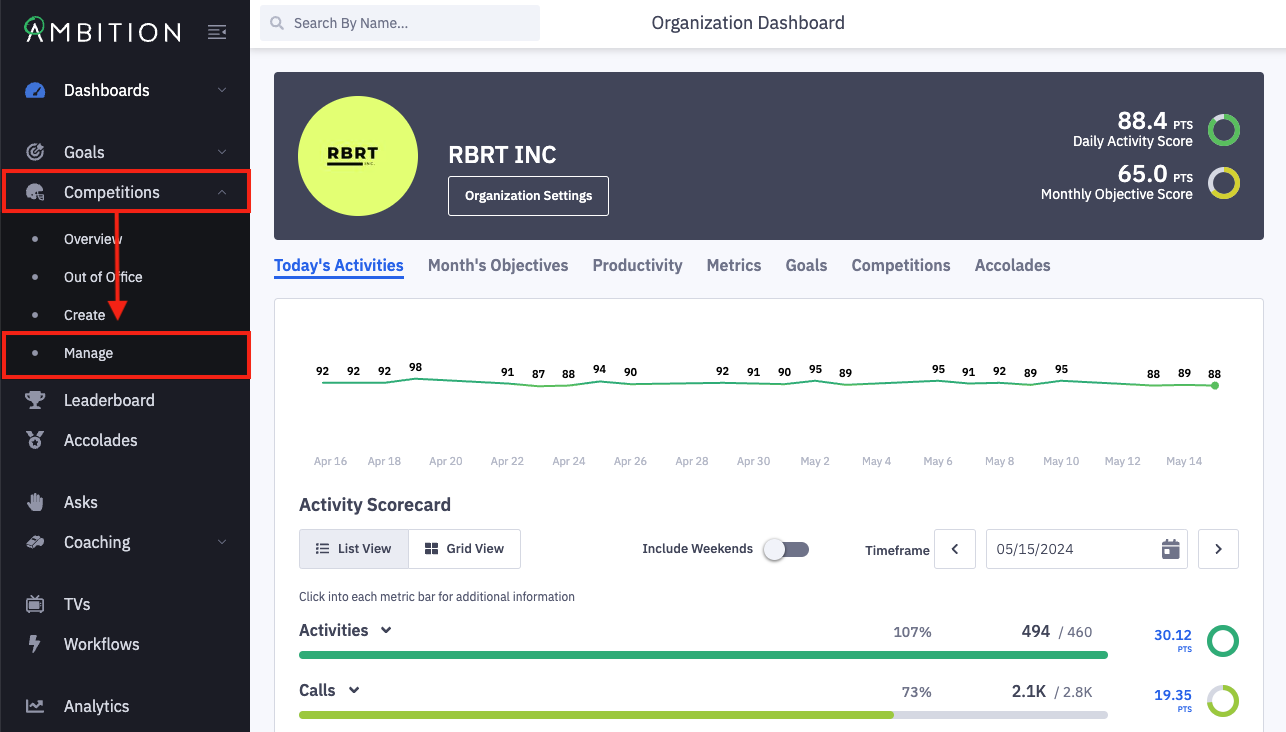
1. Open the left navigation and click Competitions > Manage.
You can also access the edit challenge form by clicking the ellipses icon and then Edit when viewing an active challenge.
2. Locate the challenge you wish to edit.
Click the filter icon to slide out the filter panel.
Filter competitions based on name, competitor, competition type (challenge or fantasy), status, competition visibility (live or hidden), and creator.
3. Click the ellipses icon on the appropriate challenge and select Edit.
Delete a Challenge
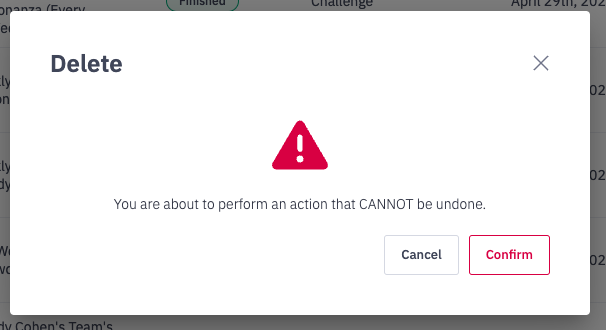
If you wish to delete a challenge, click the ellipses icon select Delete and then click Confirm when prompted.
Edit a Challenge
As noted above once an Ambition challenge has been created, only the following fields can be edited:
Name
Description
Live vs Hidden Mode
One Time vs Recurring
Timeframe - editable while the challenge is in "scheduled" status
Scoring
Competitors
Prizes
Note: Recurring challenges can be converted to one time challenges, however one time challenges cannot be made to recur. If you've created a one time challenge you'd like to recreate, you can duplicate it and set it to recur going forward! Learn more here.
Challenge's Name, Description, and Live > Hidden Mode
Update the text found in the challenge name field and/or description.
Update a competition currently in "hidden mode" to be "live", or take a "live" competition back into "hidden mode". Learn more about hidden mode here.
Convert a Recurring Challenge to a One Time Challenge
As mentioned above, recurring challenges can be converted to one-off challenges.
Navigate to Step 1. "Timeframe".
Slide the One-Off/Recurring Toggle to One Time.
If the recurring challenge has already occurred at least once, the challenge's start time and end time will become locked.
Timeframe (editable while a challenge is in "scheduled" status)
Navigate to Step 1. "Timeframe".
If the challenge is in "scheduled" status, the start date, start time, time zone, end date, and end time can be updated.
Note: Retroactive challenges, or challenges with a Start Date in the past, will default to have a Start Time of 12:00AM.
If creating a challenge for "today", you will have start time options from the current time forward or 12:00AM. This includes selecting a time zone that is ahead of where you are located, ex. you are located in US/Pacific, but select US/Eastern, and you select a time that is in the past in Eastern time, the challenge will have a 12:00AM start time.
Competitors
You can add and/or remove competitors from existing challenges.
Navigate to Step 2. "Competitors".
Add Competitors in an Employee vs Employee Challenge
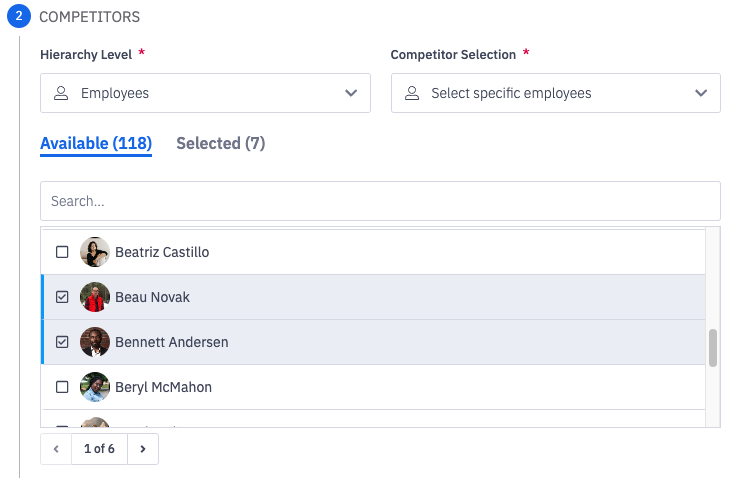
1. Select Available.
2. Search for or scroll through available competitors.
Employees that have already been selected will also show in the Available list but the box next to their name will already be checked.
3. Check the box next to the respective competitors that needed to be added to the challenge.
The example below would add Beau and Bennett to the challenge.
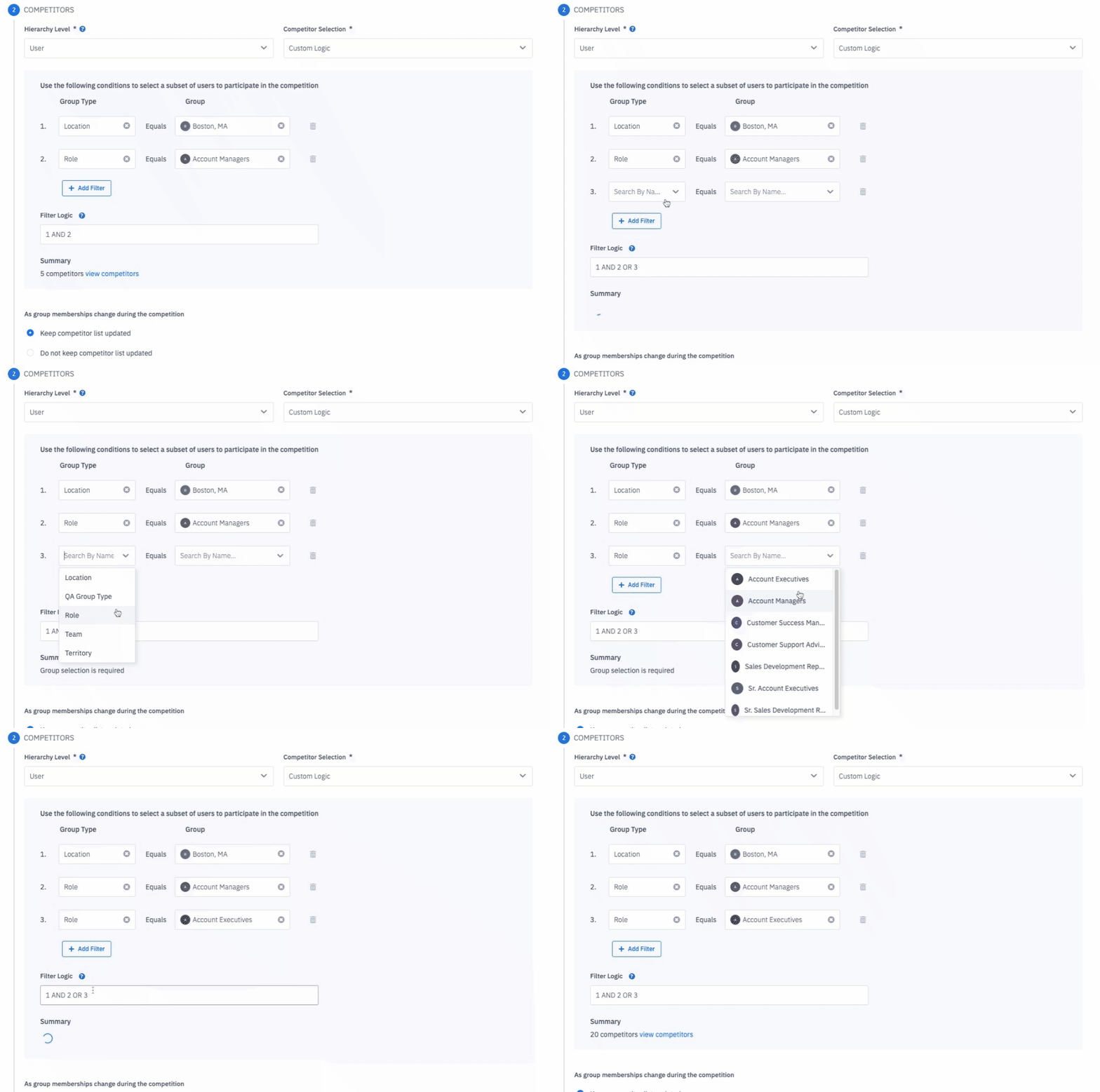
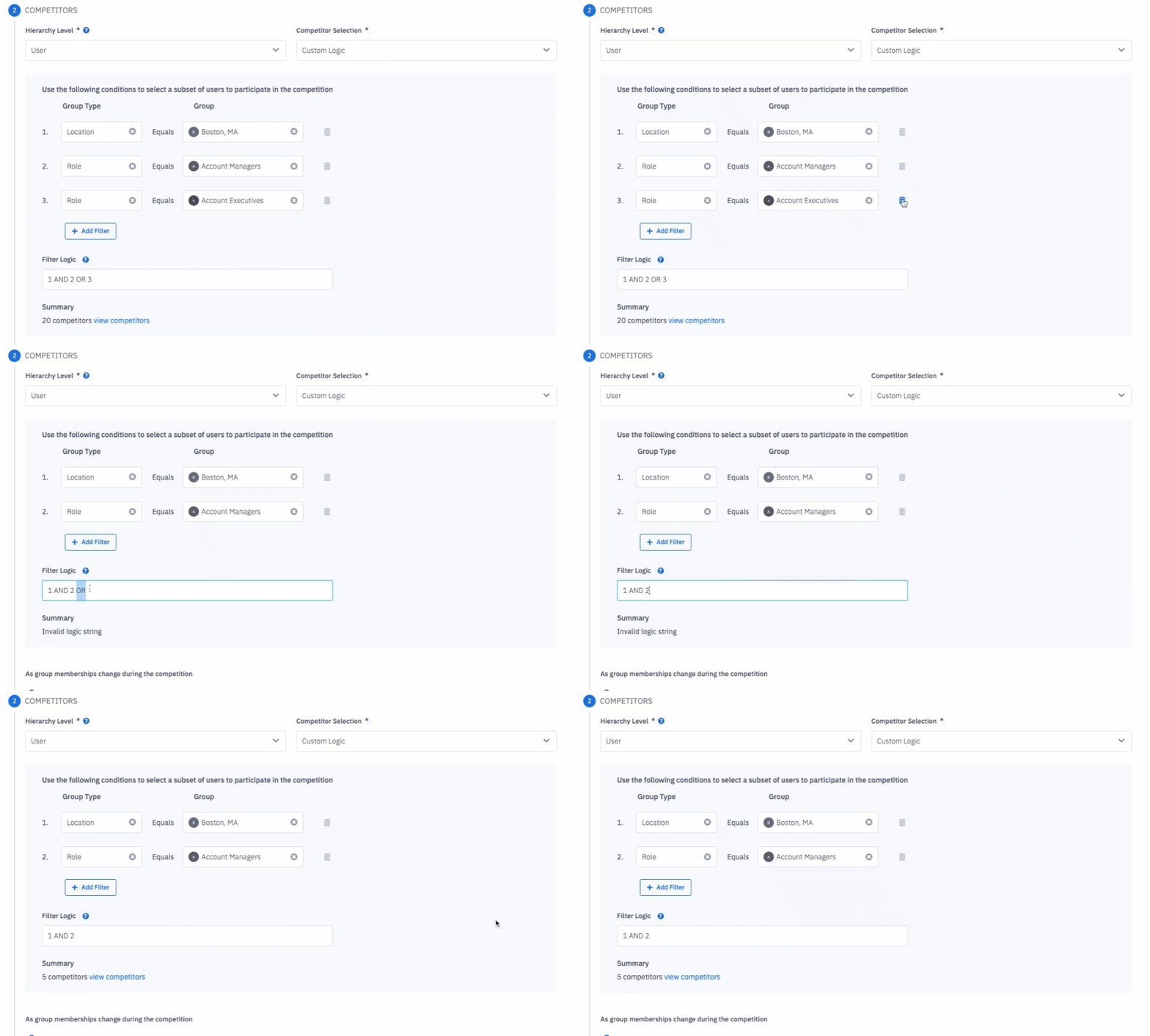
If Custom Filters was selected as the Competitor Selection, add or remove filters as needed and update the Filter Logic statement to add additional competitors to the employee vs employee challenge.
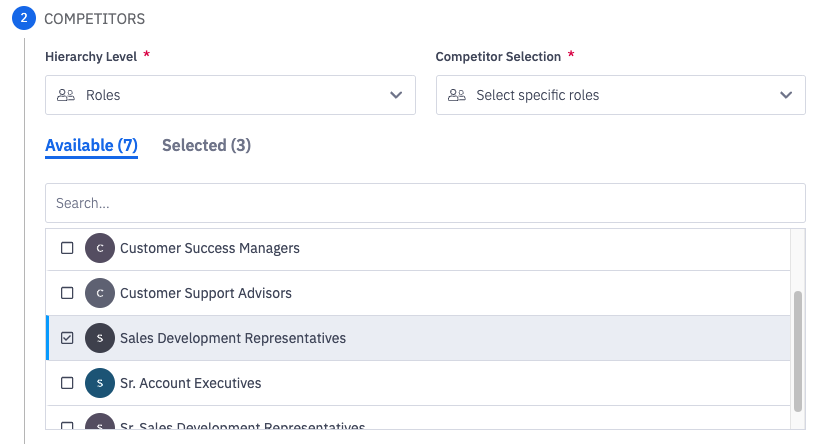
Add Competitors in Group vs Group Challenge
1. Select Available.
2. Search for or scroll through available competitors.
Groups that have already been selected will also show in the Available list but the box next to their name will already be checked.
3. Check the box next to the respective competitors that needed to be added to the challenge.
The example below would add the Sales Development Representatives Role to the challenge.
Remove Competitors User vs User Challenge
1. Select Selected.
2. Search for or scroll through available competitors.
3. Uncheck the box next to the respective competitors that needed to be removed from the challenge.
If Custom Filters was selected as the Competitor Selection, add or remove filters as needed and update the Filter Logic statement to remove competitors from the user vs user challenge.
Remove Competitors in Group vs Group Challenge
1. Select Selected.
2. Search for or scroll through available competitors.
3. Uncheck the box next to the respective competitors that needed to be removed from the challenge.
If a group is actively participating in a challenge, what happens if new users are added to the group?
If the hierarchy level of a challenge is a Group Type (Role, Team, Location, etc), users that are moved into competing groups will automatically become participants in existing challenges. Data for new group members will contribute to the group's score based on the member since date.
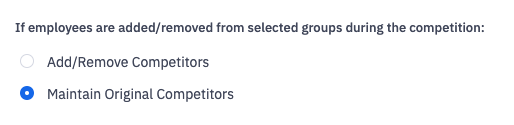
If the hierarchy level of a challenge is "Employees > within a specific group" or "select employees based on custom filters", you will be given the option to include or exclude new users who are added to a group after the start of the competition.
If new group members should be added to the competition and any group members who were removed from the group should be removed from the competition, select "Add/Remove Competitors". If you wish to exclude new group members from being added to the competition or prevent removed group members from being removed from the challenge, select "Maintain Original Competitors".

Scoring
Note: If a recurring challenge's metrics are edited, past occurrences will not be updated. Scoring changes will only be in effect going forward.
Navigate to Step 3. "Scoring".
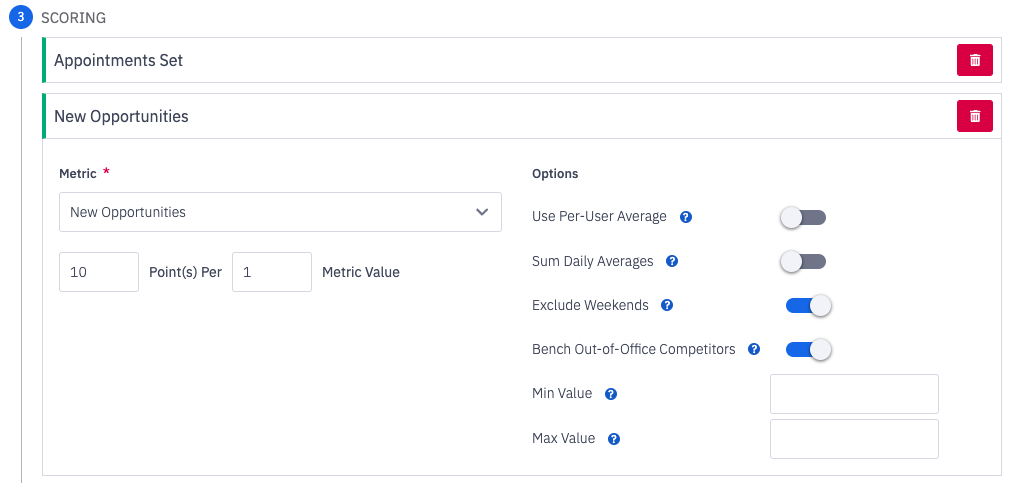
Up to 8 metrics can be included in a challenge's scoring.
Update existing challenge metrics:
Add an additional metric to the competition by clicking the Add Metric button.
Edit existing metrics by updating/altering the points value or scoring option toggles.
Delete an existing metric by clicking the Trash Can icon.
Prizes
Navigate to Step 4. "Prizes".
Add Prizes
Click "Add Prize" or "Add Another Prize" if a prize type has already been added.
Remove Prizes
Click the trash can icon in line with the respective prize.
4. After making necessary edits, click the Update Challenge button to save your changes.