Best Practices - Viewing my team's data in Ambition
Last updated: March 3, 2026
View Data in Ambition
There are many places to natively view data in Ambition without creating anything: spreadsheet (in analytics), leaderboards, and dashboards (scorecards and metrics tab). These different features are all very helpful, but each has a different primary function and are used for different purposes.
While a leaderboard may be the fastest way to see who has the most calls today, analytics would be the best place to compare many employees or teams across multiple metrics.
View a Single Metric for All Employees on My Team
Leaderboard
Best for viewing large groups of employees against only one metric. Either in stock timeframes or custom, ranked from highest to lowest.
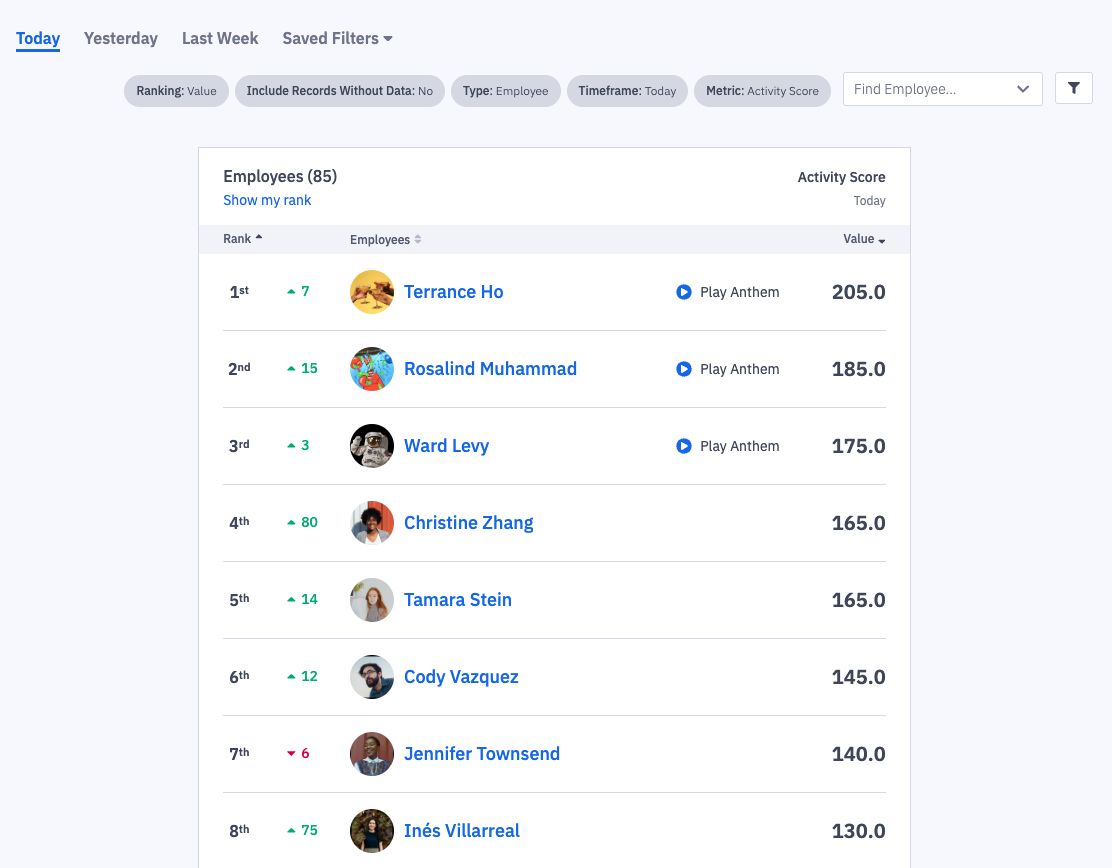
The timeframe selections for the leaderboard work with the calendar. Selecting “This Week” will display data from Monday-Sunday of the current week.
Regardless of when you choose this timeframe, it will show you the most current Monday-Sunday set of data.
The same behavior occurs when selecting This Month, This Quarter, etc.
Example if it is September and you select "Last Month", August data will display.
Learn about creating Saved Leaderboard Filters here.
If you wish to view a Percent-to-Target Leaderboard, learn more here.
View Multiple Metrics For a Single User on My Team
Metrics Tab on User Dashboards
Best for viewing any individual's contribution to any metric they have data for, even if those metrics do not fully apply to their day-to-day work.
The metrics tab is a complete count and list of all data for that user, and can be viewed across preset timeframes.
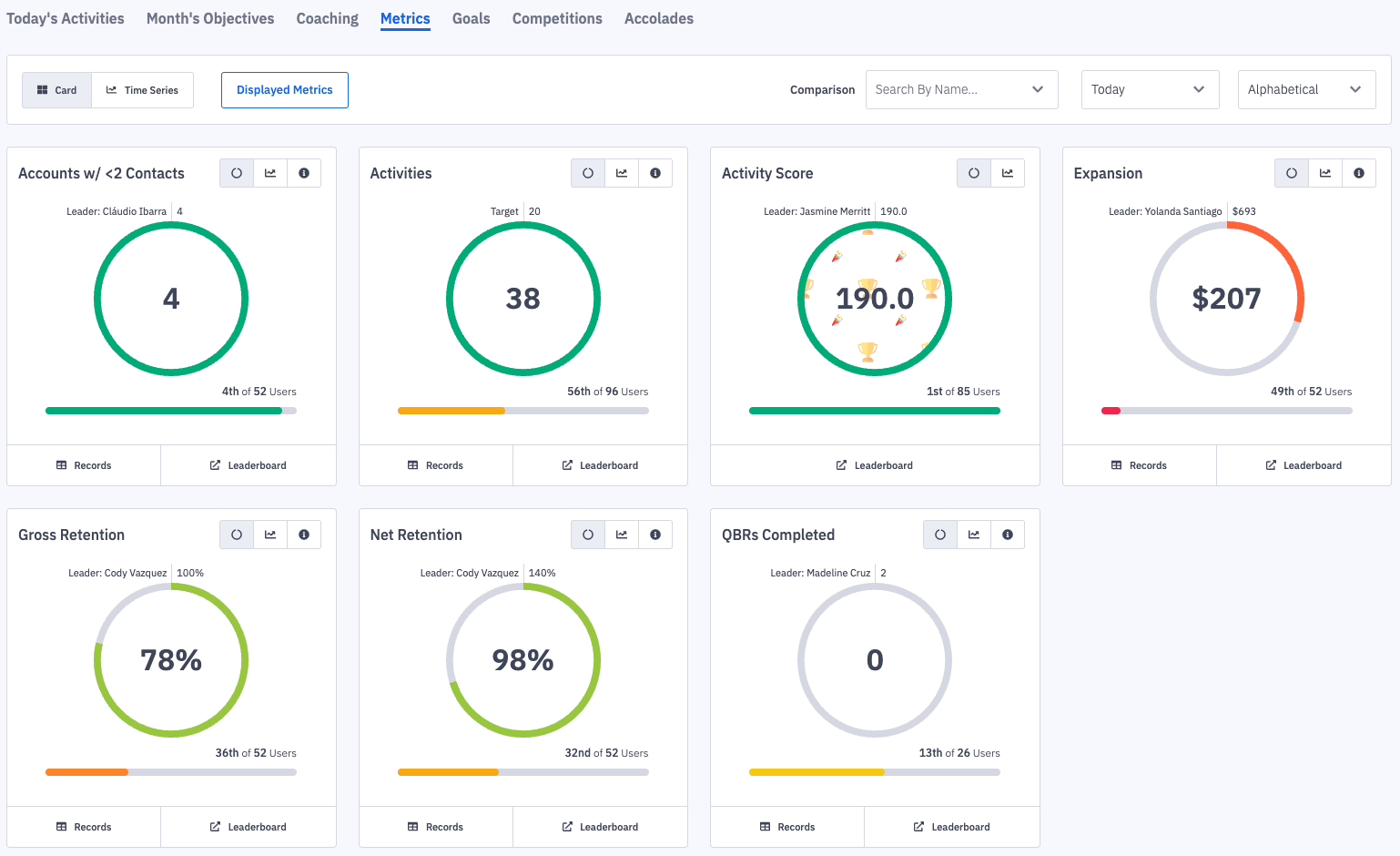
The timeframe selections for the metric’s tab work with the calendar. Selecting “This Week” will display data from Monday-Sunday of the current week.
Regardless of when you choose this timeframe, it will show you the most current Monday-Sunday set of data.
The same behavior occurs when selecting This Month, This Quarter, etc.
Example if it is September and you select "Last Month", August data will display.
Learn more about the Metrics Tab and how to use the Trend function here.
View Multiple Metrics for All Employees on My Team
Analytics - Spreadsheet
Best for checking large groups of employees across several metrics in spreadsheet form, or across custom timeframes.
Learn more about accessing and using the spreadsheet here.
View Metric Attainment Towards Defined Targets for Groups of Employees
Scorecard
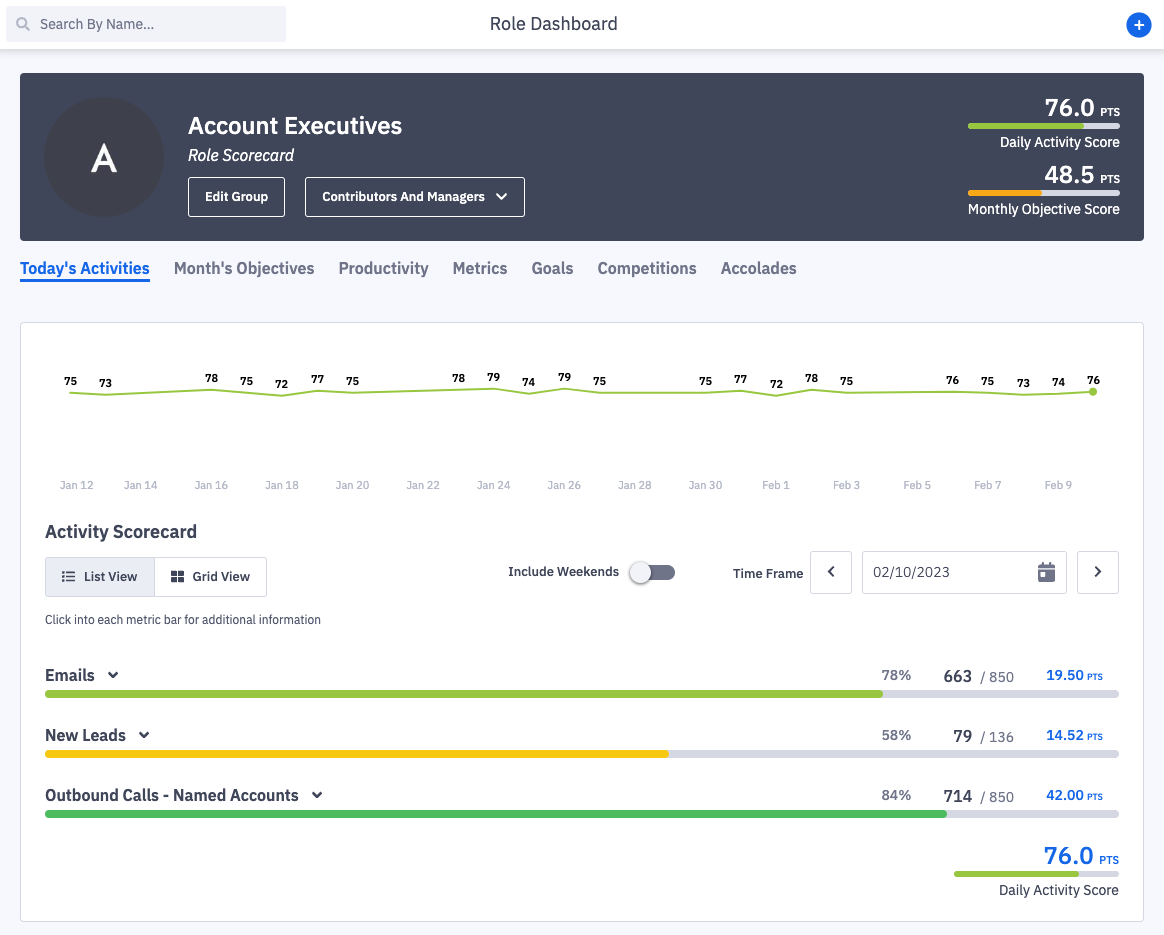
Best for viewing specific metrics up with attainment and targets for groups of employees, with each metric weighted for importance.
Scorecards are most commonly setup by the administrators of Ambition for your organization, and they create employee-level transparency and accountability around process.
By focusing on specific metrics and setting explicit targets, scorecards help define daily, weekly, monthly expectations for employees.
Data Visibility Q&As
Where do I go to see how well my team is doing today?
↳ Viewing your managerial dashboard will show your whole team’s performance for the day. Alternatively, any employee's dashboard will show that individual’s contribution for the day.
Where do I go to see who has the most calls this week?
↳ The leaderboard will show the rankings based on one metric. Navigating there and selecting “Calls” for “This Week” will give you the exact data you are looking for!
Where do I go to compare team numbers of revenue?
↳ You can either view and compare teams on the leaderboard or in the spreadsheet view of analytics.
Where do I go to see all of my contributions in one place?
↳ The metrics tab of any employee dashboard and/or team dashboard will show all contributions to any metric in Ambition.
Where do I go to see data for multiple metrics for multiple employees?
↳ The spreadsheet is the best place to view data for multiple employees or teams across multiple metrics!